SM482PLUS_Admin(Eng_Ver2.8).pdf - 第500页
15-46 Multi-Functional Placer SM482( L) PLUS Administrator’s Guide <Use Pickup Offset Sync> Check Box When you modify the variable value of the part, the m odified variable value of the part will be automatically…
15-45
System Setup
<Z axis> option button: If this button is selected, when the movement command is
transferred to the equipment, displays the confirm message box if the command is
for Z-axis movement.
<XY, Z axis> option button: If this button is selected, when the movement
command is transmitted to the equipment, displays the confirm message box if the
command is for XY, and Z axes movement.
<Use 2D Barcode> check box
In order to set the 2D barcode parameter of the PCB, select this check box.
<2D Barcode Length> Edit Box
Sets the number of characters for the 2D barcode parameter of the PCB.
<Use OLP DB> check box
Selected when synchronize the part DB of each machine in the inline composed of
several machines.
Selecting this check box will allow the part DB to be shared between machines by
transmitting the part DB of the current machine to the T-OLP of the T-Solution.
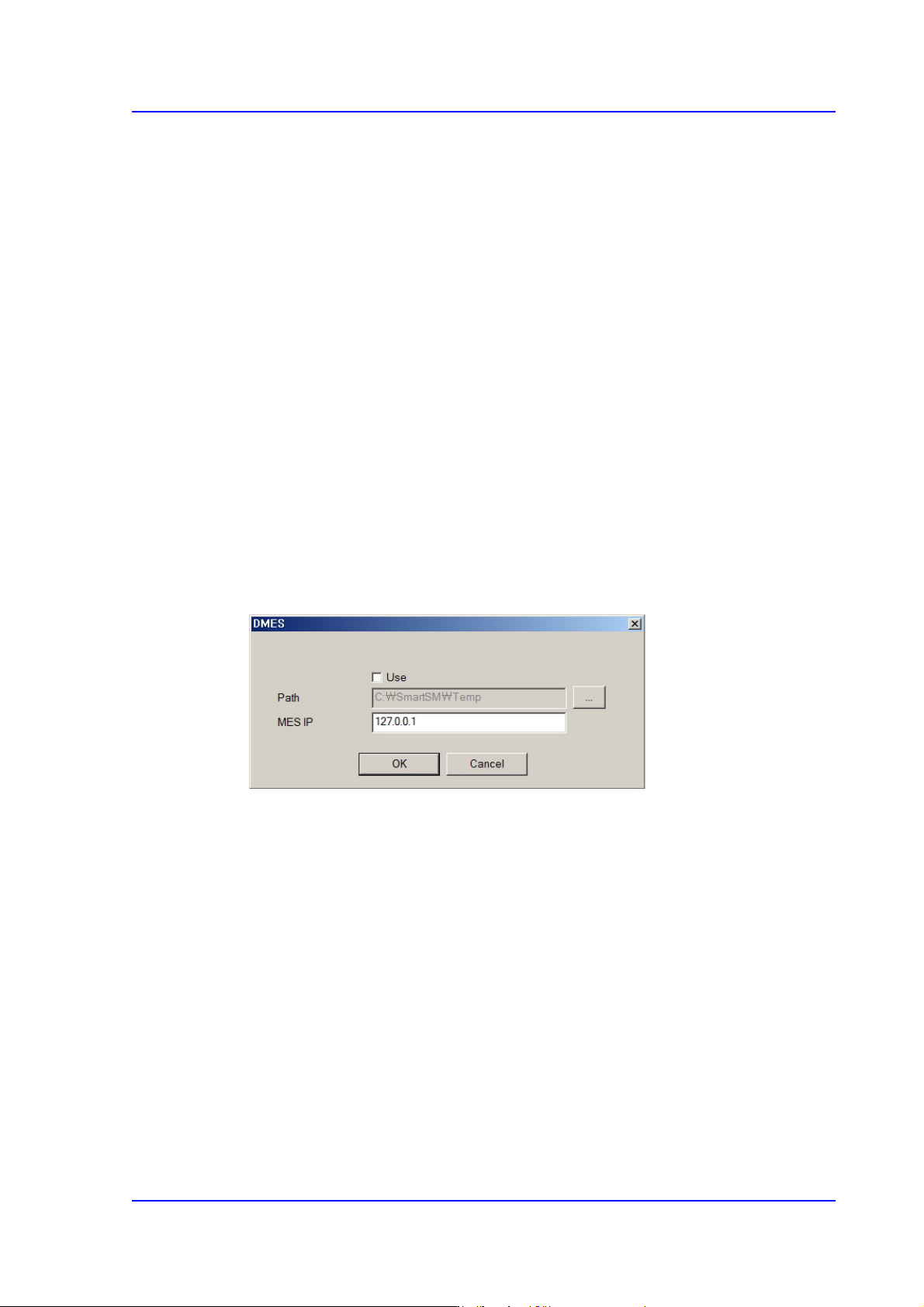
< Use DMES> check box
Sets the IP for communication with the MES host.
<Show Backup Pin> check box
When using the function for sequential changing in the T-Solution, select this check
box to enable the backup pin dialog box.
<Use External Barcode JobChange> Check Box
You can automatically download the corresponding PCB program by scanning the
barcode of the reel list printed by T-Solution with a scanner (not a part of the
equipment).
<External Barcode Scan wait time(sec)> Edit Box
Sets the time required to read the barcode in seconds when reading the barcode with a
scanner (not a part of the equipment).
<Use Work Table> Check Box
Sets whether to use the work table when reading the barcode with a scanner (not a part
of the equipment).
15-46
Multi-Functional Placer SM482(L) PLUS Administrator’s Guide
<Use Pickup Offset Sync> Check Box
When you modify the variable value of the part, the modified variable value of the part
will be automatically saved to the UPD.
<Use Multi-Vendor> check box
Refers to the function used to produce PCBs by using parts made by several
manufacturers for a part.
If a PCB program is created by registering a sub part for one part for one part in the
TOLP of the T-Solution, allows the work to be performed by using sub parts when
placing a part on the PCB with this check box being selected.
<Use NewPartEditor> check box
Selecting this check box will execute the NPE (New Part Editor) while editing a part.
<Use Coaxial Light Sync> Check Box
Sets whether to use the coaxial light synchronization function.
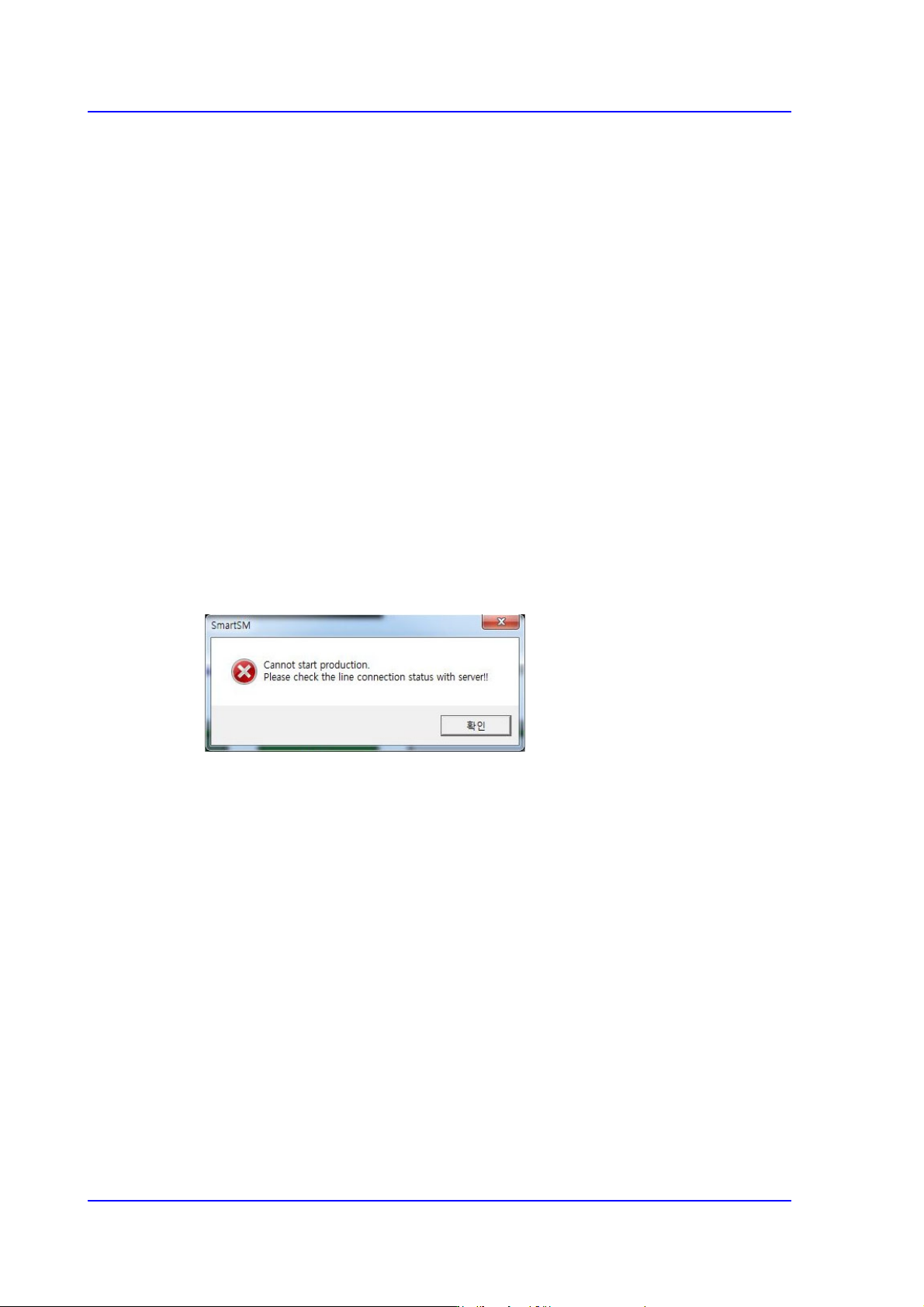
<PNP Connection Check> check box
Checks whether the machine and PNP are connected before starting production.
Starting production with the machine not connected to the PNP will display an error
message.
<PNP Barcode Interlock> Check Box
If this check box is selected, production will begin after determining the validity of the
PCB before production. This is a function that makes the equipment produce only the
permitted PCBs by transmitting the 2D barcode information to PNP - MES after the
2D barcode on the top surface of the PCB has been read before production when the
board has been fed to the equipment.
However, this function is only supported for the equipment loaded with the MES and
installed with the PNP from Hanwha.
<Use Auto Error Report> Button
Used to back up the MMI file manually when the user shuts the machine down. The
user can back up the MMI file manually only when the machine is in an idle state.
<Use iTAC> Button
Sets whether to use the iTAC program, which is a part of the external MES system.
<Use Calibration Guide> Button
If this check box is selected, the equipment notifies the user whether the equipment is

15-47
System Setup
in an appropriate state to proceed with calibration. Displays a warning message if the
user accesses the calibration menu less than 90 minutes after equipment bootup.
<Use File Backup> Button
If this check box is selected, the equipment saves the settings and other relevant files
including the system files of the equipment when the equipment is being shut down.
The files will be saved in a compressed format at the location designated by the user.
<Ignore Restriction Pitch> Button
If this check box is selected, the validation check for the pitch that varies depending on
the size of the part will not be performed during cycle check. Select this option if the
parts are being fed at a pitch different from the default pitch registered with the system
depending on the size of the parts being fed.
<Use Place Recovery> Button
If this check box is selected, a screen is displayed for the user to be able to place the
part again at the applicable location if the part is determined to have been misplaced
during production. However, this option configures the equipment to continue
production if the part has actually been placed correctly but determined to have been
misplaced by the equipment.
<Auto Apply Pick Up Height> Button
If this option is selected, the equipment uses part data to automatically set the pick up
height for the part. Automatically enters the sum of the part thickness and Z-position
of the tape feeder when a part is picked up by the tape feeder.
Use: Automatically enters the automatically applied pick up height (Z-value) of
the part in the feeder window and the part is actually picked up based on the value
entered.
Use (No display): Does not automatically enter the automatically applied pick up
height (Z-value) of the part in the feeder window but the part is actually picked up
based on the value entered.
<Use RESCUING> Button
If this check box is selected, <Enable RESCUING> check box in the <Option Setting>
group under the <Product> menu is enabled. For details on this function, refer to
“12.1.2. Option Setting”.
<Update> button
Transmits the change data to the equipment and closes the dialog box.