SM482PLUS_Admin(Eng_Ver2.8).pdf - 第409页
14-37 Machine Calibration Conveyor Calibration method is as follows. 1. “Click the <Home All> button in the “Conveyor Calibration” d ialog box. 2. Select <StationF2> in the <Station> comb o box to enabl…
14-36
Multi-Functional Placer SM482(L) PLUS Administrator’s Guide
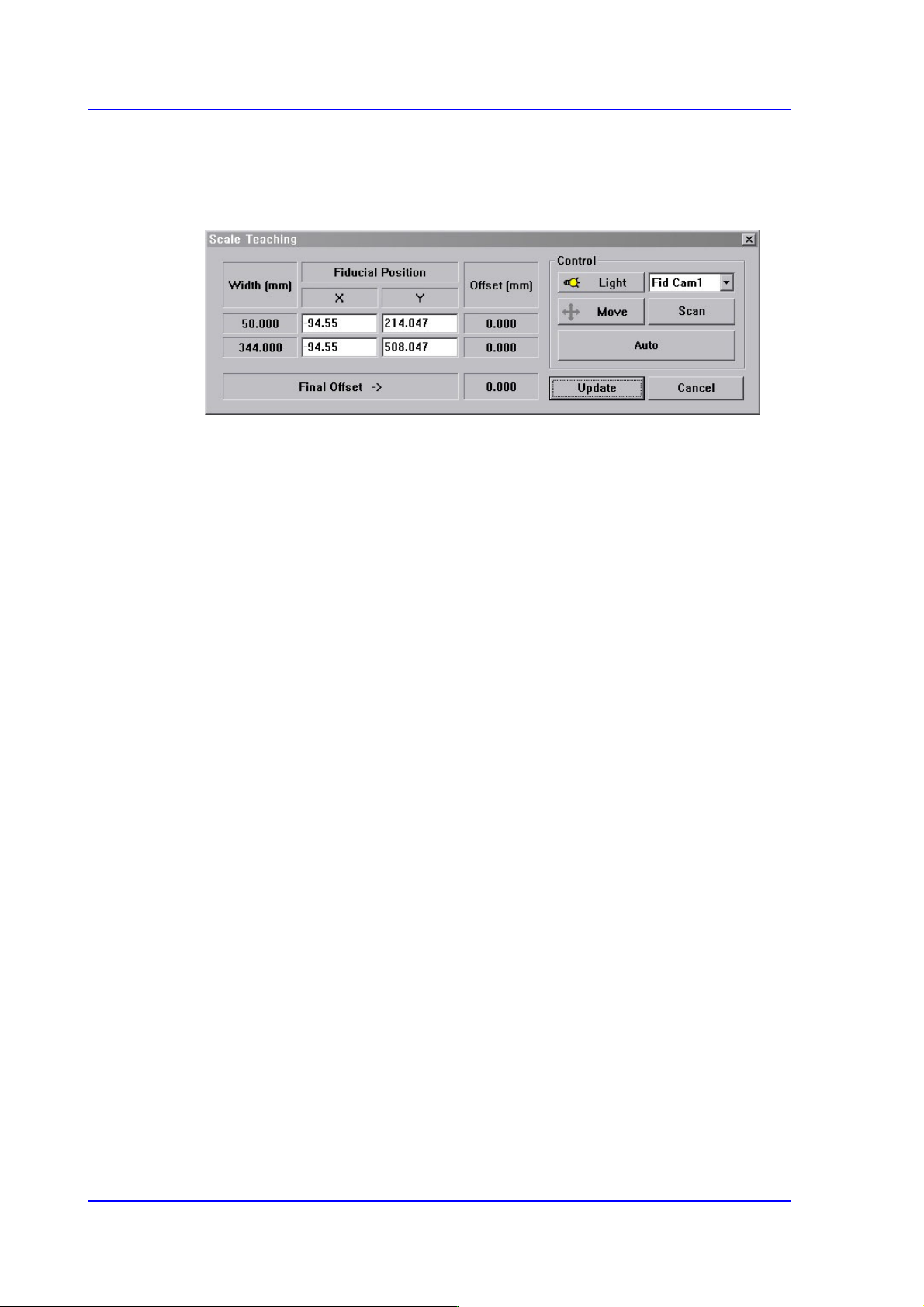
<Scale Teach...> button
Teaches the Y offset of the conveyor fiducial mark.
Figure14.11 “Scale Teach” dialog box
<Width (mm)> group
Displays the conveyor width provided by default for calibration.
<Fiducial Position> group
Displays the XY coordinates of the conveyor fiducial mark set by the MMI.
<Offset (mm)> group
Displays the Y value of the conveyor fiducial machine measured by the actual
machine as well as the offset of the Y value set by the MMI.
<Final Offset ->> group
A: Y offset when the conveyor width is 50mm
B: Y offset when the conveyor width is 344mm
Final Offset = B-A
<Move> Button
Moves the fiducial camera to the conveyor position selected from the <Fiducial
Position> group.
<Scan> Button
Scans the fiducial mark of the conveyor selected from the <Fiducial Position>
group and displays the Y offset in the <Offset (mm)> group.
<Auto> Button
Executes the Y offset teaching process of the conveyor fiducial mark
automatically.
<Light> Button
Sets the lighting value. Adjust the corresponding slide bar to set the lighting value.
<Update> Button
Applies changed values and closes the dialog box.
14-37
Machine Calibration
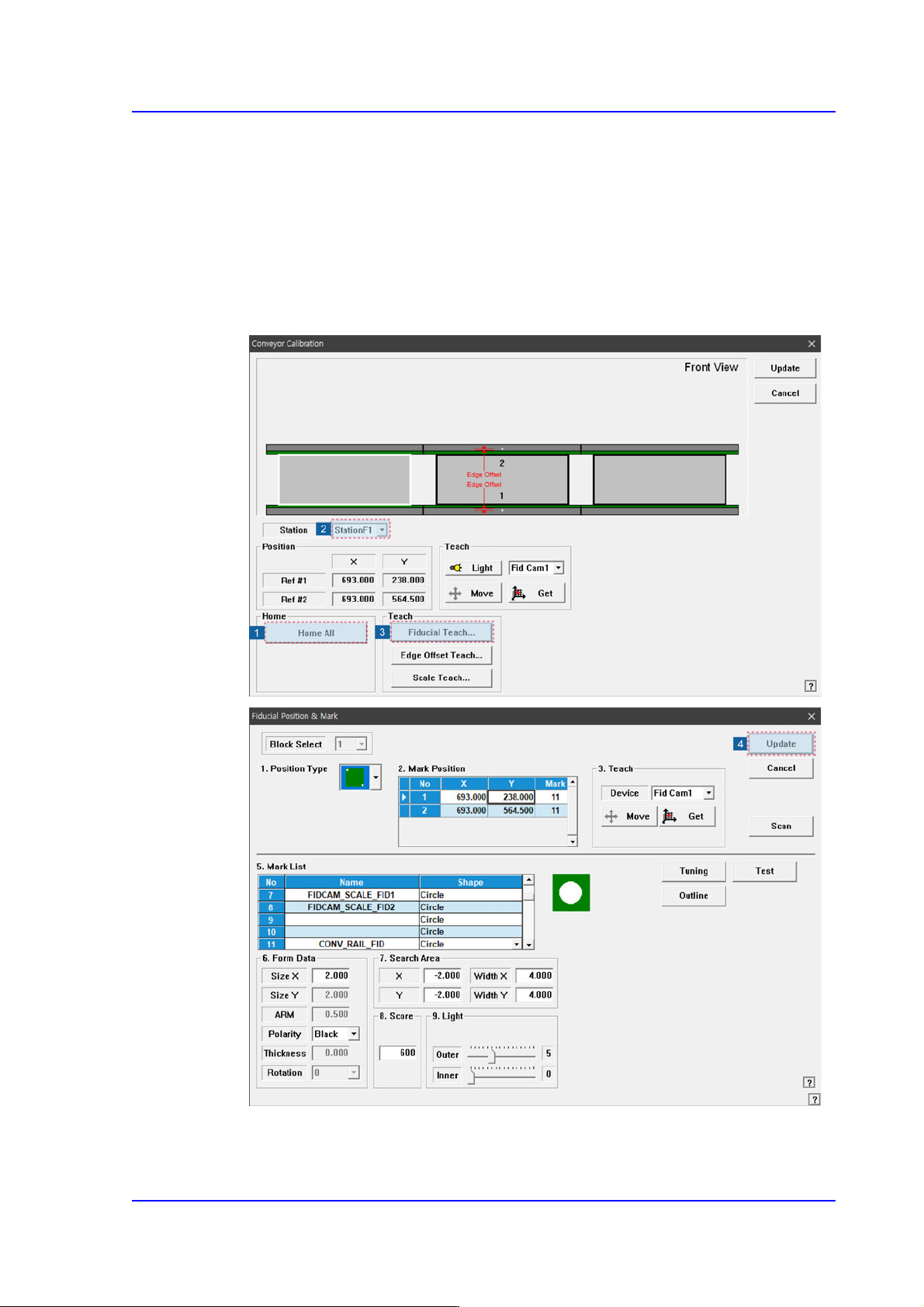
Conveyor Calibration method is as follows.
1. “Click the <Home All> button in the “Conveyor Calibration” dialog box.
2. Select <StationF2> in the <Station> combo box to enable <Fiducial Teach...> and
<Edge Offset Teach...>.
3. Click the <Fiducial Teach…> button to teach the fiducial marks of the selected station
accurately and click the <Tuning> button to scan the position accurately.
4. Click the <Update> button to update the information on the fiducial mark position.
14-38
Multi-Functional Placer SM482(L) PLUS Administrator’s Guide
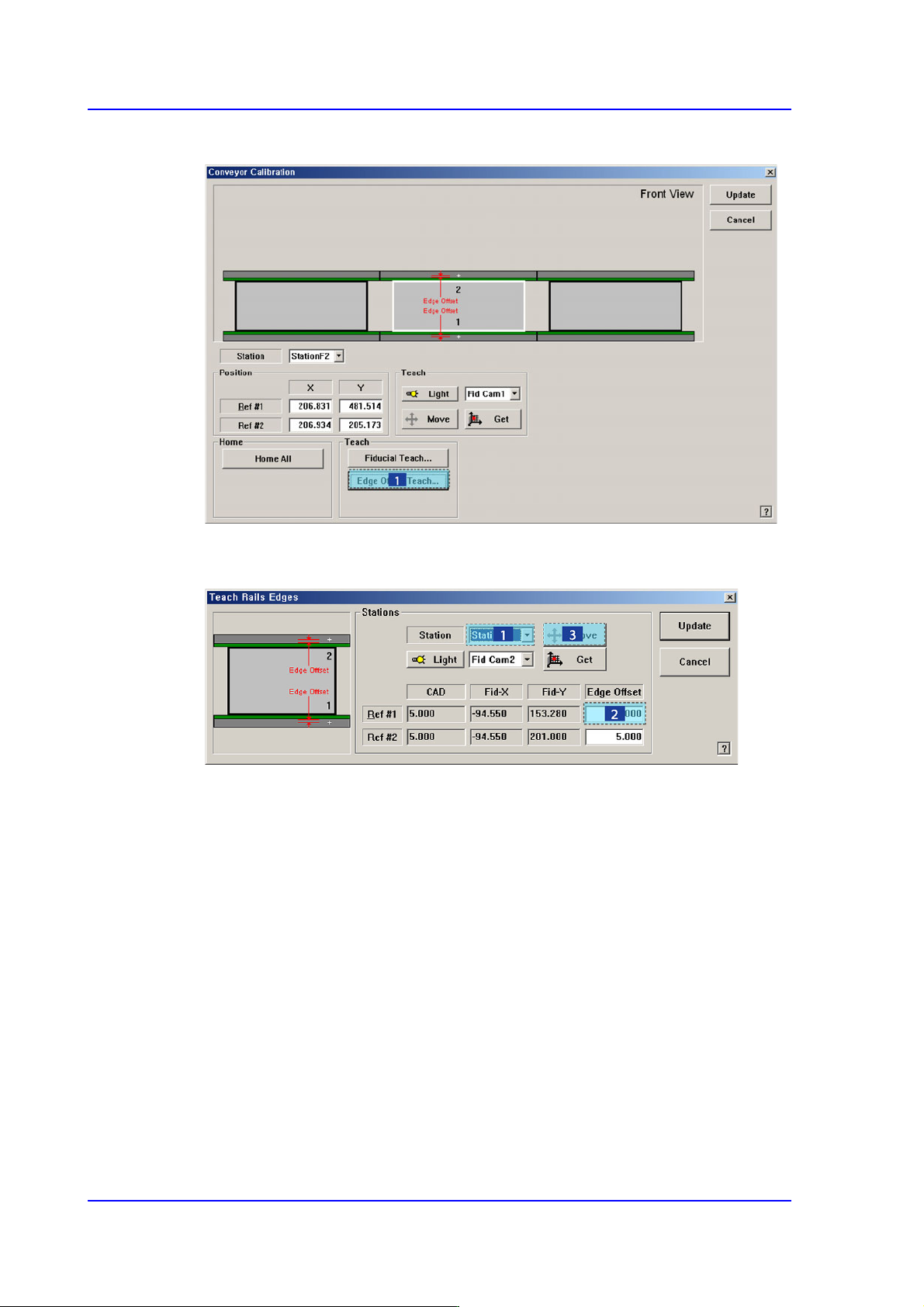
5. Click the <Edge Offset Teach…> button
6. Select the <Edge Offset> edit box corresponding to the “Ref. #1” and click the <Move
Cam> button.