SM482PLUS_Admin(Eng_Ver2.8).pdf - 第450页
14-78 Multi-Functional Placer SM482( L) PLUS Administrator’s Guide 10. .If the calibration proc edure is completed fo r all heads normal ly , th e result is displayed as shown in the following figu re. 1 1. The measureme…
14-77
Machine Calibration
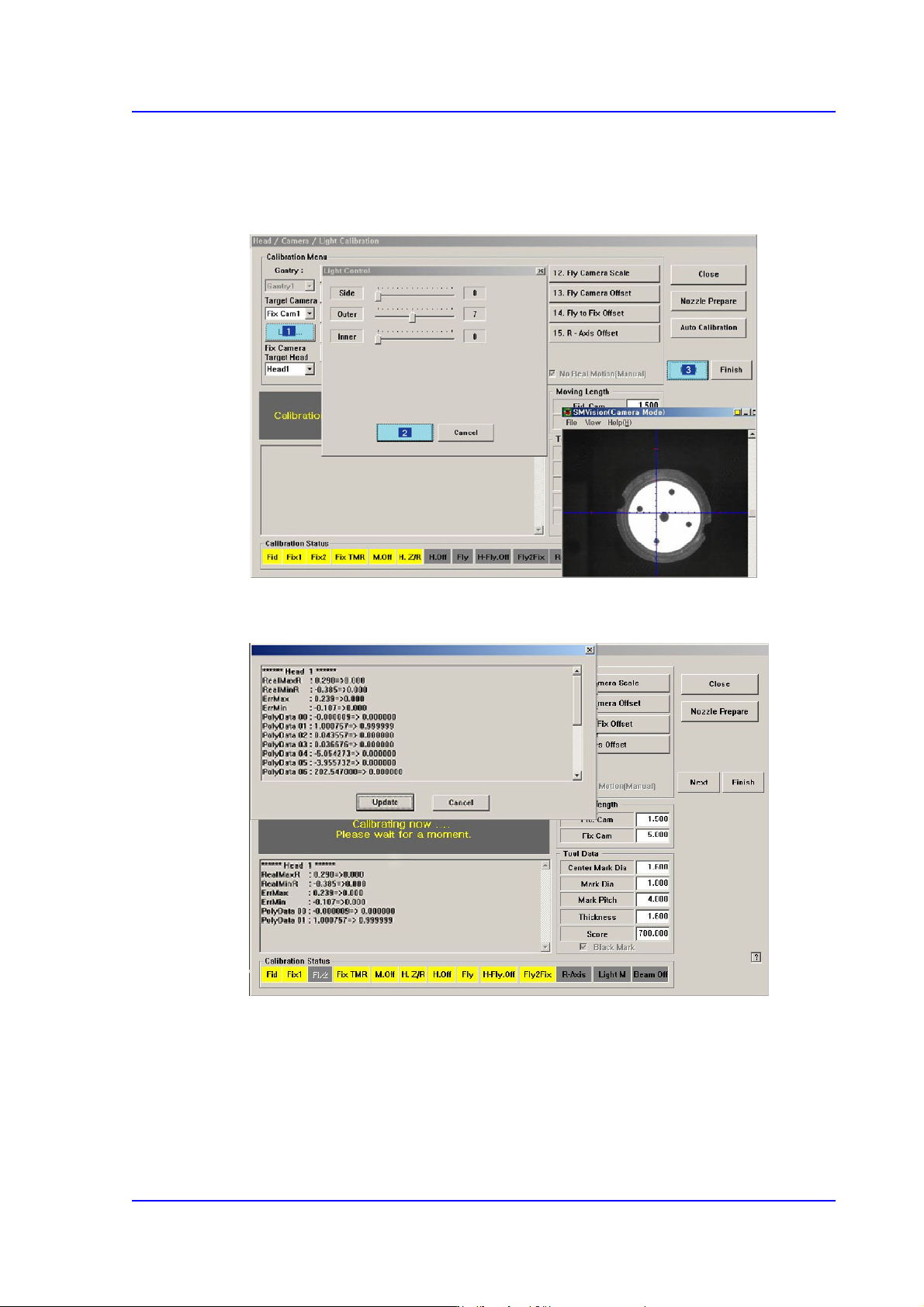
time, At this time select the ‘Fly Cam1‘ in the <Target Camera> combo box and click
the <Light…> button and adjust the brightness of the light in the ‘Light Control’
dialog box so that the fiducial mark on the CNT20 nozzle that is seen in the
‘SMVision’ window can be seen clearly. Then click the <Next> button.
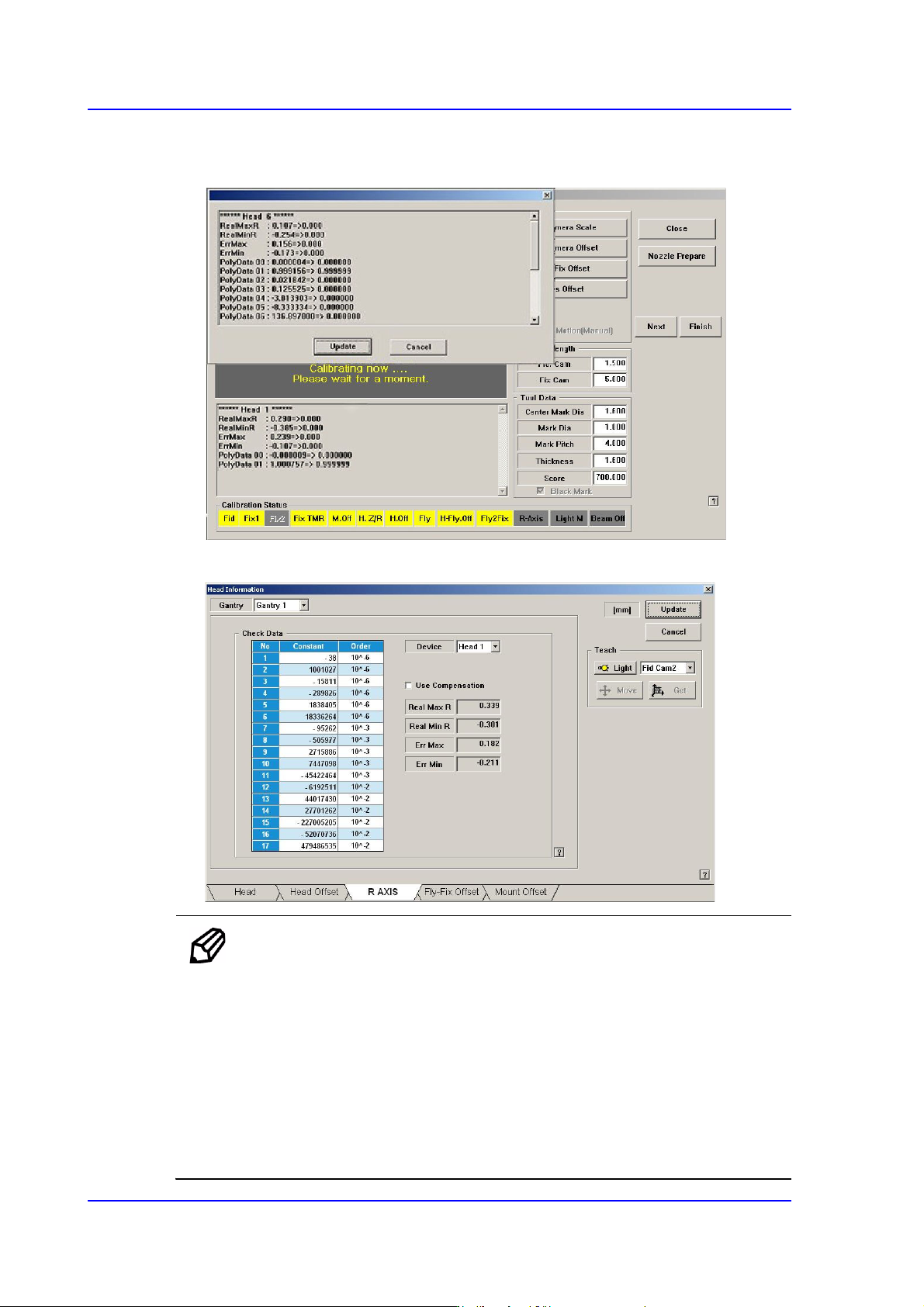
8. The calibration is performed automatically. If it is completed, the calibration result is
displayed as shown in the following figure.
9. .For Head #2 ~ Head #6, perform calibration in the same manner as it was performed
for Head #1.
14-78
Multi-Functional Placer SM482(L) PLUS Administrator’s Guide
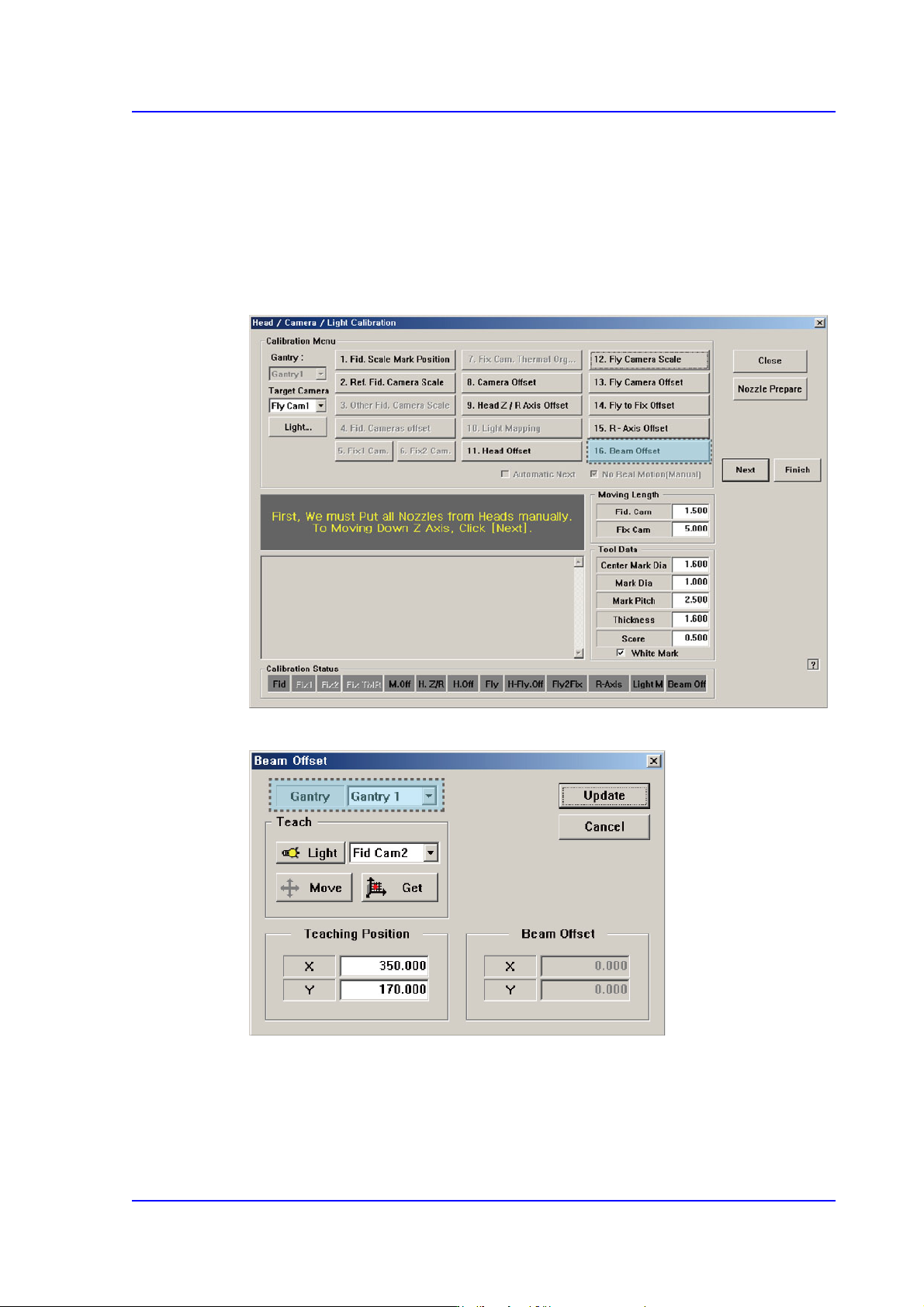
10. .If the calibration procedure is completed for all heads normally, the result is displayed
as shown in the following figure.
11. The measurement result can be confirmed in the R Axis dialog box.
Memo The reference values for the calibration of the R-Axis Offset is as
follows.
Real Max(Min): The Max.(Min.) offset between command value
and calibration value
Head1~Head6 : -0.500 ~ 0.500(deg)
Err Max(Min) The Max.(Min.) offset between compensation
value and calibration value
Head1~Head6 : -0.200 ~ 0.200(deg)
14-79
Machine Calibration
14.3.7.11. Beam Offset Calibration
Refers to the calibration measuring the distance between the fiducial camera sensor and
beam sensor. In order to measure the beam offset, the beam sensor to be used in the
<Head> tab of the System menu must be selected first.
Perform calibration of the Beam Offset in the following manner
1. Press the <16. Beam Offset> button to execute the beam offset dialog box.
2. Select the gantry to be calibrated.
3. After selecting the Fid Cam2 (or Fid Cam4) as a teaching camera, move the X-Y axes
to the area (a point that can be distinguished by SMVision) which can be recognized
using the jog box.
4. Press the <Get> button to save the current position in the <Teaching Position>.