SM482PLUS_Admin(Eng_Ver2.8).pdf - 第303页
9-15 Step Programming When all the unregistered part informatio n is registered, they are displayed as follows. <Export…> button Converts the step data created by this mach ine into other format (SSA Format) AS…
9-14
Multi-Functional Placer SM482(L) PLUS Administrator’s Guide
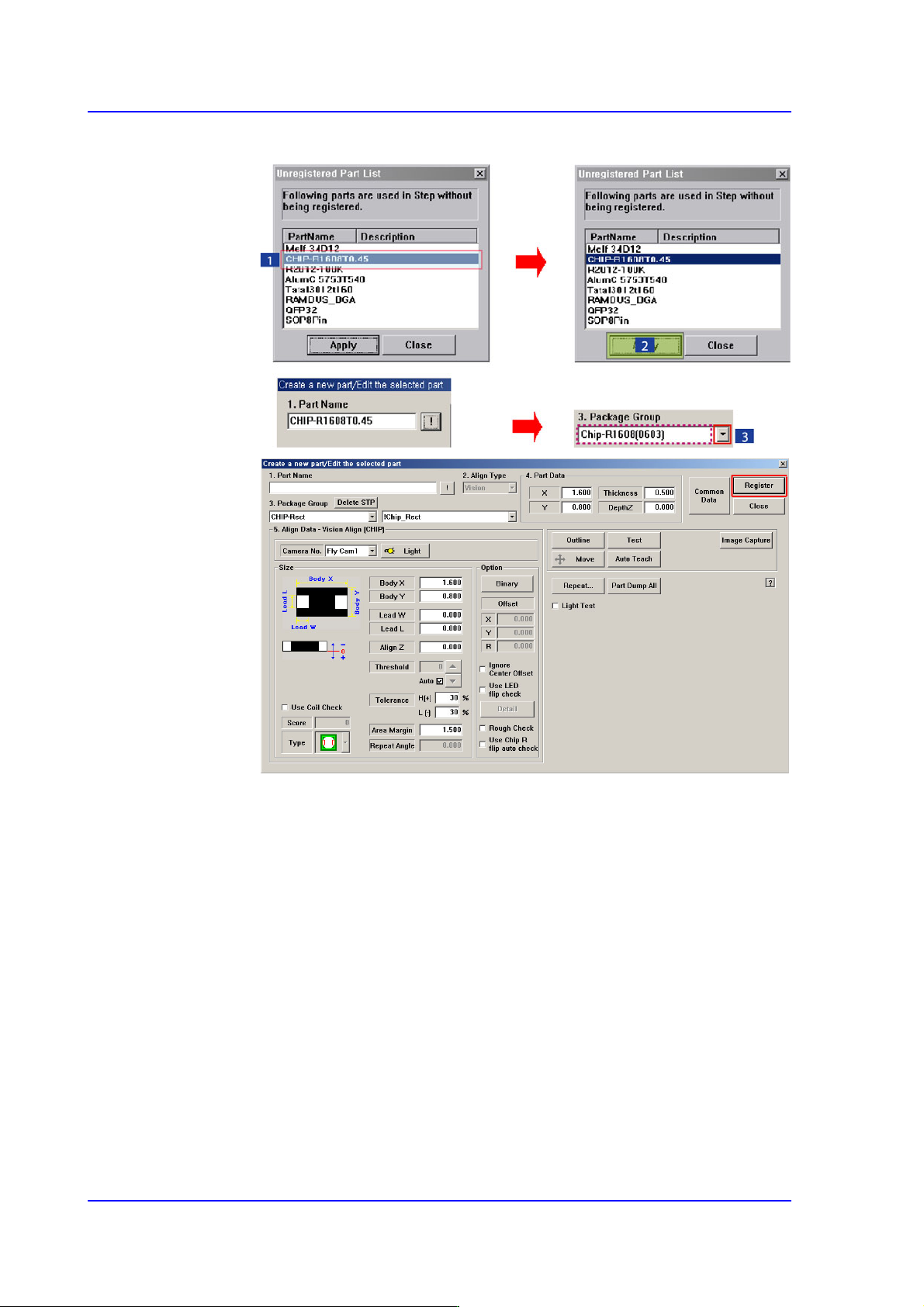
Click the <Register> button to register the component to the PCB Part List.
9-15
Step Programming
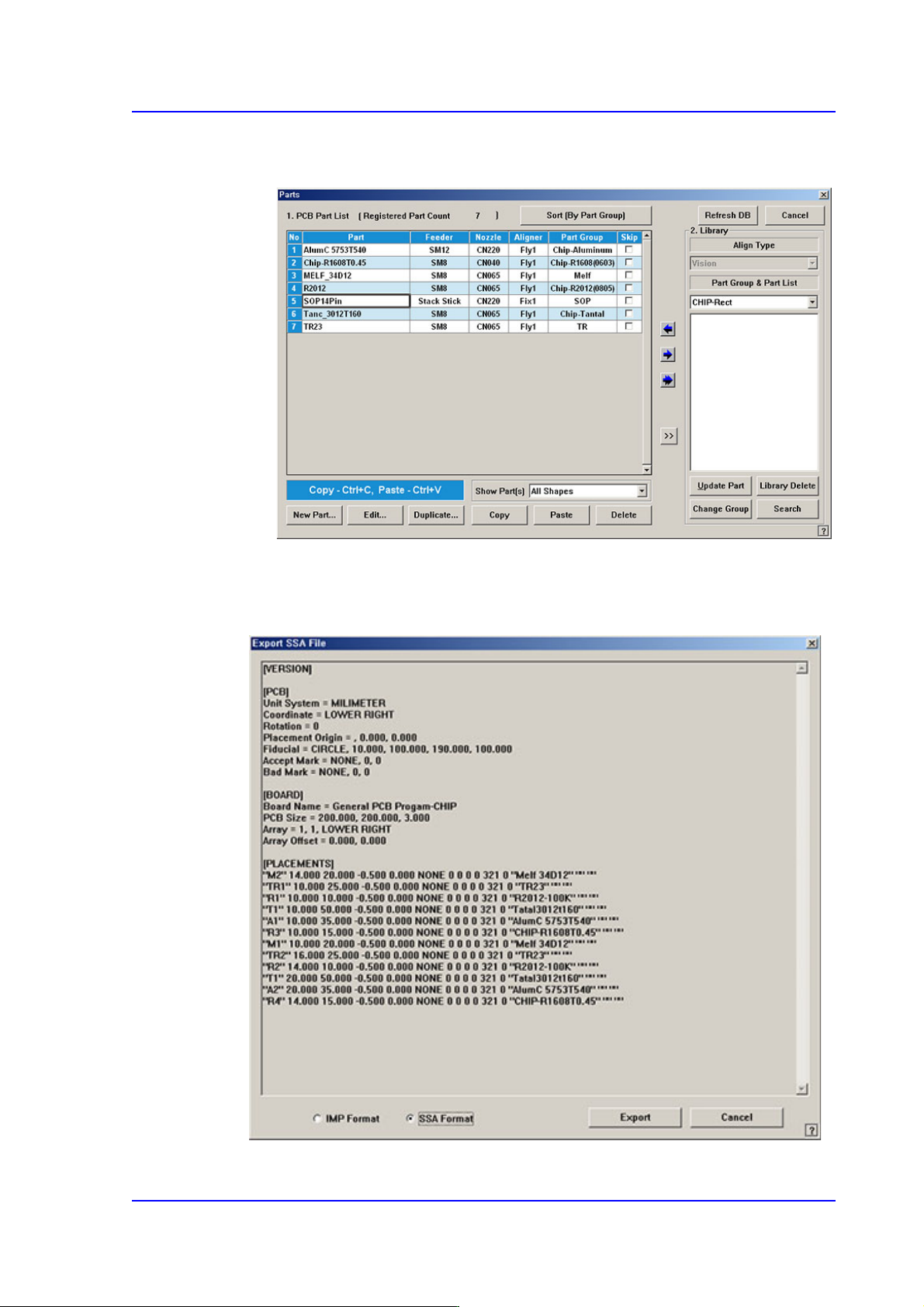
When all the unregistered part information is registered, they are displayed as
follows.
<Export…> button
Converts the step data created by this machine into other format (SSA Format) ASCII
File. When this button is clicked on, the following dialog box is displayed.
9-16
Multi-Functional Placer SM482(L) PLUS Administrator’s Guide
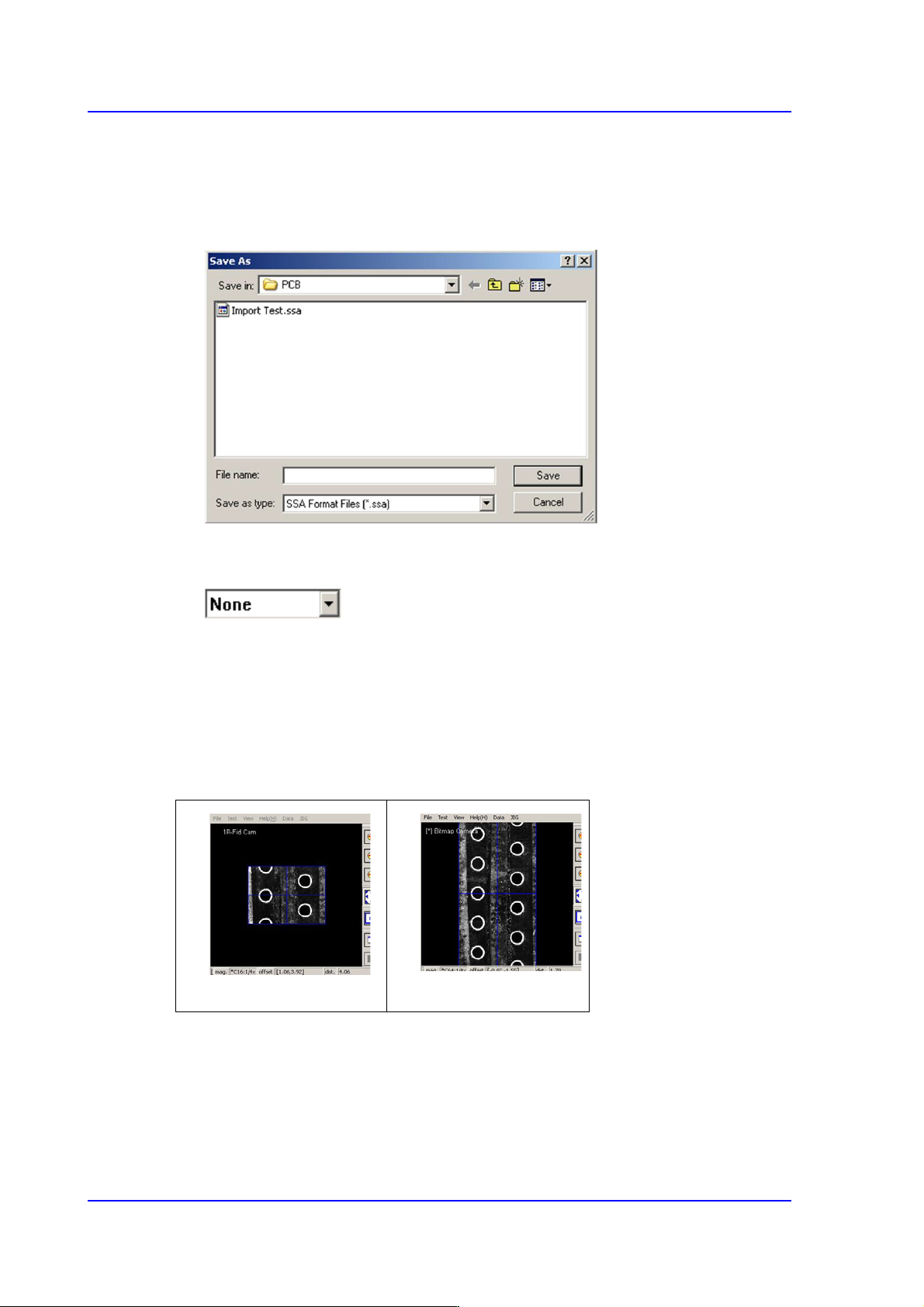
Select the format to be converted and press the <Export> button. The formats that can
be selected are as follows:
IMP Format: Converts the file to the file in IMP format.
SSA Format: Converts the file to the file in SSA format.
When the <Save> button is clicked on after the ASCII File name has been set,
converts the step data into SSA format and saves the data under the set file name.
button
<None>
The panorama recognition function of the PCB vision is not used.
<Panorama>
It is possible to display the PCB shape on one vision window by performing split
recognition of the PCB shape and composing the split images into one.
<Cancel> button
Cancels the edited data.
None
Panorama