SM482PLUS_Admin(Eng_Ver2.8).pdf - 第160页
6-42 Multi-Functional Placer SM482( L) PLUS Administrator’s Guide Memo When using L TS fun ction and 1D barcode or u sing no barcode (only using the IT functions), set as follows. When using L TS function(When using no…
6-41
Board Definition
6.6. Barcode Setting
6.6.1. Configuration
Allows a user to know the model information of the PCB loaded into the machine by
recognizing the 2D barcode on the PCB and manage the production history by interlocking
PCB with the Lot Tracking System (LTS).
In addition, it is possible to save production time by transmitting the information from the
board recognized by the first equipment to the next equipment.
Memo To use these functions, you will need to purchase a separate license.
Please contact us for further details.
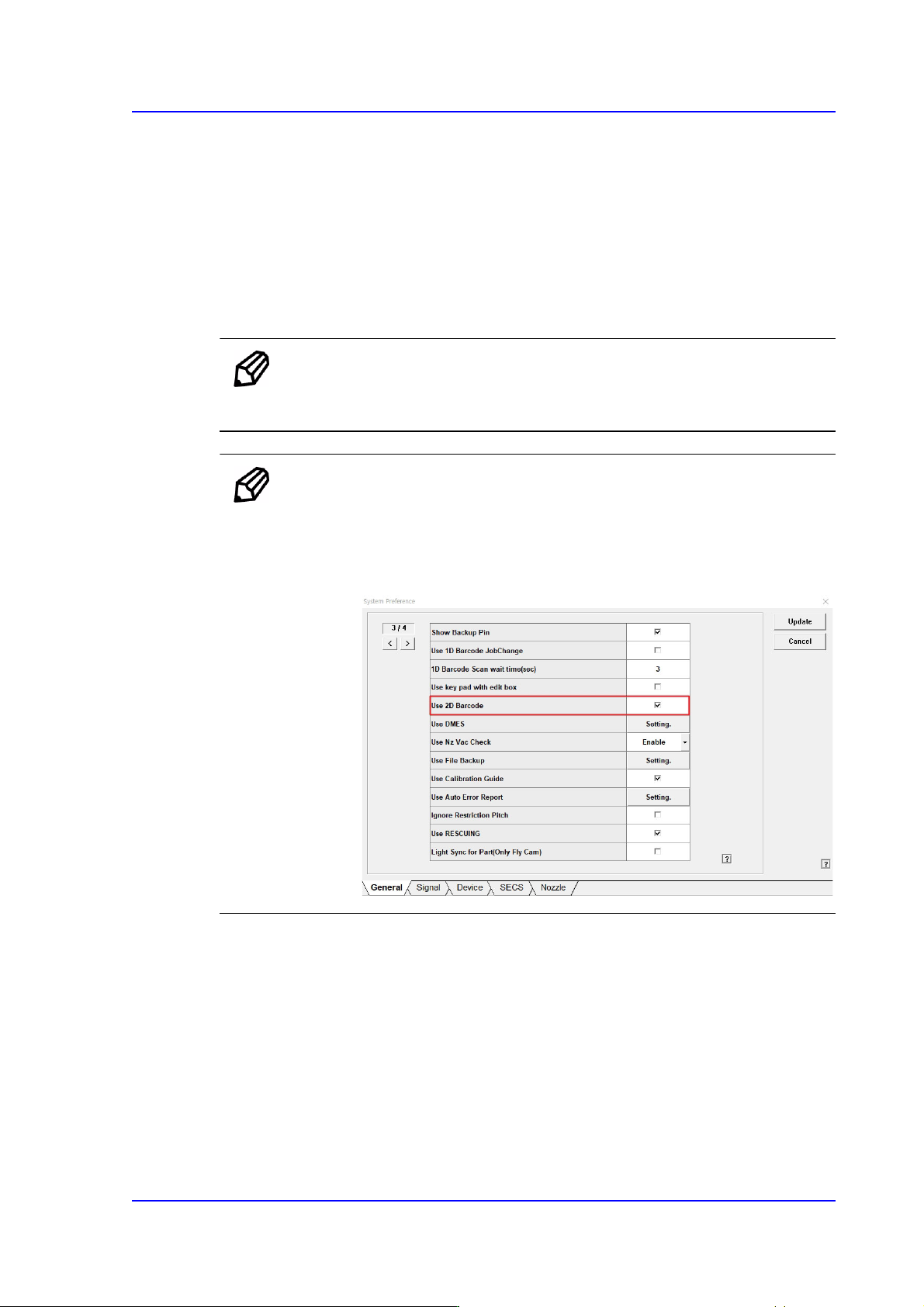
Memo To activate the <Bar Code> menu, check the <Use 2D Barcode>
checkbox in <Sys.Setup>.
Setup path: <Sys.Setup> → <Pref.> → <General> → <Use 2D
Barcode>

6-42
Multi-Functional Placer SM482(L) PLUS Administrator’s Guide
Memo When using LTS function and 1D barcode or using no barcode (only
using the IT functions), set as follows.
When using LTS function(When using no 1D barcode)
In the [Option] item of the “C:\SmartSM\bin\SmartSM.ini” file,
set the IQFEEDER to 0 and the LotTracking to 1.
When using 1D barcode and LTS function
In the [Option] item of the “C:\SmartSM\bin\SmartSM.ini” file,
set the QFEEDER to 1 and the LotTracking to 1.
When using no barcode (only using the IT functions)
In the [Option] item of the “C:\SmartSM\bin\SmartSM.ini” file,
set the IQFEEDER to 1 and the LotTracking to 0.
Run “SmartSM.exe” after completing modifications to the
configuration file.
6-43
Board Definition
6.6.2. Barcode Position
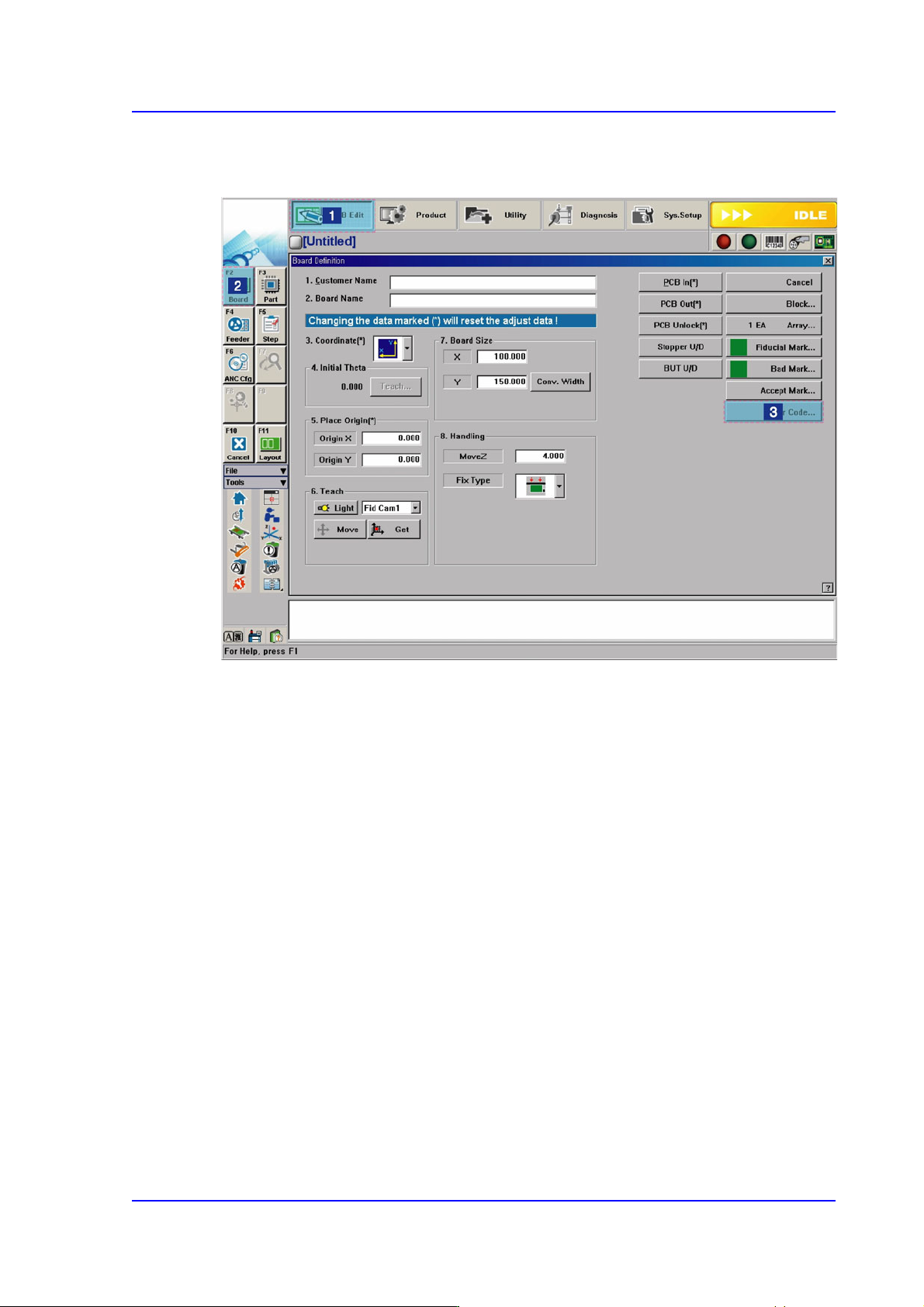
Figure6.9 Order of ‘Barcode Position’ Dialog Box Execution