SM482PLUS_Admin(Eng_Ver2.8).pdf - 第318页
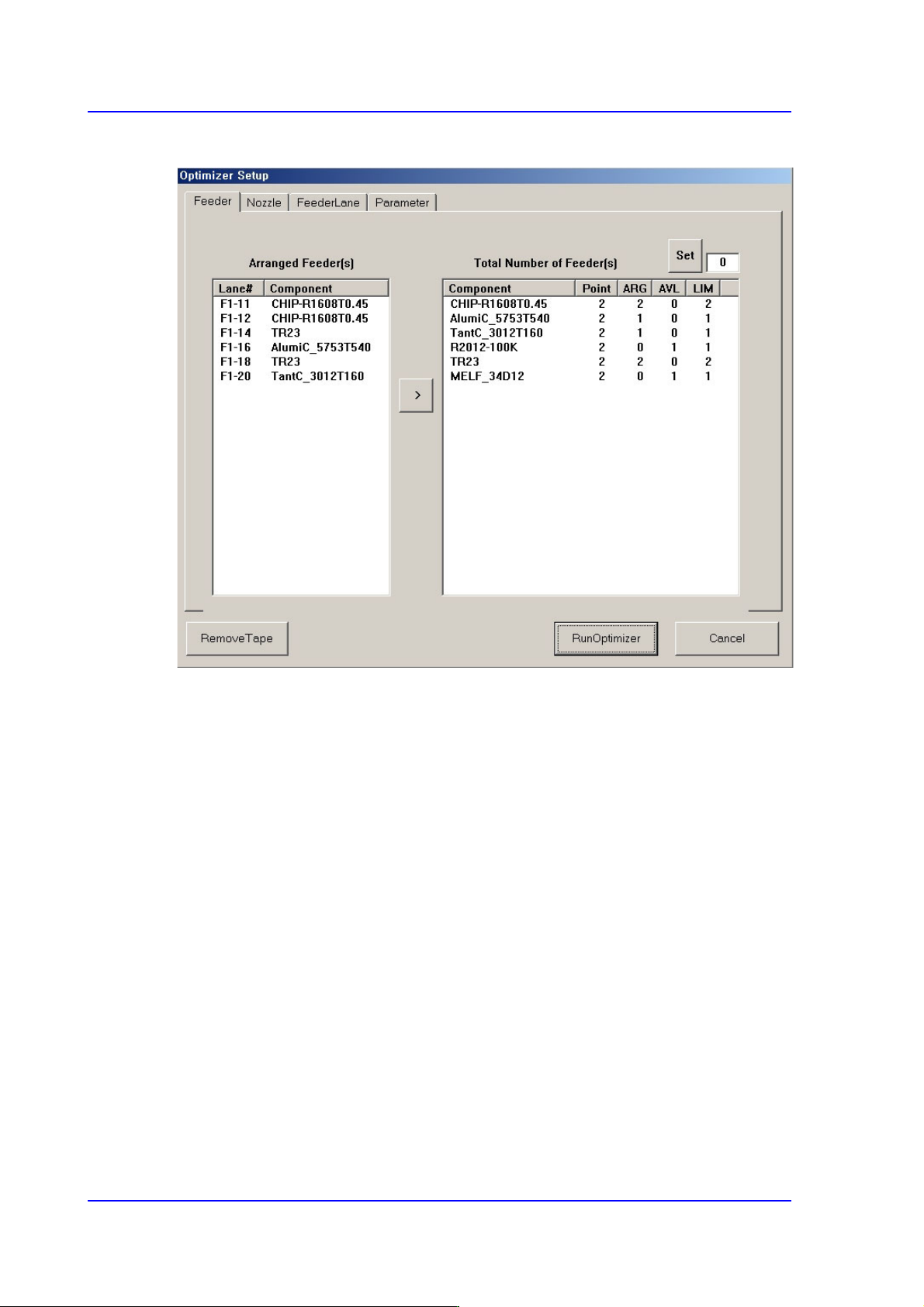
10-14 Multi-Functional Placer SM482( L) PLUS Administrator’s Guide 10.5. Run Optimizer <Remove T ape> button Click on the <Remove T ape> button to disregard all the feede rs already arranged and to newly ar…

10-13
Optimization
tray Z may have influence on the determination of the work sequence.
Therefore, in order to increase the work efficiency and to get the exact estimate of the
working time, the value as close as possible to the actual value shall be inputted.
Conveyor: Time (second) taken until the PCB is fixed by the backup table since
being transferred to the workstation.
Tray Z: Time required for the multi-tray feeder to move in the Z direction (sec)
Tray Z: Time required for the multi-tray feeder to move in the Z direction (sec)
Shuttle : Time required for the pad of the shuttle tray to complete one cycle (sec)
10-14
Multi-Functional Placer SM482(L) PLUS Administrator’s Guide
10.5. Run Optimizer
<Remove Tape> button
Click on the <Remove Tape> button to disregard all the feeders already arranged and
to newly arrange all tape feeders. When this button is clicked on, all the tape feeders
already arranged are removed.
<Run Optimizer> button
Saves the set options and executes Optimizer. To obtain an efficient result, empty all
lanes by pressing the <Remove Tape> button and execute Optimizer.
<Cancel> button
Closes the Optimizer Setup window without saving the currently set Optimizer
Options.
10-15
Optimization
10.6. Optimizer Dialog
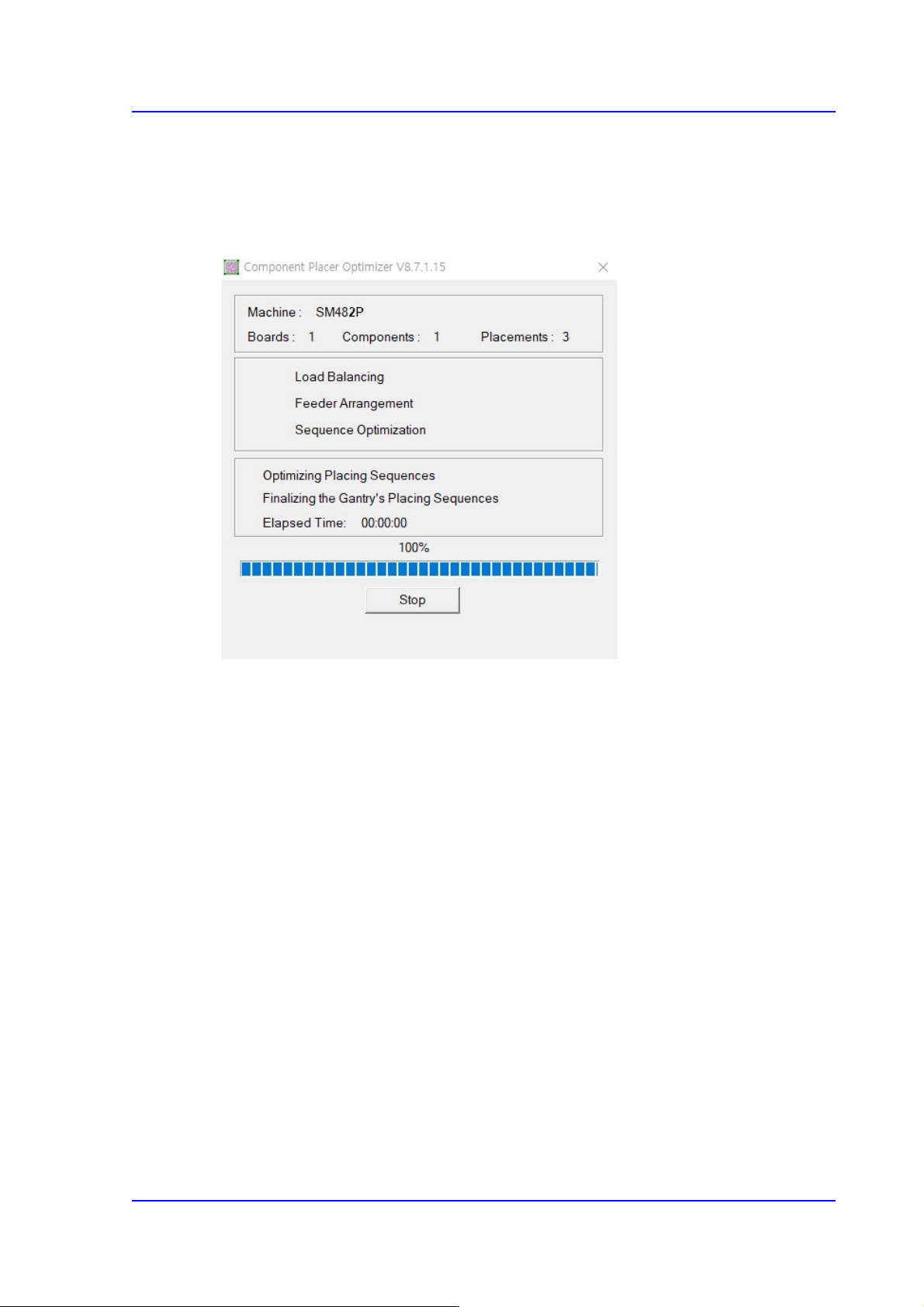
Press the <Run Optimizer> button to execute the Optimizer. During the execution, the
following dialog box is displayed.
Figure10.6 “Optimizer” dialog box
In the first group, the equipment model name, number of component types and total
placement positions are displayed.
Then, in the second group, the optimizer execution progress is indicated with check mark.
Check marked item is the one that is being executed. In the third group, more detailed
progress status, execution time of the optimizer (Elapsed Time) and the remaining
execution time (Remaining Time) are displayed.
The progress bar below the third group indicates how much the calculation process has
progressed for each step.
The Cancel/Stop buttons are used to stop the optimizer execution while it is being
executed. At normal state it is marked as “Cancel”. If it is pressed at this state, the massage
box called “User Break” appears and then the optimizer execution is canceled.