SM482PLUS_Admin(Eng_Ver2.8).pdf - 第265页
8-13 Feeder Setup <Part Outline> check box If this check box is selected, when the fiduci al camera is moved to the position of the corresponding feeder to check the pickup position, the outli ne image that consi…
8-12
Multi-Functional Placer SM482(L) PLUS Administrator’s Guide
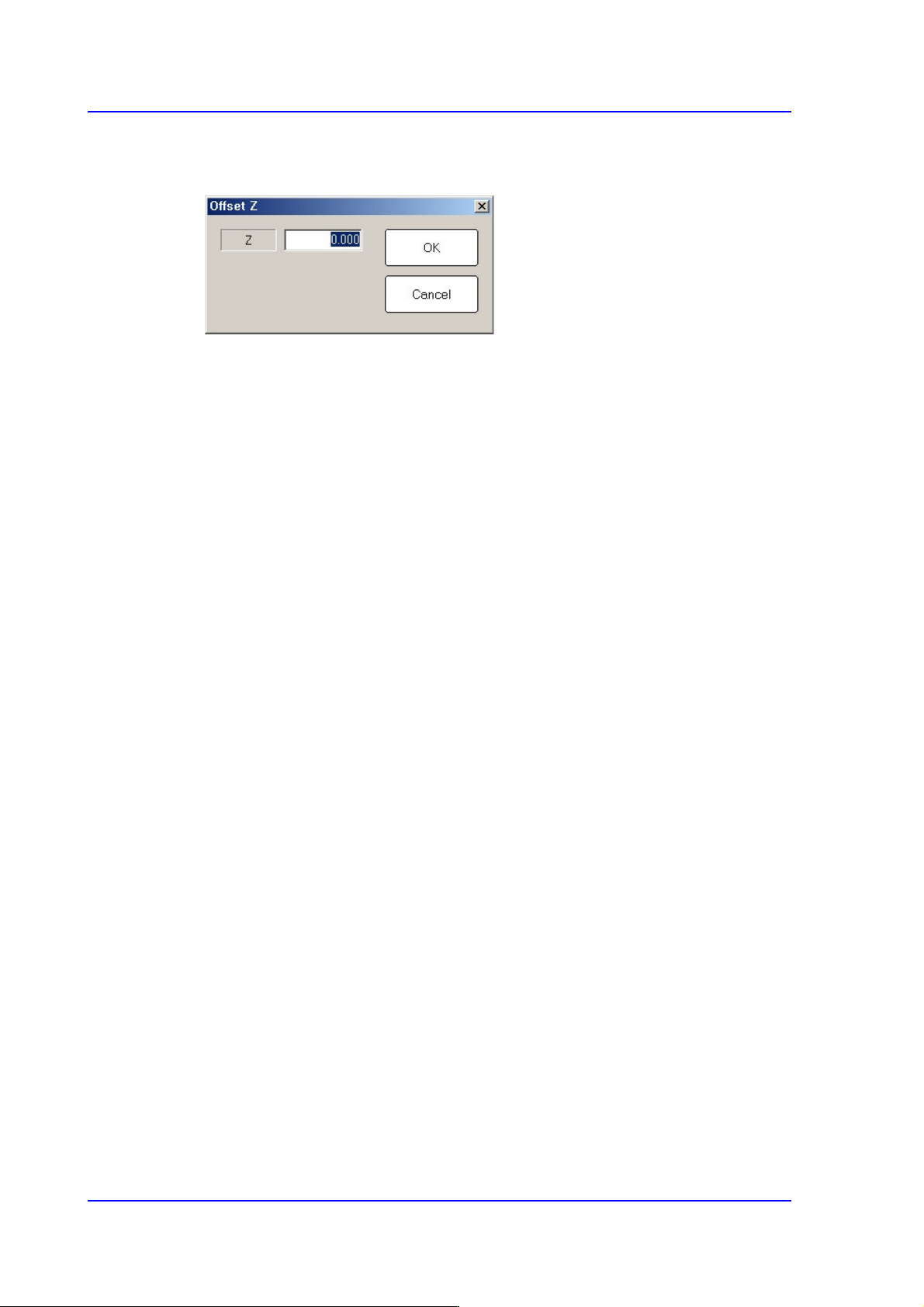
<Offset…> button
Applies the offset to the Pickup Z value of the feeder collectively.
<Z> edit box
Enters the offset value.
<OK> button
Saves the edited contents and closes the dialog box.
<Cancel> button
Closes the dialog box without saving the edited contents.
<Z Teach> button
Measures the Z axis height for the pickup point of feeder automatically using
pneumatic pressure. Select the part (pickup point of the feeder) of the feeder to be
taught and select the head to perform teaching from the <Device> combo box in the
<Teach> group. Then insert the CN040 nozzle into the nozzle holder of the selected
head and click this Button.
<Installed Feeder Only> check box
Shows only the list of the feeders installed in the grid cell group for feeders.
8-13
Feeder Setup
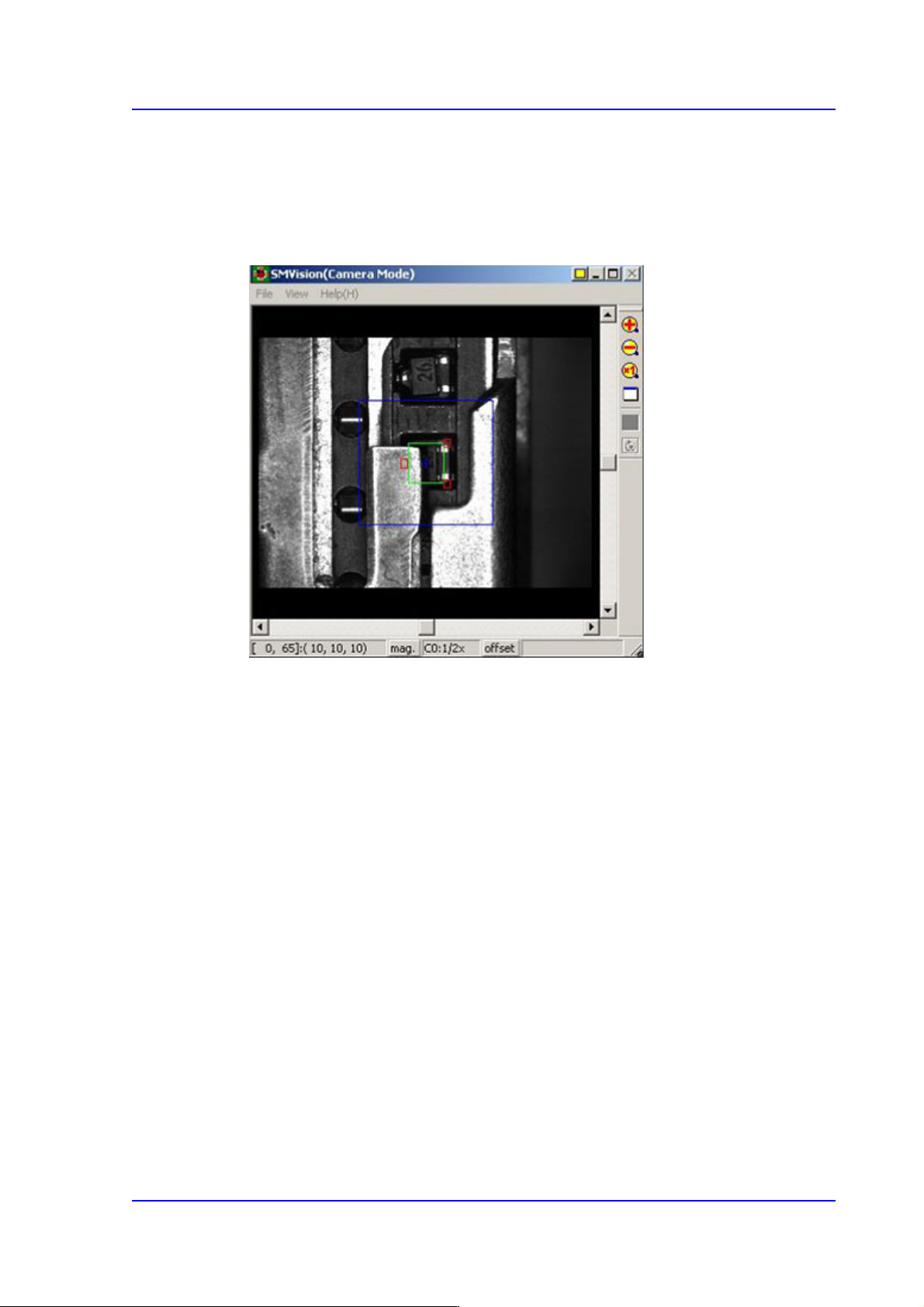
<Part Outline> check box
If this check box is selected, when the fiducial camera is moved to the position of the
corresponding feeder to check the pickup position, the outline image that considers the
angle at which the corresponding part is picked up is displayed on the SMVision
window.
<Part Offset> button
Clicking this Button will automatically reflect the pickup offset of the corresponding
part on the pickup coordinate when there are parts with pickup offset among the parts
supplied by the currently installed tape feeders.
<Offset Part> button
Selected when applying the pickup offset to the same tape feeder collectively after
changing the pickup coordinate of the installed tape feeder.
8-14
Multi-Functional Placer SM482(L) PLUS Administrator’s Guide
<Enable Home Offset> check box
When this check box is selected, the MMI reads the Y offset value from the IT Feeder
System and corrects the Y coordination of the pickup point. Therefore, this function
can be used only when the IT Feeder System and Device Net board are installed in the
machine.
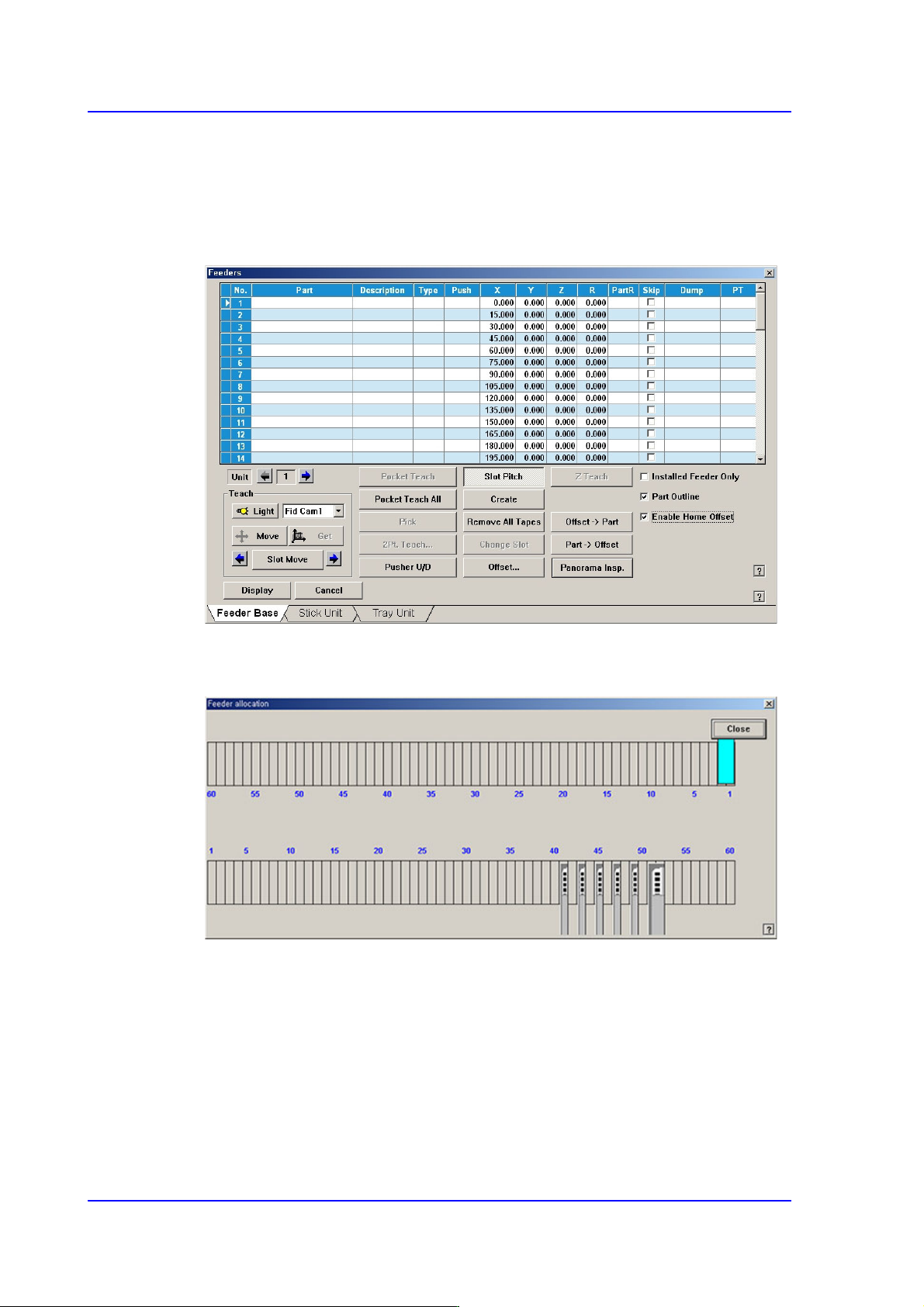
<Display> button
Displays the shape of the feeder that is installed on the feeder base graphically.