SM482PLUS_Admin(Eng_Ver2.8).pdf - 第572页
19-12 Multi-Functional Placer SM482( L) PLUS Administrator’s Guide 19.5.5. Modifying Us er Check Items The registered user check items can be modifi ed. This can be performed in the following manner . Click the <Mod…
19-11
PM Manager
19.5.4. Adding User Check Item
User can add a new check item. This can be performed in the following manner.
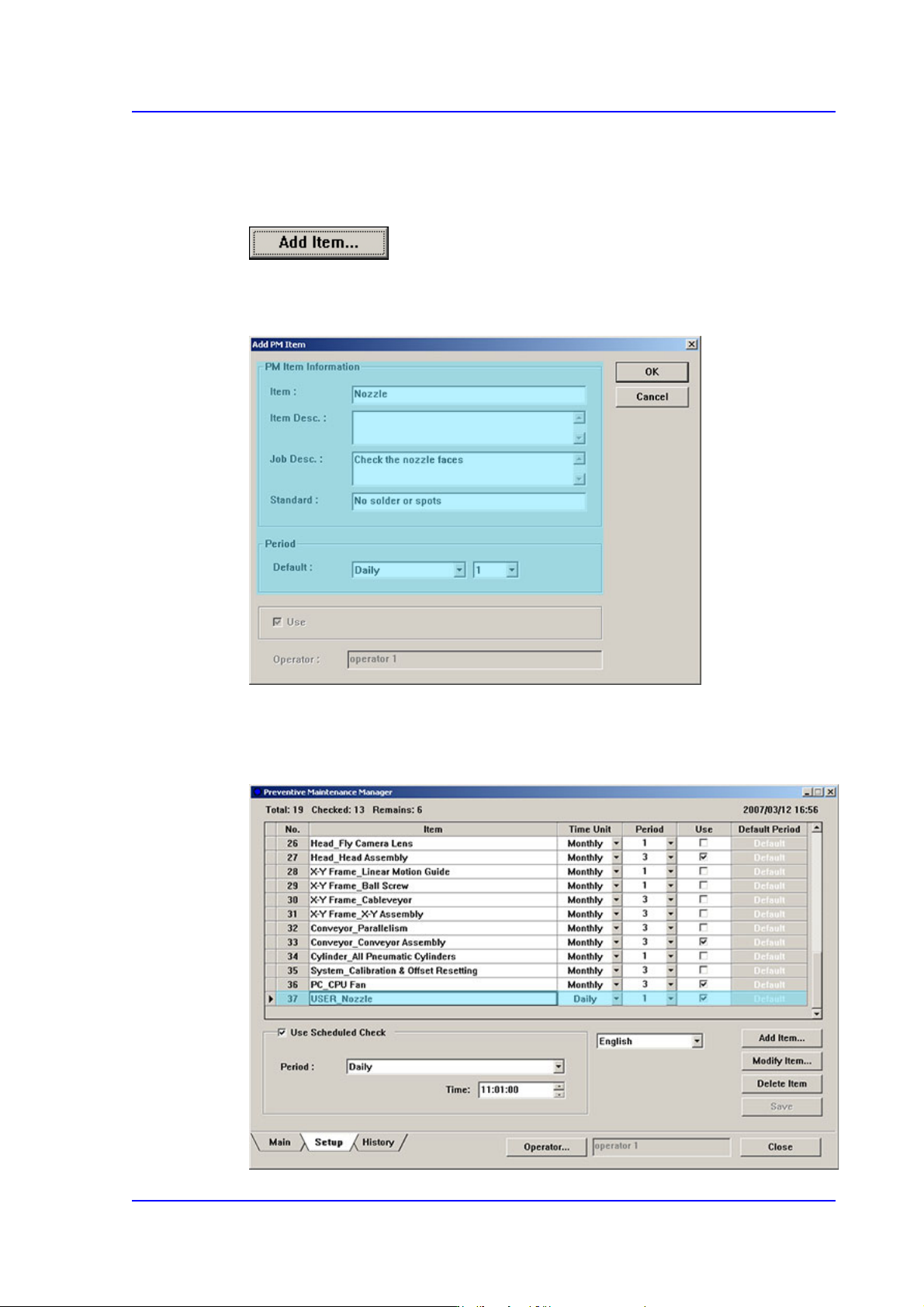
Click the <Add Item…> button and execute the ‘Add PM Item’ dialog box
Enter an item to be added in the ‘Add PM Item’ dialog box and set the check period
Figure19.10 Adding User Check Item
If the user check item is added by clicking the <OK> button, a new check item is
added in the setup screen.
Figure19.11 Added User Check Item
19-12
Multi-Functional Placer SM482(L) PLUS Administrator’s Guide
19.5.5. Modifying User Check Items
The registered user check items can be modified. This can be performed in the following
manner.
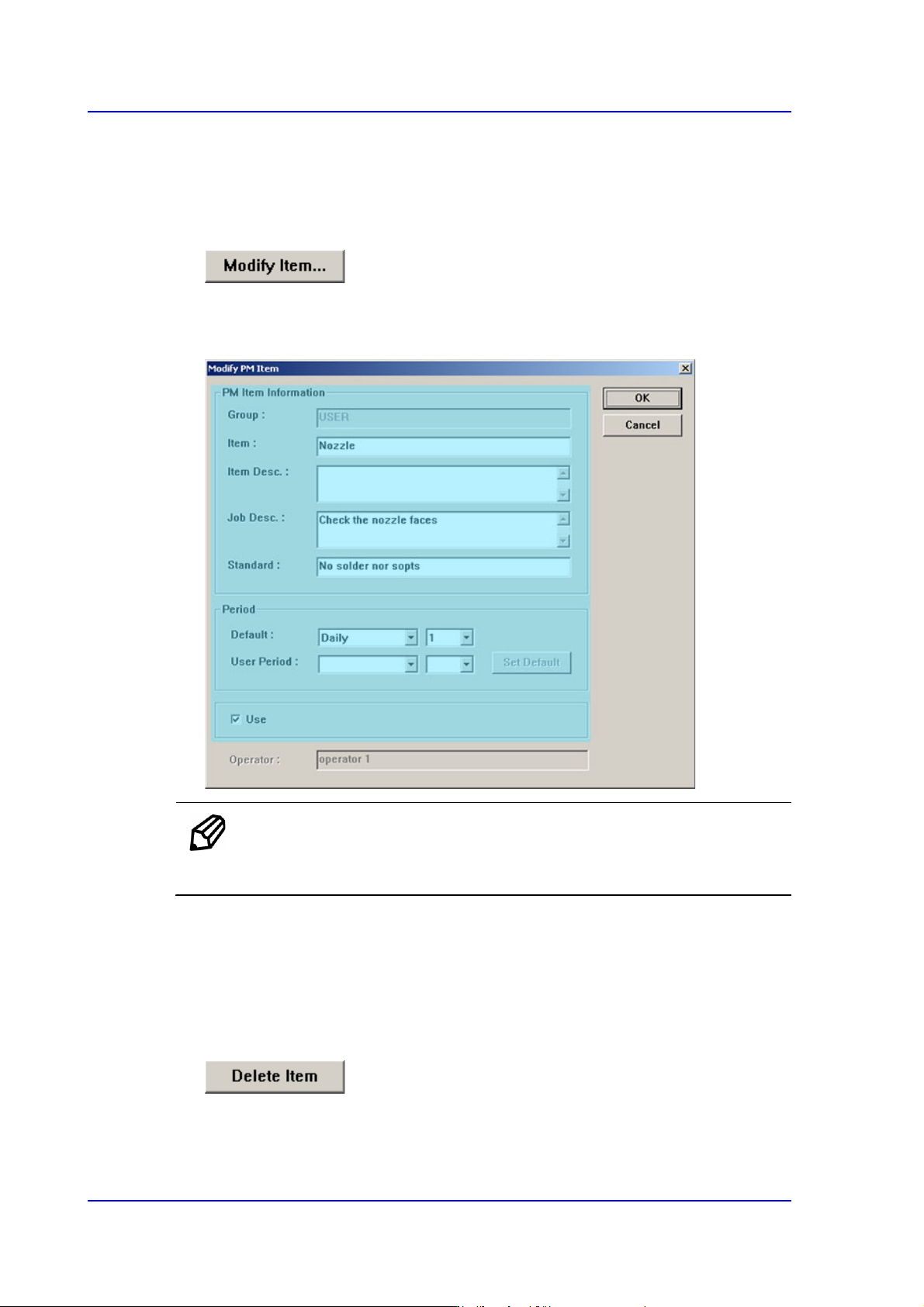
Click the <Modify Item…> button.
Modify the registered check item.
Figure19.12 Modifying User Check Item
Memo The default check item other than the user check item cannot be
modified.
19.5.6. Deleting User Check Item
The registered user check item can be modified. This can be performed in the following
manner.
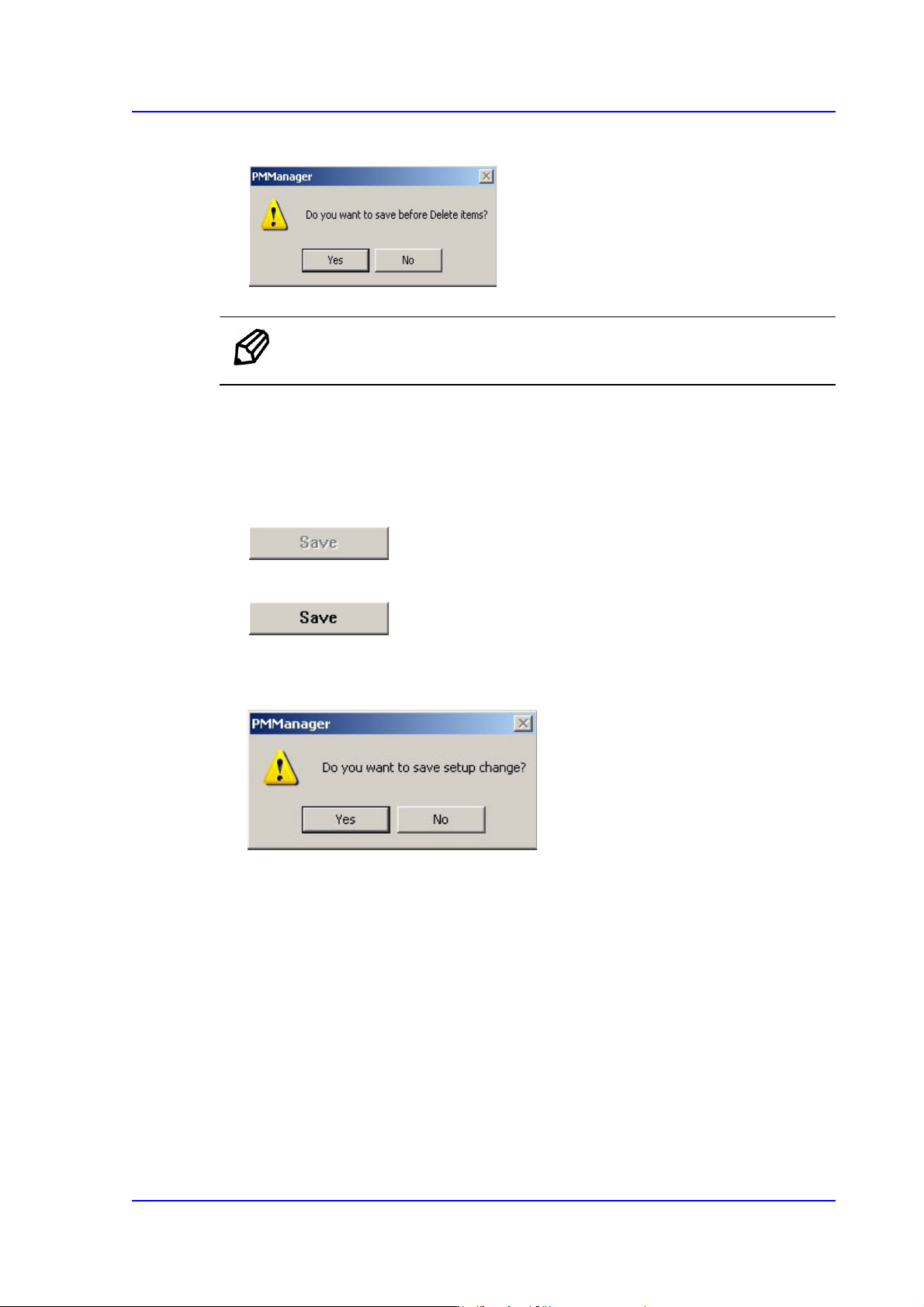
Click the <Delete Item> button.
19-13
PM Manager
Click the <Yes> button to delete the corresponding item.
Memo The item other than the user check item cannot be deleted.
19.5.7. Saving Changed Item
If there is changed setups in the Setup Screen, the <Save> button is enabled.
When there is no changed item
When there is changed item
When saving the changed item, click the <Save> button.
If the following window appears, click the <Yes> button to save the setups.