SM482PLUS_Admin(Eng_Ver2.8).pdf - 第181页
7-9 Part Registration 7.2.1. Screen Configuration 1: T itle 2: V ision W indow 3: Part parameters ‘T itle’ area <Select He ad> button Selects the head to pick the part. <Image Refresh> b utton Refresh t…
7-8
SM PLUS Administrator’s Guide
7.2. Standard part editing and registration
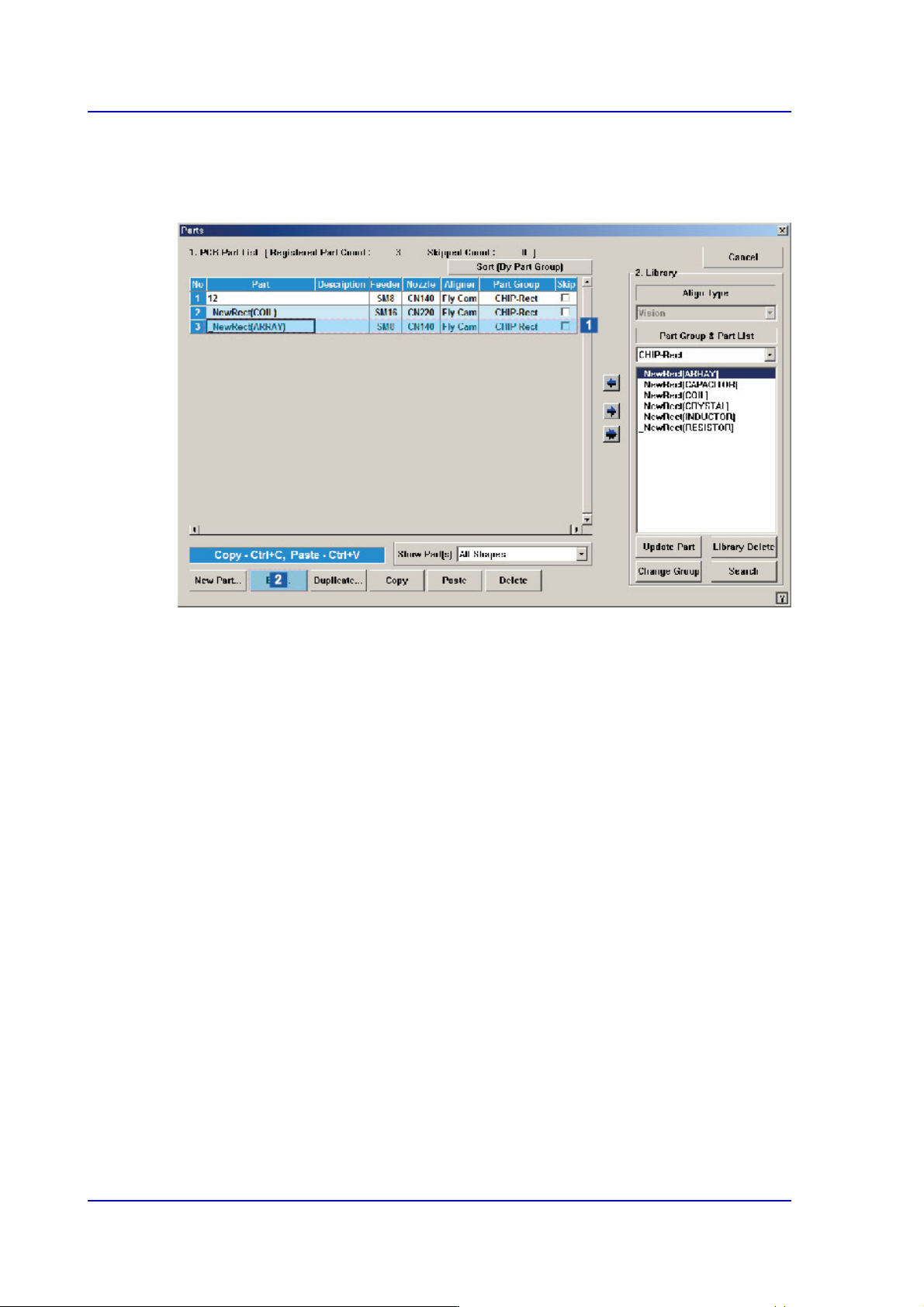
The part is registered by editing the standard part in the following manner. Select the part
to be edited in the <1. PCB Part List> and click the <Edit> button.
7-9
Part Registration
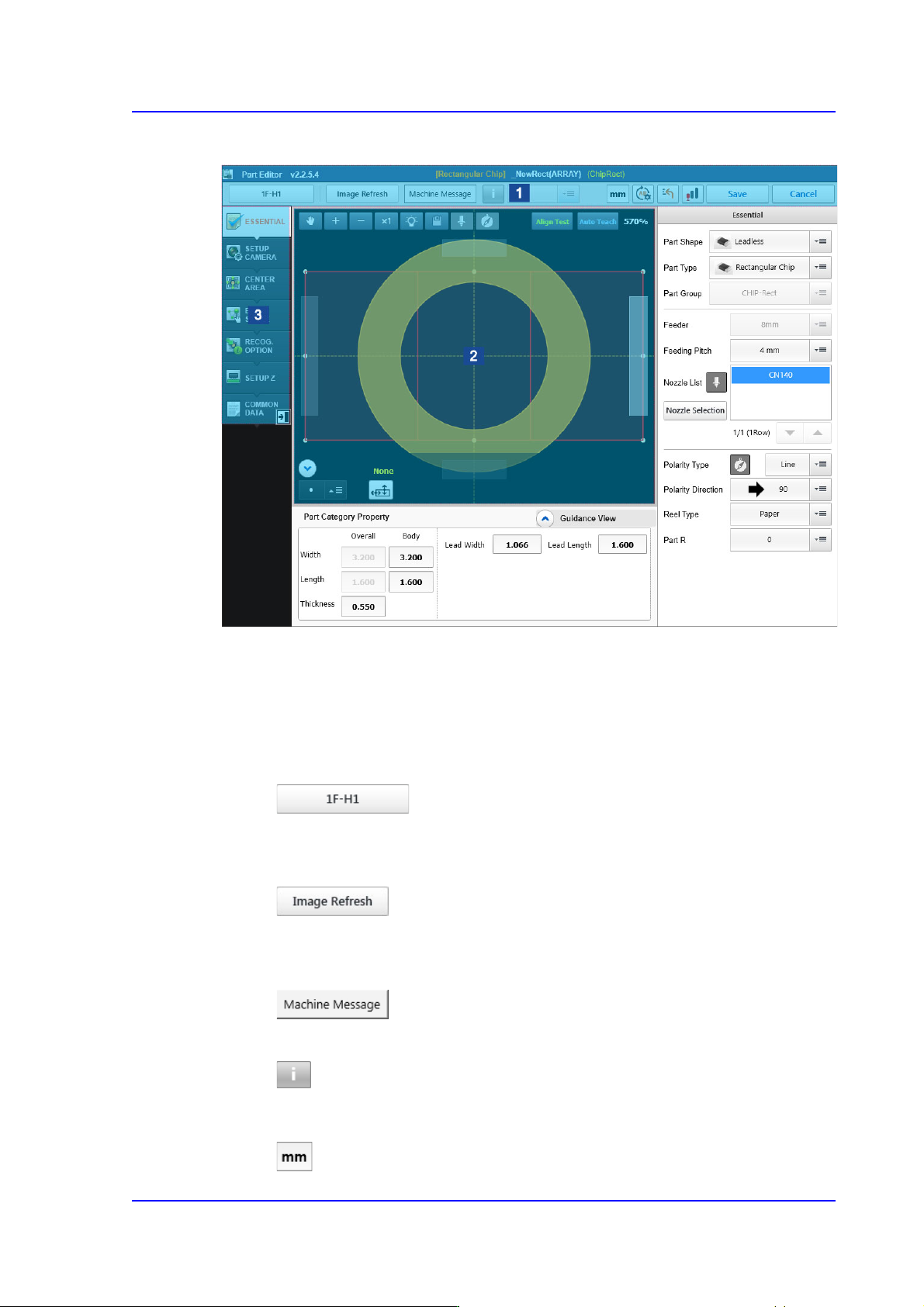
7.2.1. Screen Configuration
1: Title
2: Vision Window
3: Part parameters
‘Title’ area
<Select Head> button
Selects the head to pick the part.
<Image Refresh> button
Refresh the part image displayed in the vision window.
<Machine Message> button
Executes the dialog box that can check an error message generated in the machine.
button
It is possible to input further explanations for the corresponding part.
caption button
7-10
SM PLUS Administrator’s Guide
Shows the unit system for the currently set items.
button
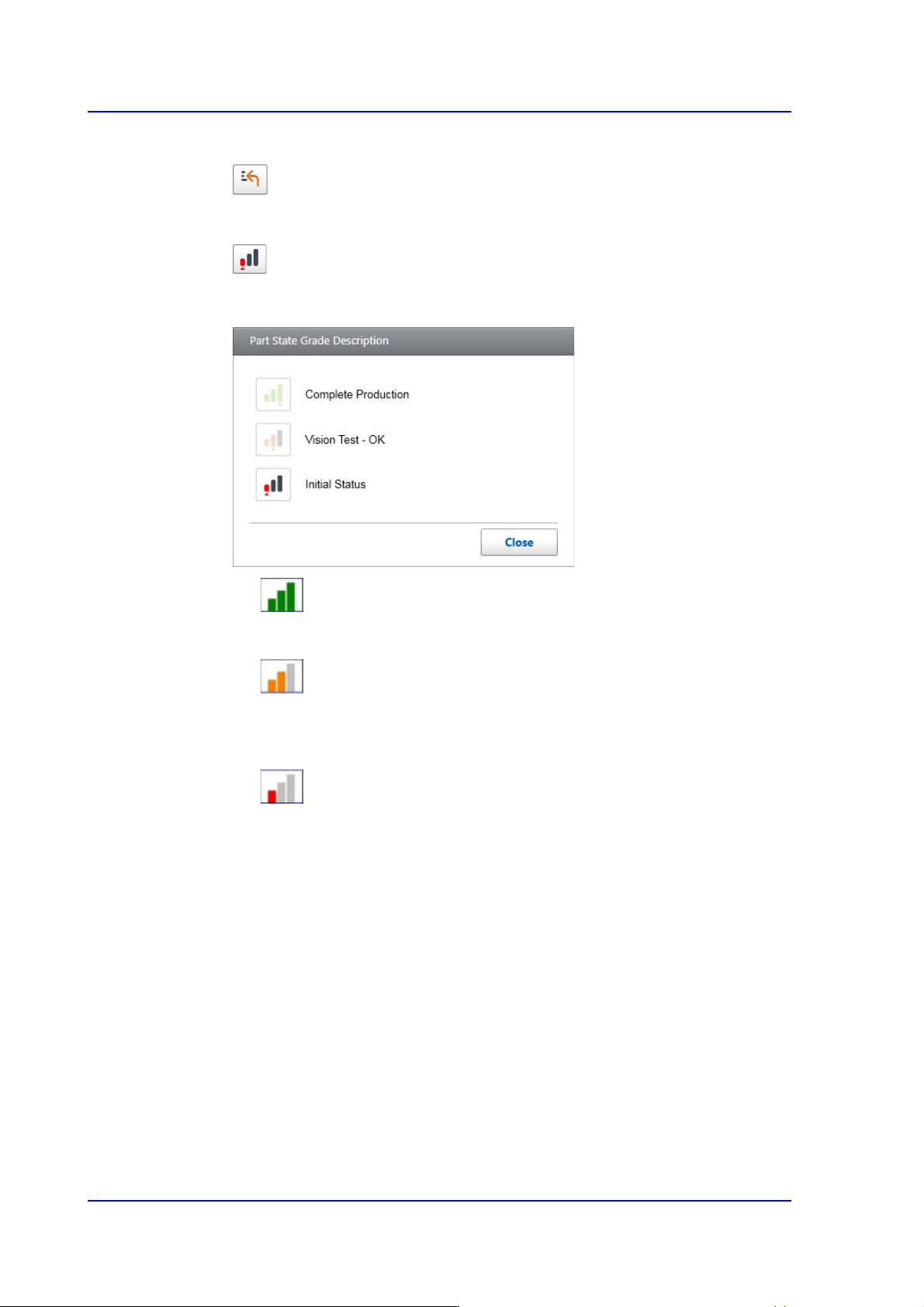
Restores the modified part data to the data before modification.
button
Displays the part registration status as a grade.
Refers to the part that has been used for PCB production.
Refers to the part that passed the part recognition test in the machine MMI and
T-ELITE .
Refers to the part temporarily registered when creating a PCB program in the
T-Solution. It is copied from the standard part DB.
<Save> button
Saves the edited part data and closes the dialog box.
<Cancel> button
Closes the dialog box without saving the edited part data.