SM482PLUS_Admin(Eng_Ver2.8).pdf - 第568页
19-8 Multi-Functional Placer SM482( L) PLUS Administrator’s Guide Figure19. 7 Main Scr een of PM Manager The history of all changed items are recorded in the History Screen, and “Reset all items” is indicated in the ‘Not…
19-7
PM Manager
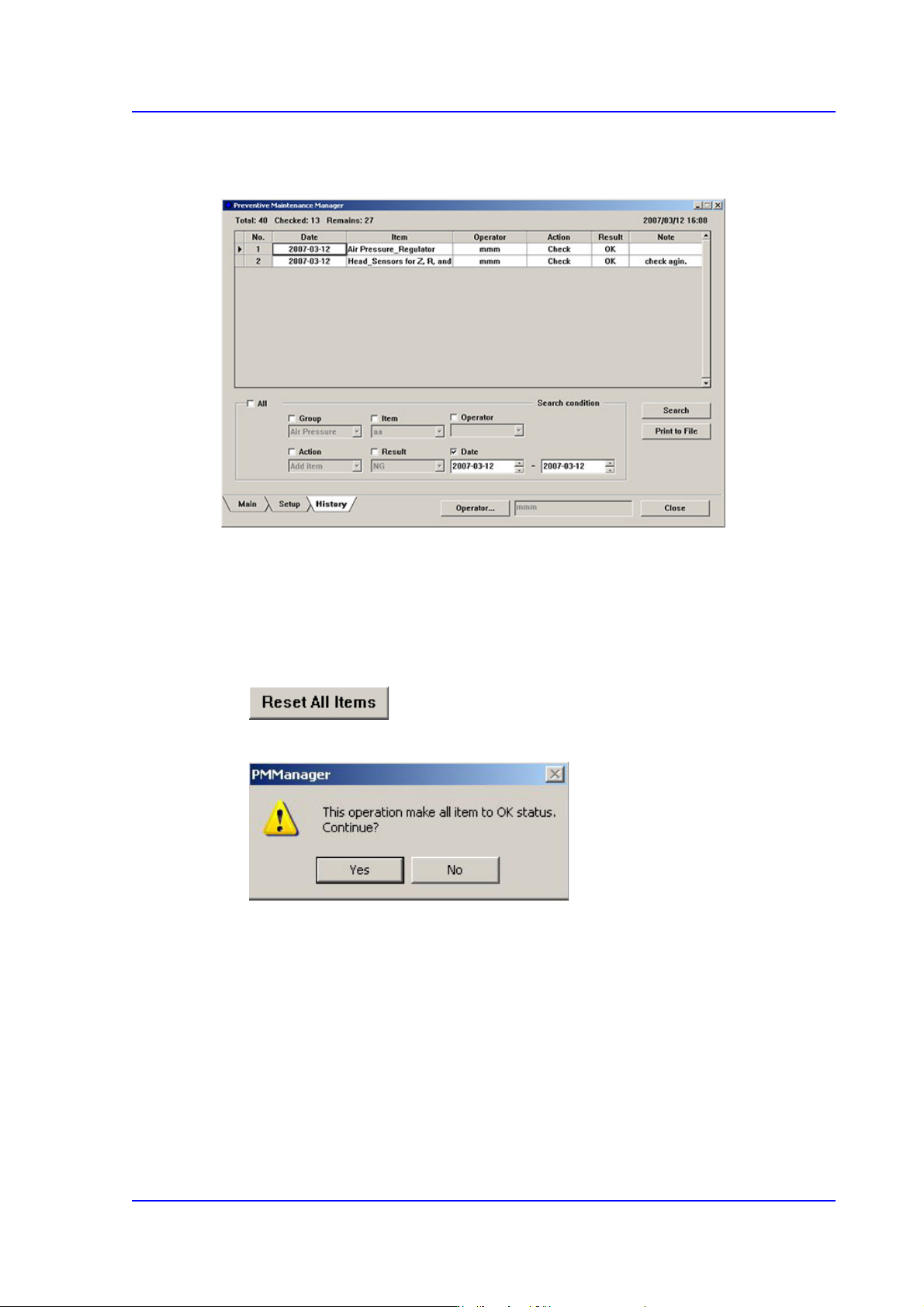
The recorded actions can be checked from the History Screen.
Figure19.6 Inquiry of Actions Taken During Checking from History Screen
19.4.6. Changing All Check Items to Check Completed Status (“OK”)
All check items can be changed to the check completed status simultaneously. This can be
performed in the following manner.
Click the <Reset All Items> button
When the PM Manager dialog box appears, click the <Yes> button.
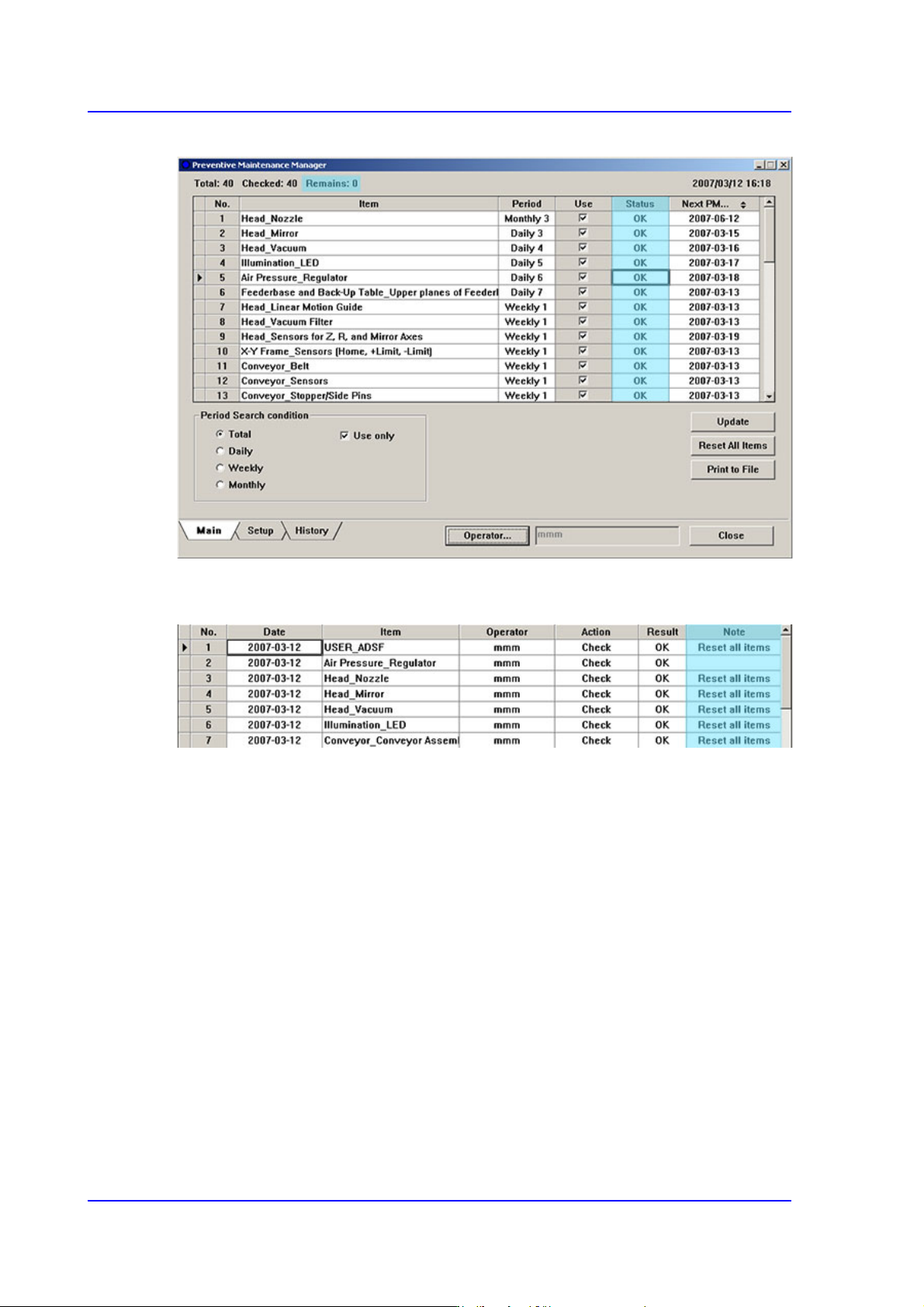
Once set as above, all check items in the Main Screen are changed to the check completed
status (“OK”), and the number of items to be inspected are indicated as “0”.
19-8
Multi-Functional Placer SM482(L) PLUS Administrator’s Guide
Figure19.7 Main Screen of PM Manager
The history of all changed items are recorded in the History Screen, and “Reset all items”
is indicated in the ‘Note’ column.
19-9
PM Manager
19.4.7. Outputting Check Items in File Format
All check items can be outputted in text file format. This can be performed in the
following manner.
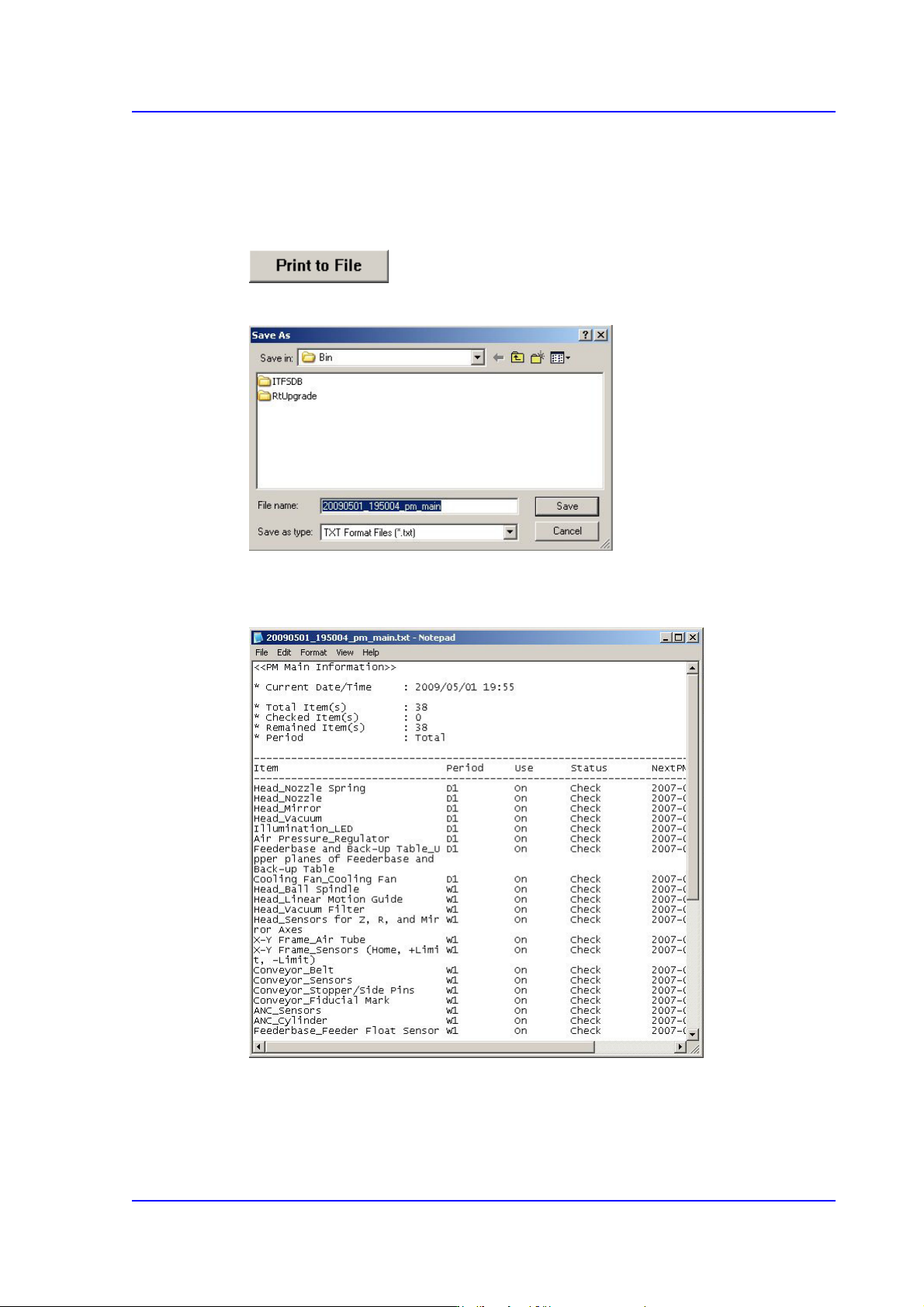
Click the <Print to File> button
Enter the file name and designate the file path and then click <Save>.
The text file is saved in the form shown below.
Figure19.8 Check Item Output Screen