SM482PLUS_Admin(Eng_Ver2.8).pdf - 第364页
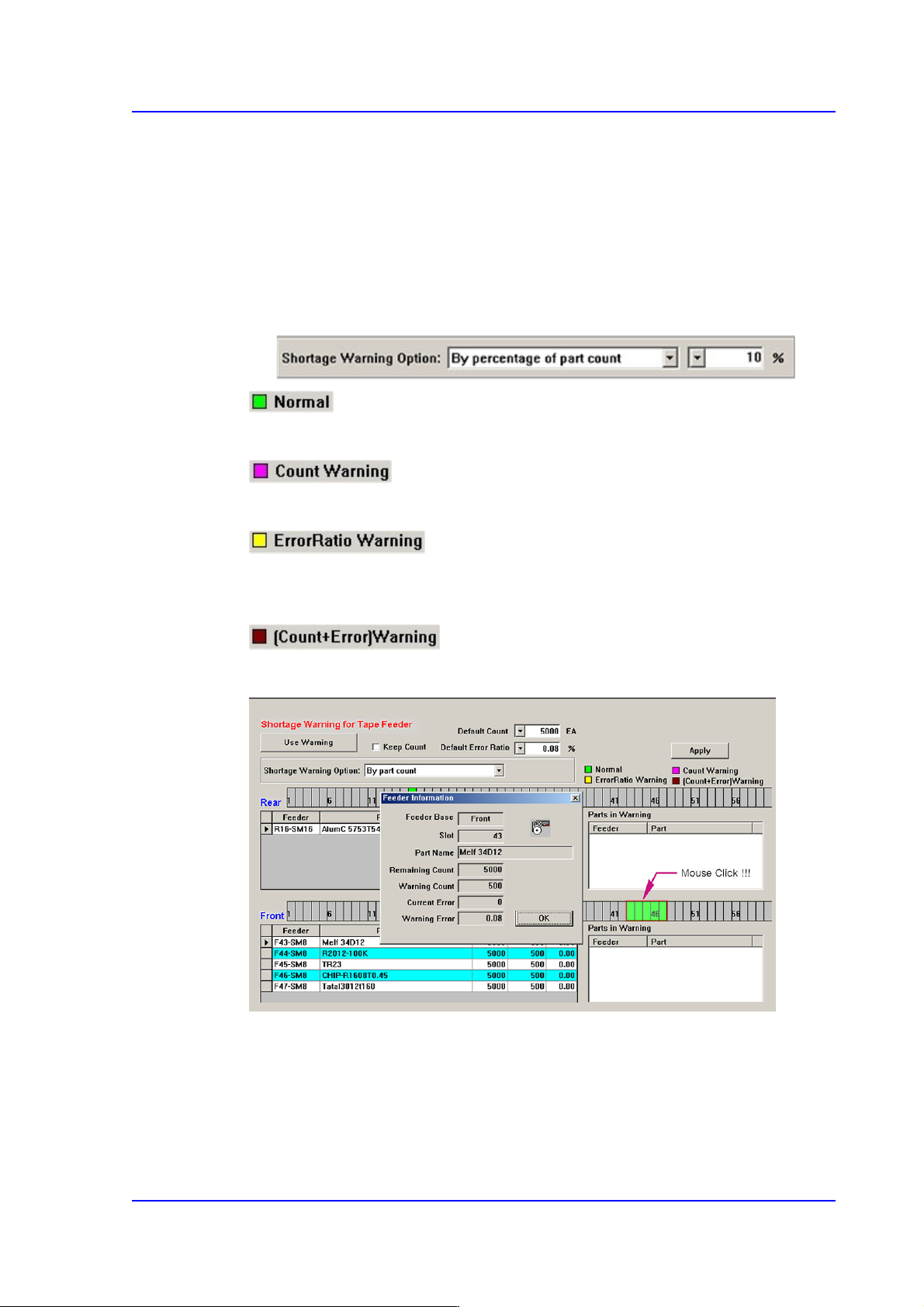
13-16 Multi-Functional Placer SM482( L) PLUS Administrator’s Guide Clicking the mouse on the place at which the feeder is installed will display the ‘Feeder Information’ dial og box as shown abo ve. However , right click…
13-15
Production Setup
By part count
Indicates the warning message based on the part count set in the <Warning>
column.
By percentage of part count
If this is selected, the Combo Box for selecting percent is created at the right.
Based on the Remain Count, if the part count becomes less than the corresponding
percent, the warning message is indicated.
Indicates normal tape feeder.
Indicates the tape feeder of which the remaining parts are less than the setup value.
Indicates the tape feeder of which the error rates of part supply is higher than the setup
value.
Indicates the tape feeder with simultaneous shortage and defect of remaining parts.
13-16
Multi-Functional Placer SM482(L) PLUS Administrator’s Guide
Clicking the mouse on the place at which the feeder is installed will display the
‘Feeder Information’ dialog box as shown above.
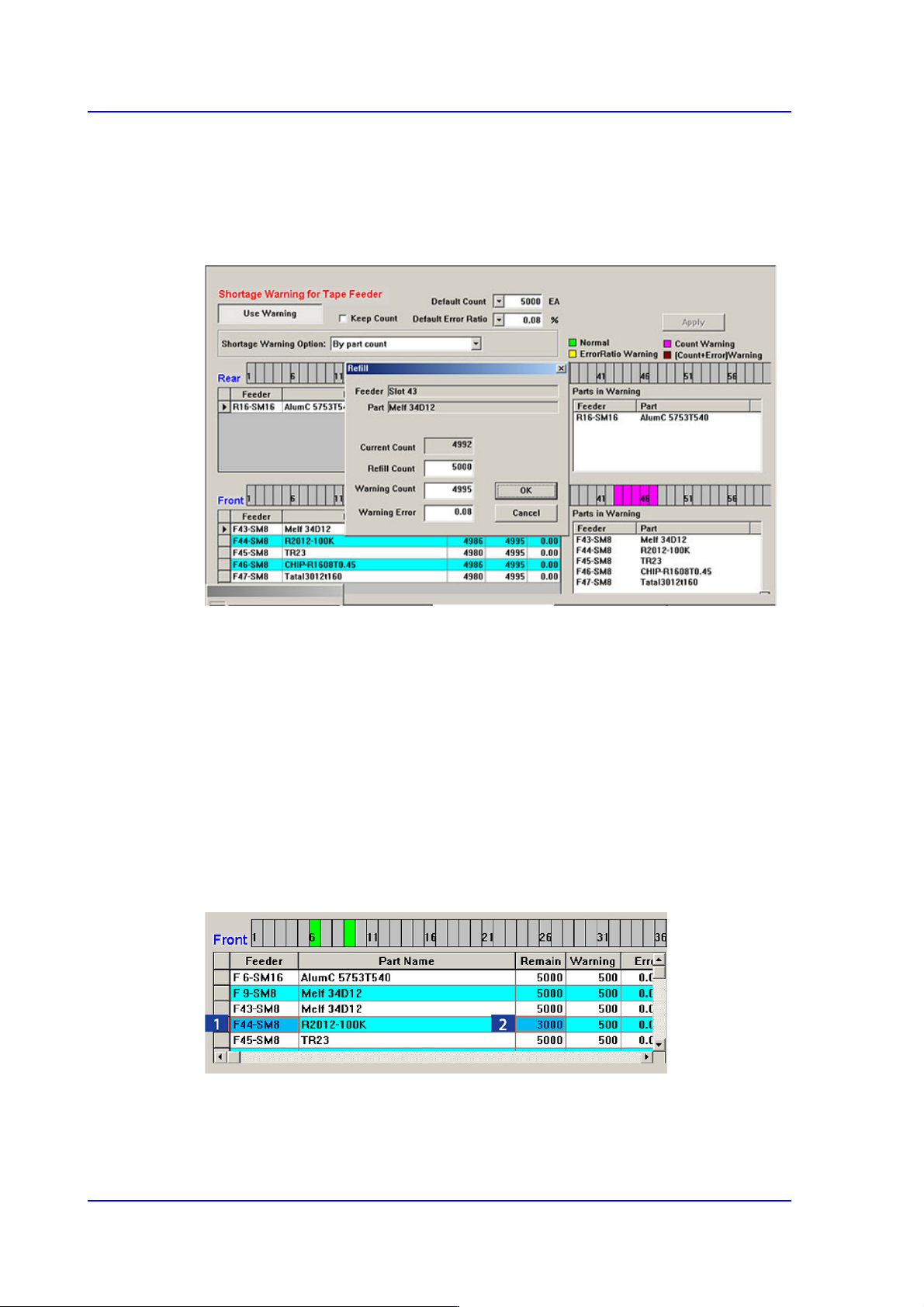
However, right clicking the mouse will display the ‘Refill’ dialog box as follows.
When performing the work after splicing reel, change the Remain Count by using the
Refill dialog box.
The values set from the <Default Error Ratio> combo box and <Default Count> in the
Tape Feeder Monitor Tab dialog box are applied.
If the <OK> button is clicked, the value set in the <Refill Count> edit box is added to
the current count to make the Remain Count.
<Apply> button
Generally, if the PCB program is downloaded, the remain count is set up to the default
count.
However, in the case of the part reel to which the Default Count cannot be applied,
select the corresponding tape feeder and set the corresponding count in the <Remain>
column and then click the <Apply> button. Then the change value is applied as the
Remain Count.
13-17
Production Setup
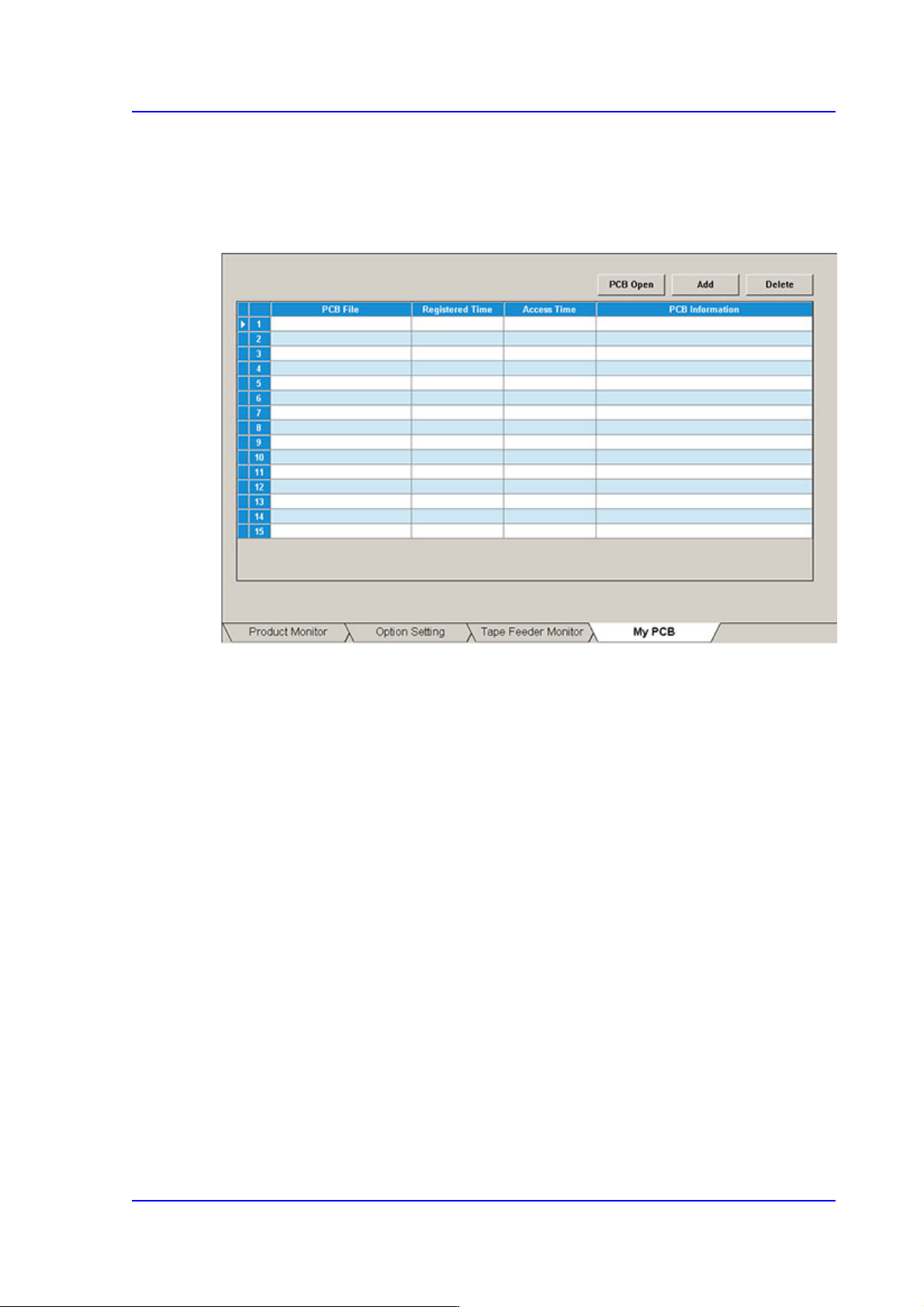
13.1.4. My PCB
Used for easily loading the registered PCB files by registering the PCB primarily worked
on. Up to 15 PCB files that are frequently used can be set in advance.
Figure13.6 “My PCB” tab dialog
<Add> button
Register the PCB file primarily worked on.
<Delete> button
Registration is canceled when this button is clicked after selecting the registered PCB
file.
<PCB Open> button
Perform loading of the selected PCB file by clicking this button is clicked after
selecting the registered PCB file.