SM482PLUS_Admin(Eng_Ver2.8).pdf - 第412页
14-40 Multi-Functional Placer SM482( L) PLUS Administrator’s Guide 14.3.5. X-XY Compensation This is performed to compensa te the XY error that occurs while moving the X axis. If the thermal mapping and gantry mapping ha…
14-39
Machine Calibration
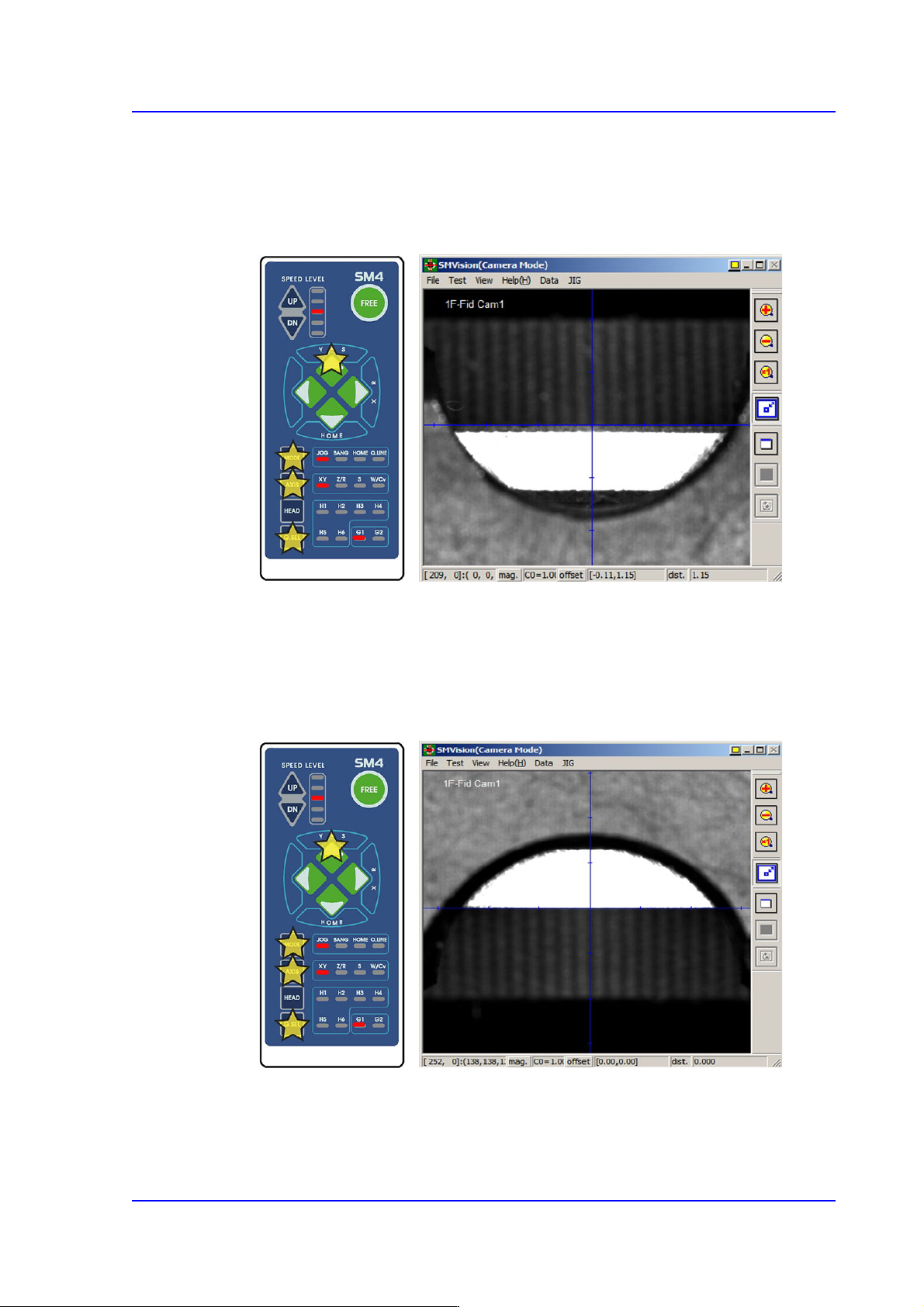
7. Then the downward camera (fiducial camera) moves to the corresponding position of
the fiducial mark. Select XY by pressing the ‘AXIS’ button using the teach box to
make the backup table rise and make the edge of the transport rail frame correspond
with the horizontal line of the cross lines in the vision.
8. Click the <Get> button once aligned.
9. Select the corresponding <Edge Offset> edit box in ‘Ref. #2’ and click the <Move
Cam> button.
10. Perform teaching on ‘Ref. #2’ in the same way.
11. After finishing the teaching, click the <Update> button to apply the changed value.
14-40
Multi-Functional Placer SM482(L) PLUS Administrator’s Guide
14.3.5. X-XY Compensation
This is performed to compensate the XY error that occurs while moving the X axis. If the
thermal mapping and gantry mapping have already been enabled, disable the mapping by
force to perform the X-XY compensation.
Caution X-XY compensation is performed at the factory before the
machine is shipped. An exclusive calibration tool is needed
to perform this calibration.
In general cases, skip this calibration process and perform
the next calibration process.
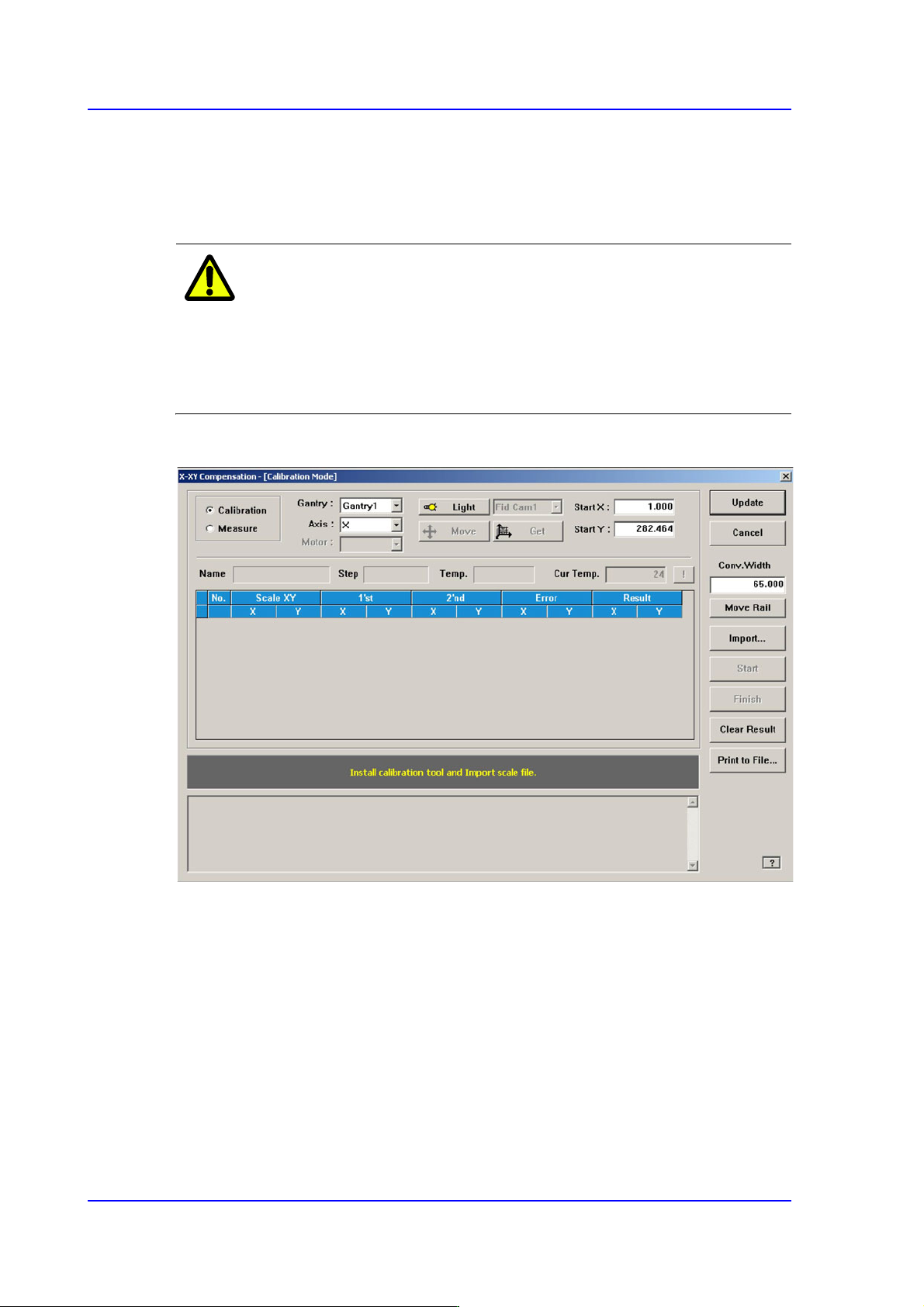
Figure14.12 "X-XY Compensation" dialog box
Mode Option button
Select the mode in which this process is to be performed.
<Calibration> Option button
Perform the X-XY compensation in the calibration mode and reflect the result.
<Measure> Option button
Perform the X-XY compensation in the measurement mode and do not reflect the
result. It is selected to measure the error for the Y axis.

14-41
Machine Calibration
<Gantry> combo box
Gantry1
When performing calibration in Station F2 by using the calibration tool.
<Axis> combo box
Select the axis to be compensated. Compensation can be made only for the X axis.
<Light> button
It is used to adjust the illumination so that the mark may be viewed clearly when
recognizing the fiducial mark of the calibration tool.
<Move / Get> button
It is used to teach fiducial mark #0 of the calibration tool.
<Start X / Start Y> edit box
Input the coordinate of fiducial mark #0 of the calibration tool. After selecting the edit
box, move the fiducial camera to the corresponding position by using the teaching box
and teach the corresponding mark correctly. Then click the <Get> button and input the
coordinate value here.
<Cur Temp> edit box
Input the current temperature at the time that the calibration is performed.
<Move Rail> button
Input the conveyor width in the <Conv. Width> edit box and click this button to adjust
the conveyor width.
<Import…> button
It is used to import the scale file for calibration.
<Start> button
It is used to start calibration after teaching fiducial mark #0 accurately.
<Finish> button
It is used to exit the work after the calibration is completed.
<Clear Result> button
Initializes the measurement result.
<Print to File…> button
It is used to output the result in text file format after completing calibration.
<Update> button
Apply the compensation value according to the calibration.