SM482PLUS_Admin(Eng_Ver2.8).pdf - 第477页
15-23 System Setup
15-22
Multi-Functional Placer SM482(L) PLUS Administrator’s Guide
<Test> button
Perform test for the mapping result. The light level that does not satisfy the
reference value is searched automatically and it is displayed in the result file.
Perform mapping with the <Refine Mapping Result> check box being selected.
State display
Displays current progressing state.
Camera (Number of camera for which test or maping is completed) /(Total number
of selected camera)
(I: Inner, O: Outer, S: Side, C: Coaxial)
<Close> button
Closes the dialog box.
<Update> button
Transmits the set data to the equipment and closes the dialog box.
<Cancel> button
Ignores the set data and closes the dialog box.
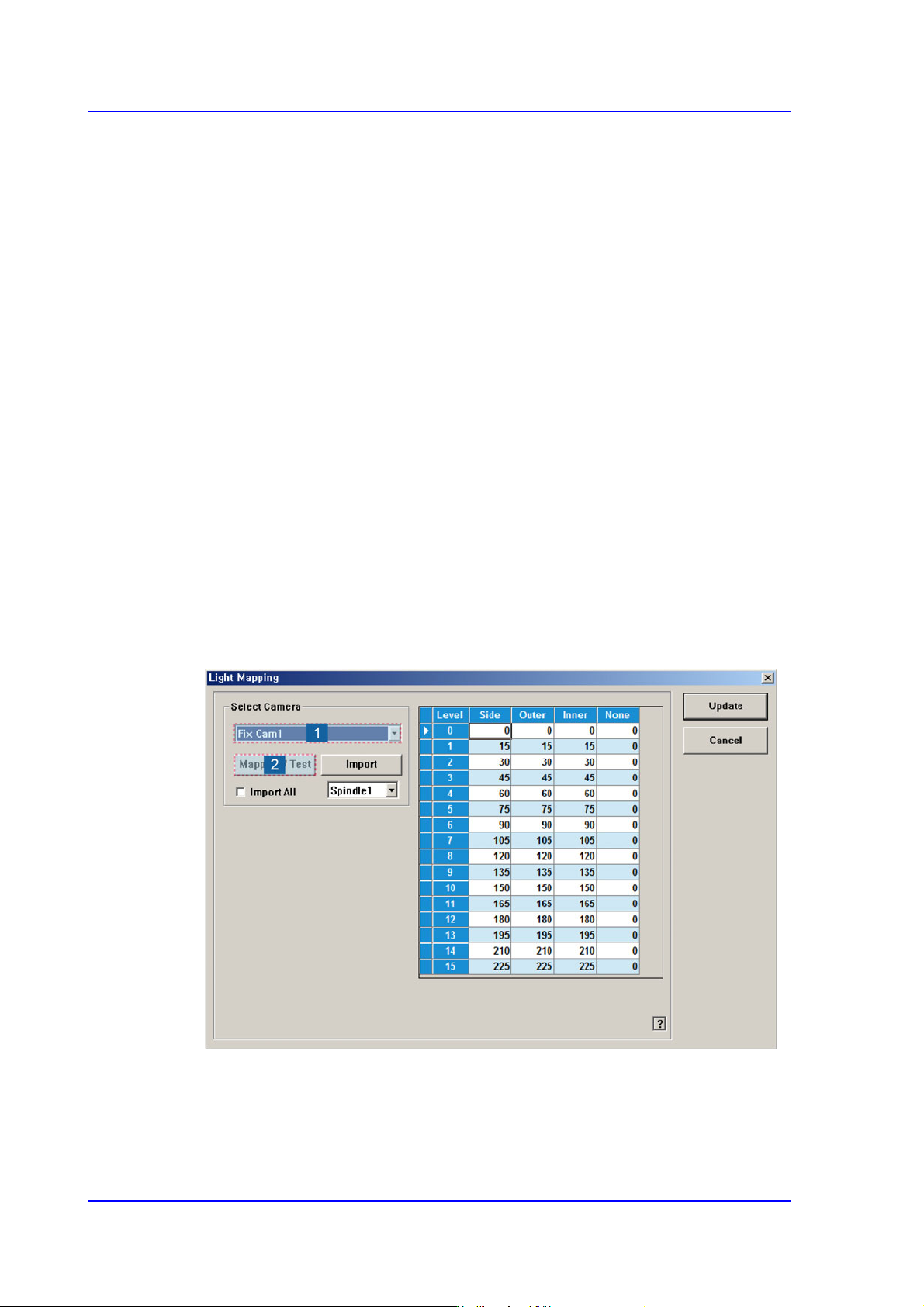
Perform light mapping of the Fix Camera in the following manner:
1. After selecting the camera for which light mapping is to be performed in the <Select
Camera> group, click the <Mapping/Test> button.
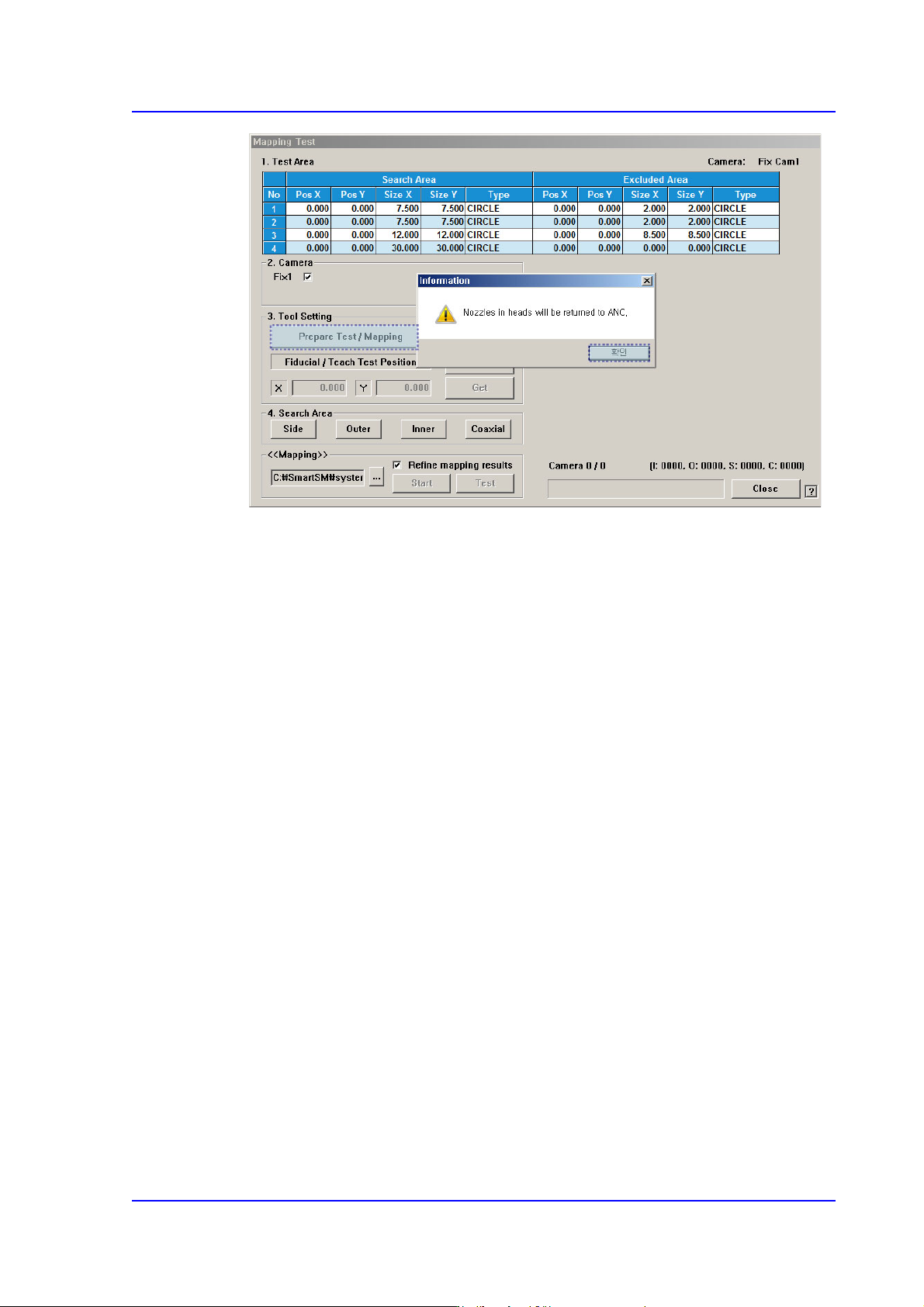
2. After unchecking the <Manual> check box in the <3. Tool Setting> group, click the
<Prepare Test / Mapping> button.
15-23
System Setup
15-24
Multi-Functional Placer SM482(L) PLUS Administrator’s Guide
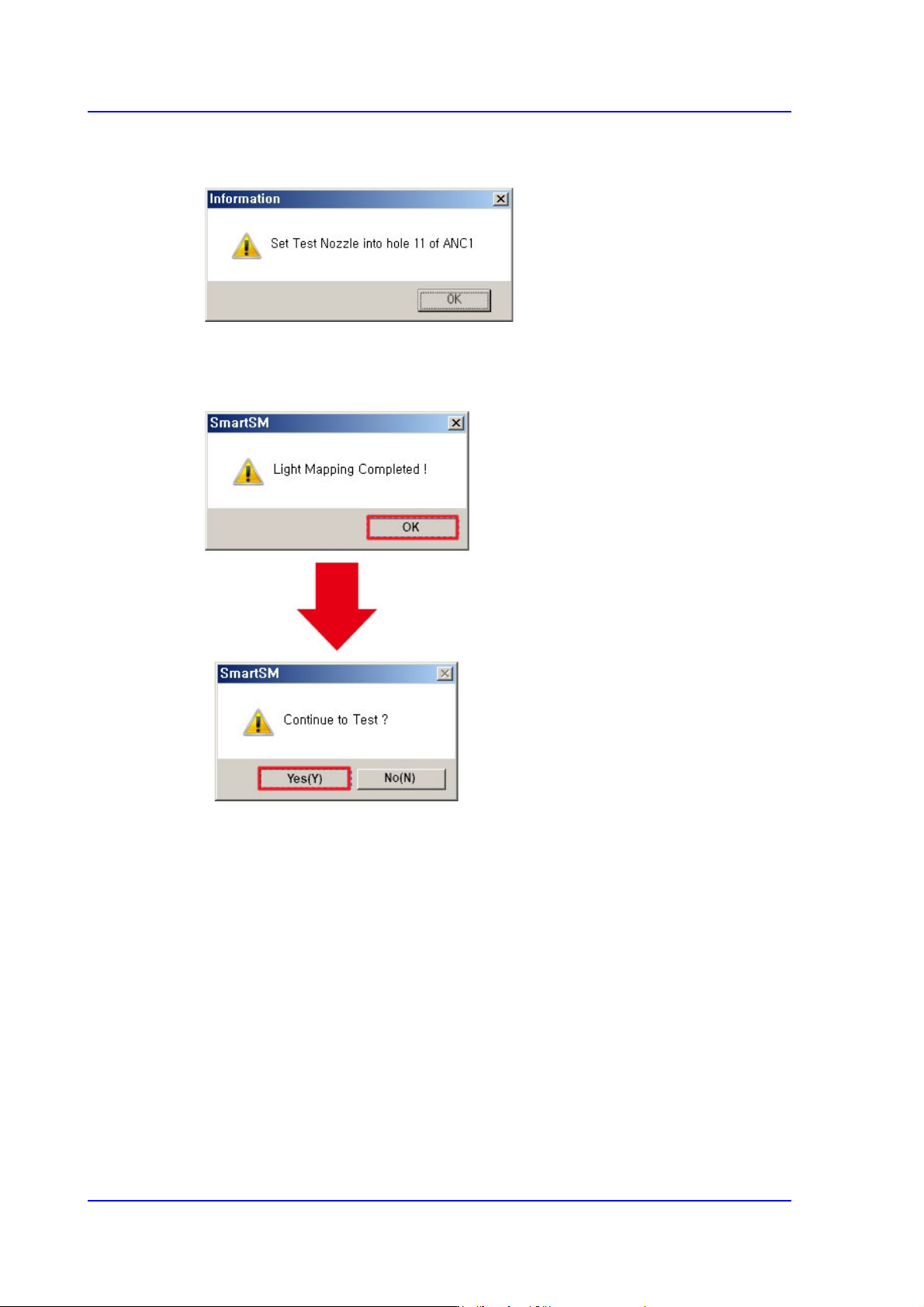
3. After inserting the Fix Camera Test nozzle into the ANC 11 hole, press the <OK>
button.
4. After clicking the <Start> button in the <<<Mapping>>> group, when the Light
Mapping is finished, the following dialog box appears. Pressing the <OK> button will
display the dialog box for the test.
5. Click the <(Y)> button to perform the test automatically.