SM482PLUS_Admin(Eng_Ver2.8).pdf - 第502页
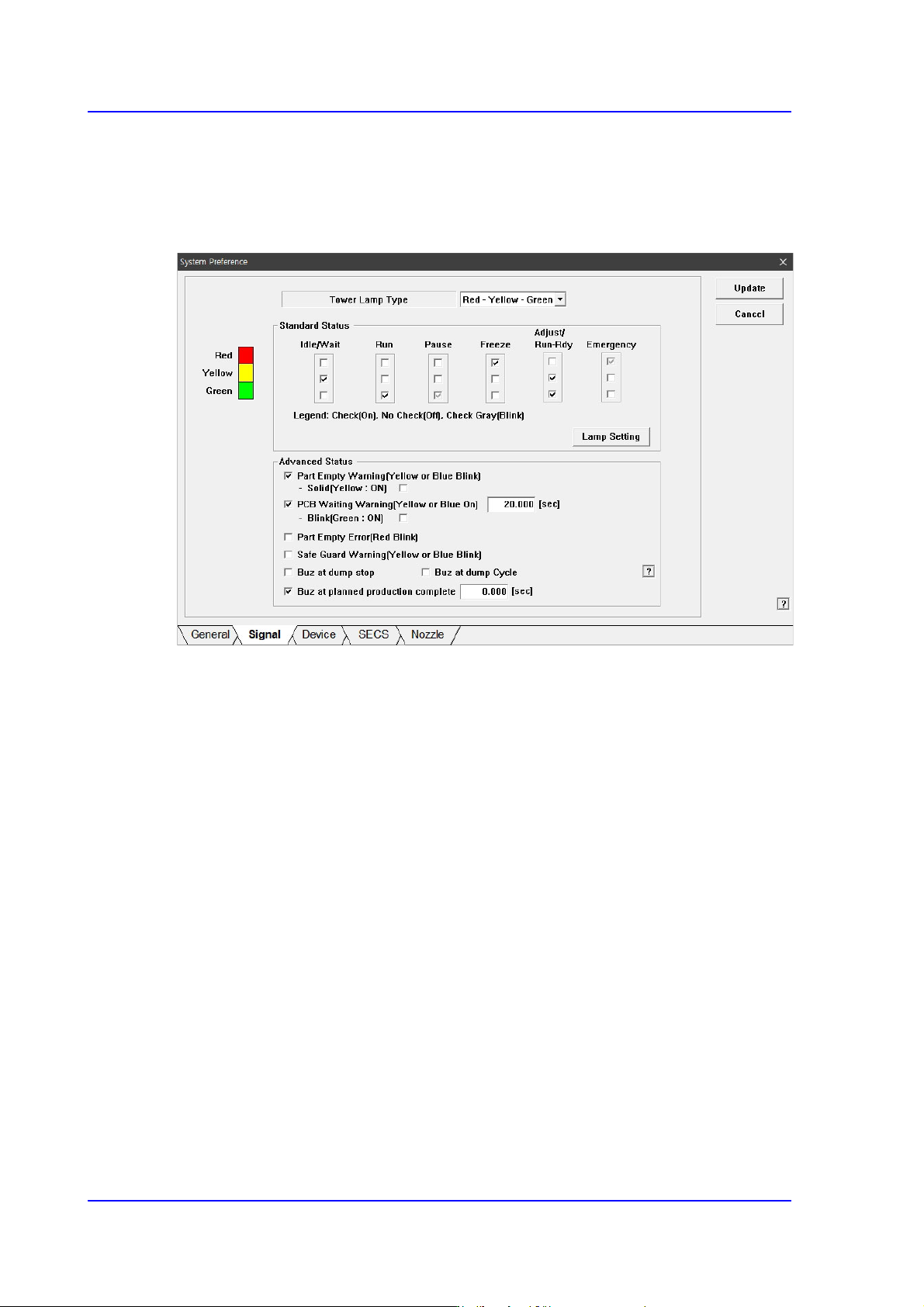
15-48 Multi-Functional Placer SM482( L) PLUS Administrator’s Guide 15.5.2. <Signal> tab dialog Set the status of the signal light. When this button is selected, th e following scre en is displayed. Figure15. 17 “Si…

15-47
System Setup
in an appropriate state to proceed with calibration. Displays a warning message if the
user accesses the calibration menu less than 90 minutes after equipment bootup.
<Use File Backup> Button
If this check box is selected, the equipment saves the settings and other relevant files
including the system files of the equipment when the equipment is being shut down.
The files will be saved in a compressed format at the location designated by the user.
<Ignore Restriction Pitch> Button
If this check box is selected, the validation check for the pitch that varies depending on
the size of the part will not be performed during cycle check. Select this option if the
parts are being fed at a pitch different from the default pitch registered with the system
depending on the size of the parts being fed.
<Use Place Recovery> Button
If this check box is selected, a screen is displayed for the user to be able to place the
part again at the applicable location if the part is determined to have been misplaced
during production. However, this option configures the equipment to continue
production if the part has actually been placed correctly but determined to have been
misplaced by the equipment.
<Auto Apply Pick Up Height> Button
If this option is selected, the equipment uses part data to automatically set the pick up
height for the part. Automatically enters the sum of the part thickness and Z-position
of the tape feeder when a part is picked up by the tape feeder.
Use: Automatically enters the automatically applied pick up height (Z-value) of
the part in the feeder window and the part is actually picked up based on the value
entered.
Use (No display): Does not automatically enter the automatically applied pick up
height (Z-value) of the part in the feeder window but the part is actually picked up
based on the value entered.
<Use RESCUING> Button
If this check box is selected, <Enable RESCUING> check box in the <Option Setting>
group under the <Product> menu is enabled. For details on this function, refer to
“12.1.2. Option Setting”.
<Update> button
Transmits the change data to the equipment and closes the dialog box.
15-48
Multi-Functional Placer SM482(L) PLUS Administrator’s Guide
15.5.2. <Signal> tab dialog
Set the status of the signal light. When this button is selected, the following screen is
displayed.
Figure15.17 “Signal” tab dialog
<Tower Lamp Type> combo box
Select the signal tower type. Available types are as follows.
Red –Yellow –Green: When the signal light consists of “Red –Yellow –Green”.
Red –Blue –Green: When the signal light consists of “Red –Blue –Green”.
<Standard Status> group
Set the status of the signal light corresponding to the equipment status.
For example, if you want to turn on the “Yellow” lamp of the signal tower in the idle/
wait status, check the corresponding “Yellow” lamp check box among the 3 check
boxes under the Idle/Wait.
The status and meanings of the check boxes are as follows.
Checked: Turns on the corresponding lamp.
Not checked: Turns off the corresponding lamp.
Checked in gray: Flickers the corresponding lamp.
15-49
System Setup
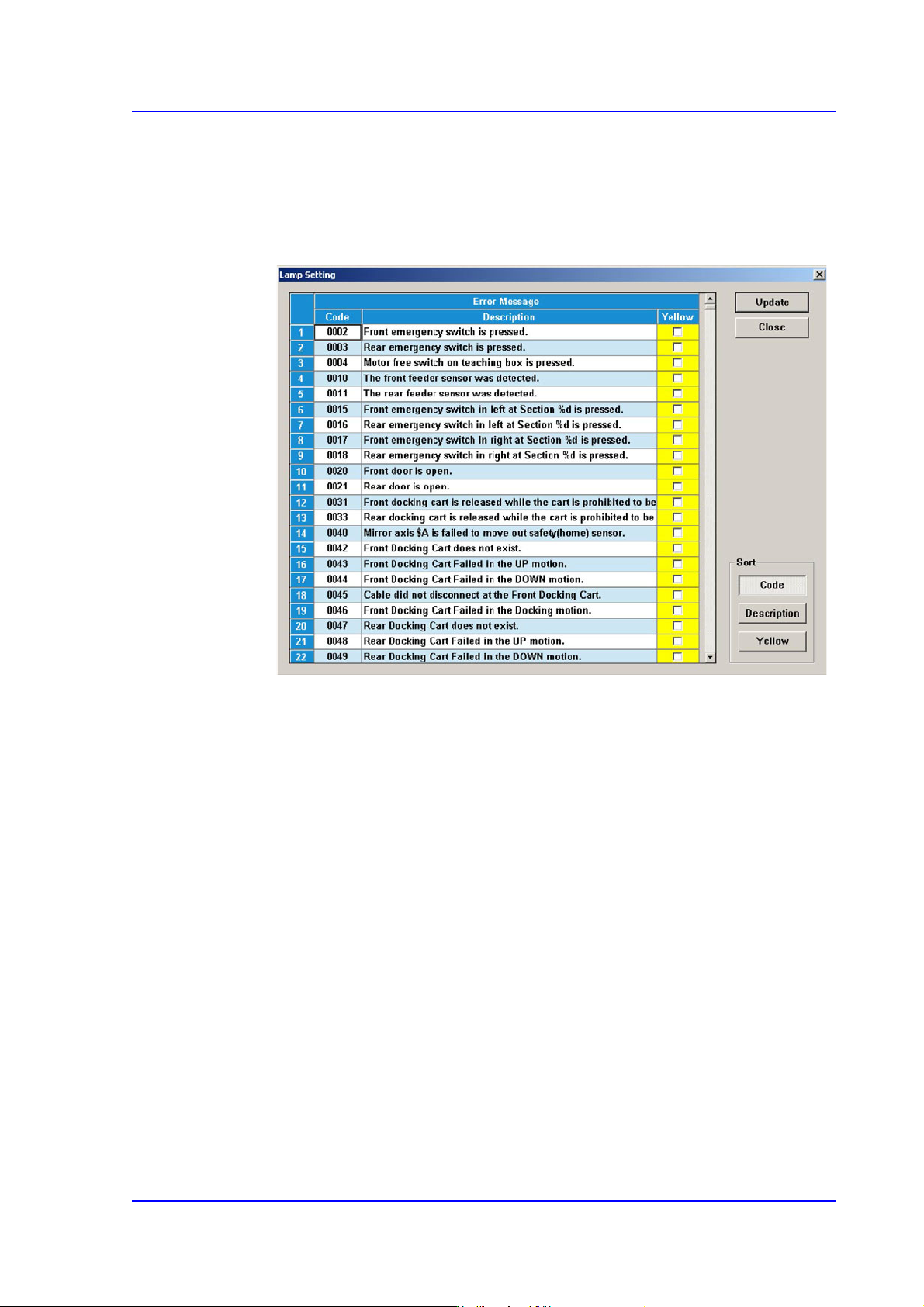
<Lamp Setting> button
The user can perform setup concerning the error by which the red lamp of the
signal light is turned on by default so that the yellow lamp is turned on selectively
according to the error type. Clicking this button will display the following dialog
box.
If the red lamp is turned on, the equipment stops. Therefore, if the error can be
neglected according to the type of the error, select the corresponding error and
select the <Yellow> check box column.
<Advanced Status> check box group
<Part Empty Warning(Yellow or Blue Blink)> check box
Yellow lamp or blue lamp blinks when part empty alarm is emitted.
<Solid(Yellow: ON)> check box
If supplied parts are exhausted or an error occurs after the pickup retry count
has been exceeded, perform setup so that the yellow light (blue light) remains
turned on.
<PCB Waiting Warning(Yellow or Blue On> check box
If the equipment is ready for operation and has been waiting for a PCB to be fed
onto the conveyor longer than the time set here, the yellow or blue light is turned
on. To change the set time, use the edit box to enter the desired time period.
<Blink(Green: ON)> check box
If this checkbox is selected, the yellow light blinks and the green light is
turned on.