SM482PLUS_Admin(Eng_Ver2.8).pdf - 第156页
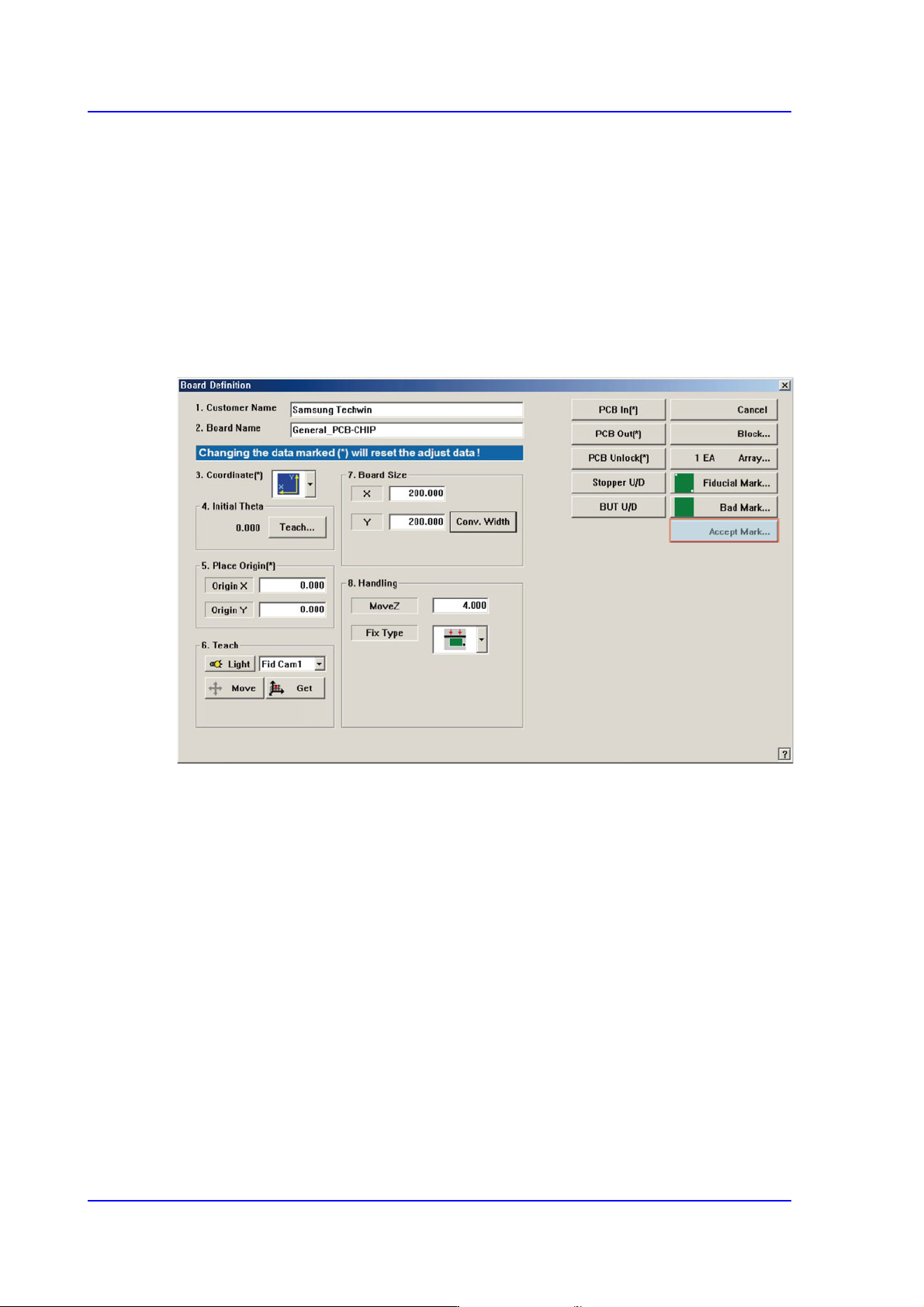
6-38 Multi-Functional Placer SM482( L) PLUS Administrator’s Guide 6.5. Accept Mark setup The bad mark refers to the mark indicated on the PCB to show whether a small PCB in the array PCB is good, acceptable or defective.…

6-37
Board Definition
appropriately according to the condition of PCB and bad mark.
<Test> button
By using the registered mark information, tests the mark.. The accuracy of the
registered mark data can be verified. When the test is successful, the following
message box is displayed.
<Update> button
Saves the bad mark data and closes the “Bad Position” dialog box.
<Cancel> button
Closes the <Bad Position> dialog box without saving the bad mark data.
6-38
Multi-Functional Placer SM482(L) PLUS Administrator’s Guide
6.5. Accept Mark setup
The bad mark refers to the mark indicated on the PCB to show whether a small PCB in the
array PCB is good, acceptable or defective. The bad mark is indicated for defective PCBs
while the Accept Mark is not indicated for defective PCBs. However, in the case of the
Accept Mark, part placement is performed only in the PCB with the Accept Mark.
If no small PCB proves to be defective in the array PCB, it is not necessary to set the
Accept Mark, which will otherwise waste time.
In such cases, if setup is performed to use a bad mark but it is not used, the machine will
waste time checking for the existence of the bad mark.
When this <Accept Mark> button is clicked on, the following dialog box for the editing of
accept mark data is displayed.
6-39
Board Definition
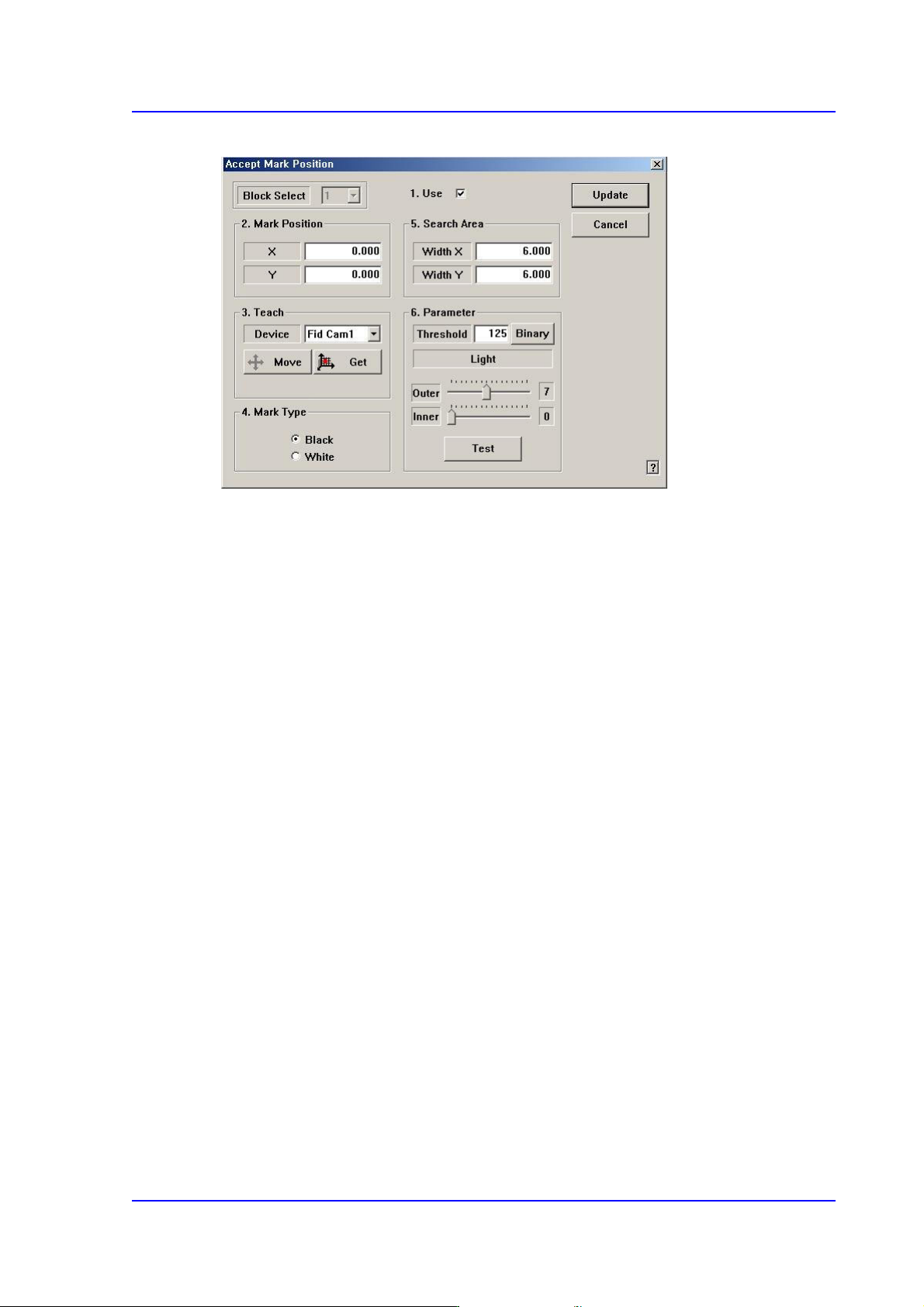
Figure6.8 “Accept Mark Position” dialog box
<Block Select> combo box
For a Multi PCB
The model selected from the “Board Definition” dialog box is selected
automatically and the corresponding Combo Box is disabled.
For a Block PCB
Select the model for which setup will be performed and set other items.
<1.Use> check box
Set whether to use the Accept Mark.
<2. Mark Position> group
The Accept Mark position teaching result is inputted.
<3. Teach> group
Teach the Accept Mark position.
Procedure to teach the Accept Mark
Select the fiducial camera corresponding to the workstation to which a PCB is
loaded. Click the <<Move> button to move to the position of the currently set
Accept Mark. Perform adjustments so that the Accept Mark center falls on the
crosshair center in the SMVision window. Click the <Get> button to input the
current coordinate.
<4. Mark Type> group
Select the color of Accept Mark. Available mad mark colors are as follows;
Black: the mark appears darker than the surrounding.
White: the mark appears brighter than the surrounding.