Administrator’s Guide(CP45FV) Eng.pdf - 第117页
Part Registration 7-33 7.4. User IC component dat a setting Set align data for User IC components. First, the basic concept behind User IC com ponent data setting is explained. Please refer to the next figure. W hole Da …

Samsung Component Placer CP45FV Series Administrator’s Guide
for more information.
<Outline> button
Displays the outline of the component on the vision monitor by using the set align
data.
<Move…> button
Performs component pickups or moves to the stage camera. Please refer to “7.2.1.1
Common Align Data (Page 7-9)” for more information.
<Test> button
Tests component recognition by using the set align data. Please refer to “7.2.1.1
Common Align Data (Page 7-9)” for more information.
<Auto Teach> button
Finds out the component align data automatically. Please refer to “7.3.1.1 Common
Align Data(Page 7-23)” for more information.
<Image Capture> button
Helps to specify the optimum lighting value. The lighting is gradually changed
automatically and the images are saved. The user can check the best image and
identify the optimum lighting value.
Please refer to “7.2.1.1 Common Align Data (Page 7-9)” for more information.
7.3.6. PLCC component data setting
Set the align data for PLCC components. Please refer to “7.3.5 QFP component data
setting”.
7.3.7. Connector-1 component data setting
Set the align data for Connector-1 components.
Please refer to “7.4 User IC component data setting”.
7.3.8. Connector-2 component data setting
Set the align data for Connector-2 components.
Please refer to “7.4 User IC component data setting”.
7-32
Part Registration
7-33
7.4. User IC component data setting
Set align data for User IC components.
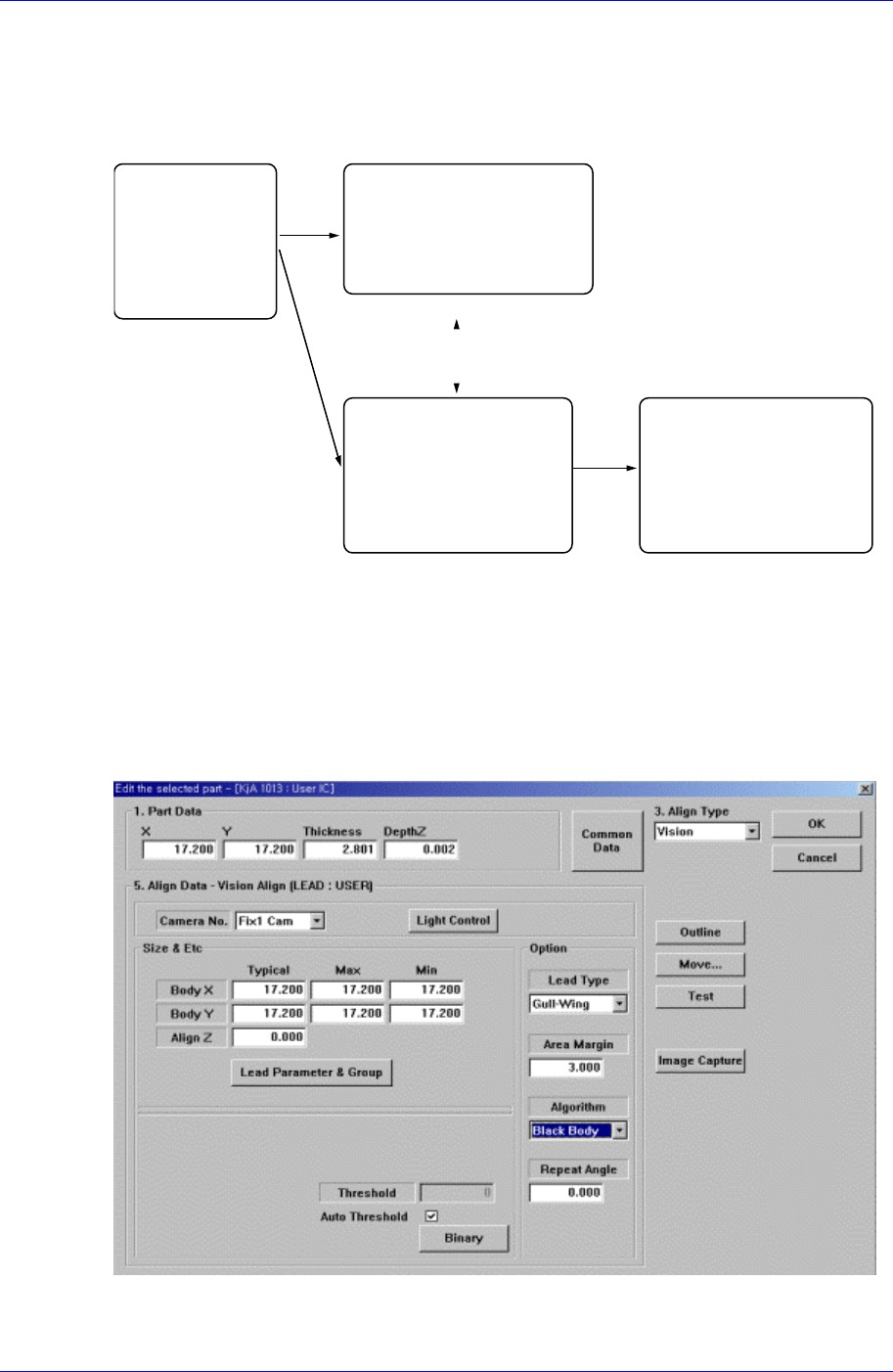
First, the basic concept behind User IC component data setting is explained. Please refer
to the next figure.
Whole Data
Register overall
information on
the component.
Lead Parameter
Data that have Lead
information on lead forms
Lead Group
Data that specify the
position where the lead
are converged.
Lead Gap
Informationonthe
position of empty in the
lead group
Figure 7-22. The basic concept of User IC component data setting
User IC component data has one whole data.
User IC component data has up to 16 lead groups.
User IC component data has equal or fewer lead parameters than the lead groups(up
to 8).
Each lead group must specify 1 corresponding lead parameter.
Each lead group has up to 4 lead gaps.
Figure 7-23. “Align Type = Vision, Package Group = User IC” dialog box
<Camera No.> combo box

Samsung Component Placer CP45FV Series Administrator’s Guide
Select the camera to recognize the component. Please refer to “7.2.1.1 Common Align
Data (Page 7-9)” for more information.
<Light Control> button
Set the light for the camera to recognize the component. Please refer to “7.2.1.1
Common Align Data (Page 7-9)” for more information.
<Size & Etc> group
Set the align size.
<Body X Typical> edit box
Set the size of component body in X direction.
<Body X Max> edit box
Set the maximum size of component body in X direction.
<Body X Min> edit box
Set the minimum size of component body in X direction.
<Body Y Typical> edit box
Set the size of component body in Y direction.
<Body Y Max> edit box
Set the maximum size of component body in Y direction.
<Body Y Min> edit box
Set the minimum size of component body in Y direction.
<Align Z> edit box
Set the height for recognition. Based on the component surface, if the top is to be
recognized, set - value and if the bottom is to be recognized, set + value.
<Lead Parameter & Group> button
Set the lead parameter and lead group. Please refer to <7.4.1 Lead Parameter>,
<7.4.2 Lead Group>.
<Option> group
Set the align option data.
<Area Margin> edit box
Set the limit for the image to be off the center of the screen when the component
is recognized. For example, if this value is 5mm, then the image of the
component should be within 5mm of the center of the screen.
<Lead Type> combo box
Select the lead type. Available lead types are as follows.
Gull-Wing: Leads protrude outward as QFP.
J-Lead: Leads roll inward as PLCC.
<Algorithm> combo box
Select the algorithm to recognize the component. Available algorithms are as
follows.
Black Body: Method to process IC types fast. In general, applied to IC types.
7-34