Administrator’s Guide(CP45FV) Eng.pdf - 第199页
T eaching 13-3 (First Fiducial Mark) Click the <Get> button in the <4.T each > group and enter the current position in the <2.Mark Position> group. (Second Fiducial Mark)
Samsung Component Placer CP45FV Administrator’s Guide
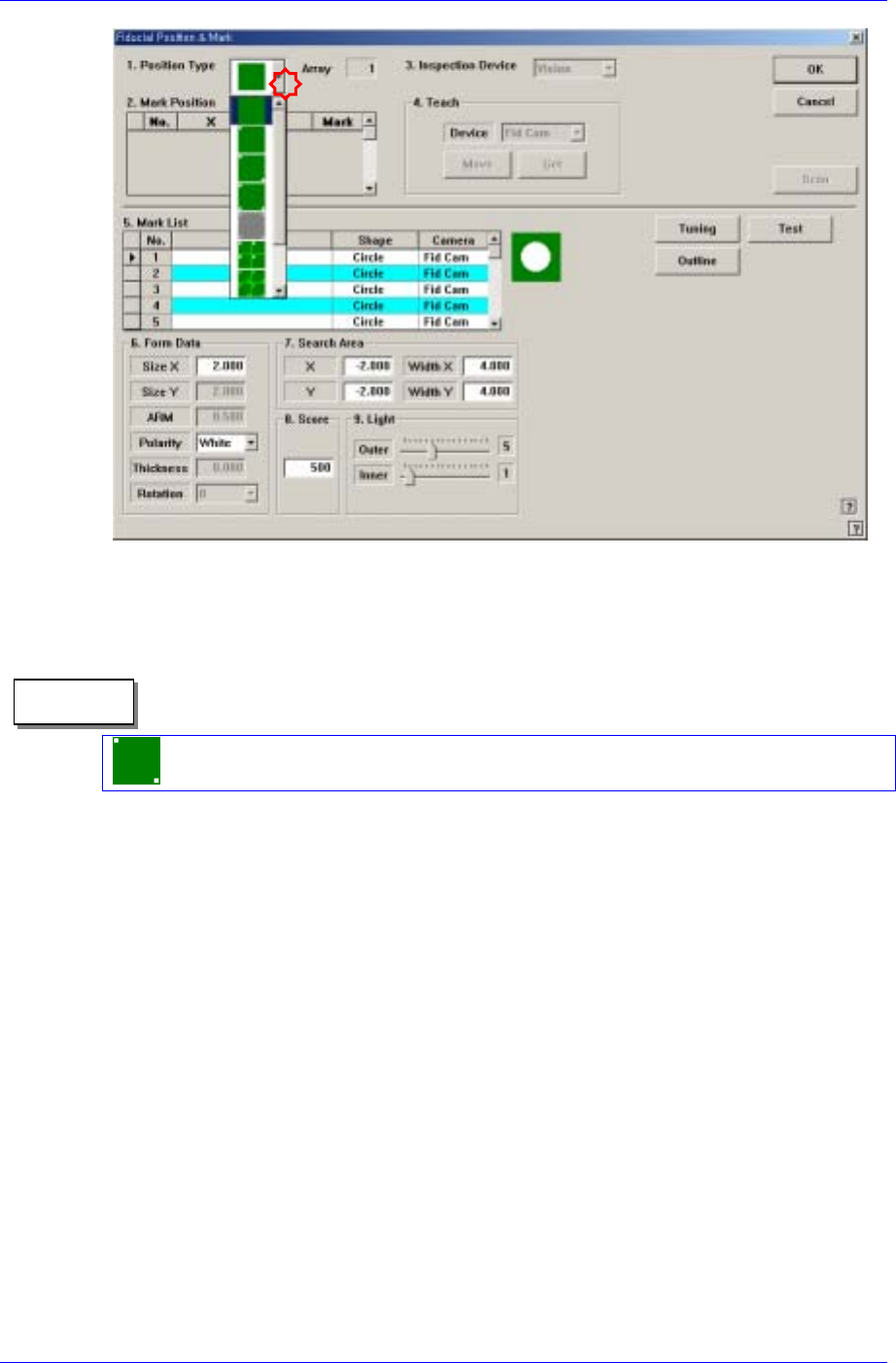
<1. Position Type> combo box
Select the number of fiducial marks. Available numbers are as follows. (Selects2
Panel.)
2 Panel: 2 fiducial marks for PCB correction.
Memo
<2. Mark Position> group
If <Position Type> is not “None”, the number of data corresponding to the number of
fiducial marks selected are generated. For example, when “2 Panel” is selected, the
following dialog box is displayed.
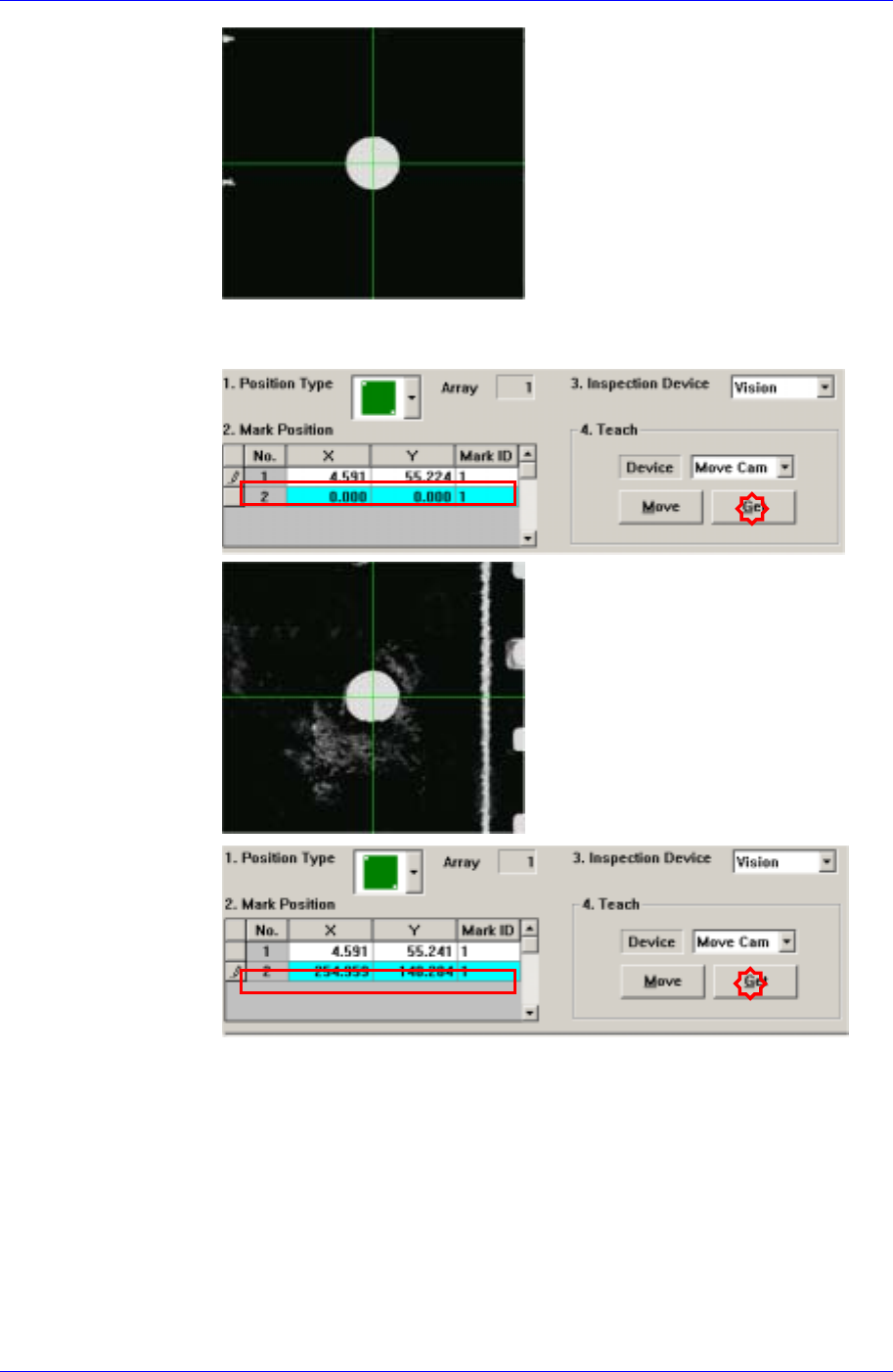
Perform teaching of the center of two fiducial marks using a fiducial camera and
enter their coordinates.
First, adjust the lighting of the Fiducial Camera (Move Camera) so that the fiducial
mark can be clearly seen.
Fiducial mark teaching procedure
Select the “MoveCam” from the <Device> combo box in the <4.Teach>
group.
Move the Fiducial Camera (Move Camera) on the head above the fiducial
mark to teach using the teaching box.
Move the head so that the fiducial mark center falls on the center of the cross
hair of the vision monitor.
13-2
Teaching
13-3
(First Fiducial Mark)
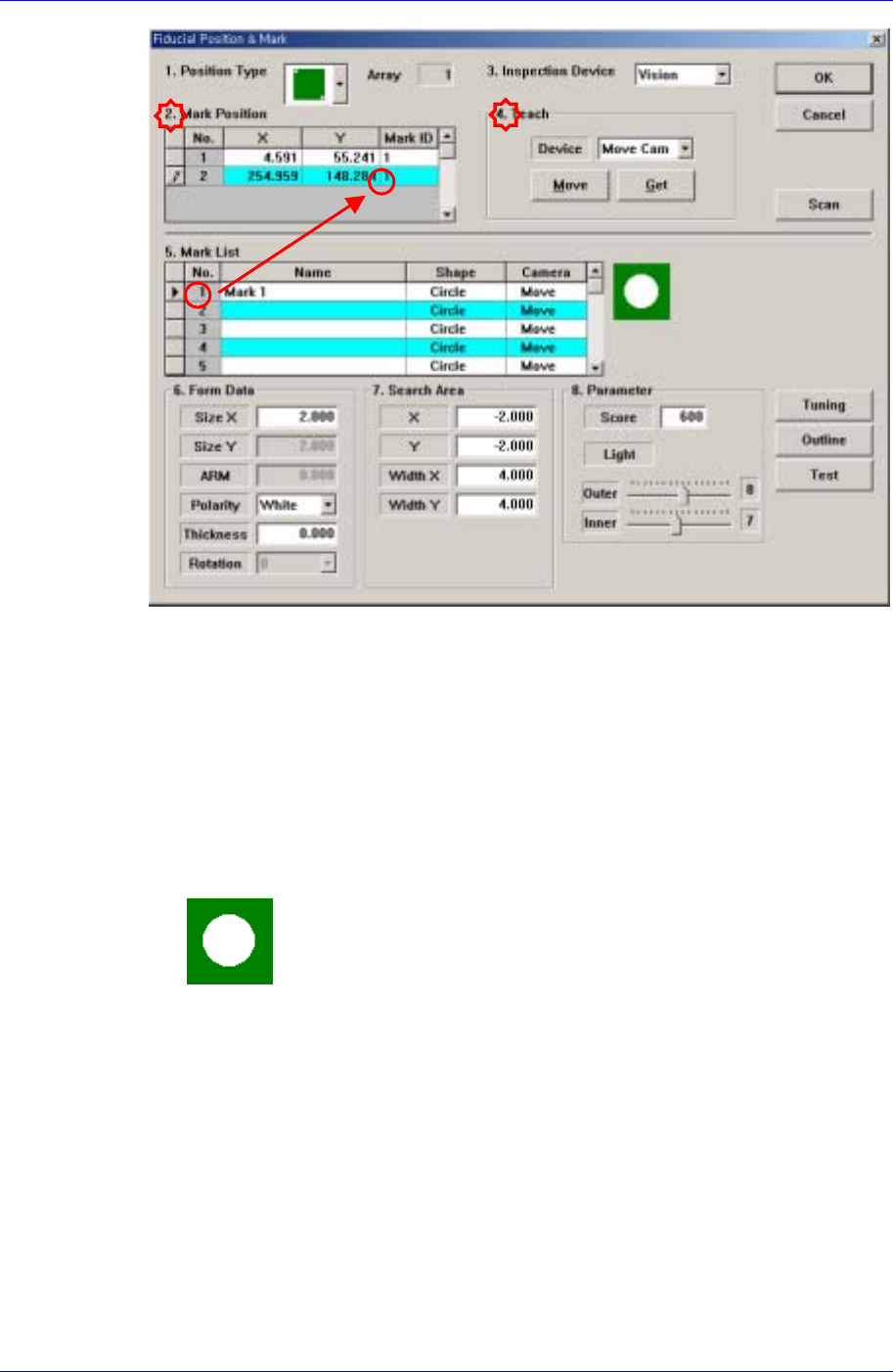
Click the <Get> button in the <4.Teach> group and enter the current position
in the <2.Mark Position> group.
(Second Fiducial Mark)
Samsung Component Placer CP45FV Administrator’s Guide
<5. Mark List> group
A list of fiducial mark shape data. Here, name the fiducial mark and select the shape
(In this case, Circle is selected).
<No> column
A serial number of fiducial mark shape.
<Name> column
The name of the fiducial mark(Up to 10 characters)
<Shape> column
Select the shape of fiducial mark.
Circle: Circular shape fiducial mark.
<Camera> column
Select a camera to inspect the fiducial mark. At present, it is fixed to “Move
Camera”.
<6. Form Data> group
Data on the shapes of fiducial marks.
<Size X> edit box
Set the size of fiducial mark in X direction.(Based on the machine coordinate
system)
Here, since the fiducial mark shape is circle, the size of the fiducial mark
corresponds to the circle diameter. Click the <Outline> button to check if the size
of the fiducial mark displayed on the monitor matches with that of the circle. If it
does not match, change the size (diameter) in the X direction to make them
13-4