Administrator’s Guide(CP45FV) Eng.pdf - 第205页
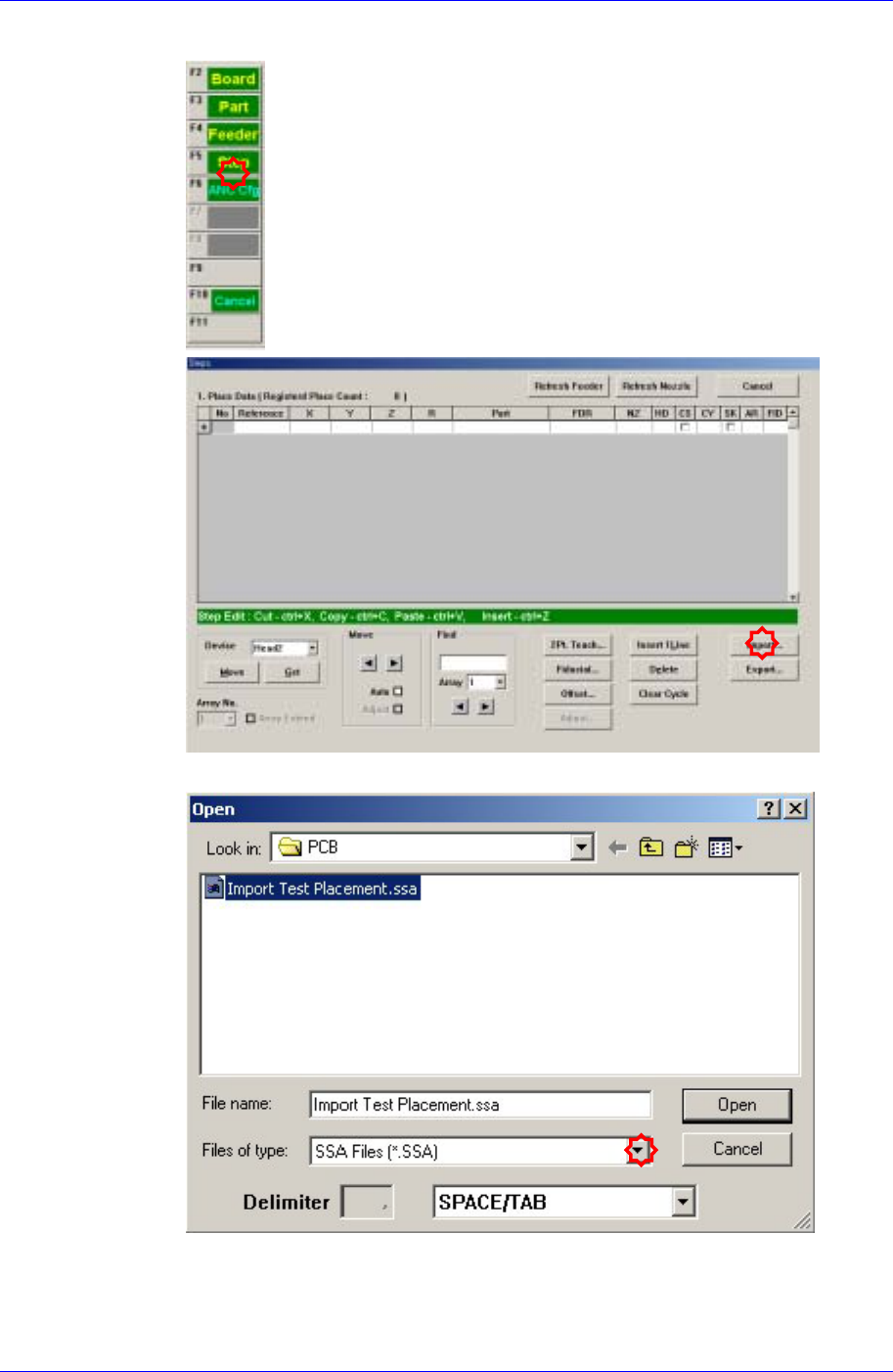
T eaching 13-9 Click the <Import> button in the <Steps> dialog box. Locate and select the location and file name of the CAD file to be imported.
Samsung Component Placer CP45FV Administrator’s Guide
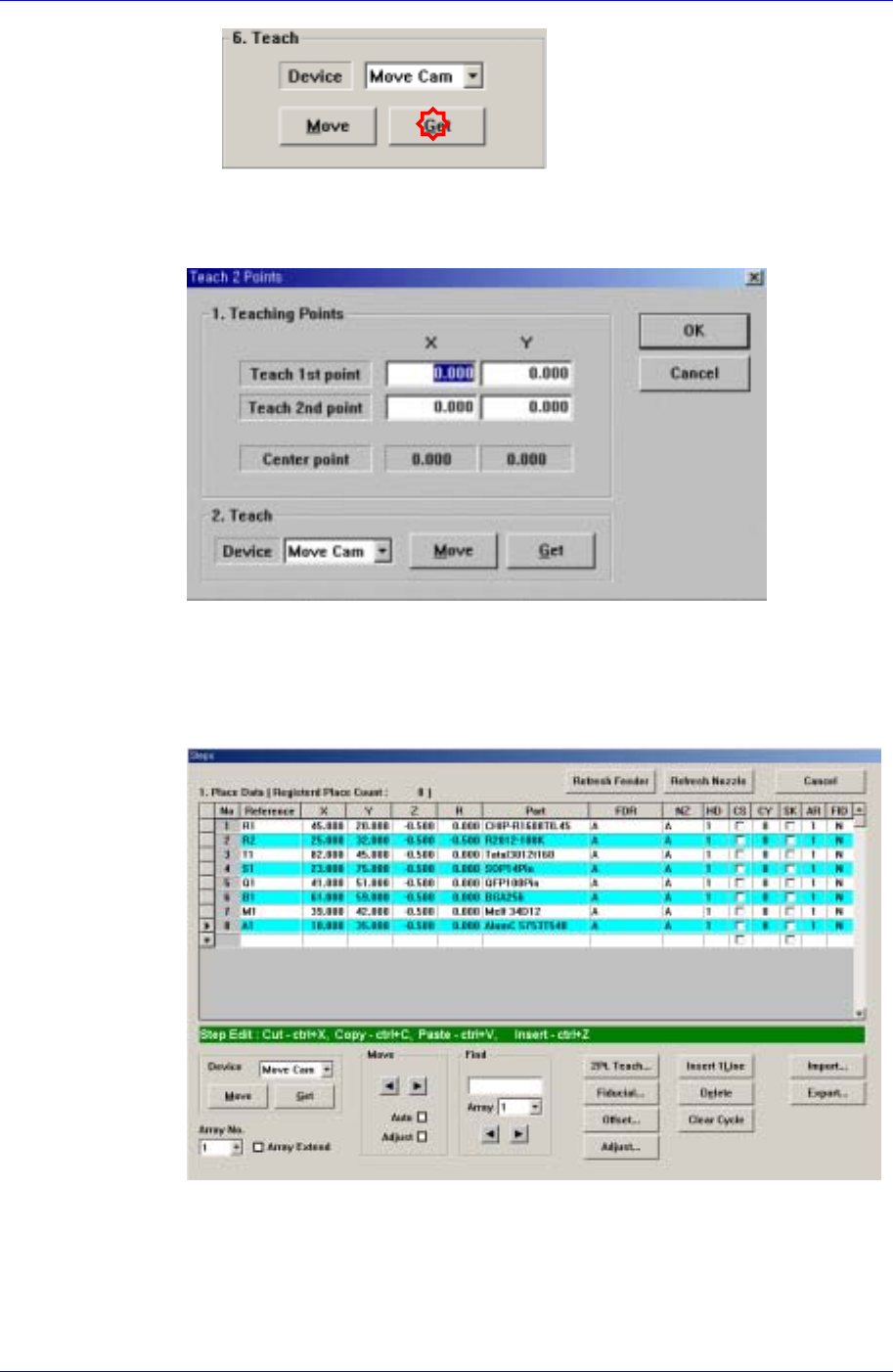
Teach the center of the component to be placed.
If possible, obtain the correct center point using the 2 point teaching method for
accurate teaching.
Teach the positions of two points on the edges facing diagonally to obtain the
center point.
Once the teaching of the two points is completed, the center of the
component is obtained automatically. Enter the coordinate as the center of
the component.
In the above dialog box, the constant value was entered as the Z value. This
allows the bottom surface of the component to be placed below the top surface of
the PCB. Sometimes the value of -0.3 ~ -0.5mm is entered in the dialog box for
accurate placement considering the PCB warping.
Placement point teaching procedure using CAD data
13-8
Teaching
13-9
Click the <Import> button in the <Steps> dialog box.
Locate and select the location and file name of the CAD file to be imported.
Samsung Component Placer CP45FV Administrator’s Guide
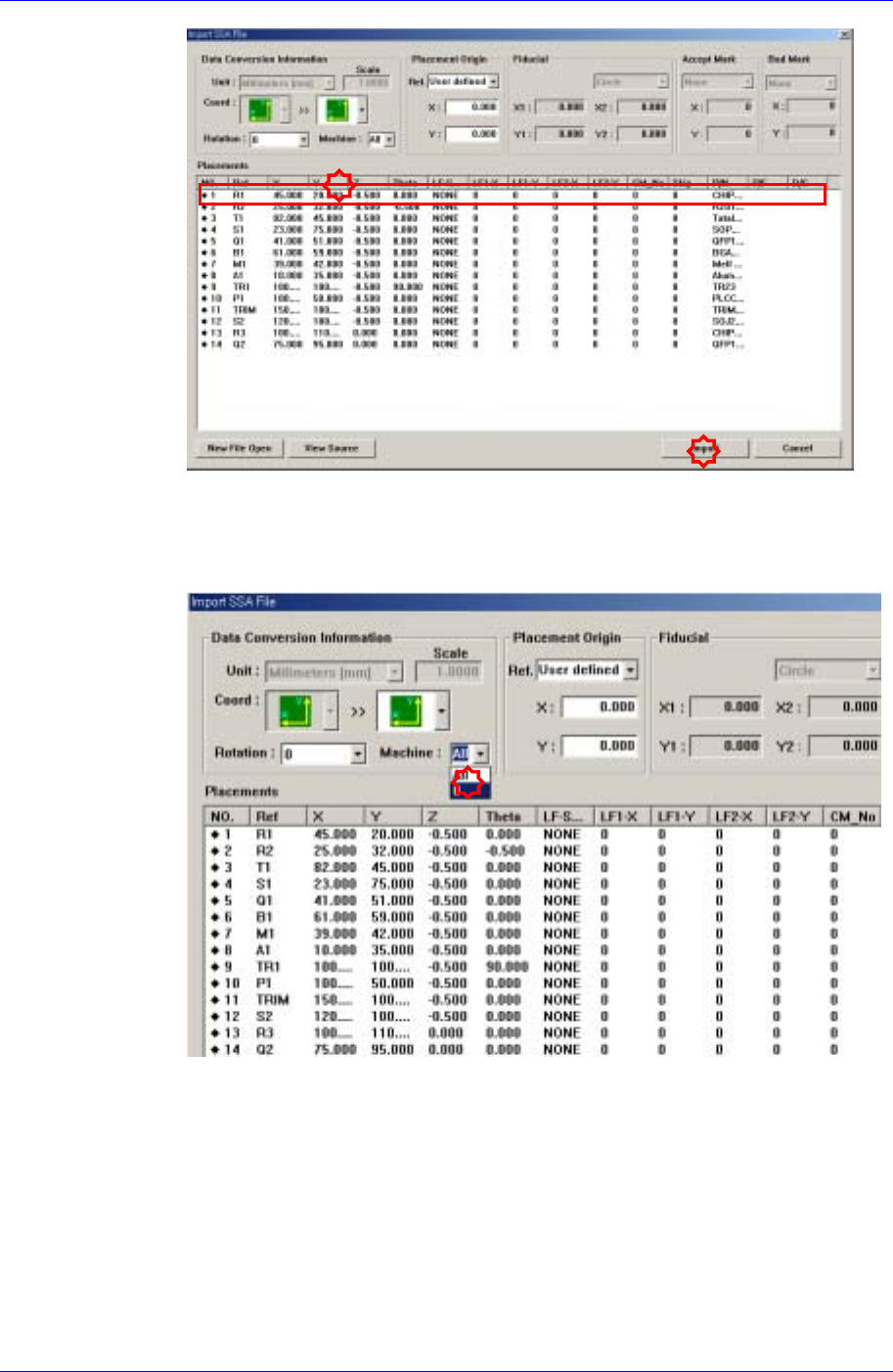
Select the machine to be operated using the imported SSA file.
Select the imported machine and confirm the name of the corresponding row of
placements. In the case of our standard format (SSA), the row value need not be
changed.
Executes Import.
When importing a file in a format other than our standard format, the
corresponding information is indicated in a comment column as follows. Place
the mouse point on the column whose name is to be changed and right click the
mouse to display the menu and select the corresponding name. At this time, when
there is no column name corresponding to the column to be imported, set the
column name in the comment column.
13-10