Administrator’s Guide(CP45FV) Eng.pdf - 第201页
T eaching 13-5 match with each other. <Polarity> combo box Select the color of fiducial mark. Available colors are as follows. ( Select s White.) White: the mark looks lighter than the surroun…
Samsung Component Placer CP45FV Administrator’s Guide
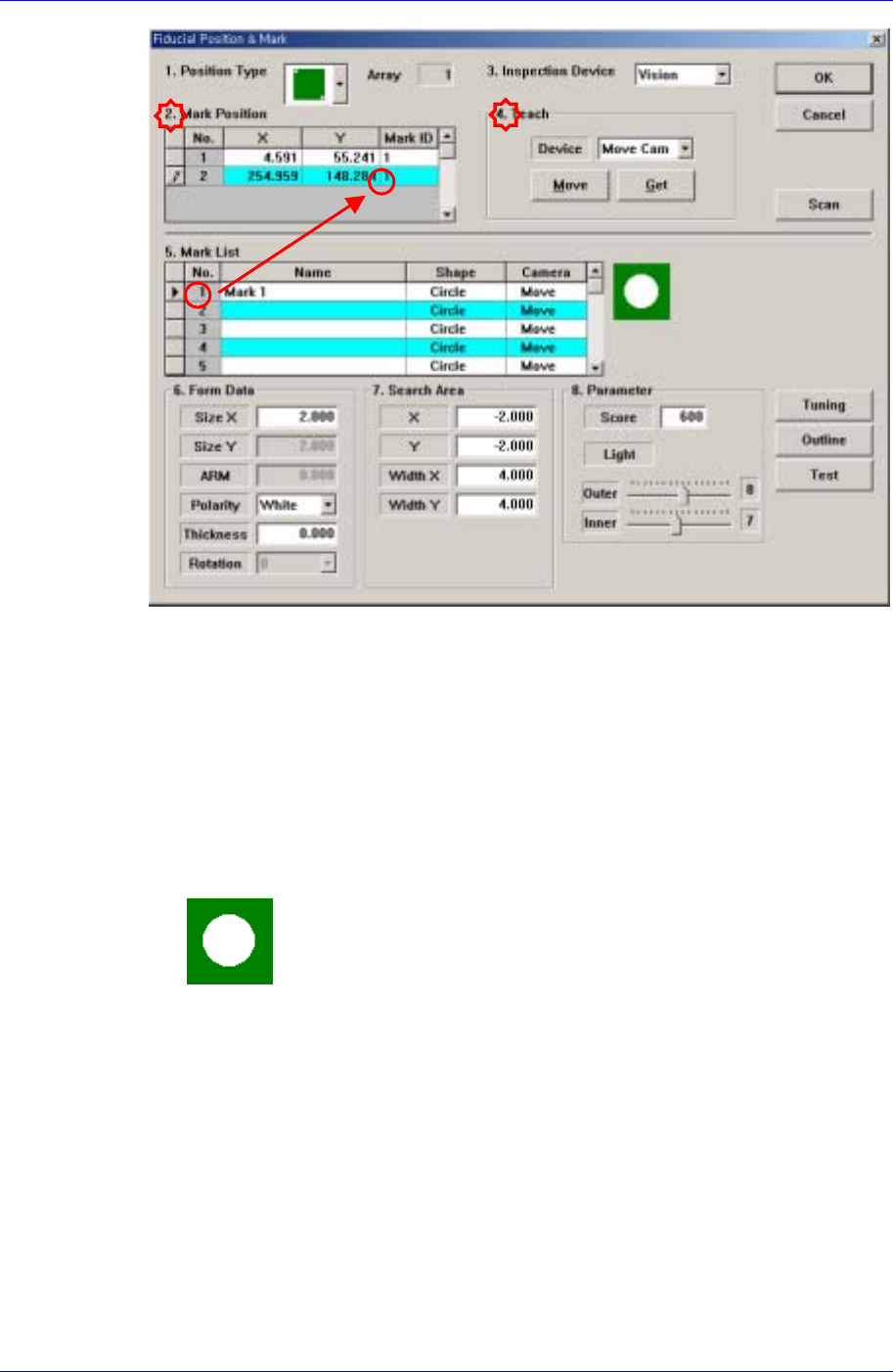
<5. Mark List> group
A list of fiducial mark shape data. Here, name the fiducial mark and select the shape
(In this case, Circle is selected).
<No> column
A serial number of fiducial mark shape.
<Name> column
The name of the fiducial mark(Up to 10 characters)
<Shape> column
Select the shape of fiducial mark.
Circle: Circular shape fiducial mark.
<Camera> column
Select a camera to inspect the fiducial mark. At present, it is fixed to “Move
Camera”.
<6. Form Data> group
Data on the shapes of fiducial marks.
<Size X> edit box
Set the size of fiducial mark in X direction.(Based on the machine coordinate
system)
Here, since the fiducial mark shape is circle, the size of the fiducial mark
corresponds to the circle diameter. Click the <Outline> button to check if the size
of the fiducial mark displayed on the monitor matches with that of the circle. If it
does not match, change the size (diameter) in the X direction to make them
13-4

Teaching
13-5
match with each other.
<Polarity> combo box
Select the color of fiducial mark. Available colors are as follows. (Select s
White.)
White: the mark looks lighter than the surroundings.
Black: the mark looks darker than the surroundings.
<Thickness> edit box
Set the thickness of the fiducial mark. The value of 0 denotes a full fiducial mark.
(Here, enter “0”.)
<7. Search Area> group
Set the area in which to search the fiducial mark. The main purpose of this feature is
to limit the search range for when there are forms similar to the mark near the mark
such that they can interfere with recognition on certain PCBs.
<X> edit box
Set the position to start searching for the fiducial mark in X axis. The center of
the vision monitor screen is 0. In general, it is -3 mm. Enter the size 1 ~ 1.5 times
as large as the mark size. The sign is (-).
<Y> edit box
Set the position to start searching for the fiducial mark in Y axis. The center of
the vision monitor is 0. In general, it is -3 mm. Enter the size 1 ~ 1.5 times as
large as the mark size. The sign is (-).
<Width X> edit box
Set the value of search range in X axis. In general, it is 6 mm. Enter the size
twice as large as the X,Y. The sign is (-).
<Width Y> edit box
Set the value of search range in Y axis. In general, it is 6 mm.
<8. Parameter> group
<Score> edit box
It should be at least 600(default value) for accurate adjustment. Even in the worst
case, it should be over 300. (The score should be set to 600 for use.)
<Light> group
Set the light value when the fiducial mark is inspected. In general, 7 is
appropriate but it can be adjusted according to the condition of PCB and fiducial
mark.
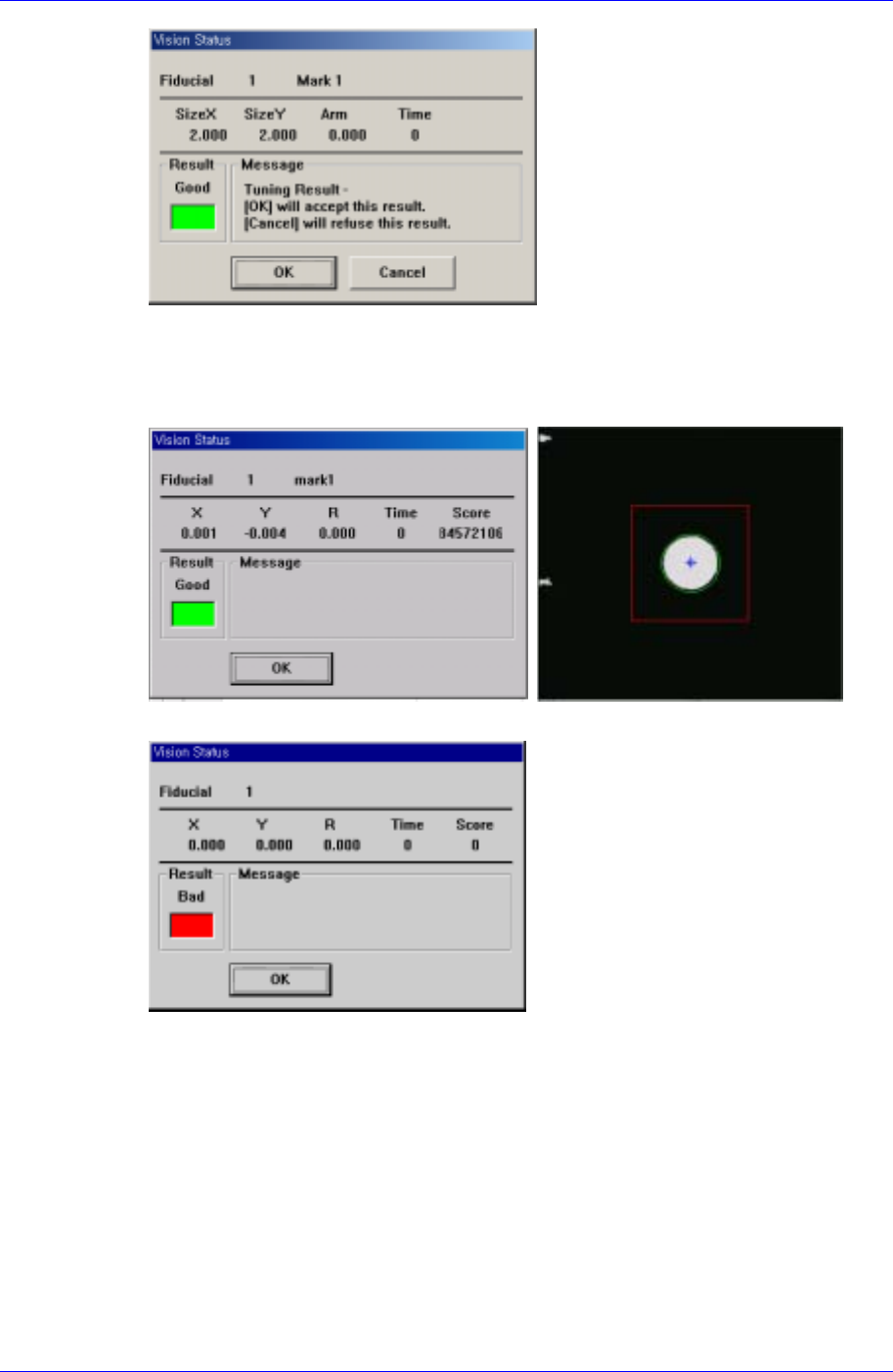
<Tuning> button
By using the registered mark information, finds the exact size of the mark. After the
size of the actual mark is found, the following message box is displayed. If you want
to update it with the data found, click on the<Yes> button, otherwise click on the
<No> button. Perform this more than once to enter the correct size.
Samsung Component Placer CP45FV Administrator’s Guide
<Test> button
By using the registered mark information, tests the mark.. The accuracy of the
registered mark data can be verified. When the test is successful, the following
message box is displayed.
When the test is not successful, the following message box is displayed.
<Scan> button
Executes a scan test on the set fiducial mark. The scan test inspects the actual mark
by using the set fiducial mark position and mark data and displays the result as
follows.
13-6