Administrator’s Guide(CP45FV) Eng.pdf - 第99页
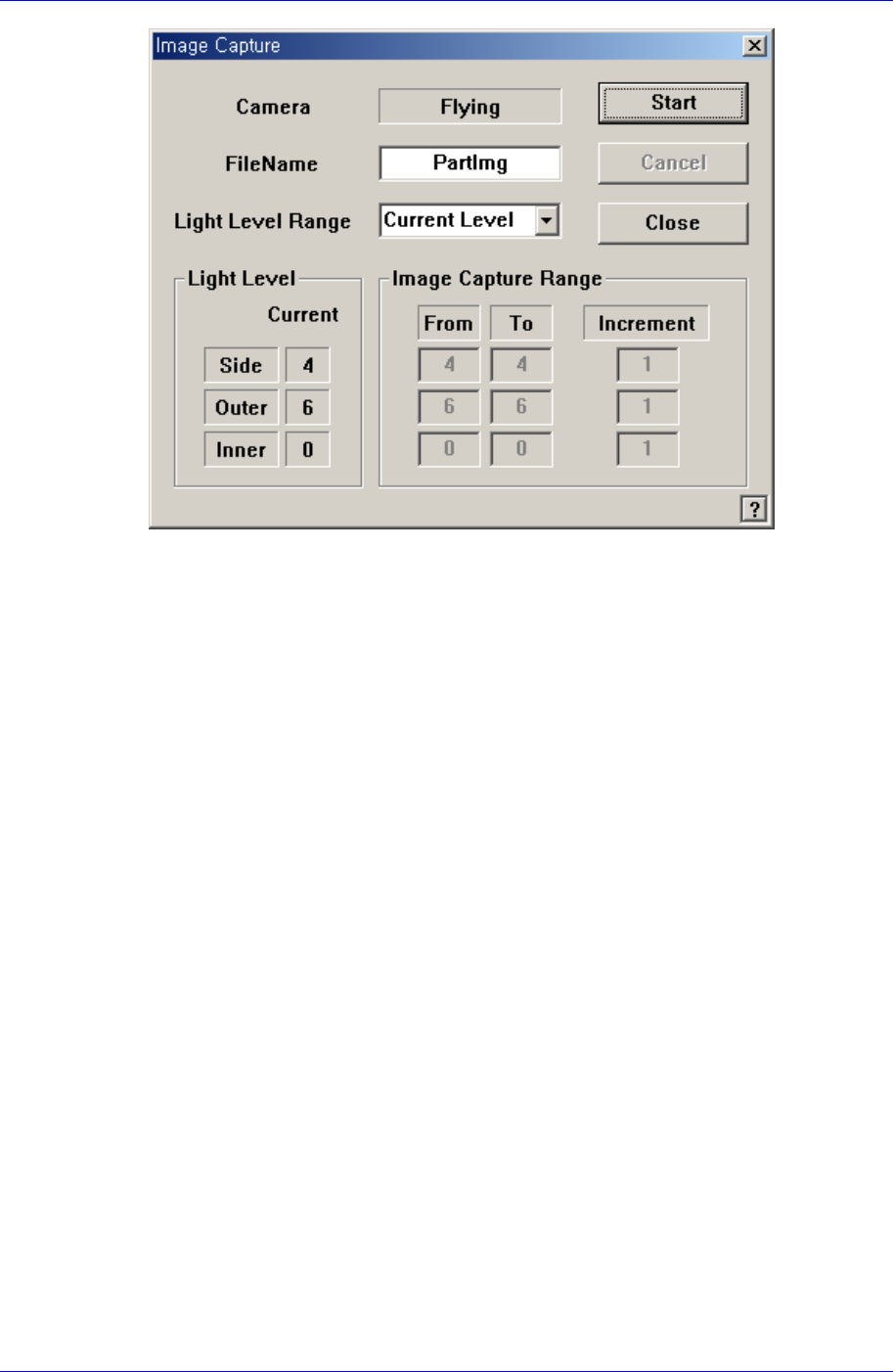
Part Registration 7-15 Figur e 7-10. “ Image Captur e ” dialog box <Camera> caption box Displays the camera to be used for image capture. <Filename> edit box Enters the filename to be us…
Samsung Component Placer CP45FV Series Administrator’s Guide
mirror and sets the light. If the <Camera No.> to be aligned is the fix camera,
moves the Z axis of the head to a safe height, moves the head block to the fix
camera position, and then moves the Z axis of the head to the align height.
<Vacuum ON/OFF> button
Turns on/off the vacuum generator of the head for component pickups or
release.
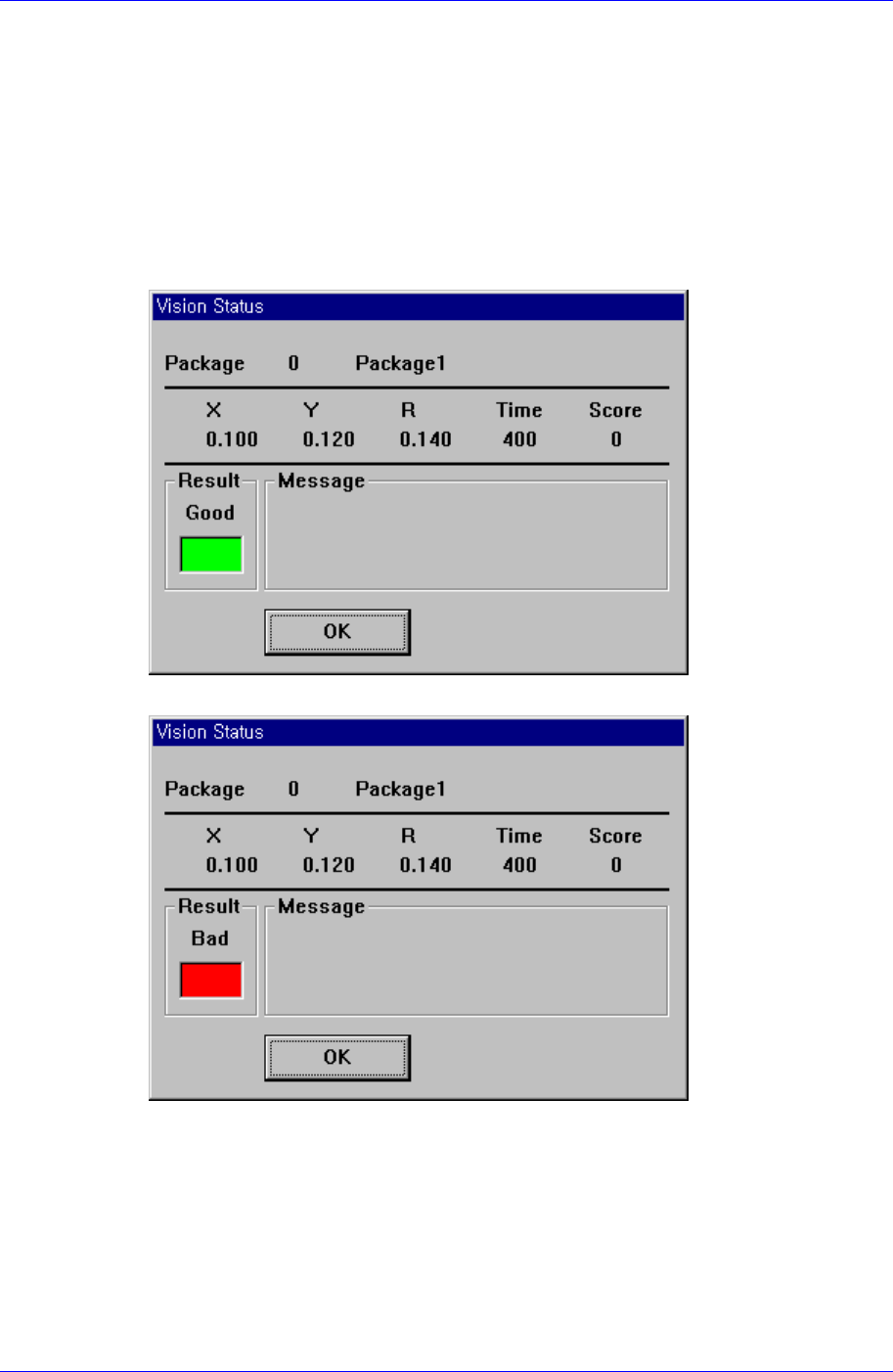
<Test> button
Tests component recognition by using the set align data. When the test is successful,
the following message box is displayed.
When the test is not successful, the following message box is displayed.
<Image Capture> button
Helps to specify the optimum lighting value. The lighting is gradually changed
automatically and the images are saved. The user can check the best image and
identify the optimum lighting value.
7-14
Part Registration
7-15
Figure 7-10. “Image Capture” dialog box
<Camera> caption box
Displays the camera to be used for image capture.
<Filename> edit box
Enters the filename to be used for image saving.
<Light Level Range> combo box
Selects the light level for each light and basic setup range.
Rough
Saves the image by increasing the level of each light by 5.
Fine
Saves the image by increasing the level of each light by 1 within the range of
the light level before and after the currently set light level.
All Range
Saves the image for all light levels.
User Define
The user sets the range and interval of the light level change.
Light Level
Displays the current light level.
Image Capture Range
Displays the range and interval of the light level change to be used for saving the
image. If the light level range is set as User Define, the user can directly enter
and correct the range.
From
Displays the starting level of the light level change.
To
Samsung Component Placer CP45FV Series Administrator’s Guide
Displays the finishing level of the light level change.
Increment
Sets the interval of the light level change.
<Start> button
Starts image capture.
<Cancel> button
Stops image capture.
<Close> button
Closes the dialog box.
7.2.2. CHIP-Rect component data setting
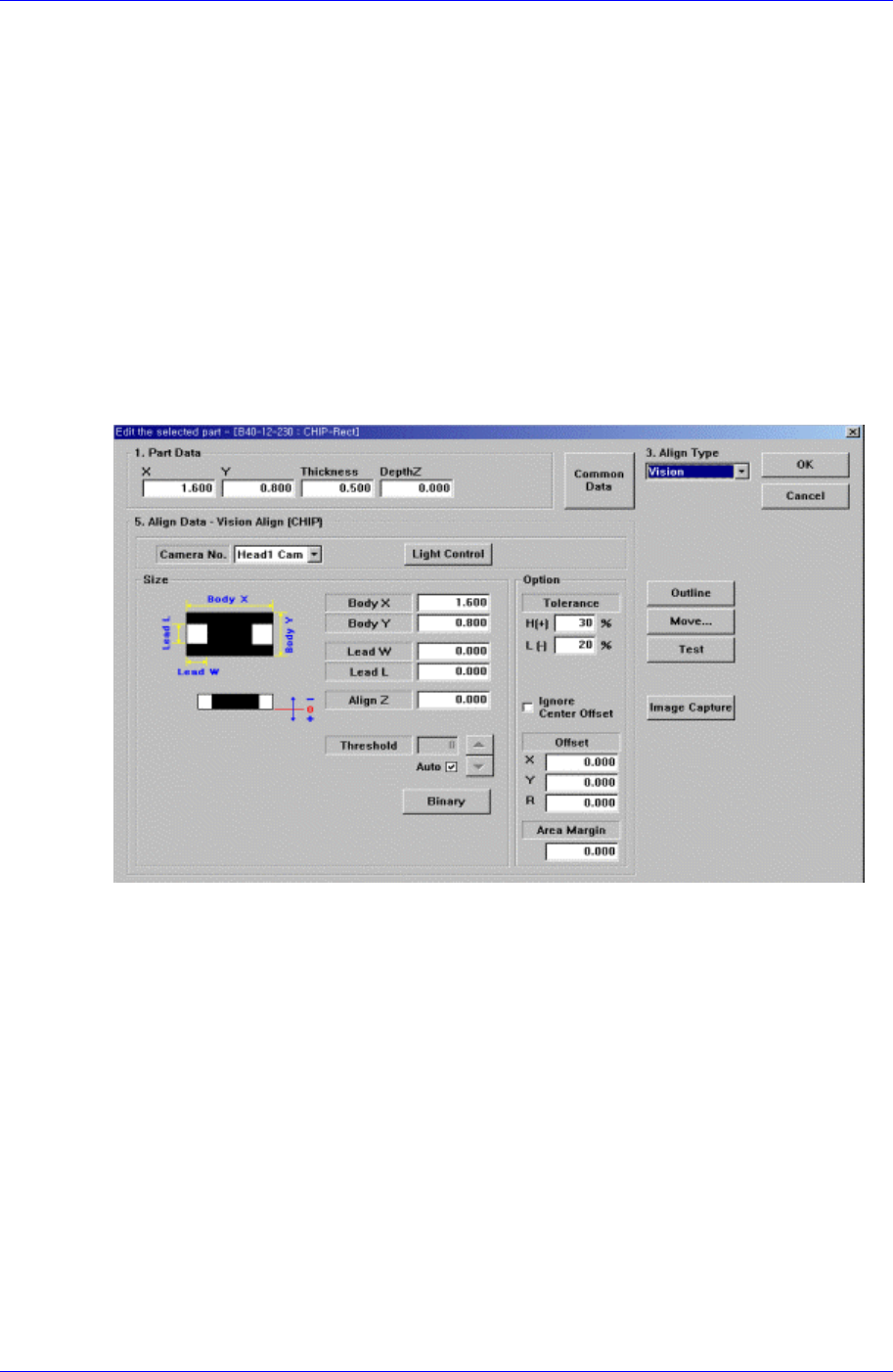
Set the align data for rectangular CHIP components.
Figure 7-11. “Align Type = Vision, Package Group = CHIP-Rect” dialog box
<Camera No.> combo box
Select the camera to recognize the component. Please refer to “7.2.1.1 Common Align
Data (Page 7-9)” for more information.
<Light Control> button
Select the light for the camera to recognize the component. Please refer to “7.2.1.1
Common Align Data (Page 7-9)” for more information.
<Size> group
Set the align size.
<Body X> edit box
Set the component size in X direction.
<Body Y> edit box
Set the component size in Y direction.
<Lead W> edit box
7-16