Administrator’s Guide(CP45FV) Eng.pdf - 第78页
Samsung Component Placer CP45FV Series Administrator ’ s Guide None: No bad mark. Array: 1 bad mark in each array PCB. <3. Inspection Device> combo box Select the device for bad mark inspec tion. Available devi…
Board Definition
6-17
<Repeat…> button
It is not explained here as it is displayed in the debug mode only.
<Bad Mark…> button
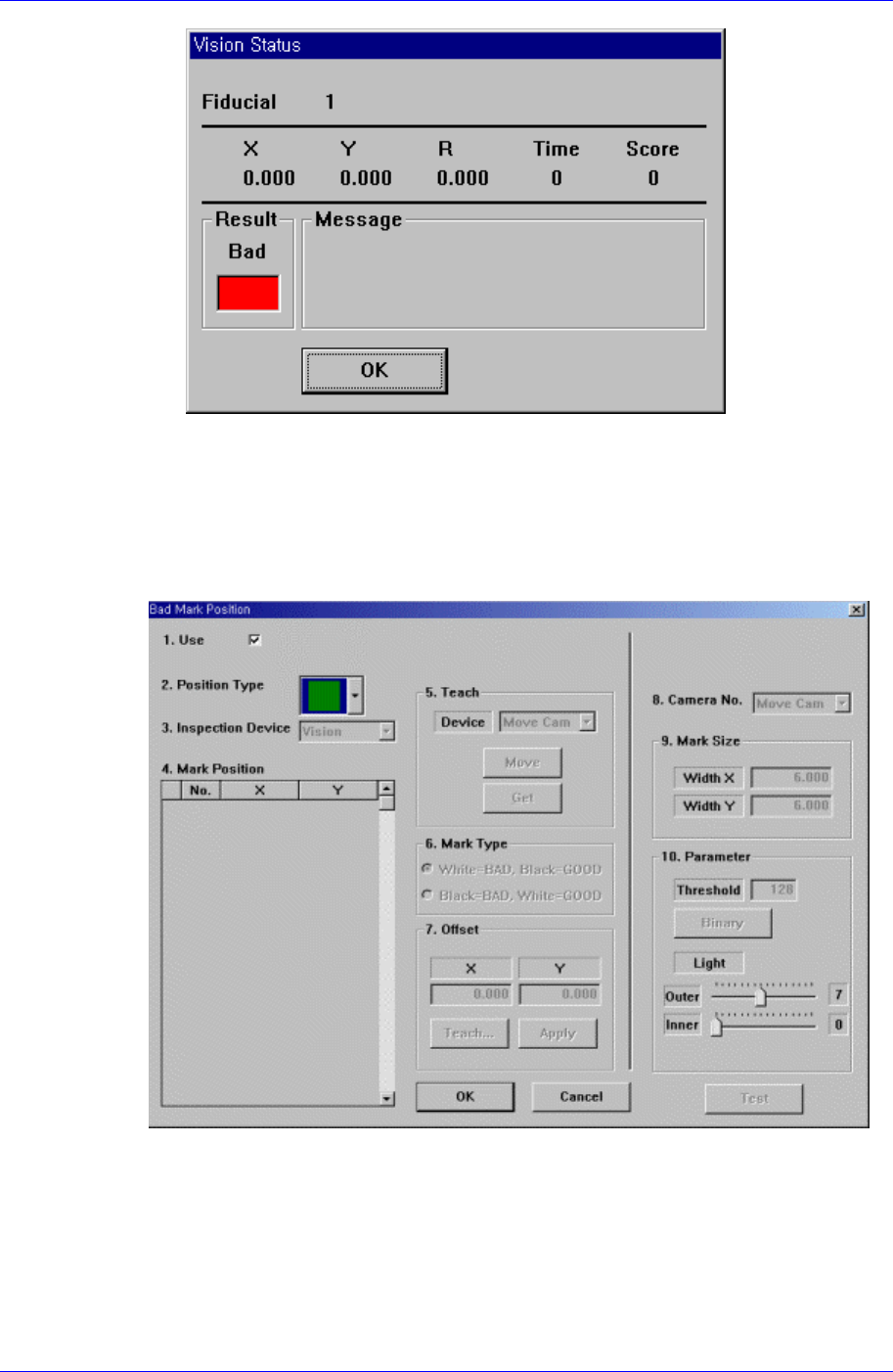
A bad mark is a mark that identifies whether the loaded PCB is good or bad. The PCB
marked as bad is not operated. When this button is clicked on, the following dialog
box to edit bad mark data is displayed.
Figure 6-14. “Bad Mark Position” dialog box (When the Position Type is “None”)
<1.Use> check box
Use it to select or check the use of bad mark.
<2. Position Type> combo box
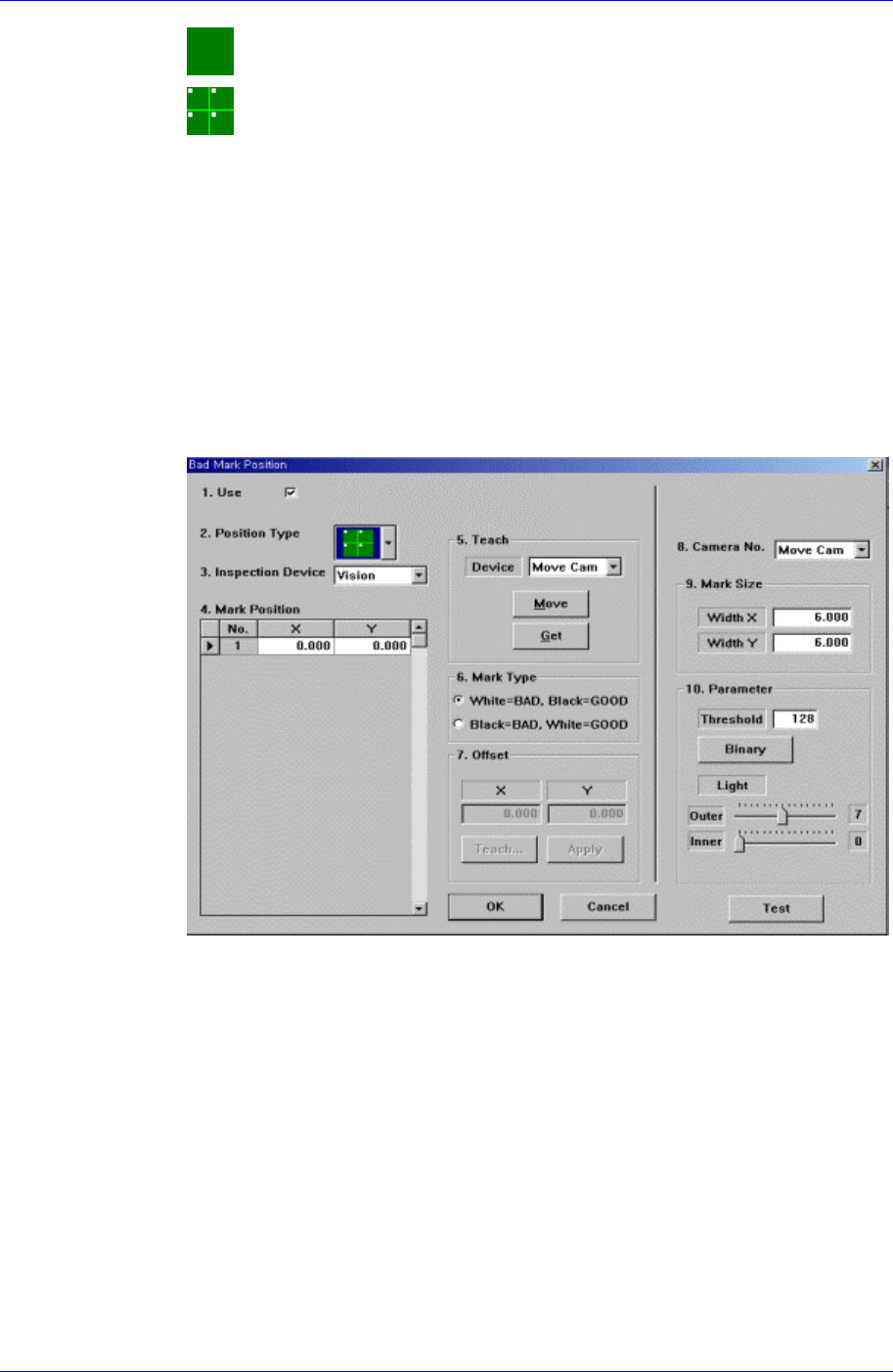
Select the position of bad mark. Available positions of bad marks are as follows.
Samsung Component Placer CP45FV Series Administrator’s Guide
None: No bad mark.
Array: 1 bad mark in each array PCB.
<3. Inspection Device> combo box
Select the device for bad mark inspection. Available devices are as follows.
Vision: Recognizes with the move camera(fiducial camera) in the head assembly.
<4. Mark Position> group
When <Position Type> is not “None”, data is generated according to the selected
<Position Type>. The number of data generated is as follows.
When the <Position Type> is “Array”: 1
When the <Position Type> is “Panel”: The number of Array PCBs
For example, when “Array” is selected in <Position Type>, the following dialog
box is displayed. (When the number of Array PCBs is 4)
Figure 6-15 “Bad Mark Position” dialog box (When the Position Type is “Panel”)
<No> column
A serial number of bad mark data.
<X> column
The X position value of the bad mark.
<Y> column
The Y position value of the bad mark.
<5. Teach> group
Used to move the head assembly to the designated position by rotating the
driving shaft of the X and Y-axes motors or obtain the current position of the
shafts of the X and Y-axes motors.
<Device> combo box
Selects the corresponding device to move the head assembly by rotating the
6-18
Board Definition
6-19
driving shafts of the X and Y motors or obtains the current coordinate of the
device to be selected. Available devices are as follows;
Move Cam: Selects the teaching camera.
Head1: : Selects Head1.
Head2: : Selects Head2.
Head3: : Selects Head3.
Head4: : Selects Head4.
Head5: : Selects Head5.
Head6: : Selects Head6.
Beam: Selects Beam.
<Move> button
Moves the head assembly by rotating the shafts of the X and Y-axes driving
motors using the device selected from the <Device> combo box. Before
executing “Move, the cell in the grid corresponding to the desired position
must be clicked on with a mouse.
<Get> button
Reads in the current position of the XY axis of the device selected in
<Device>. Before executing, “Get”, the cell in the grid corresponding to the
desired position must be clicked on with a mouse.
<6. Logic> group
Select the color of bad mark. Available colors of bad marks are as follows.
Black: the mark looks darker than the surroundings.
White: the mark looks lighter than the surroundings.
<7. Offset> group
Used to set the offset value between bad marks automatically.
<X> edit box
Set the offset value of X.
<Y> edit box
Set the offset value of Y.
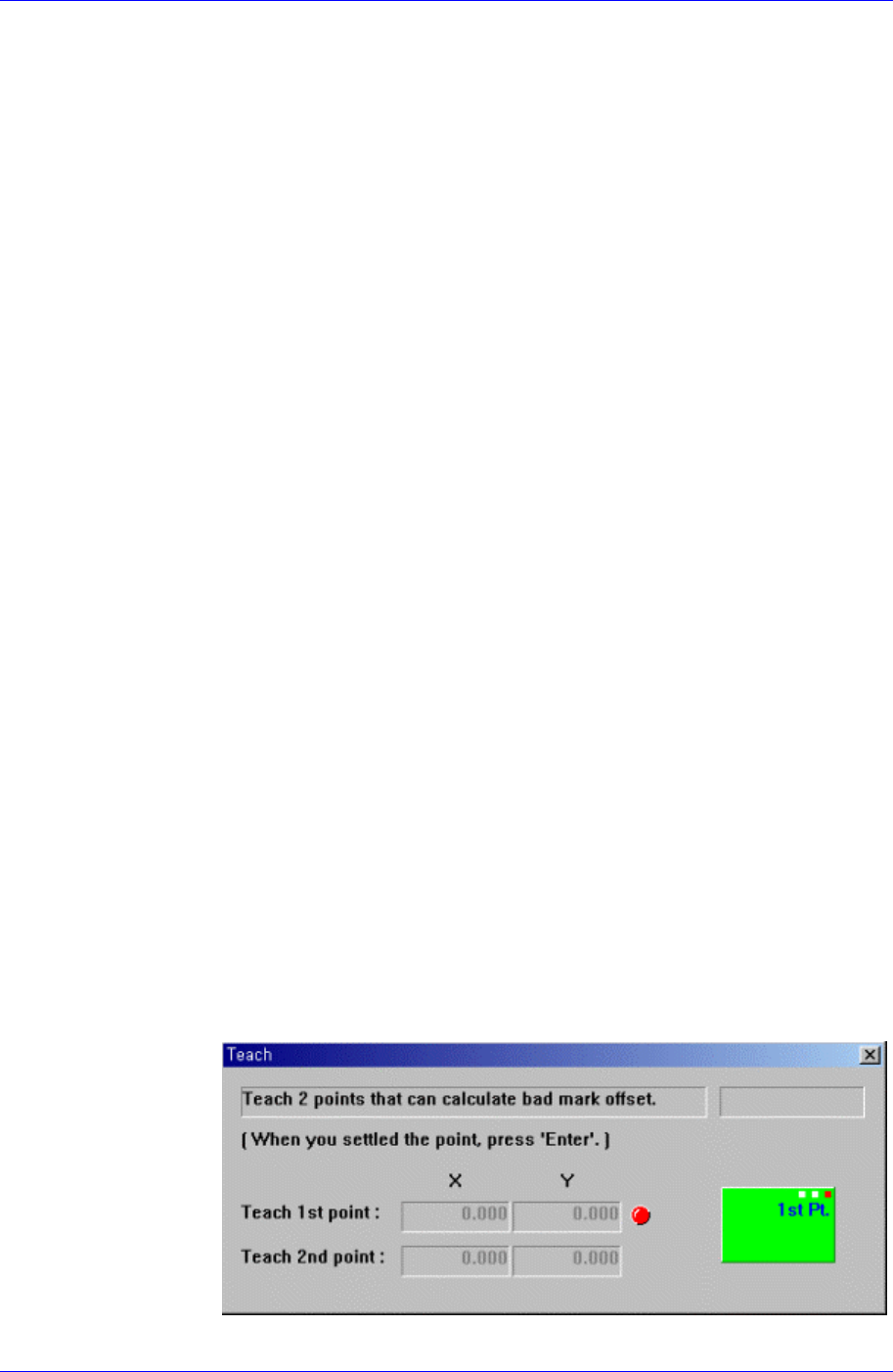
<Teach> button
Teach the offset value of bad mark by using the same method as teaching the
PCB size. When this button is clicked on, the following screens are displayed
in succession.