Administrator’s Guide(CP45FV) Eng.pdf - 第122页
Samsung Component Placer CP45FV Series Administrator ’ s Guide <Pitch Min> column Set the lead pitch including the lowest tolerance. <Foot T yp> column Set the length of the lead that touches th…
Part Registration
7-37
7.4.1. Lead Parameter
Set the lead parameter for User ICs. Possible lead parameters are up to 8.
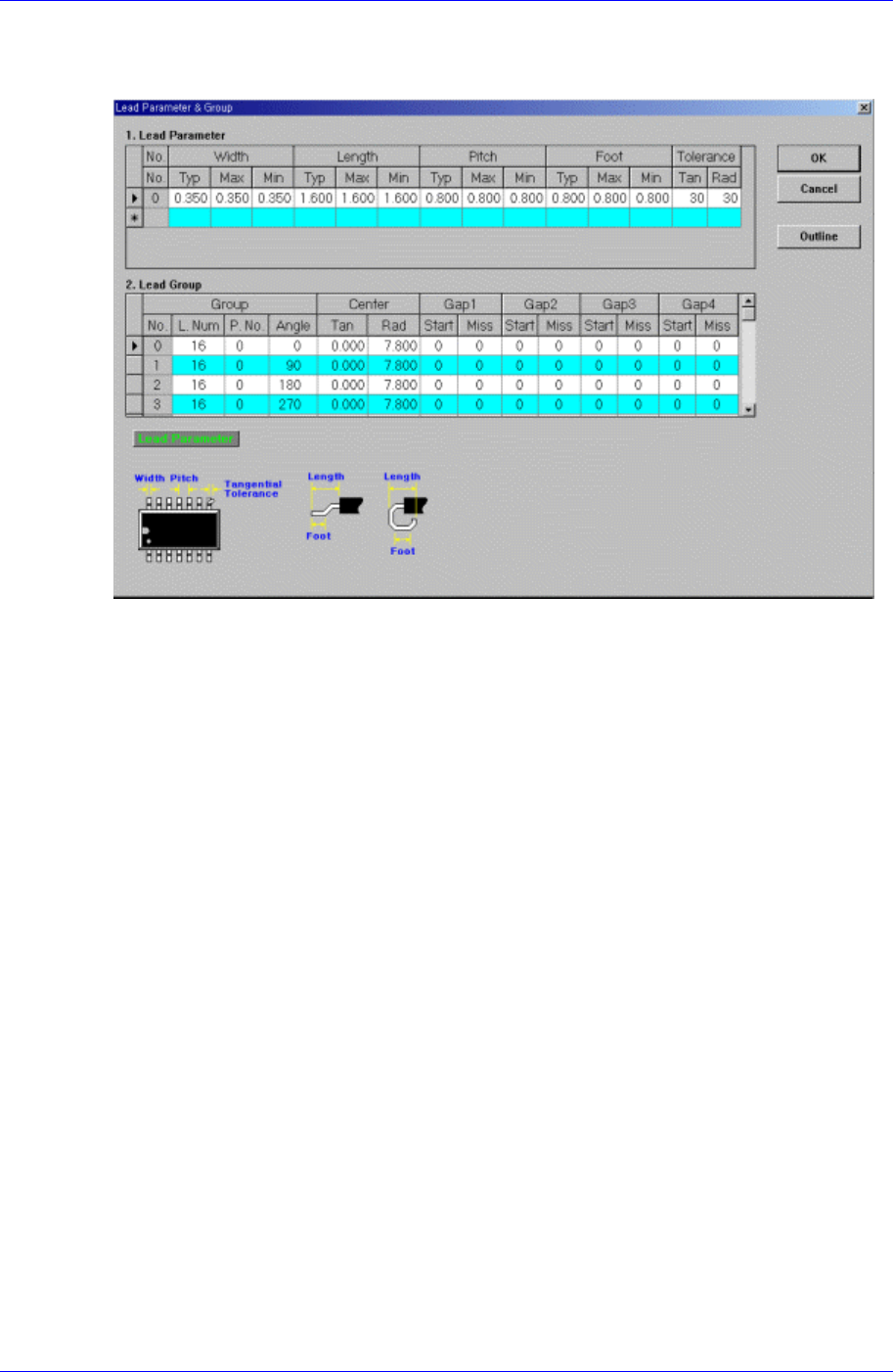
Figure 7-25. Screen showing “Lead Parameter” setting in the dialog box for “User IC Lead
Parameter & Group “
<Lead Parameter> group
Set the lead parameter.
<No.> column
Displays the lead parameter number. Possible range is 0 – 7.
<Width Typ> column
Set the lead width.
<Width Max> column
Set the lead width including the highest tolerance.
<Width Min> column
Set the lead width including the lowest tolerance.
<Length Typ> column
Set the lead length.
<Length Max> column
Set the lead length including the highest tolerance.
<Length Min> column
Set the lead length including the lowest tolerance.
<Pitch Typ> column
Set the lead pitch, which is the length from the center of the lead to the center of
the adjacent lead.
<Pitch Max> column
Set the lead pitch including the highest tolerance.
Samsung Component Placer CP45FV Series Administrator’s Guide
<Pitch Min> column
Set the lead pitch including the lowest tolerance.
<Foot Typ> column
Set the length of the lead that touches the surface.
<Foot Max> column
Set the lead foot including the highest tolerance.
<Foot Min> column
Set the lead foot including the lowest tolerance.
<Tolerance Tan> column
Set the allowable tolerance when the lead is bent to the side. Set it as a
percentage of <Lead Pitch>
<Tolerance Rad> column
Set the allowable tolerance for lead length. Set it as a percentage of <Lead
Length>.
<Outline> button
Displays the outline of the component on the vision monitor by using the set align
data.
7.4.2. Lead Group
Set the lead group for User IC. Up to 16 lead groups can be set.
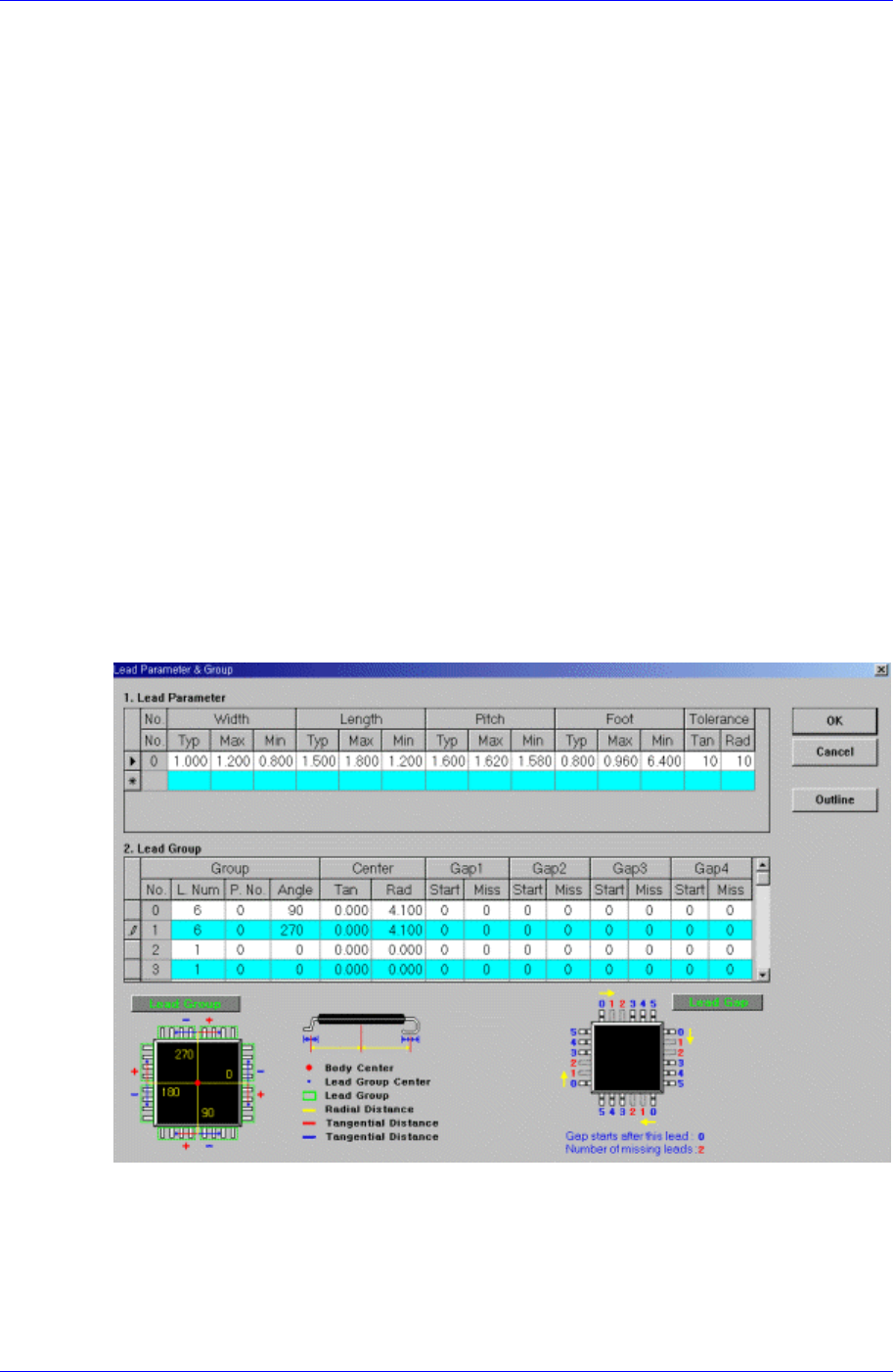
Figure 7-26. Screen showing “Lead Group” setting in the dialog box for “User IC Lead
Parameter & Group”
<Lead Group> group
Set the lead group.
<Group No.> column
7-38

Part Registration
7-39
Displays the lead group number. Applicable range is 0 – 15.
<Group L. Num> column
Set the number of leads the lead group has.
<Group P. No.> column
Set the lead parameter number referenced by the lead group. Applicable range is
0 – 7.
<Group Angle> column
Set on which side of the component the lead group exists. 0, 90, 180, and 270 in
the above figure denotes the angles.
<Center Tan> column
Set the distance from the component origin point (component center in general)
to the center of the lead group along the tangential line.
<Center Rad> column
Set the distance from the component origin point(component center in general) to
the center of the lead group along the normal line.
<Gap1 Start> column
Set the first empty lead in the lead group.
There are no leads after the lead on the starting number.
<Gap1 Miss> column
Set the first empty lead in the lead group.
As many leads as the number of miss are missing.
<Gap2 Start> column
Set the second empty lead in the lead group.
There are no leads after the lead on the starting number.
<Gap2 Miss> column
Set the second empty lead in the lead group.
As many leads as the number of miss are missing.
<Gap3 Start> column
Set the third empty lead in the lead group.
There are no leads after the lead on the starting number.
<Gap3 Miss> column
Set the third empty lead in the lead group.
As many leads as the number of miss are missing.
<Gap4 Start> column
Set the fourth empty lead in the lead group.
There are no leads after the lead on the starting number.
<Gap4 Miss> column
Set the fourth empty lead in the lead group.
As many leads as the number of miss are missing.
<Outline> button
Displays the outline of the component on the vision monitor by using the set align