Administrator’s Guide(CP45FV) Eng.pdf - 第130页
Samsung Component Placer CP45FV Series Administrator ’ s Guide Figur e 7-30. “ Ball Gap of BGA components-when the bal ls in the selected ar ea ar e r e m o v e d ” di alog box <OK> button Saves the set bal…
Part Registration
7-45
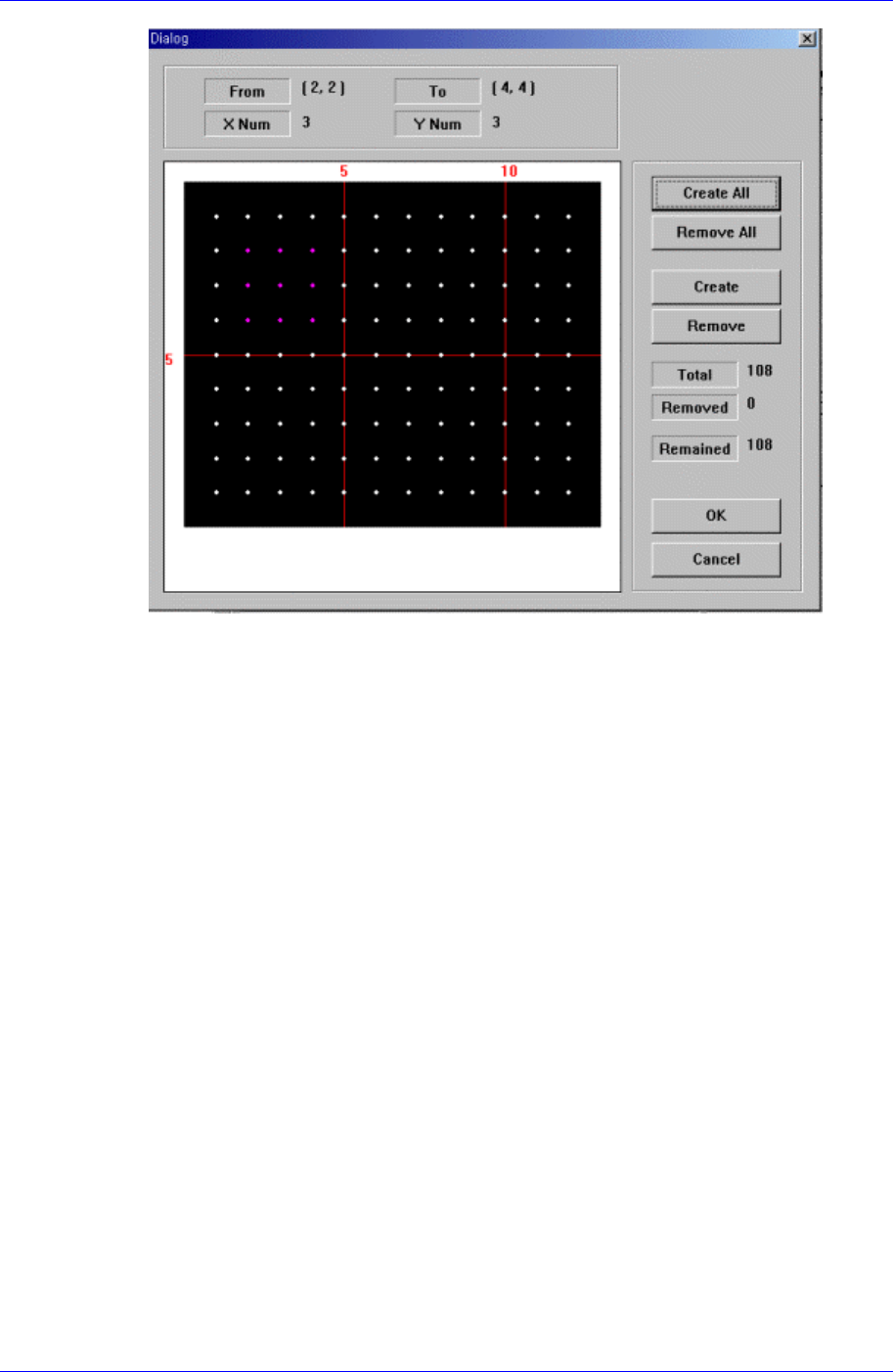
Figure 7-29. “Ball Gap of BGA component-when there is a selected area” dialog box
<Create All> button
Creates all balls.
<Remove All> button
Removes all balls.
<Create> button
Creates balls in the selected area.
<Remove> button
Removes the balls in the selected area.
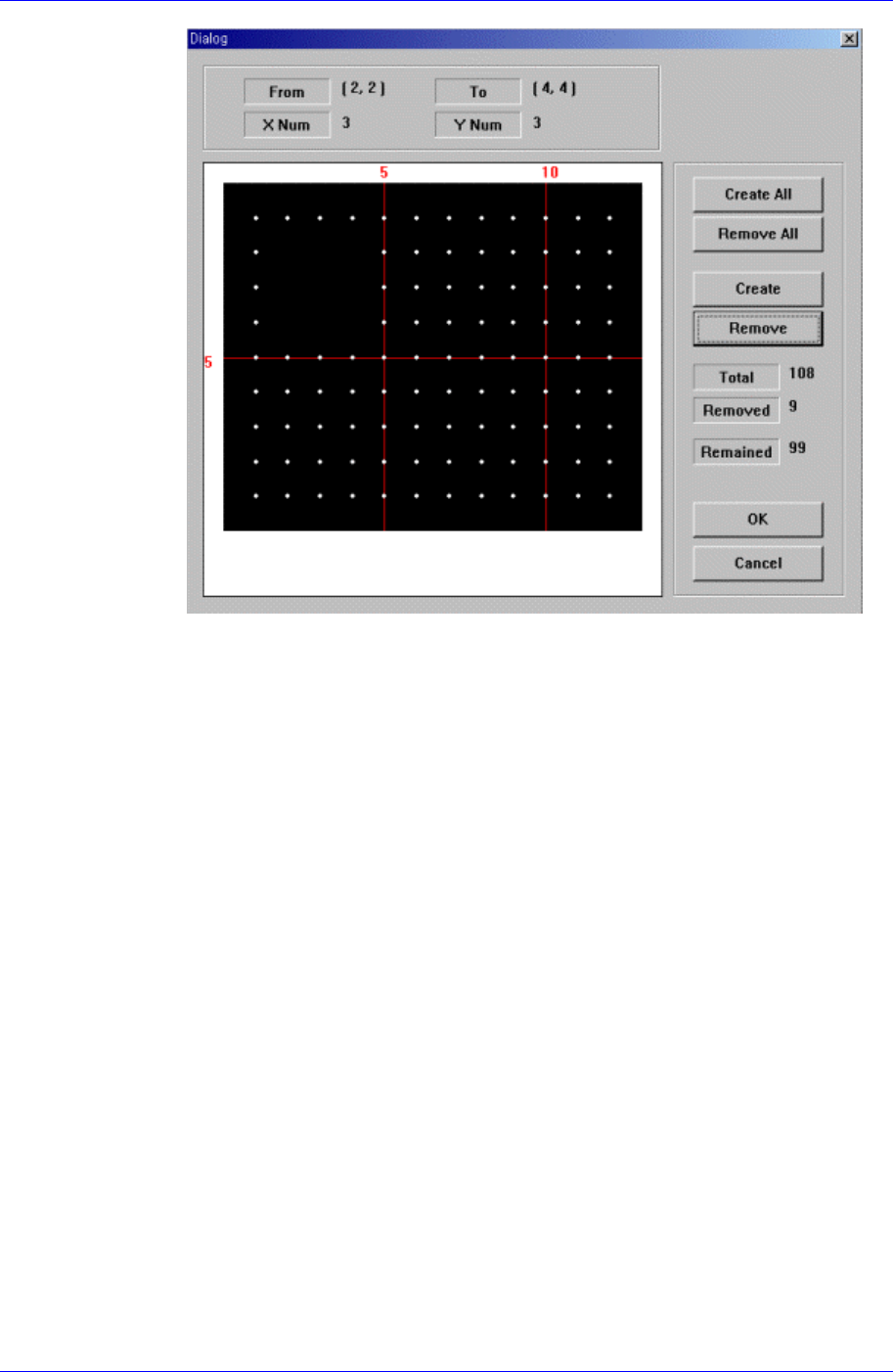
When the balls in the selected area are removed, the screen looks as follows.
Samsung Component Placer CP45FV Series Administrator’s Guide
Figure 7-30. “Ball Gap of BGA components-when the balls in the selected area are
removed” dialog box
<OK> button
Saves the set ball gap status and closes the dialog box.
<Cancel> button
Closes the dialog box without saving the set ball gap status.
<Outline> button
Displays the outline of the component on the vision monitor by using the set align
data.
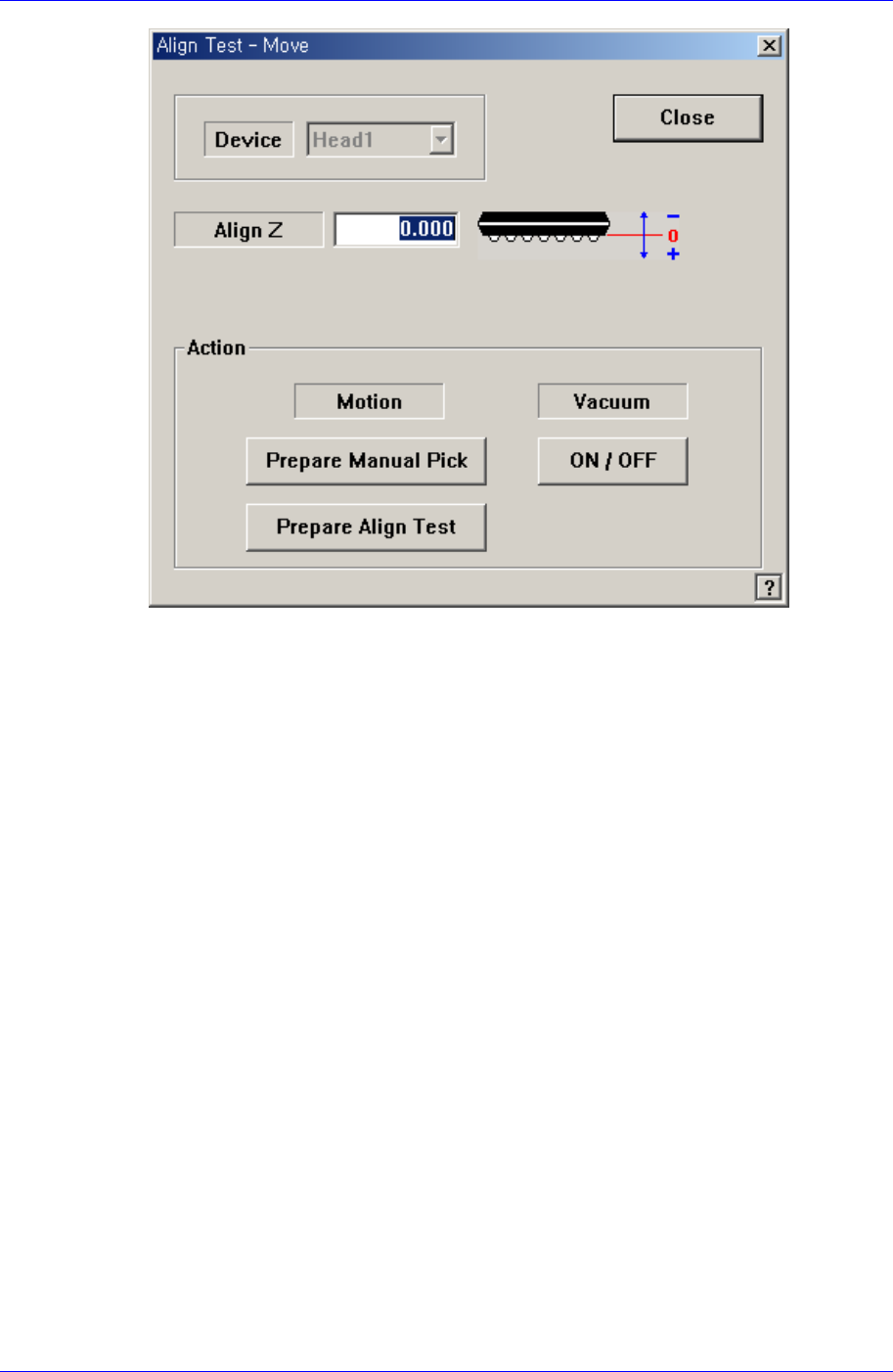
<Move…> button
Performs component pickups or moves to the fix camera.
7-46
Part Registration
7-47
Please refer to “7.2.1.1 Common Align Data (Page 7-9)” for more information.
<Test> button
Performs the component recognition test by using the set align data. Please refer to
“7.2.1.1 Common Align Data (Page 7-9)” for more information.
<Image Capture> button
Helps to specify the optimum lighting value. The lighting is gradually changed
automatically and the images are saved. The user can check the best image and
identify the optimum lighting value.
Please refer to “7.2.1.1 Common Align Data (Page 7-9)” for more information.