Administrator’s Guide(CP45FV) Eng.pdf - 第44页
Samsung Component Placer CP45FV Series Administrator ’ s Guide <File list> list box Displays existing files. When a file name is clicked on, displays the file name in the <File …
File Menu
3-3
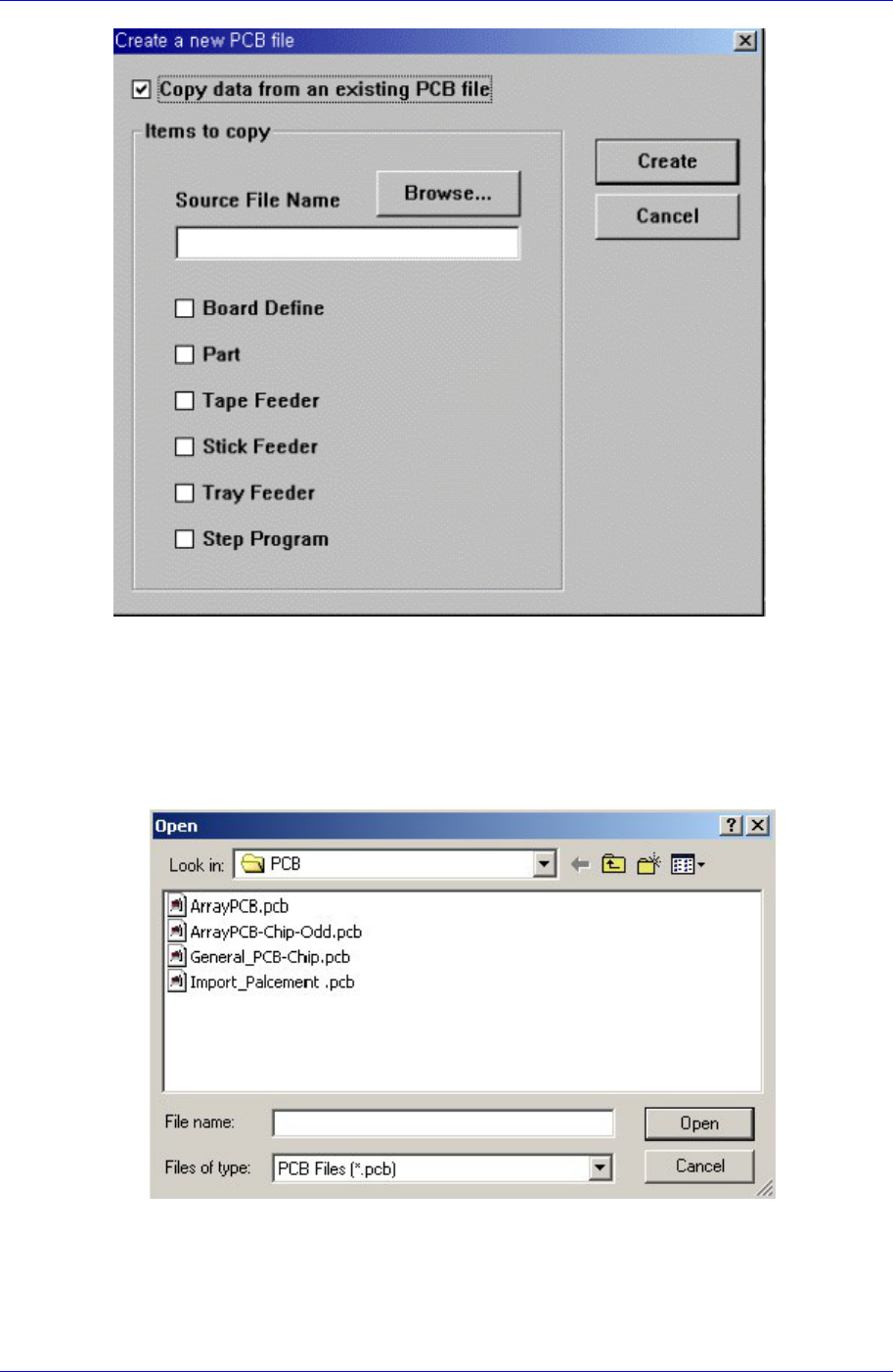
Figure 3-3.. “ Create a new PCB file” dialog box
<Copy data from another PCB file> option button
Used to copy certain data from an existing file and create a new file.
<Browse...> button
Used to create a new PCB file from existing files. When this button is clicked on,
“Open” dialog box is displayed.
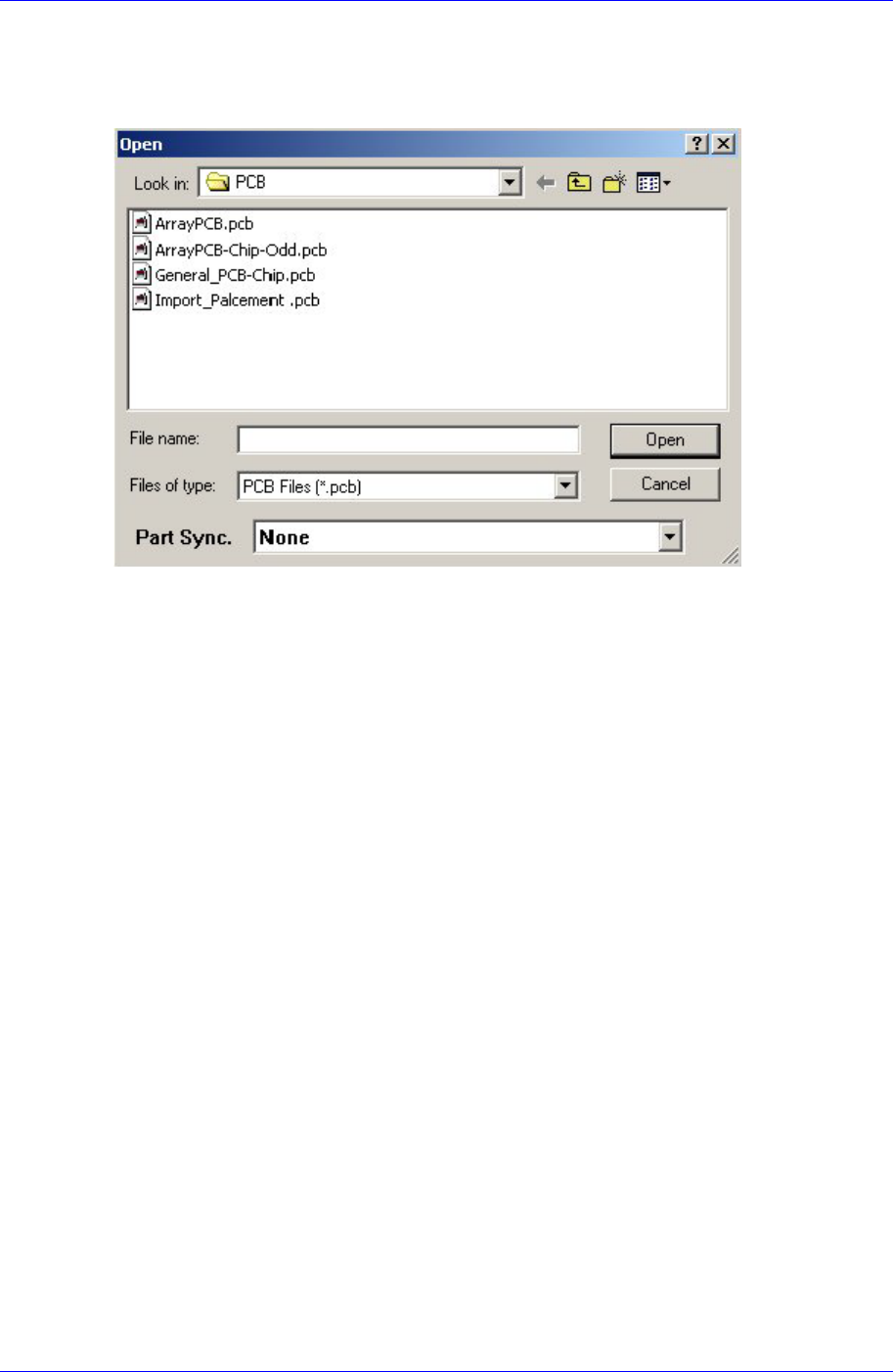
Figure 3-4. “Open” dialog box
<Folders> Combo box
Specify the directory in which the file is located. Displays the files in the
directory specified here in the <File list> list box.

Samsung Component Placer CP45FV Series Administrator’s Guide
<File list> list box
Displays existing files. When a file name is clicked on, displays the file name in
the <File name> edit box.
<File name> edit box
Enter a file name. If a file from the file list is clicked on, that file name is
displayed in the edit box.
<List files of type > combo box
Select the type of file to be displayed in the <File list> list box. When the
triangular button is clicked on, accessible file types are displayed.
PCB Data Files(*.pcb): displays file names with the 'pcb' extension only.
OPT Data Files(*.opt): displays file names with the 'opt' extension only.
PCB, OPT Files(*.pcb: *.opt): displays file names with the 'pcb' or 'opt
extension only.
<OK> button
Selects a file and closes the “Open” dialog box.
<Cancel> button
Cancels the file selection and closes the “Open” dialog box
<Items to Copy> check box group
Select items to copy.
Board Definition: PCB Setup information
Part Number: Component information
Tape Feeder: Tape Feeder information
Stick Feeder: Stick Feeder information
Tray Feeder: Tray Feeder information
Step Program: Step Program information
By checking an item in the above, the content of that item can be copied. The menu
without check mark returns to the initial setting.
<Create> button
Creates a new PCB file according to the setting content. When the source file for
copying is not specified, creates a data file with all the data in the <Items to Copy>
check box group in the initial setting.
<Cancel> button
Cancels the New command and closes the “New PCB File” dialog box.
3-4
File Menu
3-5
3.2. Open [Ctrl+O]
<Open> command is used to edit an existing PCB file. When the <Open> command is
selected, the following dialog box is displayed.
Figure 3-5. “Open” dialog box
<Look in> list box
Specify the directory in which the file is located. Displays the files in the
directory specified here in the <File list> list box.
<File list> list box
Displays existing files. When a file name is clicked on, displays the file name in
the <File name> edit box.
<File name> edit box
Enter a file name. If a file from the file list is clicked on, that file name is
displayed in the edit box.
<Files of type > combo box
Select the type of file to be displayed in the <File list> list box. When the
triangular button is clicked on, accessible file types are displayed.
PCB Data Files(*.pcb): displays file names with the 'pcb' extension only.
OPT Data Files(*.opt): displays file names with the 'opt' extension only.
<Update Parts from Part Library while opening> check box
While opening a PCB file, if the component information with the same part name
is in the local DB, selcting this check box makes the component information in
the local DB loaded instead of the componet information in the opened PCB file.
<OK> button
Selects a file and closes the “Open” dialog box.
<Cancel> button
Cancels the file selection and closes the “Open” dialog box