Administrator’s Guide(CP45FV) Eng.pdf - 第298页
Samsung Component Placer CP45FV Administrator ’ Guide Figur e 17-3. “ Diagnosis : I/O S tatus “ dialog box <Output> group Select the output block to display . There are 3 blocks in total for output. <Prev Bl…
Diagnosis
Chapter 17. Diagnosis
17-1
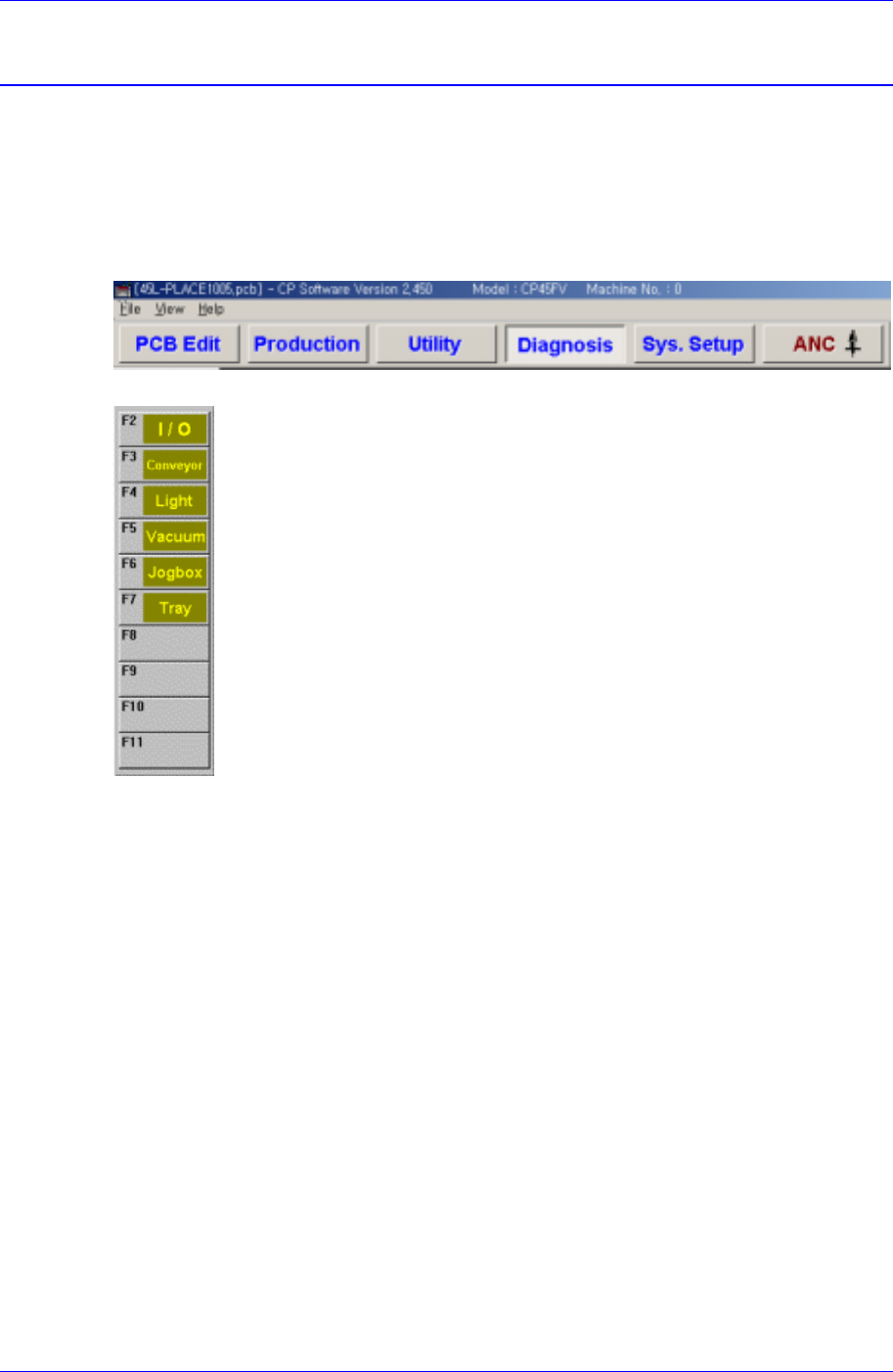
The Diagnosis menu is composed of 6 submenus: I/O, Conveyor, Light, Vacuum, Jogbox,
and Tray.
This menu performs a module test on each part.
When a submenu of the <Diagnosis> menu is selected, the corresponding dialog box is
displayed on the screen. While the corresponding dialog box of the submenu is displayed,
selecting the menu again activates the dialog box.
Figure 17-1. When the Diagnosis command is selected
Figure 17-2. Submenus of the Diagnosis command
17.1. I/O [F2]
The <I/O> command sets or displays the status of various I/O (input/output) sensors on
the machine.
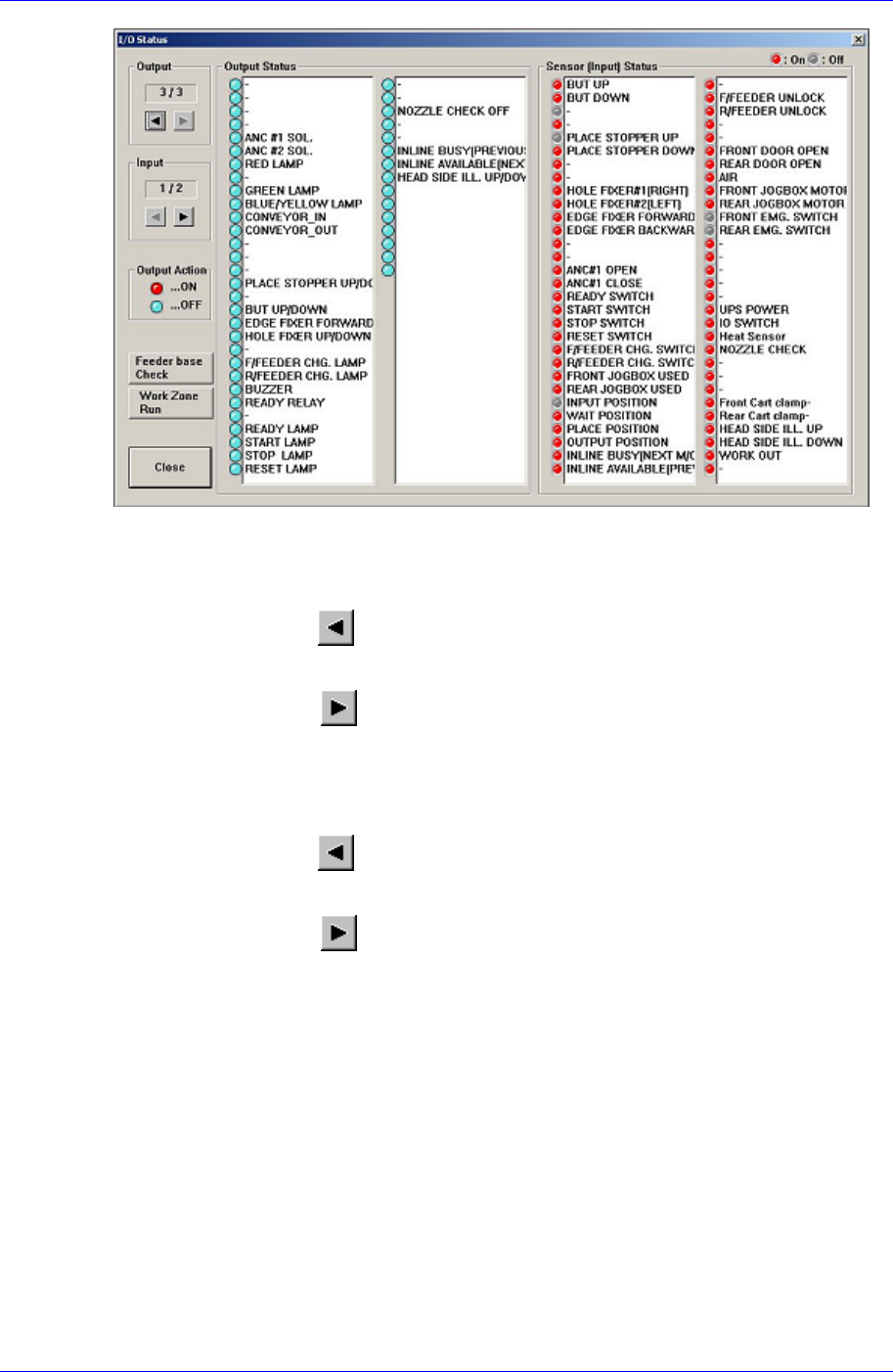
When this button is clicked on, the following dialog box is displayed.
Samsung Component Placer CP45FV Administrator’ Guide
Figure 17-3. “Diagnosis : I/O Status “dialog box
<Output> group
Select the output block to display. There are 3 blocks in total for output.
<Prev Block> button
Displays the previous block of the current block.
<Next Block>
button
Displays the next block of the current block.
<Input> group
Select the input block to display. There are 2 blocks in total for input.
<Prev Block>
button
Displays the previous block of the current block.
<Next Block>
button
Displays the next block of the current block.
<Output Status> group
Display the sensor status of the selected output block. Red indicates on status, and
blue indicates off status.
Selecting the sensor to set and double clicking on the left button of a mouse or
pressing the space bar reverses the sensor status.
<Input Status> group
Display the sensor status of the selected input block. Red indicates on status, and blue
indicates off status.
<Feeder base Check> button
Turns on or off the air pressure solenoid of the feeder base. The operation status of air
pressure solenoid can be checked.
17-2
Diagnosis
17-3
<Work zone Run> button
Clicking the <Work Zone Run> button once stops the work area of the conveyor. If
clicked once more, it executes the work area.
<Close> button
Closes the dialog box.
17.2. Conveyor [F3]
Checks the status of various devices in the conveyor group.
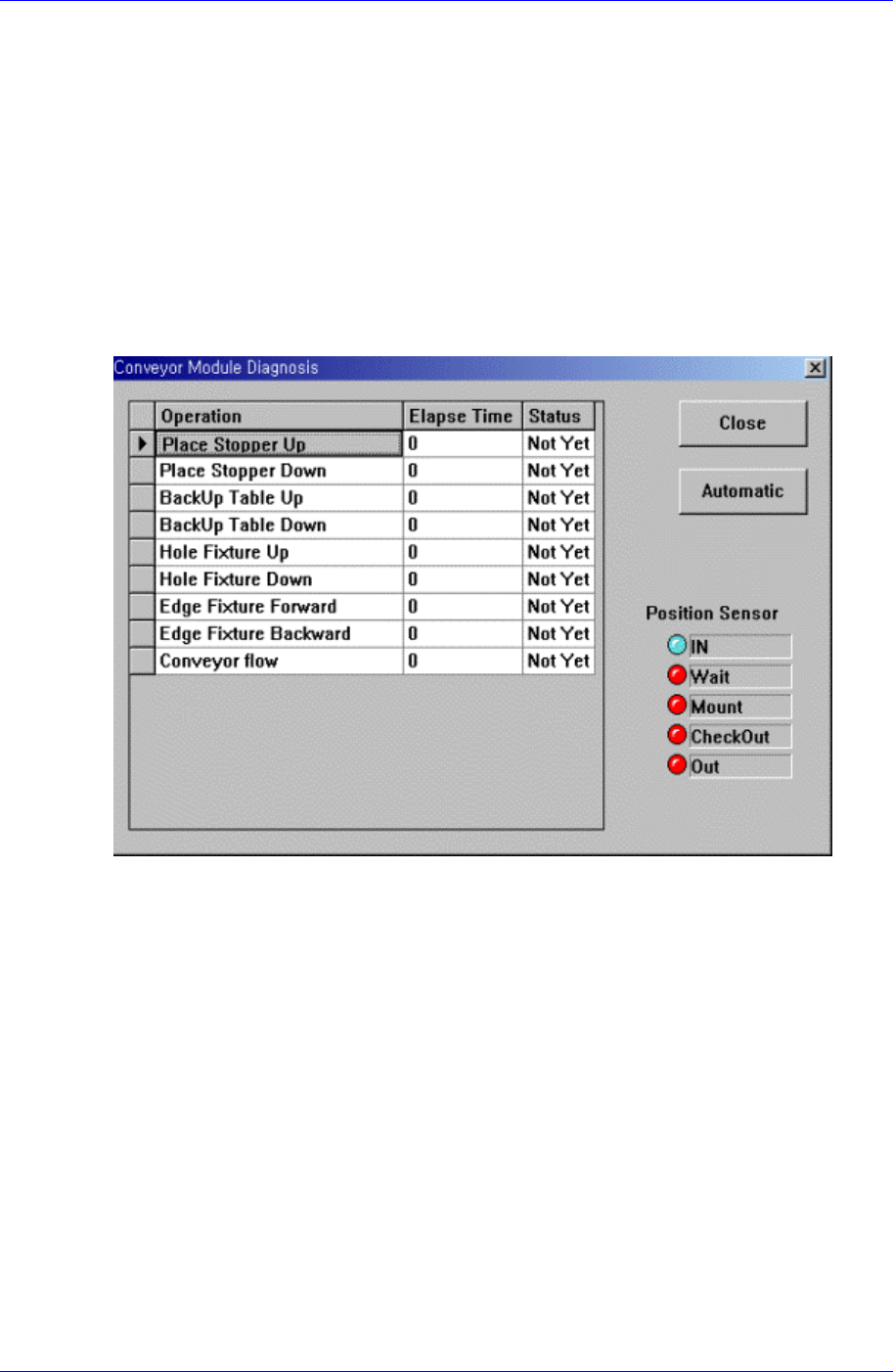
When this button is clicked on, the following dialog box is displayed.
Figure 17-4. “Diagnosis : Conveyor “dialog box
<Grid> group
<Operation> column
Displays the operation list of devices to check.
Place Stopper Up: Checks the up motion of the stopper in the operation area..
Place Stopper Down: Checks the down motion of the stopper in the operation
area..
BackUp Table Up: Checks the up motion of the backup table that supports the
bottom of the PCB.
BackUp Table Down: Checks the down motion of the backup table that supports
the bottom of the PCB.
Hole Fixture Up: Checks the up motion of the hole fixture that arranges PCBs.
Hole Fixture Down: Checks the down motion of the hole fixture that arranges
PCBs.
Edge Fixture Forward: Checks the up motion of the edge fixture that arranges
PCBs.