Administrator’s Guide(CP45FV) Eng.pdf - 第284页
Samsung Component Placer CP45FV Administrator ’ Guide 16.7. Pref. [F9] Sets various options needed for machine operation. When this button is clicked on, the following dialog box is displayed. Figur e 16-9. “ Sys. Setup …

System Setup
16-17
<Device> combo box
Selects the corresponding device to move the head assembly by rotating the driving
shafts of the X, Y and Z-axes motors, move or rotate the spindle or obtain the current
coordinate of the device to be selected. Available devices are as follows;
Move Cam: Selects Teaching Camera.
Head1: Selects Head1.
Head2: Selects Head2.
Head3: Selects Head3.
Head4: Selects Head4.
Head5: Selects Head5.
Head6: Selects Head6.
Beam: Selects Beam.
<Move> button
Moves the head assembly by rotating the shafts of the X, Y and Z-axes driving
motors using the device selected from the <Device> combo box. At this time, the edit
box corresponding to the position to move to must be clicked on with a mouse.
<Get> button
Reads in the current position of the XY and Z axes of the device selected in <Device>.
At this time, the edit box corresponding to the position to be read must be clicked on
with a mouse.
<Update> button
Transmits the set data to the machine and closes the dialog box.
<Cancel> button
Ignores the set data and closes the dialog box.
Samsung Component Placer CP45FV Administrator’ Guide
16.7. Pref. [F9]
Sets various options needed for machine operation.
When this button is clicked on, the following dialog box is displayed.
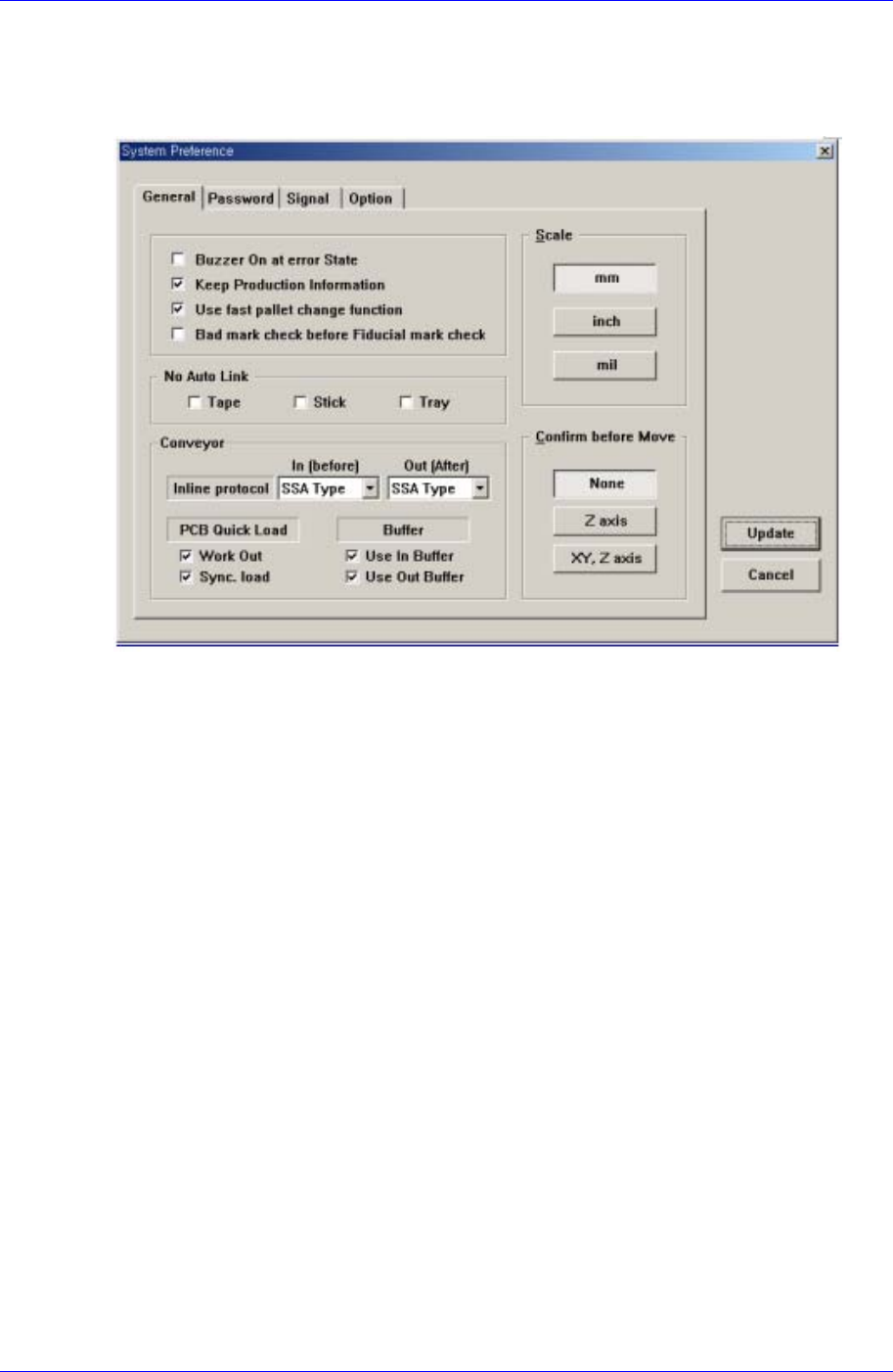
Figure 16-9. “Sys. Setup : System Preference - General” dialog box
<General> tab dialog
Sets various options used in the MMI program.
<Skip the erroneous Component> check box
If this button is checked, when a component fails to be picked up during
placement, skips the corresponding component, and place it again after all the
rest placement operation is completed.
<No Auto Link> check box
Tape
If selected, the auto link function will not be used for the tape feeder..
Stick
If selected, the auto link function will not be used for the stick feeder.
Tray
If selected, the auto link function will not be used for the tray feeder.
<Buzzer On at error State> check box
If this button is checked, when an error occurs while a function is being
performed in the machine, a buzzer rings.
<Keep Production Information> check box
When this button is checked, manages the production management information.
<Use fast pallet change function> check box
When placement is done with components from more than one pallet, after a
component is picked up from a pallet, the next pallet waits in the working
16-18

System Setup
16-19
position if there is no vision failure.
<Bad mark check before Fiducial mark check> check box
If this button is checked, executes bad mark check before fiducial mark check
when the PCB is loaded.
<Palette return after vision inspection> check box
When this button is checked, during tray operation, the palette returns after
vision inspection.
<Load Previous Work PCB data at start up> check box
If this button is checked, when the machine is turned on, transmits the previous
operation PCB data to the machine automatically and prepares for operation..
<Auto Search Run> check box
If this button is checked, when a component fails to be recognized during
placement, creates the component data automatically.
<Conveyor – Inline protocol> combo box
For the machine line operation, select the protocol. Available protocols are as
follows.
<Inline protocol> combo box
Stand alone: Runs the machine independently without performing line
operation.
SSA Type: For the line operation, uses the protocol specified by this machine
manufacturer as the communication protocol between the front and rear
machine.
SMEMA: For the line operation, uses SMEMA protocol as the
communication protocol between the front and rear machine.
<PCB Quick Load > check box
<Work Out> : when this button is checked, release the PCB quickly.
<Sync. load> : when this button is checked, a PCB is in the working area at
the same time as the PCB finished placement is release from the working
area.
<Conveyor – PCB Quick Load Back Up Table> check box
When this button is checked, the Backup Table is up quickly after the PCB is in
the woking area.
<Scale> option button group
<mm> option button: when this button is selected, the scales on all screens
are displayed in mm.
<inch> option button: when this button is selected, the scales on all screens
are displayed in inch.
<mil> option button: when this button is selected, the scales on all screens
are displayed in mil.
<Confirm before Move> option button group
<None> option button: when this button is selected, does not display the
confirm message box when the movement command is transferred to the
machine.
<Z axis> option button: If this button is selected, when the movement