Administrator’s Guide(CP45FV) Eng.pdf - 第270页
Samsung Component Placer CP45FV Administrator ’ Guide Caution Take a precaution since the XY axis moves. <Offset> group Set the offset value for the selected axis. <Home Of fset> edit box Set th…
System Setup
16-3
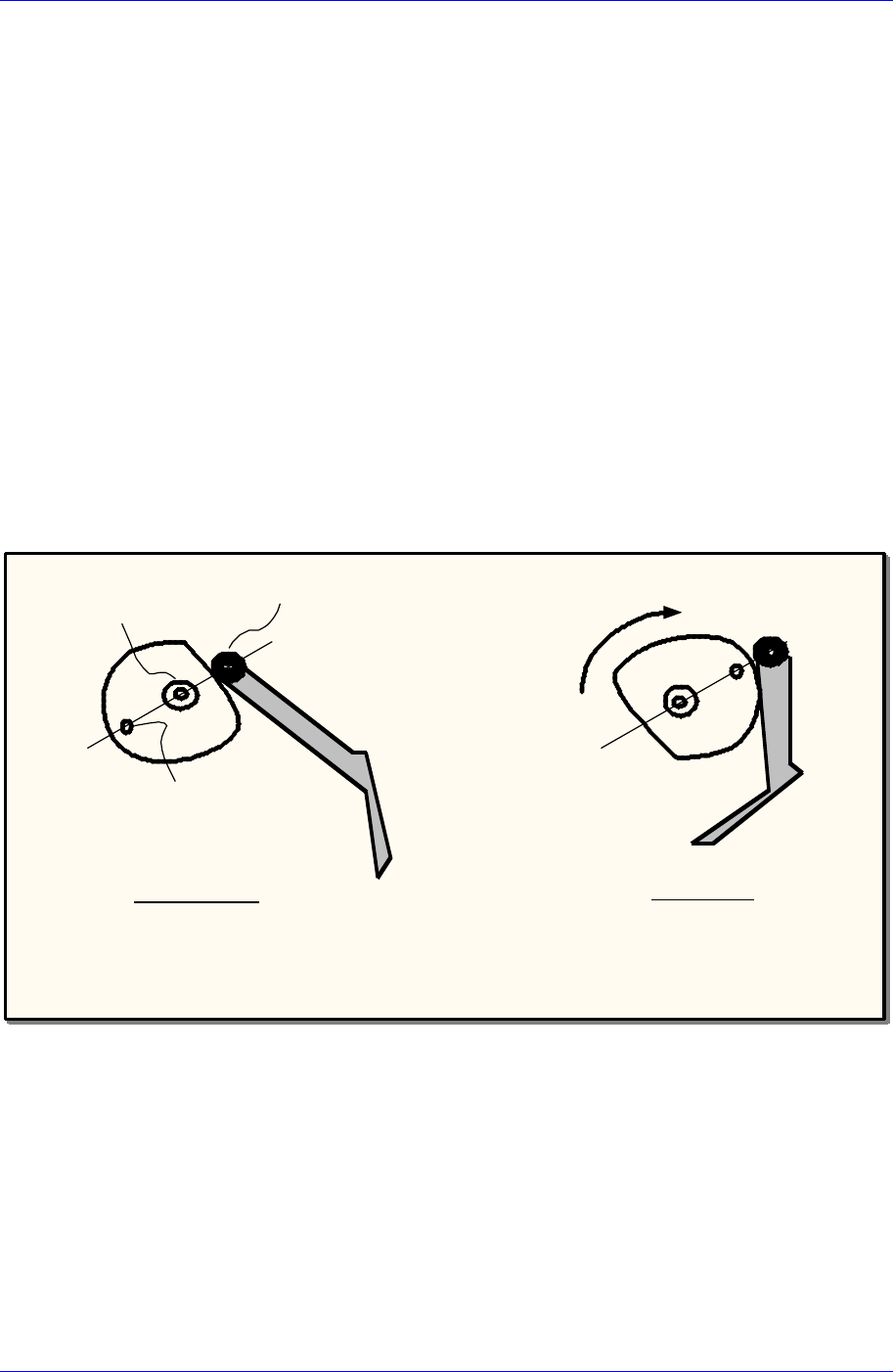
3. Move the head to the middle area of the Front Feeder Station using the teaching
box.
4. Using the teaching box, align the Idler wheel, CAM driving axis and Mark so that
they are aligned on a straight line. The position at this time should be 180 degrees
(refer to the following figure).
When performing a visual check, care shall be taken to avoid safety related
accidents. And, the user must operate the machine directly.
5. Check if the centers of the three circles are aligned on the straight line using a
general scale ruler.
6. Check the Mirror Data indicated in the Current Position dialog box, measure the
following offset value, and enter it.
Example 1: If the indicated data is 185 degrees, enter 5.00 in the Home Offset.
Example 2: If the indicated data is 175 degrees, enter -5.00 in the Home Offset.
7. After completing the setup, click the <Update> button to reflect the changed
value.
8. Then if the screen asking whether to home the machine is displayed, select “No
(N)”.
9. Perform homing of the machine using the teaching box.
180˚Position
Home Position
Idler wheel
Driving axis
Mark
Swing Mirror
Cam
<The simplified Cam Follower diagram of CP-45>
<Software Limit> group
Set the limit position of the selected axis.
<Lower> edit box
Set the lower limit position.
<Upper> edit box
Set the upper limit position.
<X-Y Axis Limit Automatic Searching…> button
When this button is clicked on, the limit position of the XY axis is searched
automatically.

Samsung Component Placer CP45FV Administrator’ Guide
Caution
Take a precaution since the XY axis moves.
<Offset> group
Set the offset value for the selected axis.
<Home Offset> edit box
Set the offset value when the motor of the selected axis finds Home.
<Device> combo box
Selects the corresponding device to move the head assembly by rotating the driving
shafts of the X, Y and Z-axes motors, move or rotate the spindle or obtain the current
coordinate of the device to be selected. Available devices are as follows;
Move Cam: Selects Teaching Camera.
Head1: Selects Head1.
Head2: Selects Head2.
Head3: Selects Head3.
Head4: Selects Head4.
Head5: Selects Head5.
Head6: Selects Head6.
Beam: Selects Beam.
<Move> button
Moves the head assembly by rotating the shafts of the X, Y and Z-axes driving
motors using the device selected from the <Device> combo box. At this time, the edit
box corresponding to the position to move to must be clicked on with a mouse.
<Get> button
Reads in the current positions of the XY, and Z axes of the device selected in
<Device>. At this time, the edit box corresponding to the position to be read should
be clicked on with a mouse.
<Update> button
Transmits the set data to the machine and closes the dialog box.
<Cancel> button
Ignores the set data and closes the dialog box.
16-4
System Setup
16-5
16.2. Offset [F4]
Sets the offset value between the devices of the head block.
When this button is clicked on, the following dialog box is displayed.
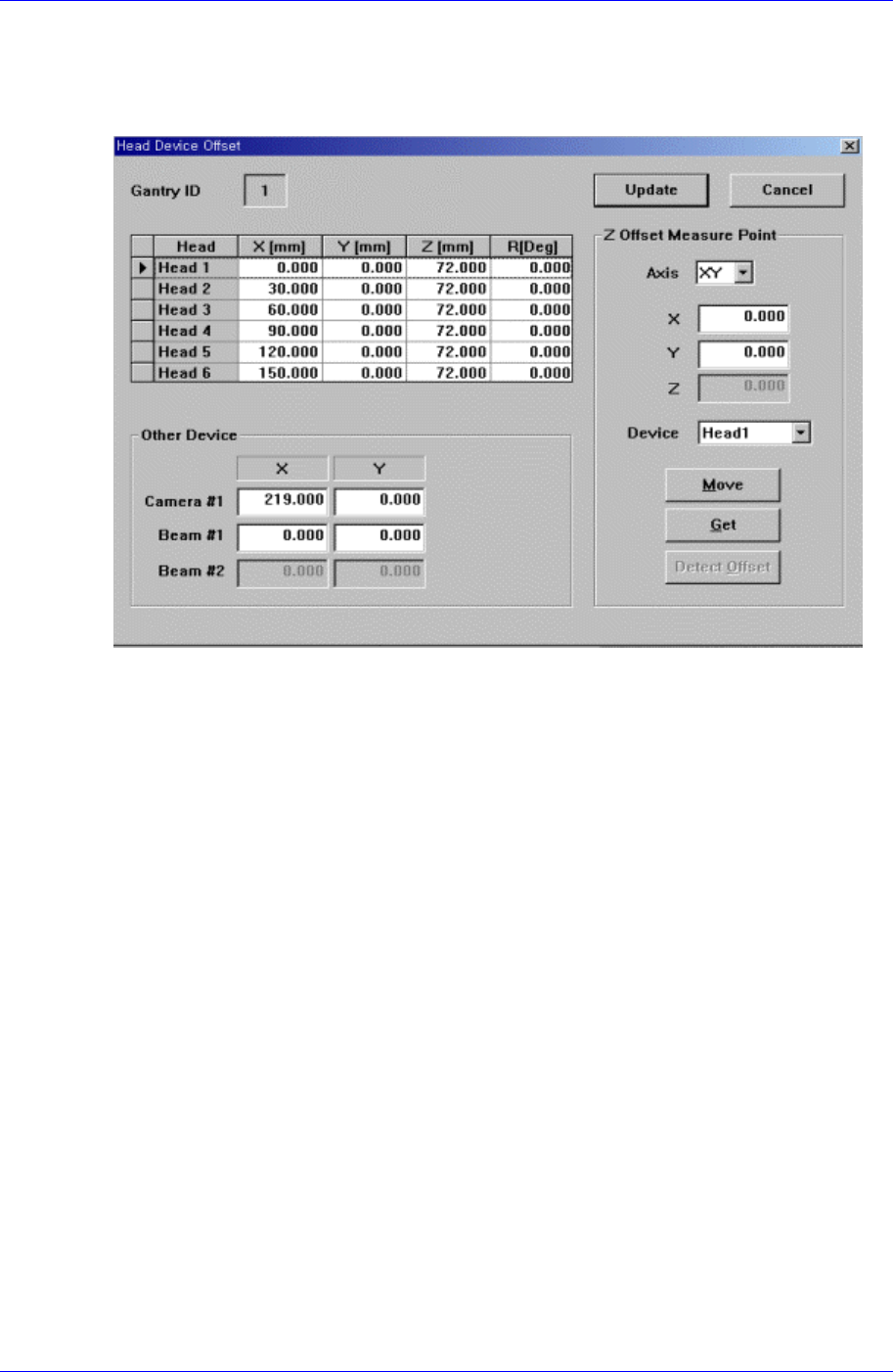
Figure 16-4. “Sys. Setup : Head Device Offset” dialog box
<Gantry ID Select> Static box
Displays the ID of the gantry to which the head assembly is attached.
<Grid> group
Set the offset value between the heads. The head offset information displayed here,
with the exception of that for the Z and R axes is updated automatically if the head
offset calibration is executed during camera calibration and the result value is
reflected.
<Head> column
Displays the head number.
<X> column
Set the X offset value. Consider the X position of head1 when the XY axis is
Home as 0 and set the offset value based on this value.
<Y> column
Set the Y offset value. Consider the Y position of head1 when the XY axis is
Home as 0, and set the offset value based on this value.
<Z> column
Set the Z offset value. The base of offset value is the top of PCB when the PCB
board is loaded.
The Z-axis offset setup procedure is as follows;
1. Select the “Current Position” in the View menu and execute the dialog box.
2. Click the <Pick> button of the ANC dialog box and mount the nozzle on the
Head1.