Administrator’s Guide(CP45FV) Eng.pdf - 第209页
T eaching 13-13 When the <OK> button is clicked afte r selecting a component, th e name of the selected file is inputted in the <1.Part Name> edit box. Select the <Package Group> corresponding to …
Samsung Component Placer CP45FV Administrator’s Guide
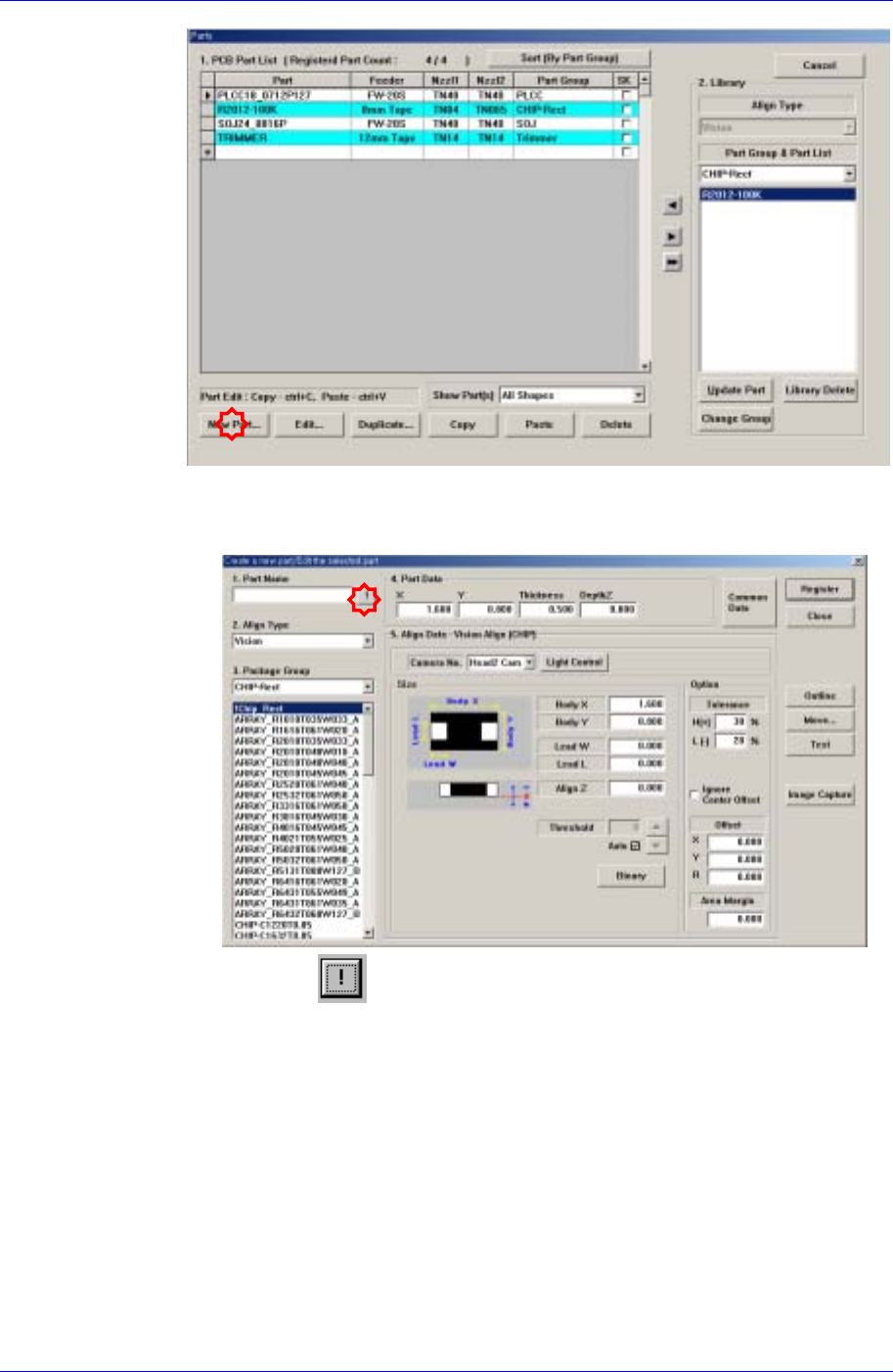
The component that has already been registered in the Local Part DB is
registered automatically as can be seen above. Click the <New Part…>
button and execute the <Part Edit> dialog box.
When the
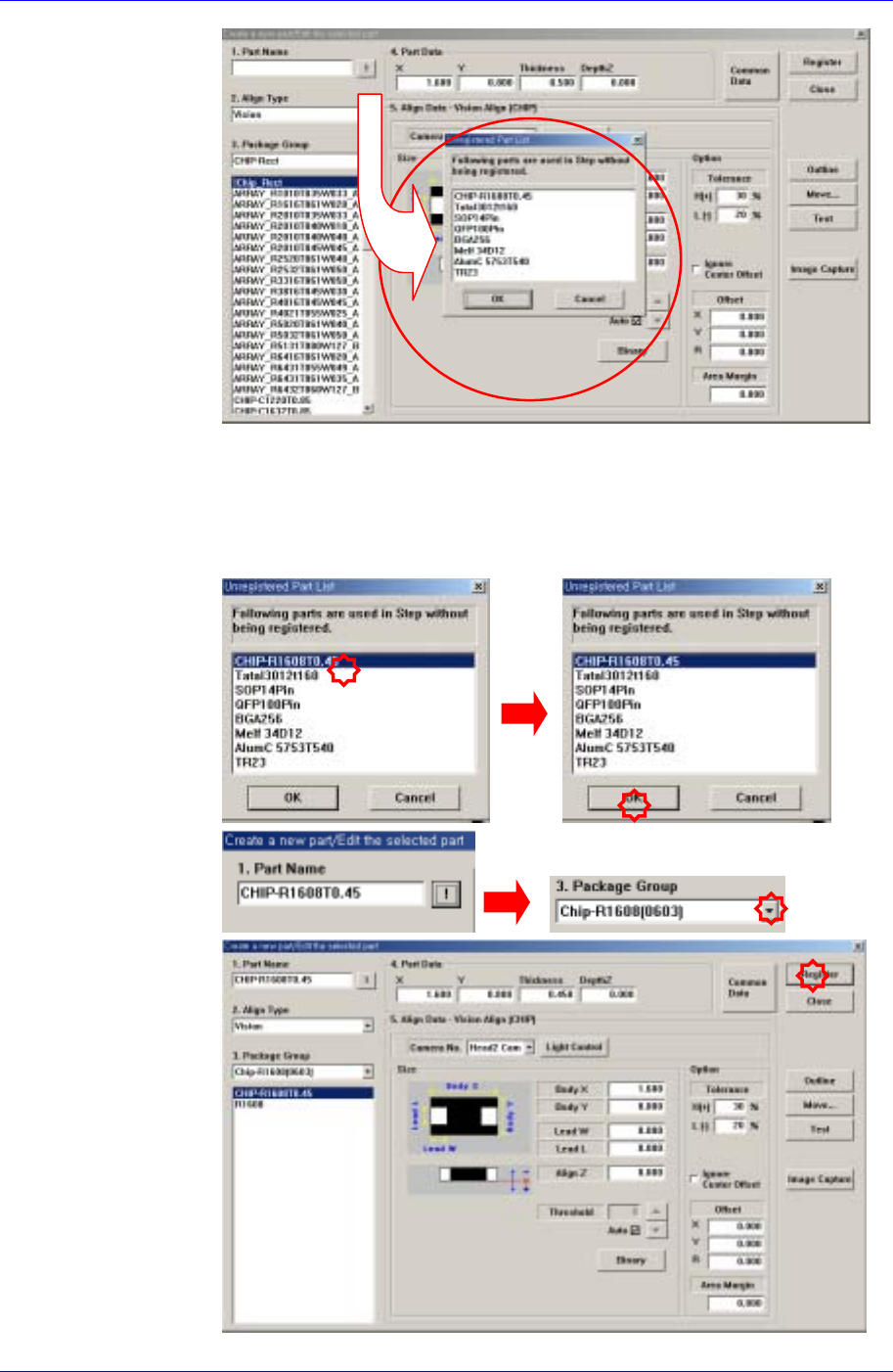
button is clicked, the unregistered part list is displayed as
shown in the following figure.
13-12
Teaching
13-13
When the <OK> button is clicked after selecting a component, the name of
the selected file is inputted in the <1.Part Name> edit box.
Select the <Package Group> corresponding to the selected component and
revise the component profile according to the selected component.
Click the <Register> button to register the component to the PCB Part List.
Samsung Component Placer CP45FV Administrator’s Guide
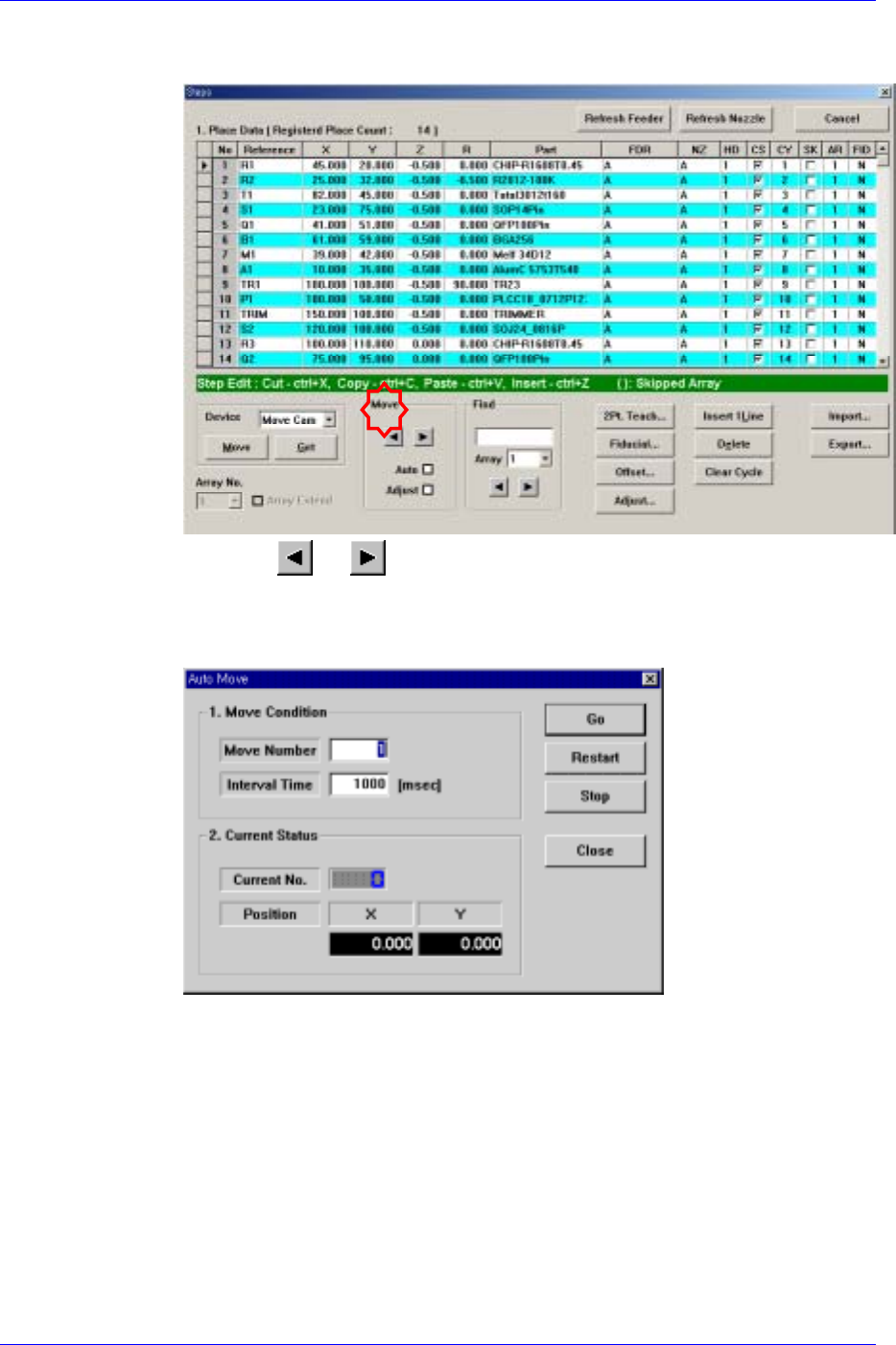
Once a component is registered, check if the actual placement point matches with
the entered coordinate.
When the or button is clicked after checking the <Auto> box in the
<Move> group, the following dialog box is displayed.
To verify the placement point using continuous automatic movement, check off
this box.
<1. Move Condition> group
Set the number of placement points to be moved and the time interval
between movements.
Move Number: Sets the number of placement points to be moved
continuously.
Interval Time: Sets the time interval between placement point movements.
<2. Current Status> group
Displays the number and position of the moved placement point.
Current No.: Displays the number of the moved placement point.
Position X: Displays the X position of the moved placement point.
13-14