Administrator’s Guide(CP45FV) Eng.pdf - 第129页
Part Registration 7-45 Figur e 7-29. “ Ball Gap of BGA component-when t her e is a selected ar ea ” dialog box <Create All> button Creates all balls. <Remove All> button Removes all balls. <Create&…
Samsung Component Placer CP45FV Series Administrator’s Guide
If there are any missing balls in the ball arrangement, sets the empty balls. It is
activated only when the <Grid Type> is “Regular”.
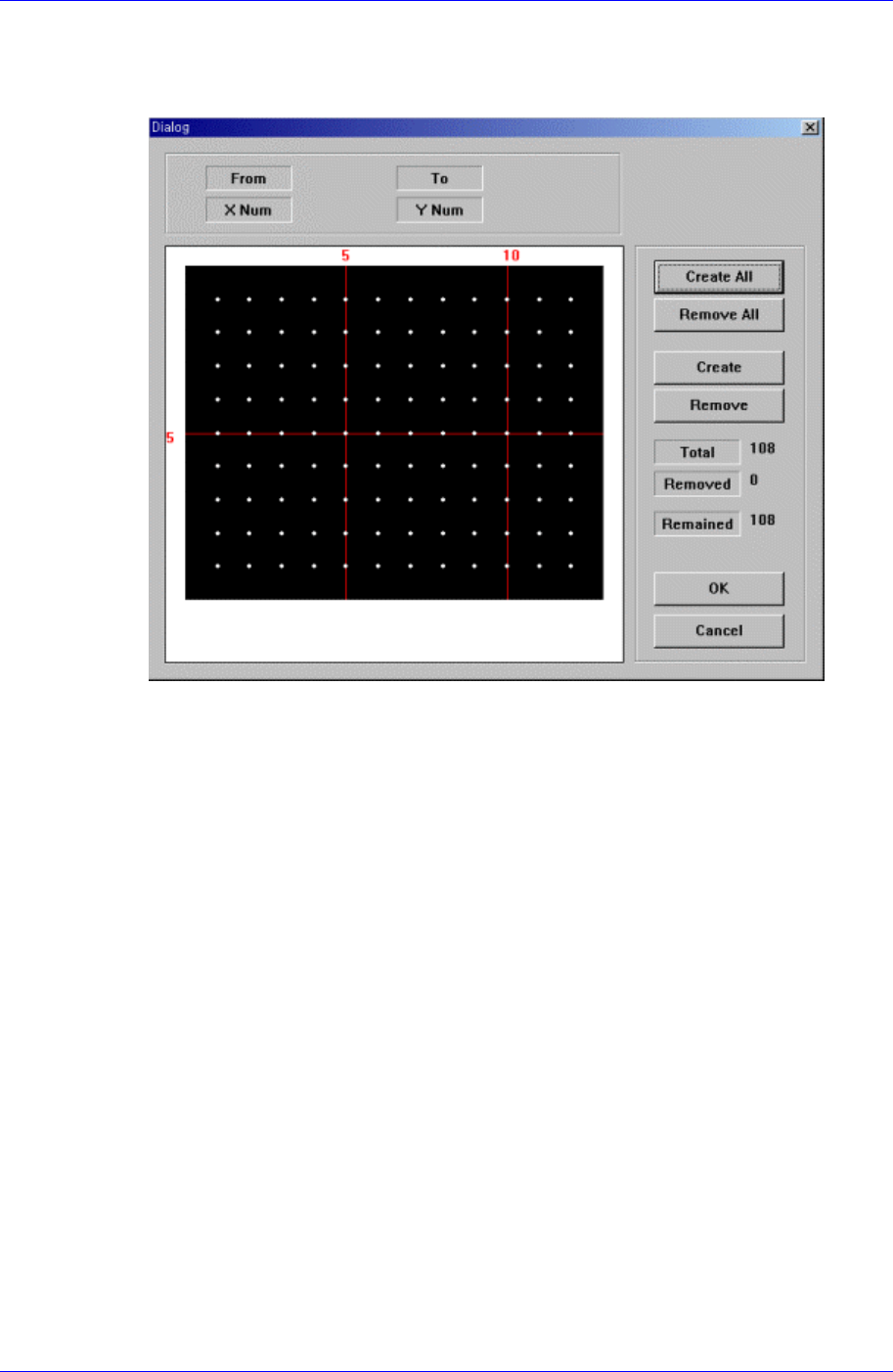
When this button is clicked on, the following dialog box is displayed.
Figure 7-28. “Ball Gap of BGA components-Initial status” dialog box
The grid displays the current ball status. The white dot indicates the ball. To remove
balls in a certain area, the area should be specified first. The area to select can be set
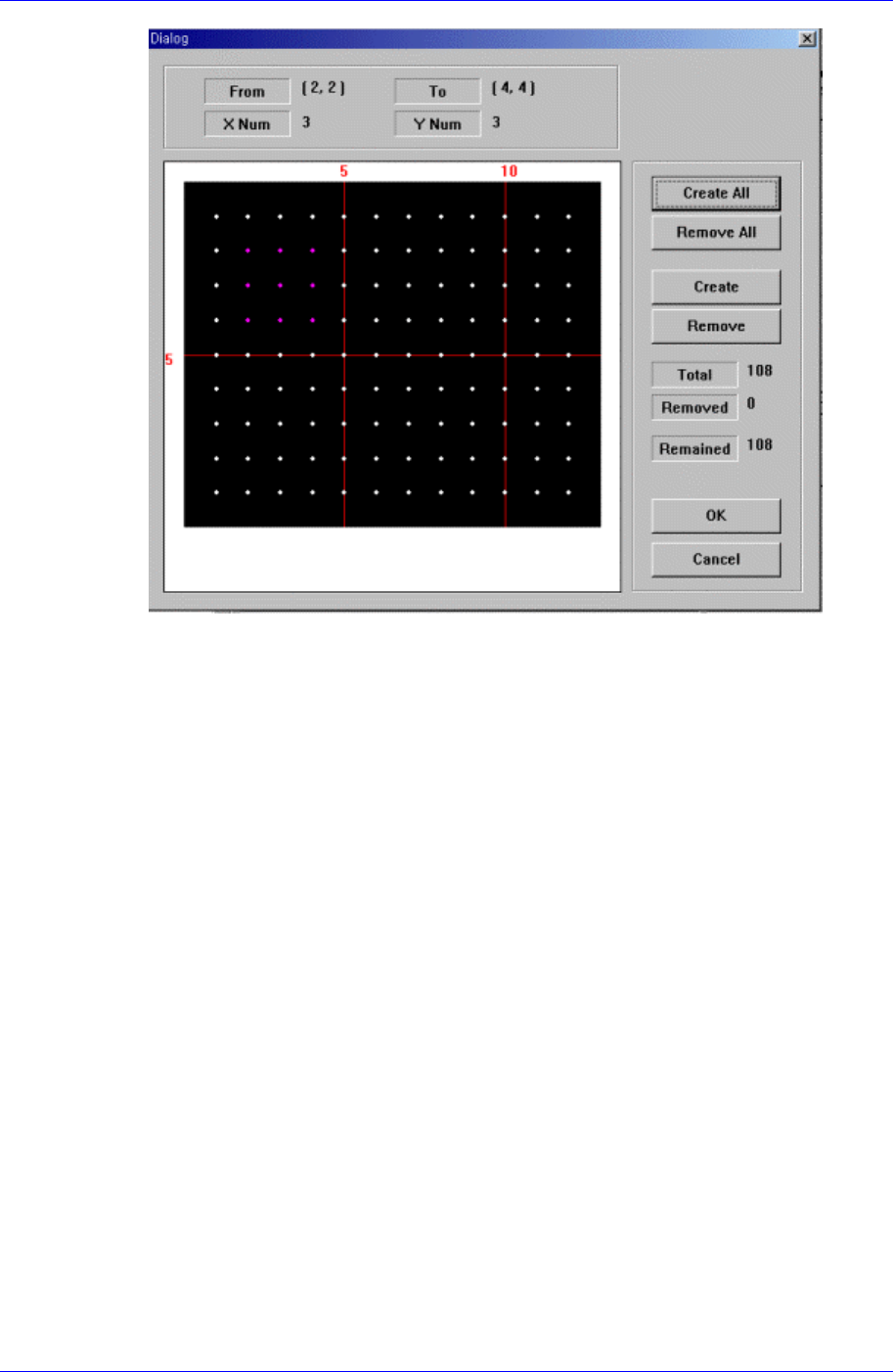
by pressing the left button of the mouse, drag it to the desired area and release it. The
balls in the selected area change color. The following screen shows a case where 25
balls in total, from the ball at (4,4) to the ball at (10,10), 5 balls in X direction and 5
balls in Y direction, are selected.
7-44
Part Registration
7-45
Figure 7-29. “Ball Gap of BGA component-when there is a selected area” dialog box
<Create All> button
Creates all balls.
<Remove All> button
Removes all balls.
<Create> button
Creates balls in the selected area.
<Remove> button
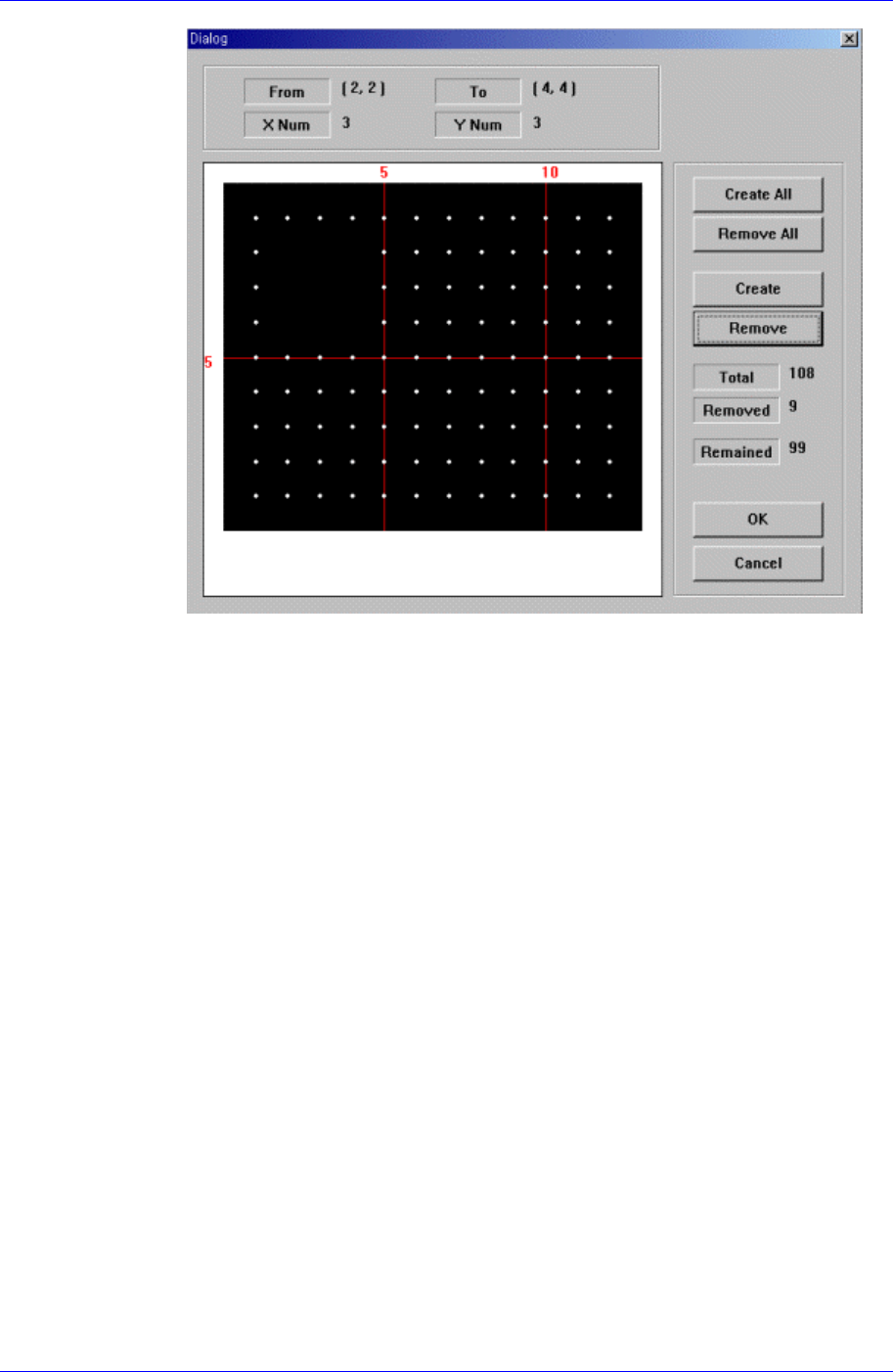
Removes the balls in the selected area.
When the balls in the selected area are removed, the screen looks as follows.
Samsung Component Placer CP45FV Series Administrator’s Guide
Figure 7-30. “Ball Gap of BGA components-when the balls in the selected area are
removed” dialog box
<OK> button
Saves the set ball gap status and closes the dialog box.
<Cancel> button
Closes the dialog box without saving the set ball gap status.
<Outline> button
Displays the outline of the component on the vision monitor by using the set align
data.
<Move…> button
Performs component pickups or moves to the fix camera.
7-46