Administrator’s Guide(CP45FV) Eng.pdf - 第64页
Samsung Component Placer CP45FV Series Administrator ’ s Guide operation. <5. Place Origin> group Set the placement origin of PCB. This orig in is defined by the of fset from the PCB origin of the system to the p…
Board Definition
6-3
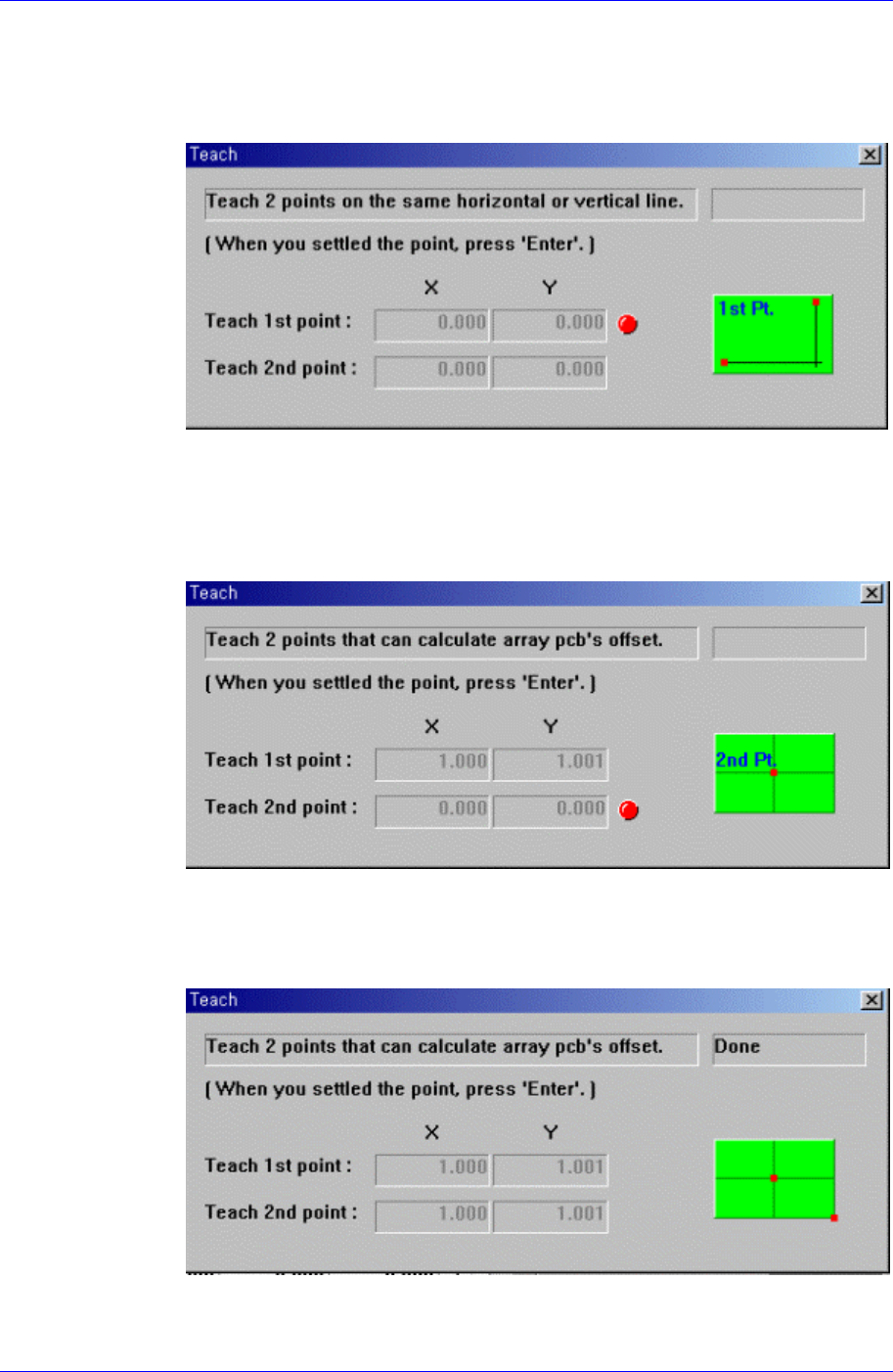
This button is used to teach the initial theta of PCB. When this button is clicked
on, the following screens are displayed in succession.
When teaching the initial theta of PCB, teach two points on the same horizontal
or vertical line, then the initial theta of the PCB is calculated automatically.
Figure 6-5. Screen showing the first point teaching
Teach the first point of the two points on the same horizontal line or vertical line
on the PCB. When the “Enter” key is pressed after teaching, the following screen
is displayed.
Figure 6-6. Screen showing the second point teaching
Teach the second point of two points on the same horizontal or vertical line on
the PCB. When the “Enter” key is pressed after teaching, the following screen is
displayed.
Figure 6-7. Screen showing completion of teaching operation
After teaching the two points, press “Enter” to complete the initial theta teaching
Samsung Component Placer CP45FV Series Administrator’s Guide
operation.
<5. Place Origin> group
Set the placement origin of PCB. This origin is defined by the offset from the PCB
origin of the system to the placement origin of PCB. This is to set the reference point
of the board to work on based on the set coordinate. Generally, the reference point is
setup by choosing the pattern near the stopper. Set the reference point at the location
in the board that can be easily confirmed.
<Origin X> edit box
Set the X value of the placement origin of PCB.
<Origin Y> edit box
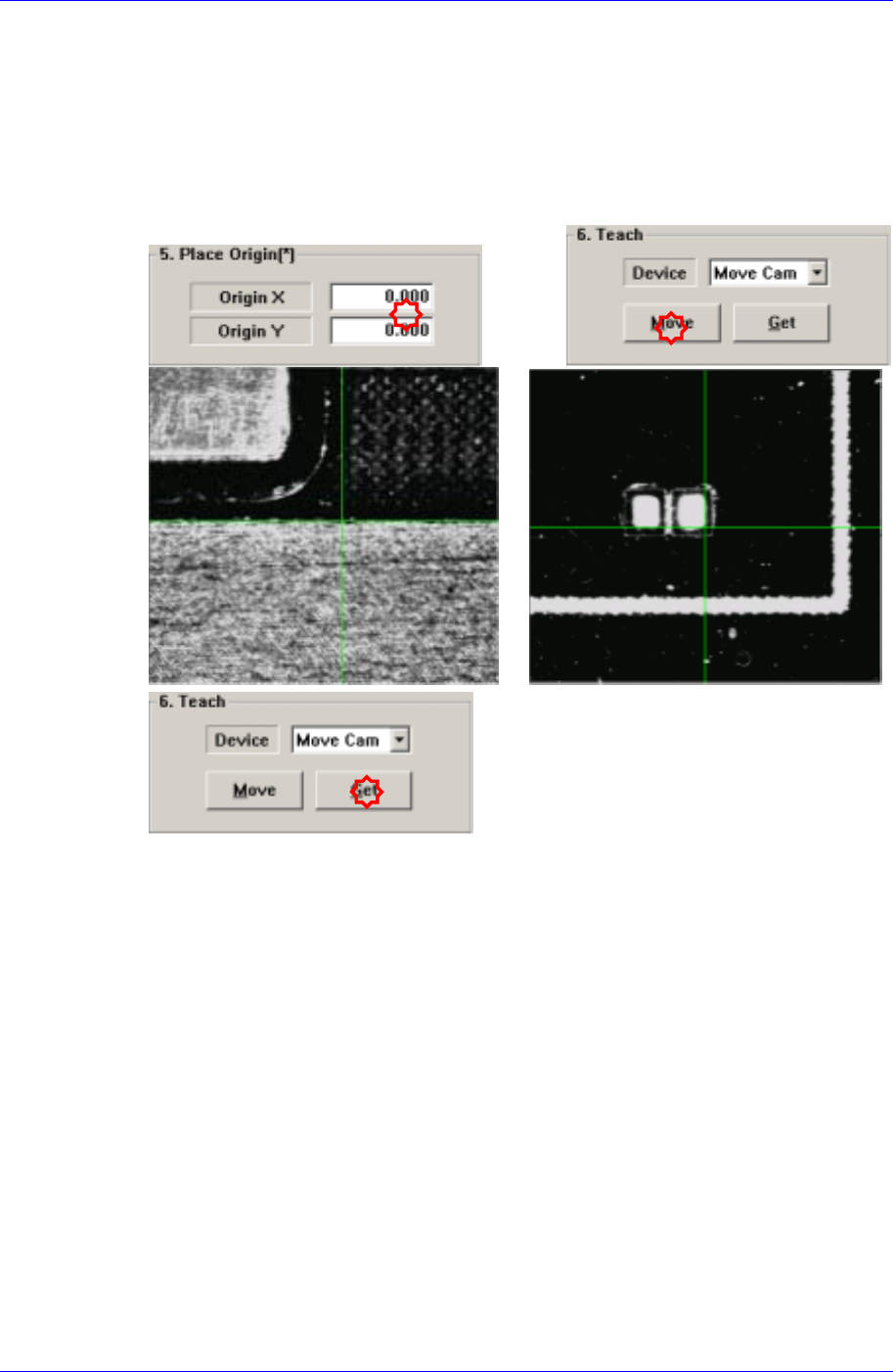
Set the Y value of the placement origin of PCB. Click on <Origin X> or <Origin
Y>, then click on the “Move” or “'Get” button in the <8. Teach> group, Teaching
of the placement origin can be done using the device selected from the <Device>
combo box.
<6. Teach> group
Used to move the head assembly or spindle to the set position by rotating the shafts of
the X, Y and Z-axes driving motors or to obtain the current shaft locations of the X, Y
and Z-axes driving motors.
<Device> combo box
Used to select the corresponding device when moving the head assembly by
rotating the shafts of the X, Y and Z-axes driving motors or to obtain the current
coordinate of the device to be selected. Available devices are as follows;
Move Cam: Selects Teaching Camera..
Head1: Selects Head1.
6-4
Board Definition
6-5
Head2: Selects Head2.
Head3: Selects Head 3..
Head4: Selects Head 4.
Head5 Selects Head 5.
Head6: Selects Head 6.
Beam: Selects Beam.
<Move> button
Moves the head assembly by rotating the shafts of the X, Y and Z-axes driving
motors using the device selected from the <Device> combo box. At this time, the
position value to be read is the origin or Move Z. Before executing “Move”, the
edit box corresponding to the desired position value must be clicked on with a
mouse.
<Get> button
Reads in the current position of the XY and Z axes of the device selected in
<Device> combo box. At this time, the target position value to get is the origin or
Move Z, before executing “Get”, the edit box corresponding to the desired
position must be clicked on with a mouse.
<7. Board Size> group
Set the board size.
<X> edit box
Set the X value of PCB size.
<Y> edit box
Set the Y value of PCB size.
<Conv.Width > button
Adjusts the conveyor width to be suitable for the work PCB before inputting it .
Memo
The sizes of PCB applicable for this machine are as follows.
Front side conveyor fixed
Max 460L×400W×4.2H [ mm ]
510.0mm (x-axis) x 460.0mm (y-axis) – Factory Option
Min 50L×50W×0.38H [ mm ]
The maximum PCB size could differ according to the options.
For more information, refer to Introduction manual “2.6. PCB Specification”.
<8. Handling> group
Set the data necessary for PCB operation.
<Fix Type> combo box
Select the method for fixing a PCB.
Edge Fixer: A method of arrangement by pushing the PCB from the side