Administrator’s Guide(CP45FV) Eng.pdf - 第72页
Samsung Component Placer CP45FV Series Administrator ’ s Guide Head2: Selects Head 2. Head3: Selects Head 3. Head4: Selects Head 4. Head5: Selects Head 5. Head6: Selects Head 6. Beam: Selects Beam. <Move> button …
Board Definition
6-11
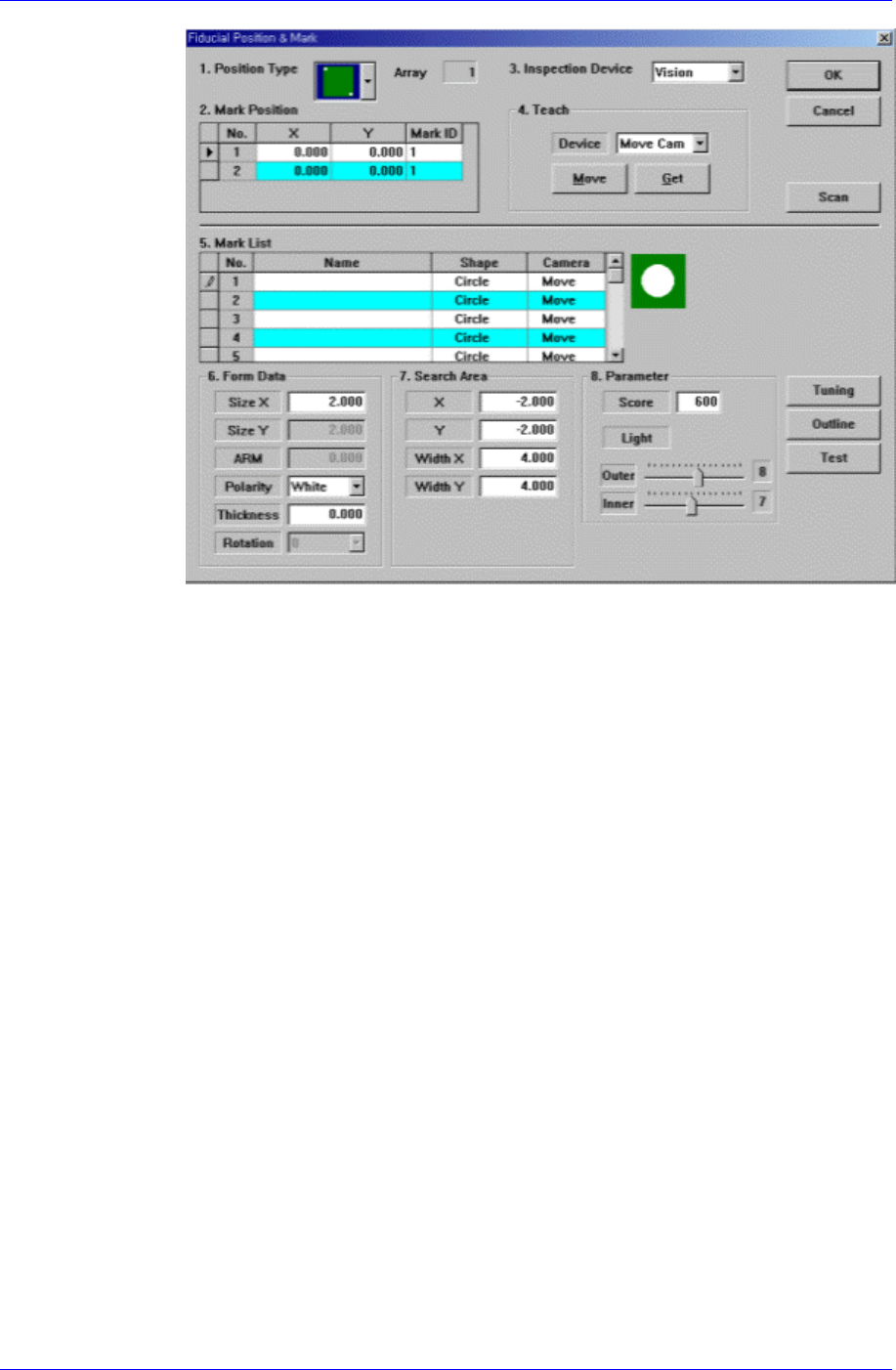
Figure 6-13. “Fiducial Position & Mark” dialog box (When the Position Type is “2
Panel”)
<No> column
A serial number of the position of fiducial mark.
<X> column
The X position value of fiducial mark.
<Y> column
The Y position value of fiducial mark.
<Mark> column
The mark ID value of fiducial mark. This value must be set from a series of
numbers in <5. Mark List>.
<3. Inspection Device> combo box
Select the device to inspect the fiducial mark. Available devices are as follows.
Vision: Recognizes with the move camera(fiducial camera) in the head assembly.
<4. Teach> group
Used to move the head assembly to the designated position by rotating the
driving shaft of the X and Y-axes motors or obtain the current position of the
shafts of the X and Y-axes motors.
<Device> combo box
Selects the corresponding device to move the head assembly by rotating the
driving shafts of the X and Y motors or obtains the current coordinate of the
device to be selected. Available devices are as follows;
Move Cam: Selects Teaching Camera.
Head1: Selects Head 1.
Samsung Component Placer CP45FV Series Administrator’s Guide
Head2: Selects Head 2.
Head3: Selects Head 3.
Head4: Selects Head 4.
Head5: Selects Head 5.
Head6: Selects Head 6.
Beam: Selects Beam.
<Move> button
Moves the head assembly by rotating the shafts of the X, Y-axes driving
motors using the device selected from the <Device> combo box. Before
executing “Move”, the cell in the grid corresponding to the desired position
must be clicked on with a mouse.
<Get> button
Reads in the current position of the XY axis selected in <Device> combo box.
Before executing “Get”, the cell in the grid corresponding to the desired
position must be clicked on with a mouse.
<OK> button
Saves the fiducial mark data and closes the “Fiducial Position & Mark” dialog
box.
<Cancel> button
Closes the “Fiducial Position & Mark” dialog box without saving the fiducial
mark data.
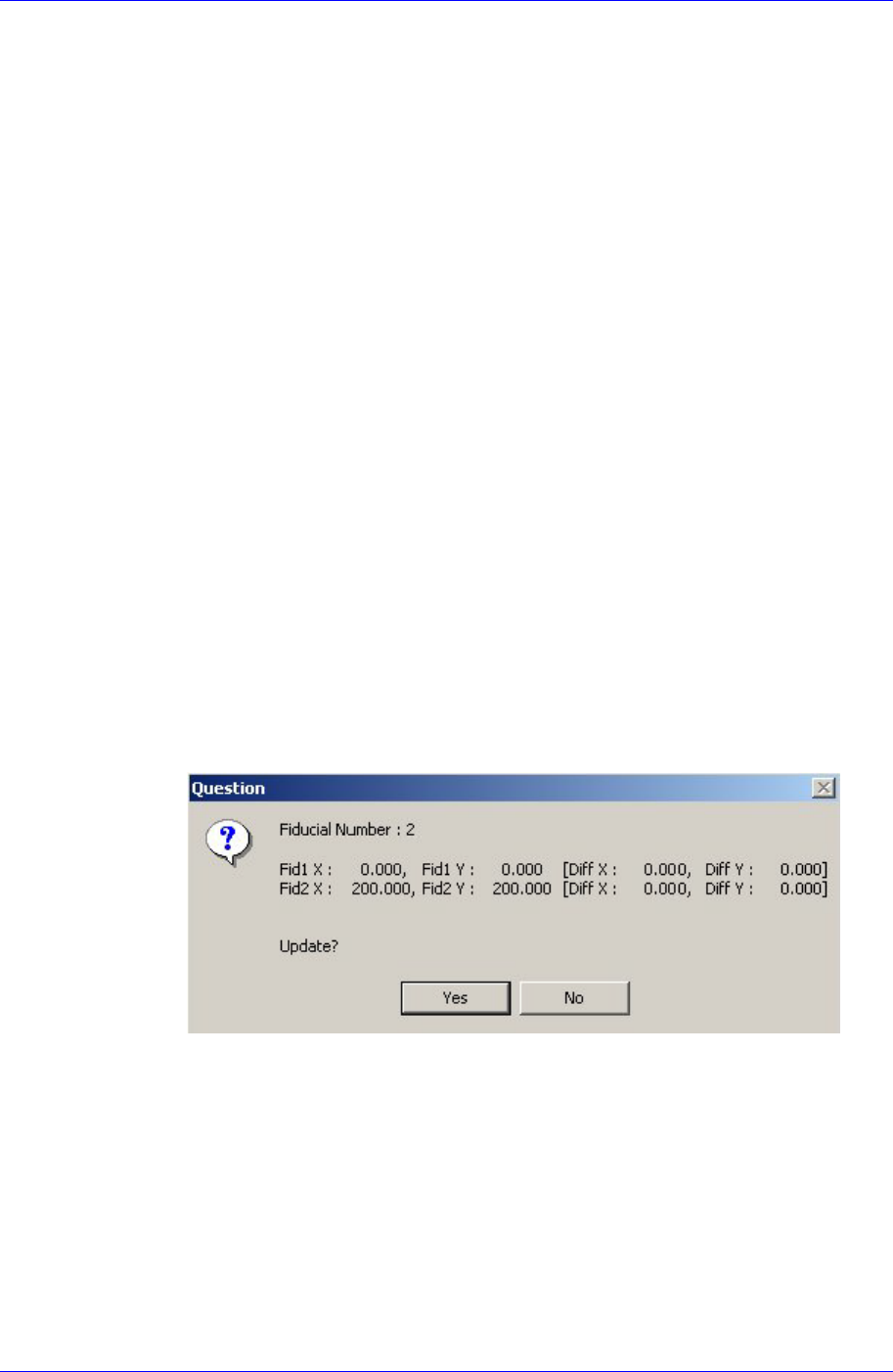
<Scan> button
Executes a scan test on the set fiducial mark. The scan test inspects the actual
mark by using the set fiducial mark position and mark data and displays the
result as follows.
The position of the fiducial mark displayed on the above screen is the position of
the mark obtained through the scan test. If you want to update the value, click on
“Yes,” if not click on “No”.
6-12
Board Definition
6-13
Memo
On Fiducial Marks
A fiducial mark has to satisfy several shape and material conditions. During the design of
PCB, the following precautions should be taken.
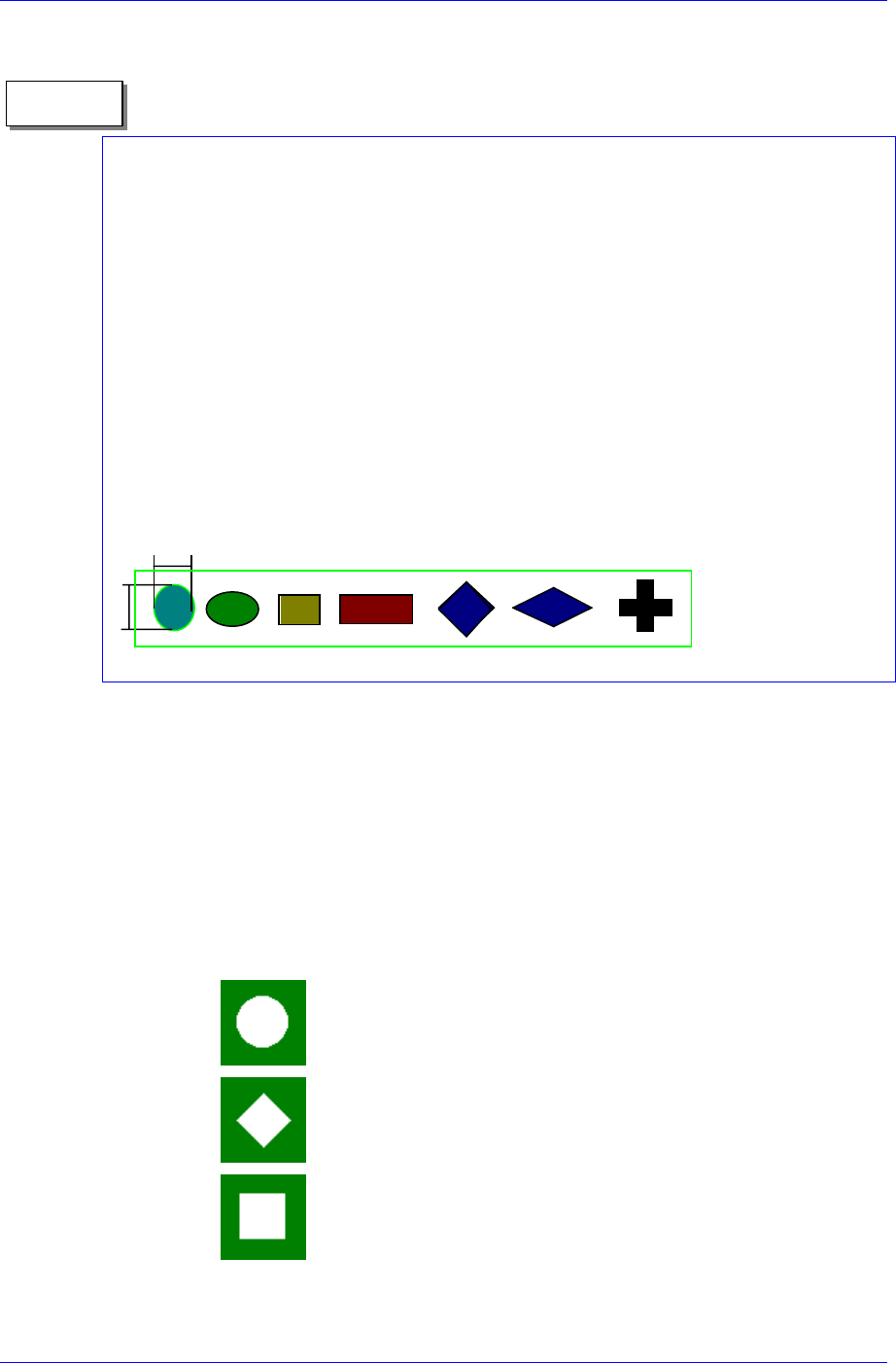
Seven patterns of fiducial mark shapes are possible as shown in the figure below
(top/bottom symmetry or right/left symmetry)
For the size of A, over 2.0 ㎜ is recommended. The width of mark sensor beam is
about ø0.7 ㎜ measured from the surface of PCB.
Make sure that any changes in color or shape(solder resist, lead pattern) that can
cause error should not be found within 2.0 ㎜ of fiducial mark's outer edges.
Make sure that the shading difference exits between the fiducial mark and the board
surrounding it.
To ensure search accuracy, coat the surface of the fiducial mark with copper or lead
so that the surface does not reflect. The line shaped fiducial marks can not be
searched with Beam.
A
A
<5. Mark List> group
A list of fiducial mark shape data.
<No> column
A serial number of fiducial mark shape.
<Name> column
The name of the fiducial mark(Up to 10 characters)
<Shape> column
Select the shape of fiducial mark. Available shapes are as follows.
Circle: Circular shape fiducial mark.
Diamond: Diamond shape fiducial mark.
Rectangle: Rectangular shape fiducial mark.