Administrator’s Guide(CP45FV) Eng.pdf - 第256页
Samsung Component Placer CP45FV Administrator ’ s Guide current coordinate of the device to be selected. A vailable devices are as follows; Move Cam: Selects T eaching Camera. Head1: Selects Head1. Head2: Selects Head2. …
Machine Calibration
15-17
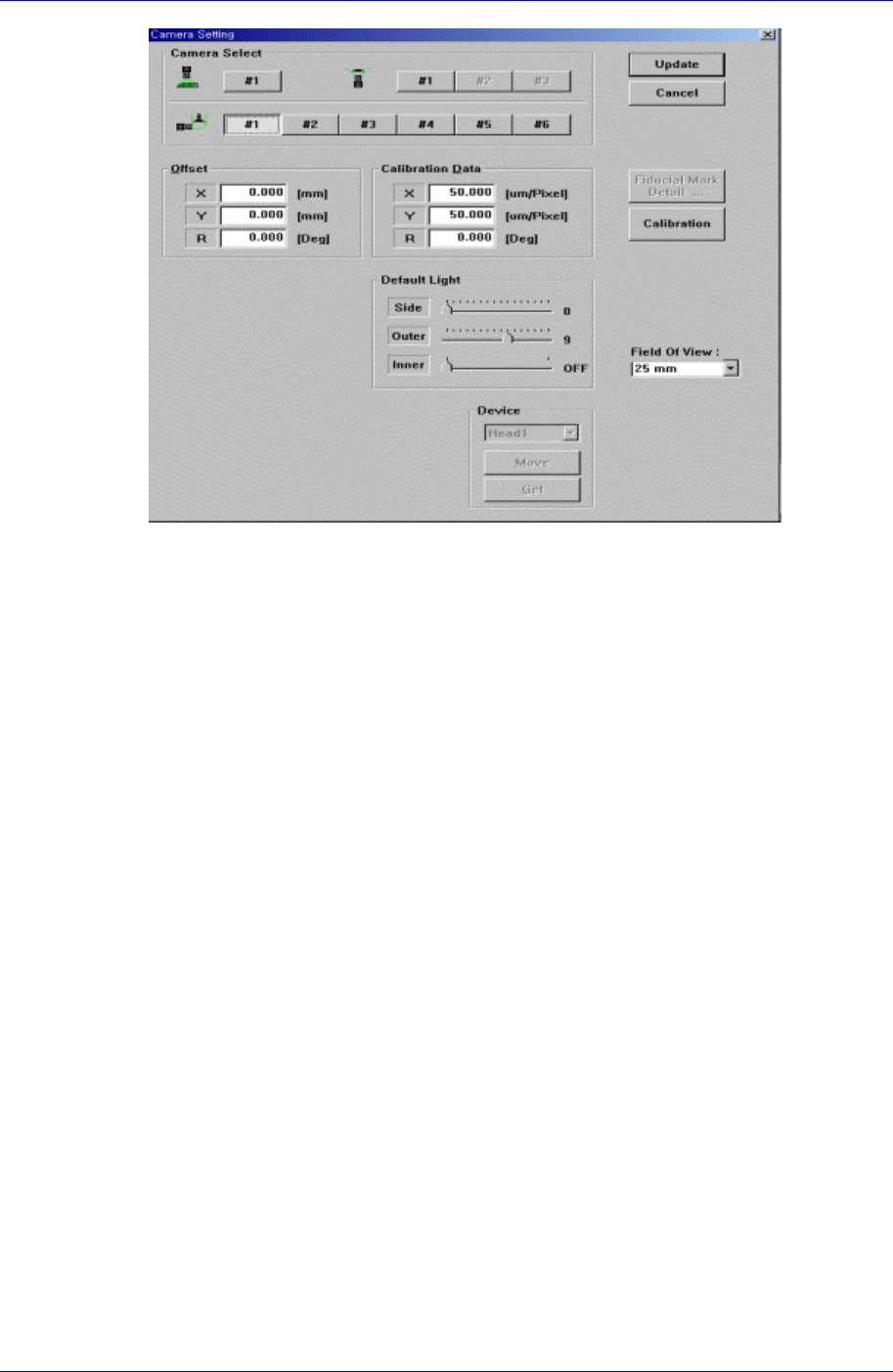
<Calibration Data> group
Set the camera calibration data. It can be set directly or by using the calibration
function.
<X> edit box
Set the resolution of the camera in X direction. The unit is the number of pixels
per mm.
<Y> edit box
Set the resolution of the camera in Y direction. The unit is the number of pixels
per mm.
<R> edit box
Set the resolution of the camera in R direction. The unit is degree.
<Offset> group
Set the camera offset data.
<X> edit box
Set the offset value of the camera in X direction.
<Y> edit box
Set the offset value of the camera in Y direction.
<R> edit box
Set the offset value of the camera in R direction.
<Default Light> group
Set the default light value. Lights to be set are side light, outer light, and inner light.
The following items are common to all screens.
<Device> combo box
Selects the corresponding device to move the head assembly by rotating the driving
shafts of the X, Y, Z and R-axes motors, move or rotate the spindle or obtain the
Samsung Component Placer CP45FV Administrator’s Guide
current coordinate of the device to be selected. Available devices are as follows;
Move Cam: Selects Teaching Camera.
Head1: Selects Head1.
Head2: Selects Head2.
Head3: Selects Head3.
Head4: Selects Head4.
Head5: Selects Head5.
Head6: Selects Head6.
Beam: Selects Beam.
<Move> button
Moves the head assembly by rotating the shafts of the X, Y, Z and R-axes driving
motors using the device selected from the <Device> combo box. At this time, the edit
box corresponding to the position to be read must be clicked on by a mouse.
<Get> button
Reads in the current position of the XY, Z, and R axes of the device selected in
<Device>.
<Fiducial Mark Default…> button
Activated only when the Fix Camera is used.
<Calibration> button
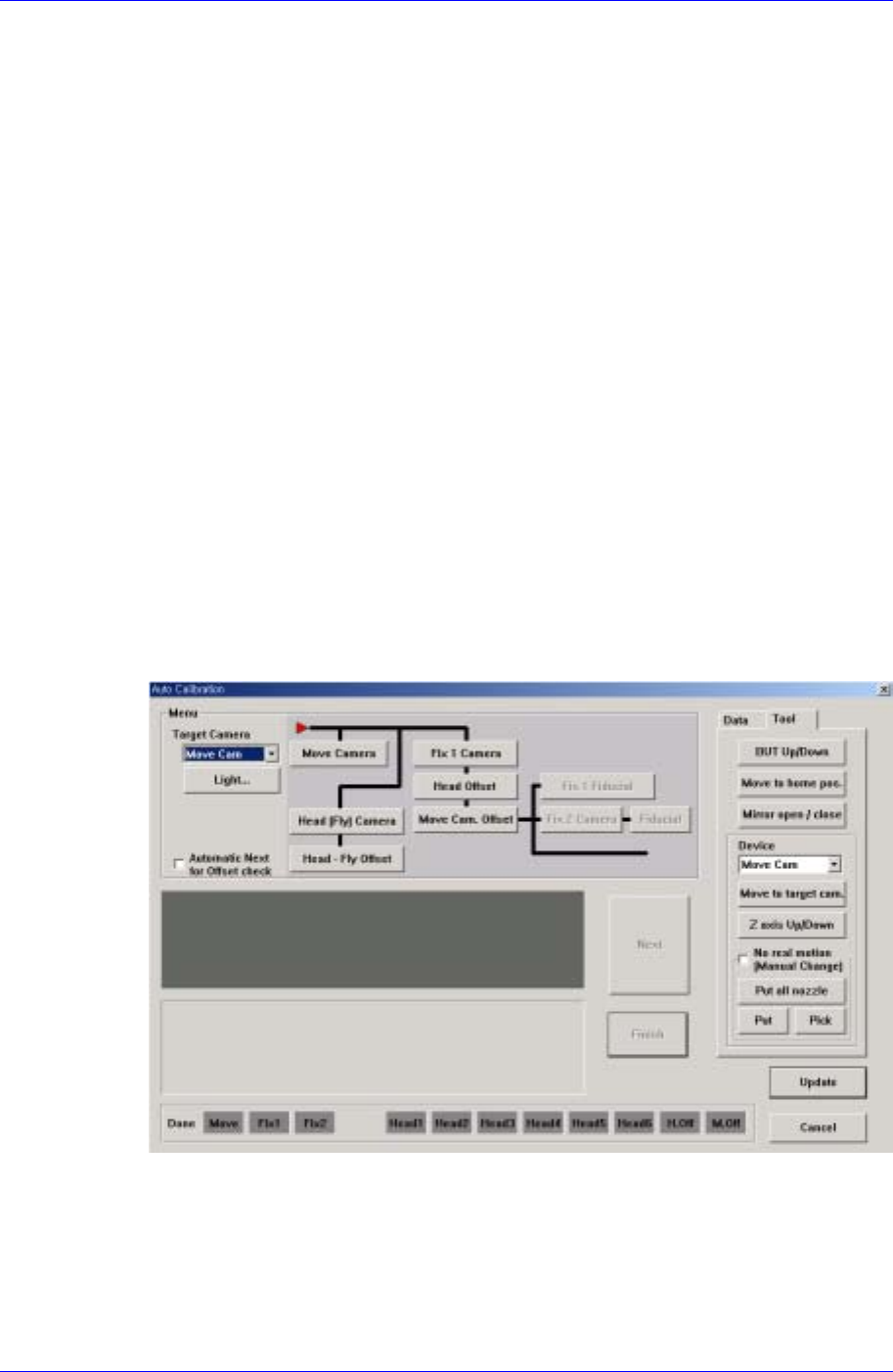
Performs the camera calibration function. When this button is clicked on, the
following screen is displayed.
<Target Camera> combo box
Select the camera to set light value.
<Light…> button
Set the light value for the selected camera.
<Menu> group
15-18

Machine Calibration
15-19
Select the items to calibrate.
<Move Camera> button
Calibrates the move camera (Fiducial Camera) in combination with the
Calibration Plate.
The Move Camera (Fiducial Camera) calibration procedure is as follows;
1. If a nozzle is mounted on the head, clear the select “No real motion” and
click on “Put all nozzle”. Perform calibration with a nozzle not mounted
on the head.
2. Click the <PCB In> button in the Board dialog box of the PCB Edit
menu tool bar and fix the Calibration Plate on the placement position.
3. Select the Camera [F9] in the SysSetup menu tool bar and execute the
Camera Setting dialog box.
4. Click the <Calibration> button in the Camera Setting dialog box to
display Auto Calibration dialogboxand click the <Move Camera> button
in the menu group.
5. If the “Prepare PCB for Calibration” message is displayed, click the
<Next> button since the calibration plate has been fixed on the
placement position.
6. If the message, “Move Head Assembly by jogbox. To adjust between
Fiducial move camera to Fiducial mark's center on the PCB” is
displayed, align the cross hair center of the camera screen with the plate
center and click the <Next> button.
7. The machine recognizes the black circle on the plate moving up and
down and left and right.
8. When the calibration is completed normally, the OLD data and New data
window are displayed. The data may be updated or canceled.
If an error occurs as a result of the outline of the black circle on the plate
not being clearly recognized during calibration, adjust the brightness of
the lighting so that the circle outline is clearly recognized. Then perform
the calibration again.
<Head[Fly] Camera> button
Calibrates the Fly Camera in combination with the Fly Camera Calibration
Tool.
The Fly Camera calibration procedure is as follows;
1. Remove the hex bolt in the area shown in the following figure.