Administrator’s Guide(CP45FV) Eng.pdf - 第184页
Samsung Component Placer CP45FV Series Administrator ’ s Guide 11.3. Stop [F3] When the “ PCB Download ” operation has been completed, this button is activated while the placement is in progress, and it is inactivated wh…

Production Setup
11-5
If the execution mode is “Step”, set more detailed step execution.
<Step Sequence> option button
Selects the step execution on the sequence.
<Step Vision> option button
Selects the step execution on vision.
<Operation Option> group
Set the options related to placement.
<ANC before PCB load> check box
Check it to perform ANC operation before loading the PCB.
<Stop before DUMP> check box
Check it to stop operation after dumping the component.
<STEP Stop (Z-Axis)> check box
Check it to stop the Z axis during “Step” execution.
<Use Fix Camera Position Compensation>
<Every ( ) PCBs/minutes> edit box
To guard against the possibility of the fix camera position being changed
during operation, it checks and corrects the Fiducial Mark on the Fix
Camera after producing a certain a of PCBs or a certain a of time.
<Display Cam. No while product> combo box
A combo box to select the camera for the vision monitor during production.
PCB Transfer Speed combo box
A combo box to adjust the speed of transferring the PCB on the conveyor.
<OK> button
Saves the set options and closes the dialog box.
<Cancel> button
Ignores the set options and closes the dialog box.
11.2. Start [F2]
When the “PCB Download” operation has been completed, this button is activated while
the placement is not in progress, and it is inactivated while the placement is in progress.
This command transmits the command to start the placement related to the downloaded
PCB data to the machine.
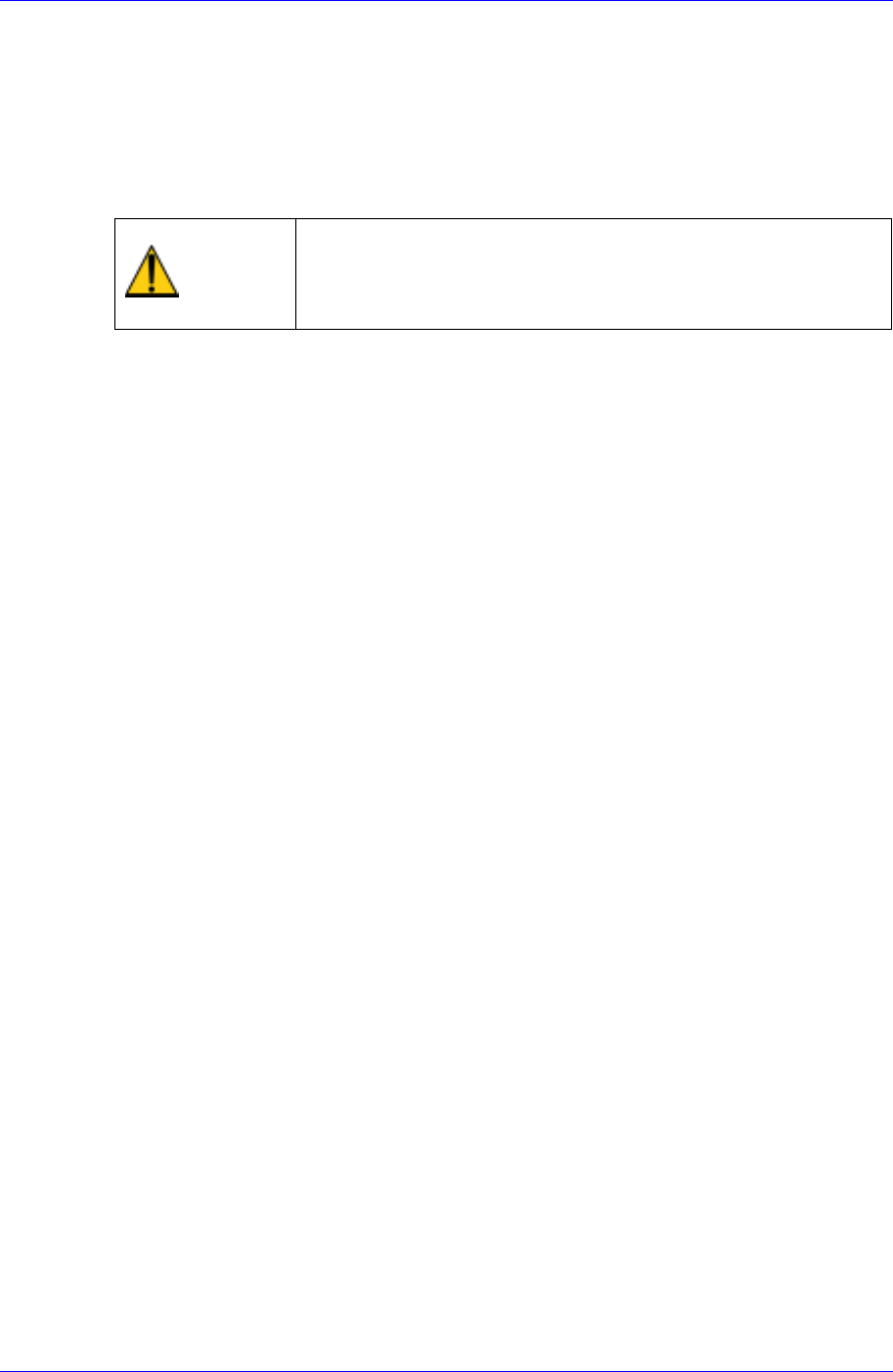
Caution
Pressing the Start switch without checking the presence of
worker nearby could cause injury.
Be sure to check if there is any worker near the machine
before pressing the Start switch.
Samsung Component Placer CP45FV Series Administrator’s Guide
11.3. Stop [F3]
When the “PCB Download” operation has been completed, this button is activated while
the placement is in progress, and it is inactivated while the placement is not in progress.
This command transmits the command to stop the placement related to the downloaded
PCB data to the machine.
Caution
Inserting a part of body while the machine is in operation or
in temporary stop could result in severe injury.
Do not insert a part of body while the machine is in
operation or in temporary stop.
11.4. Cont. [F4]
When the “PCB Download” operation has been completed, this button is activated while
the placement is not in progress, and it is inactivated while the placement is in progress.
This command transmits the command to continue the placement related to the
downloaded PCB data at the position where the operation was stopped previously to the
machine.
The ‘Cont’ function cannot be used when:
A new PCB File is downloaded
The number of cycles increases or decreases
The number of arrays is changed (Array Extend Option is changed)
The ‘Cont’ function can be used with the confirmation of the user when:
The number of steps is changed
The head, feeder, nozzle and skip information of the step is changed
11.5. Finish [F5]
This command transmits to the machine the command to completely stop the placement
related to the downloaded PCB data..
11-6
Production Setup
11-7
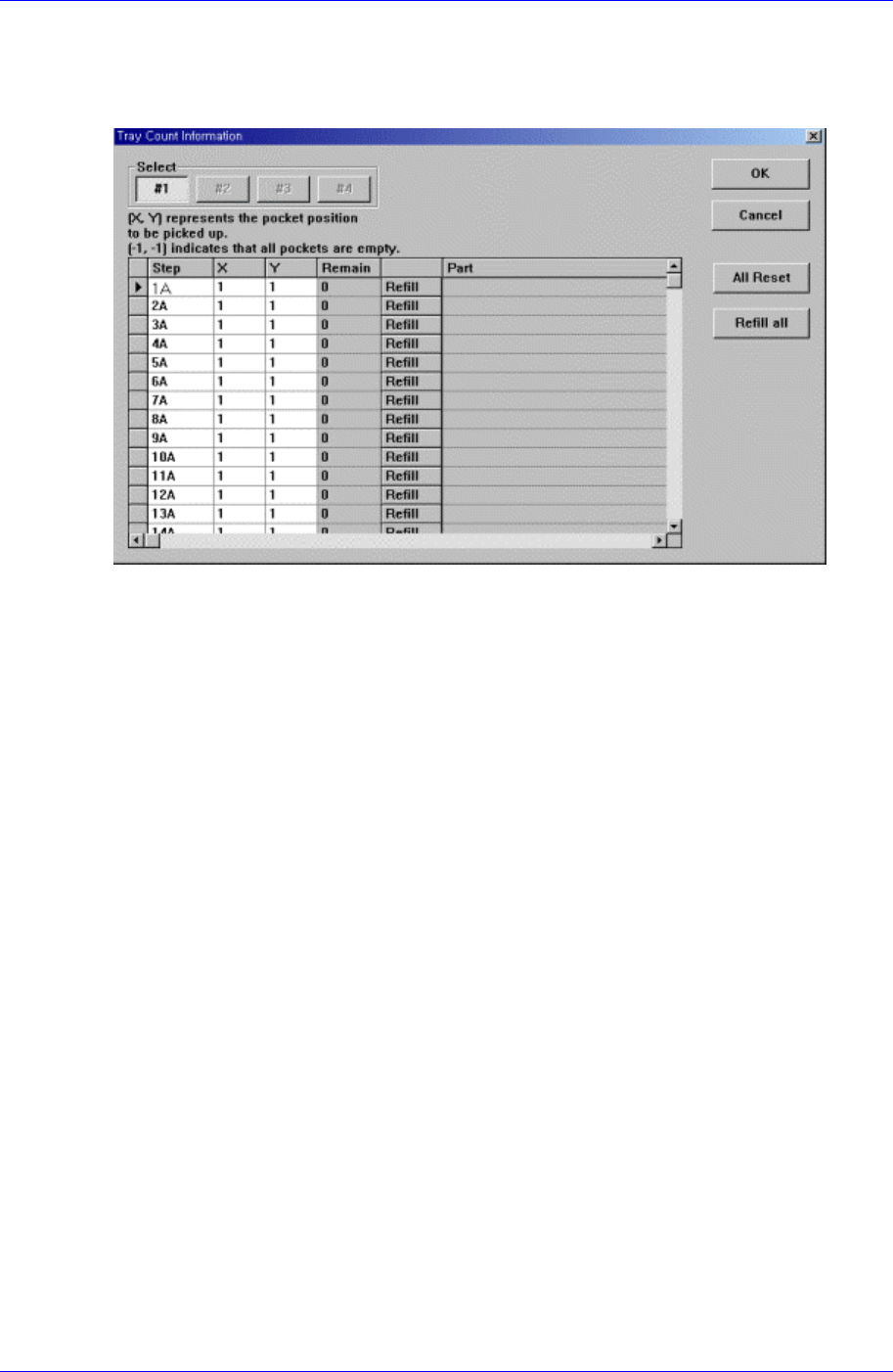
11.6. T/F Cnt [F6]
Set the start position of the pocket on the tray feeder to pick up the component. When this
button is clicked on, the following dialog box is displayed.
Figure 11-5. “Tray Count Information” dialog box
<Select> option button
Select the tray feeder unit to set.
<Grid> group
Set the position of the pocket to start.
<Step> column
Displays the number of tray step.
<X> column
Set the X position of the pocket.
<Y> column
Set the Y position of the pocket.
<Part> column
Displays the name of the component supplied the corresponding pallet.
<OK> button
Transmits the set data to the machine and closes the dialog box.
<Cancel> button
Ignores the set data and closes the dialog box.
<All Reset> button
Used to supply all pallets with components. Initializes the pocket position to start
(X=1, Y=1) on all pallets.
<Refill all> button
Used to supply empty pallets with components. After refilling components for empty
pallets, Clicking this button initializes the pocket position to start (X=1, Y=1) on each
pallet.