Administrator’s Guide(CP45FV) Eng.pdf - 第68页
Samsung Component Placer CP45FV Series Administrator ’ s Guide Initializes the Array PCB. This function set s the offset value of each Array PCB automatically when the arrangement of array PCB is regular. <Number> …
Board Definition
6-7
<Device> combo box
Selects the corresponding device to move the head assembly by rotating the
driving shafts of the X, Y and R-axes motors, move or rotate the spindle or
obtain the current coordinate of the device to be selected. Available devices
are as follows;
Move Cam: Selects Teaching Camera.
Head1: Selects Head1.
Head2: Selects Head2.
Head3: Selects Head3.
Head4: Selects Head4.
Head5: Selects Head5.
Head6: Selects Head6.
Beam: Selects Beam.
<Move> button
Moves the X, Y and R driving axes to the coordinate of the device that is
selected from the <Device>. Before executing “Move”, the cell in the grid
corresponding to the desired position must be clicked on with a mouse.
<Get> button
Reads in the current position of the XY, and R axes of the device selected in
<Device>. Before executing “Move”, the cell in the grid corresponding to the
desired position must be clicked on with a mouse.
<3. Sequence> group
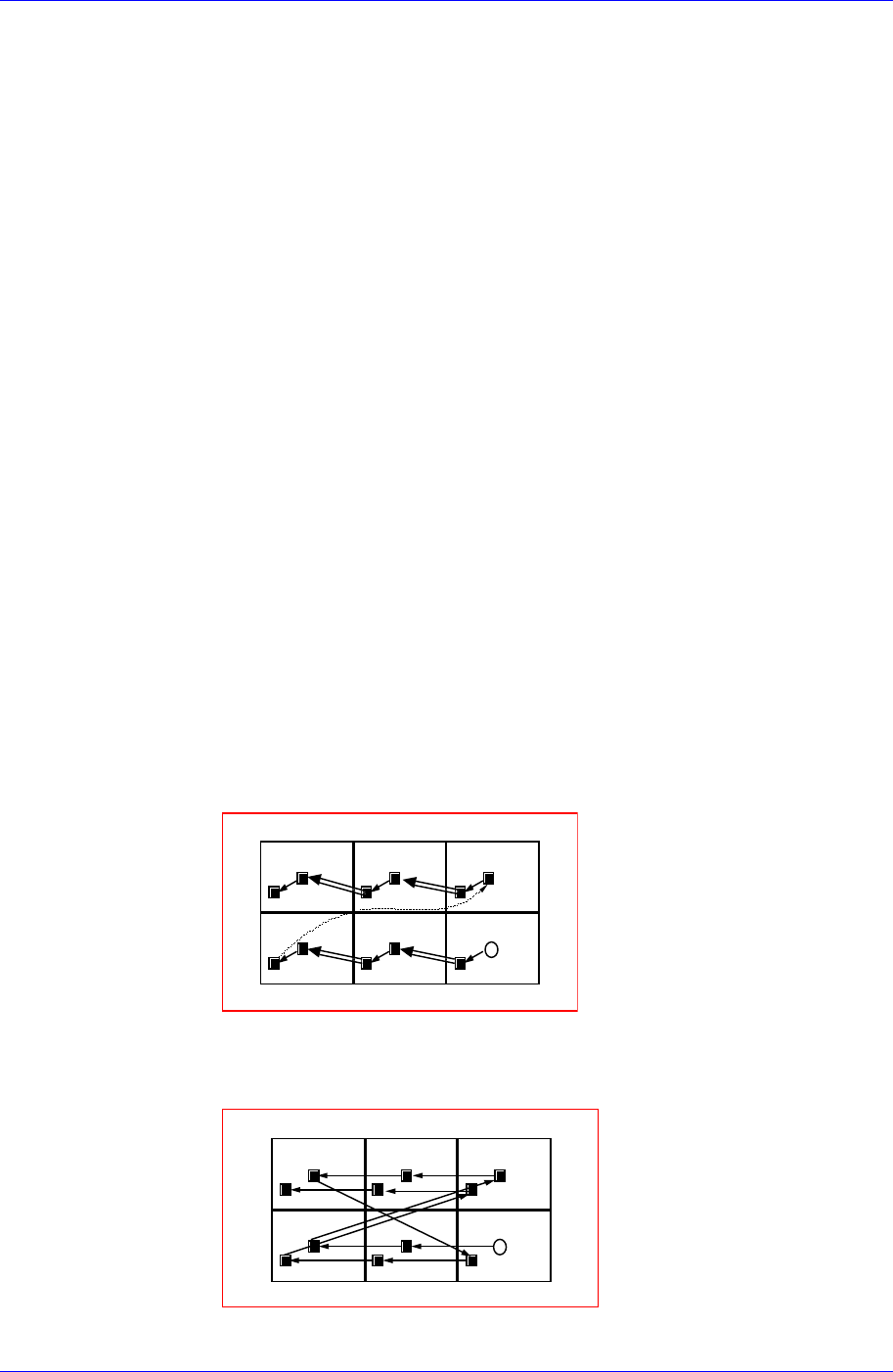
Select the Array PCB operation method.
<By PCB> option button
A method of completing one Array PCB operation and then executing the
next Array PCB operation.
13
4
2
56
<By Point> option button
A method of completing an operation cycle to all array PCBs and then
executing the next cycle operation.
13
4
2
56
<4. Set Array (Regular Type)> group
Samsung Component Placer CP45FV Series Administrator’s Guide
Initializes the Array PCB. This function sets the offset value of each Array PCB
automatically when the arrangement of array PCB is regular.
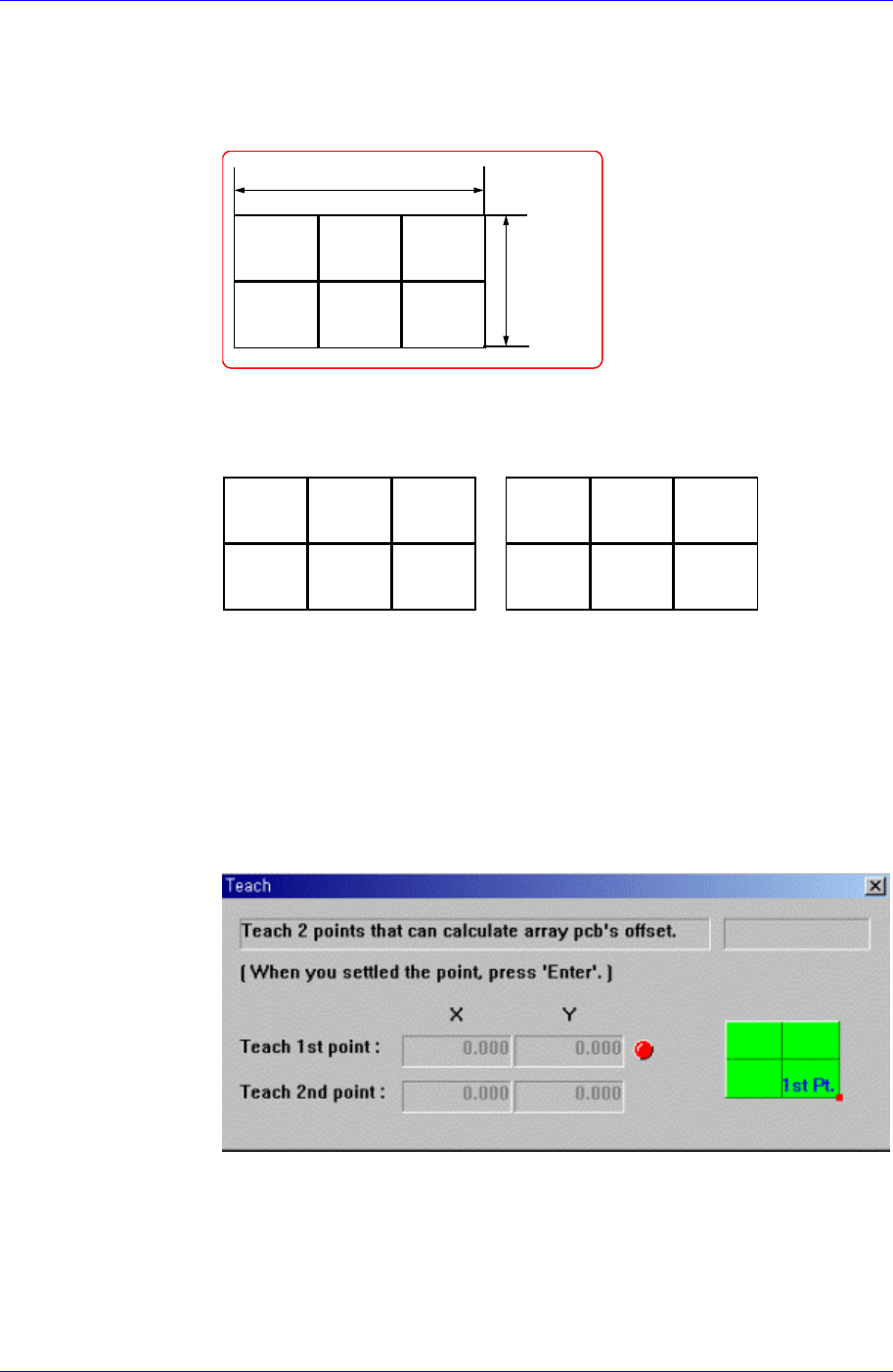
<Number> edit box group
Enter the number of Array PCBs as follows.
X=3
Y=2
<Count Direction> option button group
Select a method of numbering Array PCBs.
XDir
인경우
123
4
56
YDir
인경우
135
2
46
When the X Direction is selected When the Y Direction is selected
<Offset> edit box group
This value is used to set the offset value of the origin of Array PCB
automatically. It sets the placement origin of small PCBs in the array PCB by
increasing the coordinate as much as the offset from the placement origin of
the small PCB, which becomes the reference in the array PCB.
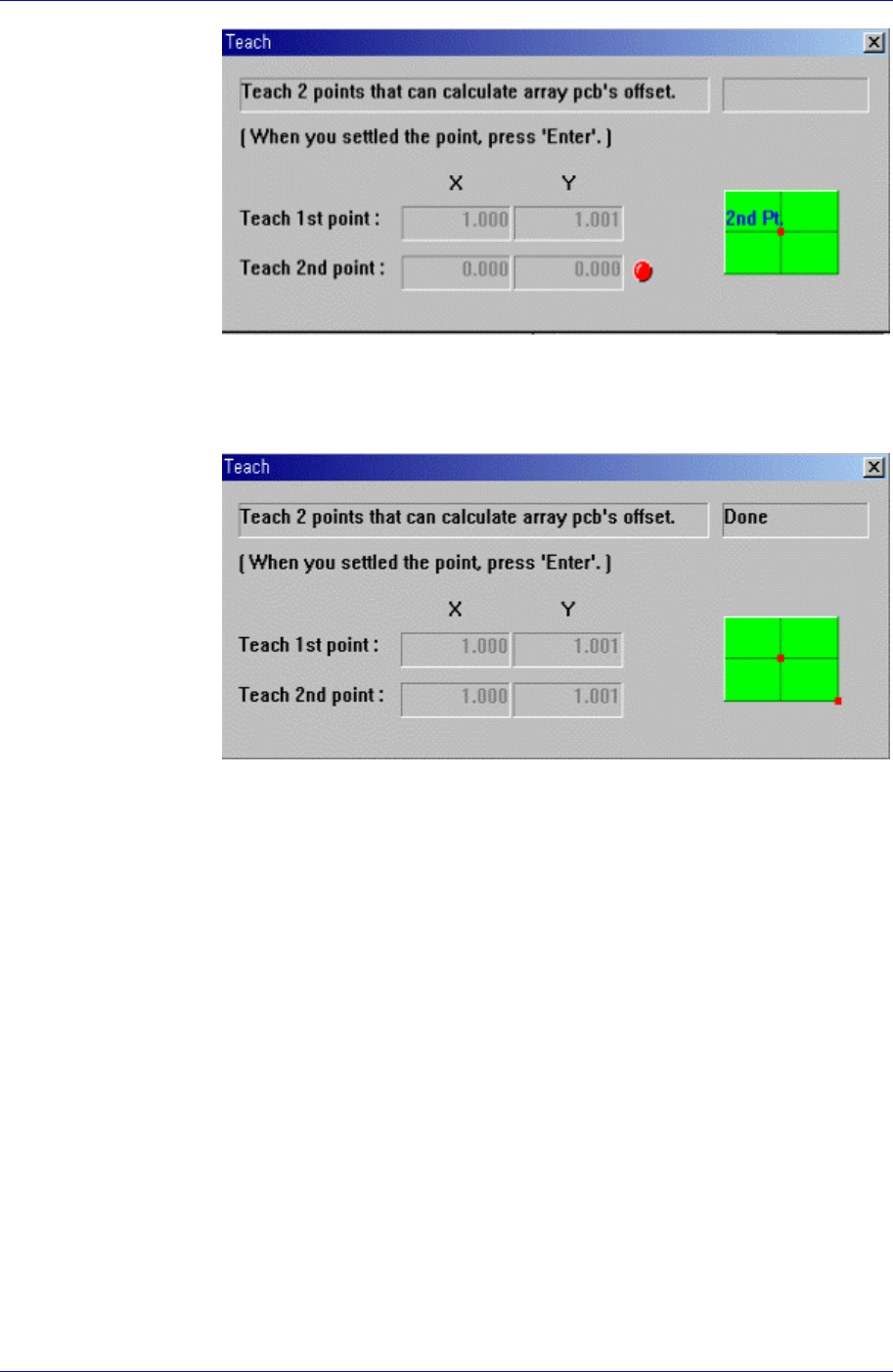
<Teach> button
This button is used to teach the offset value of Array PCB in the same way as
teaching the PCB size. When this button is clicked on, the following screens
are displayed in succession.
Figure 6-9. Screen showing first point teaching for Array PCB Offset
Teach the origin of Array PCB 1. When the “Enter” key is pressed after
teaching, the following screen is displayed.
6-8
Board Definition
6-9
Figure 6-10. Screen showing second point teaching for Array PCB Offset
Teach the origin of the Array PCB on the position that can determine the
offset. When the “Enter” key is pressed after teaching, the following screen is
displayed.
Figure 6-11. Screen showing completion of Array PCB Offset Teaching
Press the “Enter” key to complete the Array PCB offset value teaching
operation.
<Apply> button
Automatically creates Array PCB data with the value set in this group.
<5. Add Value> group
Set the values of X, Y, and R to be added to the grid line of the <1. Array> group.
When the “Add” button is clicked on after setting the desired values, the values
are added to the corresponding grid lines.
<Array Skip/Work Tools> group
All Skip: Set “Skip” for all of the array PCBs.
All Work(No Skip): Release ‘Skip’ settings for all of the array PCBs.
Skip: Set the ‘Skip’ for the array PCB having the number that is inputted in the
‘Array No’.
Work Release ‘Skip’ setting for the array PCB having the number that is inputted
in the ‘Array No’.
<OK> button
Saves the edited data and closes the screen.
<Cancel> button