3OM-1075-002.pdf - 第100页
: Close When pressed, this closes the active "Pattern Program" file (window). : Save When pressed, this saves the edited data, replacing the ex- isting file with the current one. When a new file is created, it …
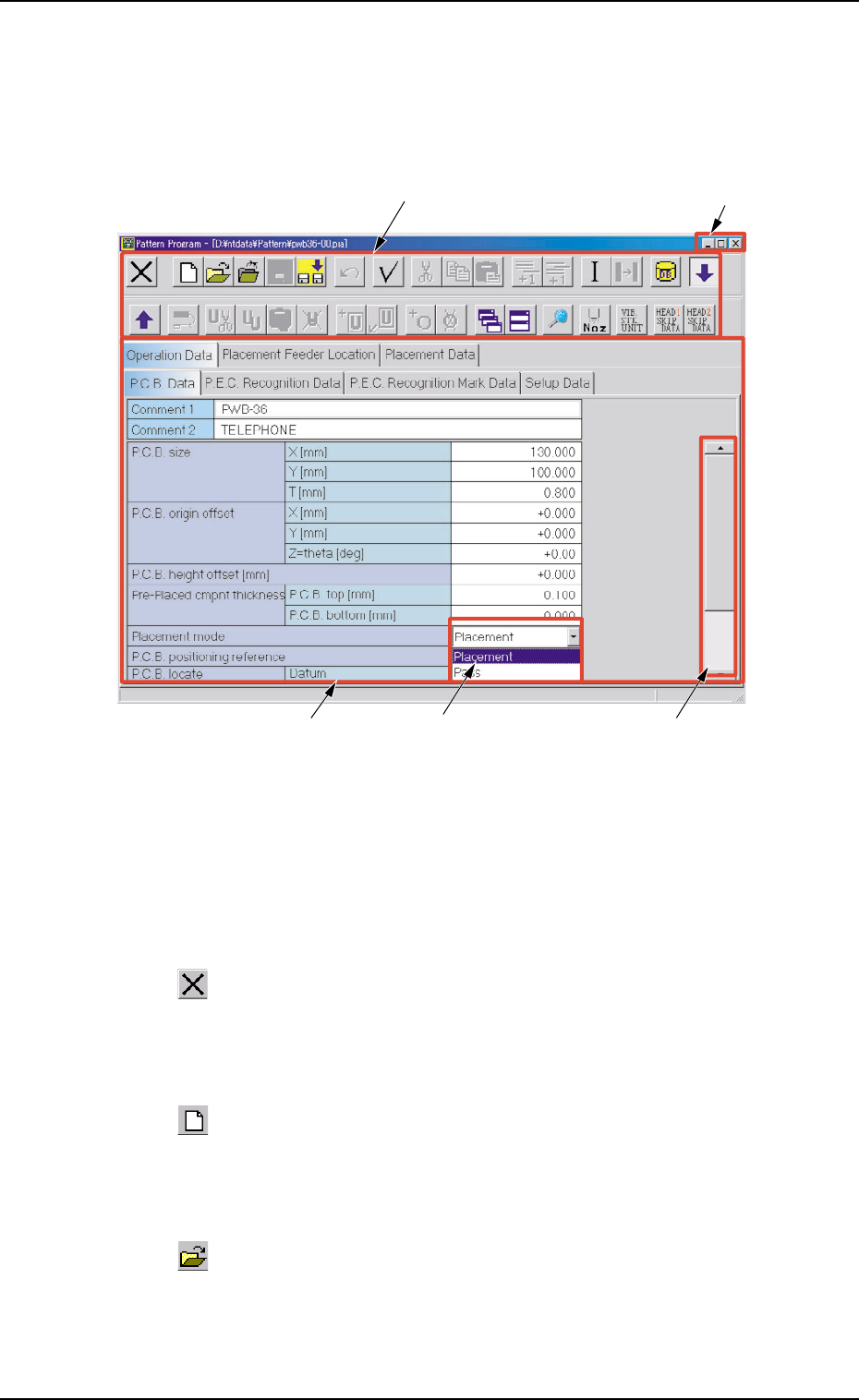
4.1.2 Composition of "Pattern Program" Edit Window
This session describes the composition and the icons on the toolbars
of the "Pattern Program" edit window.
Fig. 3B141 "Pattern Program" Edit Window
*1 Toolbar
The "Pattern Program" edit window is provided with the operation
commands (the icons on the toolbars) that can be executed.
: Exit
When pressed, this closes the "Pattern Program Edit" win-
dow.
: New
When pressed, this opens a new "Pattern Program" win-
dow.
: Open File
When pressed, this opens an existing "Pattern Program" edit
window.
0308-004 2-80
AHB01EDTP
*1 Toolbar
*2
*5
*3 Edit Sheet
*4 Drop-Down List
4.1 Basic Operations
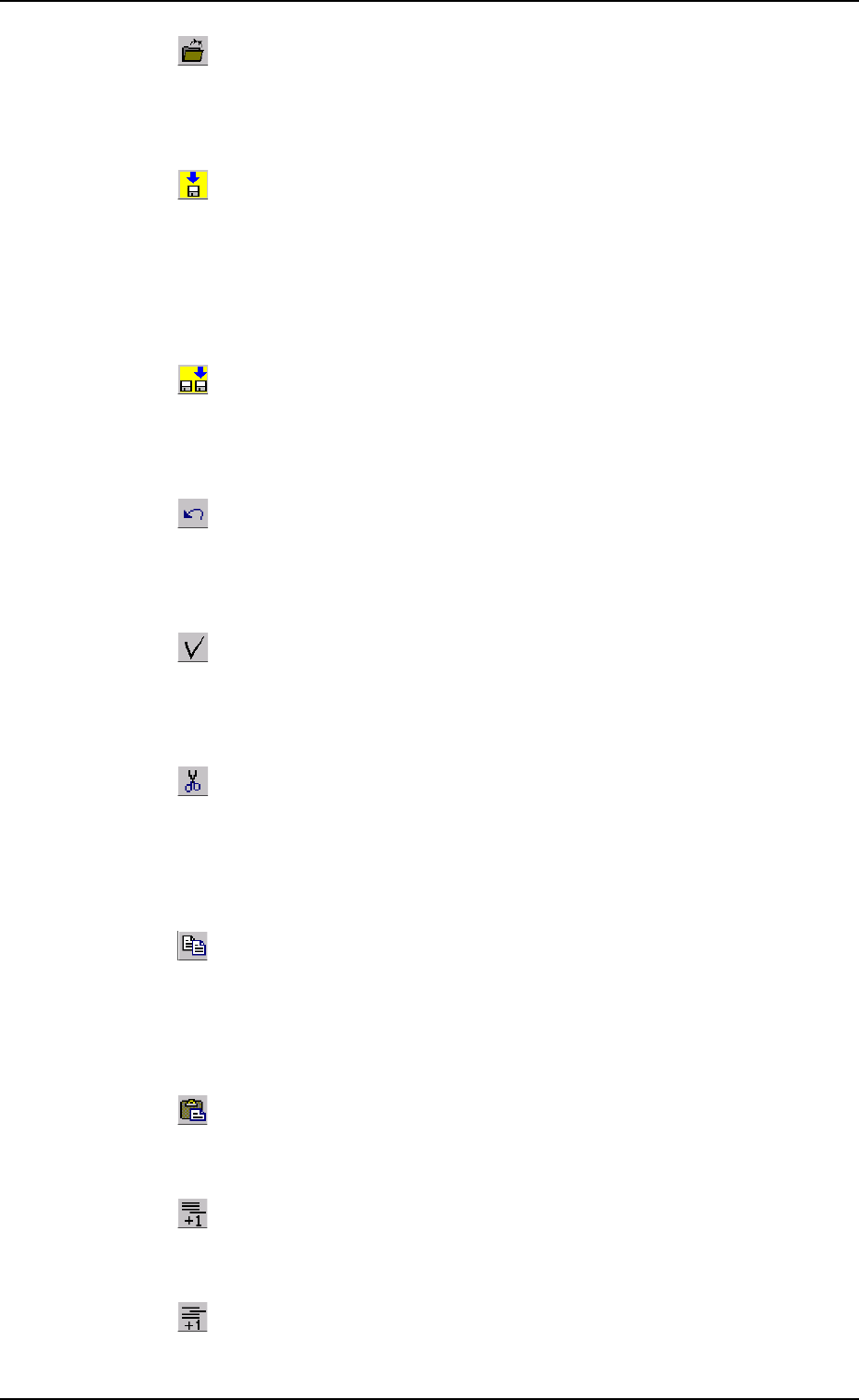
: Close
When pressed, this closes the active "Pattern Program" file
(window).
: Save
When pressed, this saves the edited data, replacing the ex-
isting file with the current one.
When a new file is created, it will be saved with a new file
name.
: Save As
When pressed, this saves the edited data (file) with a new
name.
: Undo
When pressed, this reverses the effect of your previous ac-
tion.
: Check
When pressed, this checks if there is any deficiency in the
selected pattern program.
: Cut
When pressed, this removes the selection (data) and stores
it in the Clipboard (a temporary holding area).
The cut data can be pasted by selecting the "Paste".
: Copy
When pressed, this transfers the selection to the Clipboard
without removing the selection.
The copied data can be pasted by selecting the "Paste"
: Paste
When pressed, the cut or the copied data is pasted.
: Add Blank Line
When pressed, this adds a blank line to the last one.
: Insert Blank Line
When pressed, this inserts a blank line at the insertion point’s
location.
0206-003 2-81
AHB01EDTP
4.1 Basic Operations
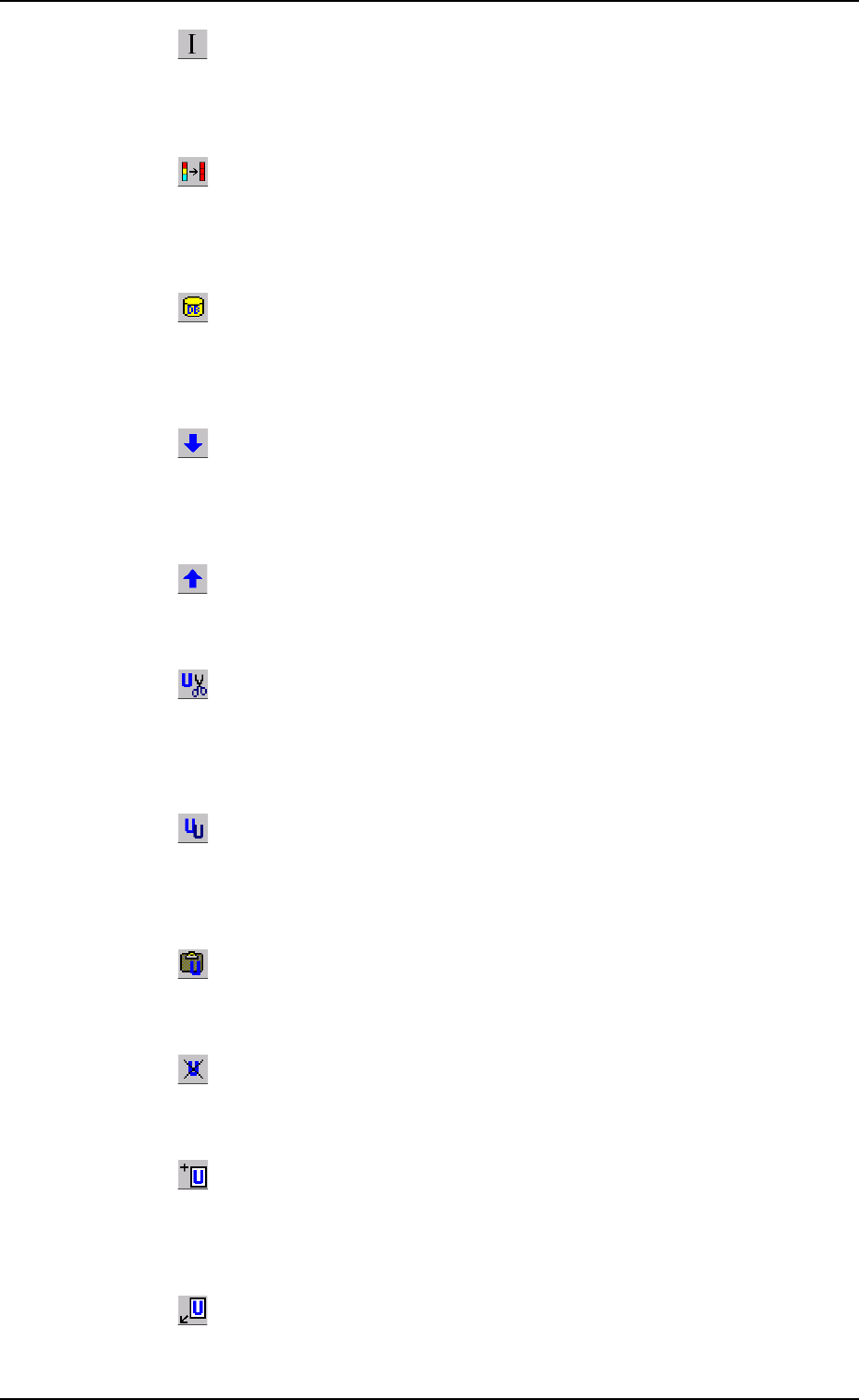
: Initialize
When pressed, the changed parameters are reset to the de-
faults.
: Copy First Data
When pressed, this fills all the selected text boxes with the
parameter in the first text box.
: Component ID List Display
When pressed, this opens the "Component ID List" window,
enabling you to use the database (component library).
: Open 2nd. Toolbar
When pressed, this opens the second toolbar.
The second toolbar is provided with the following icons.
: Close 2nd. Toolbar
When pressed, this closes the second toolbar.
: Cut Unit
When pressed, this removes the selection (U data) and stores
it in the Clipboard.
: Copy Unit
When pressed, this transfers the selection (U data) to the
Clipboard without removing the selection.
: Insert Copied Unit
When pressed, the cut or the copied U data is pasted.
: Delete Selected Unit
When pressed, this deletes the currently displayed U data.
: Add New Unit
When pressed, a tab (new U data) is added to the last one,
indicating that a new tab sheet is created.
: Insert New Unit
When pressed, a tab (new U data) is inserted after the cur-
rently selected one, indicating that a tab sheet is inserted.
0206-003 2-82 AHB01EDTP
4.1 Basic Operations