3OM-1075-002.pdf - 第190页
*3 [Clear] Button When this button is pressed, the all component handling error rate data is deleted and the clear date is updated. *4 [Close] Button When this button is pressed, the "Management Data" window (m…
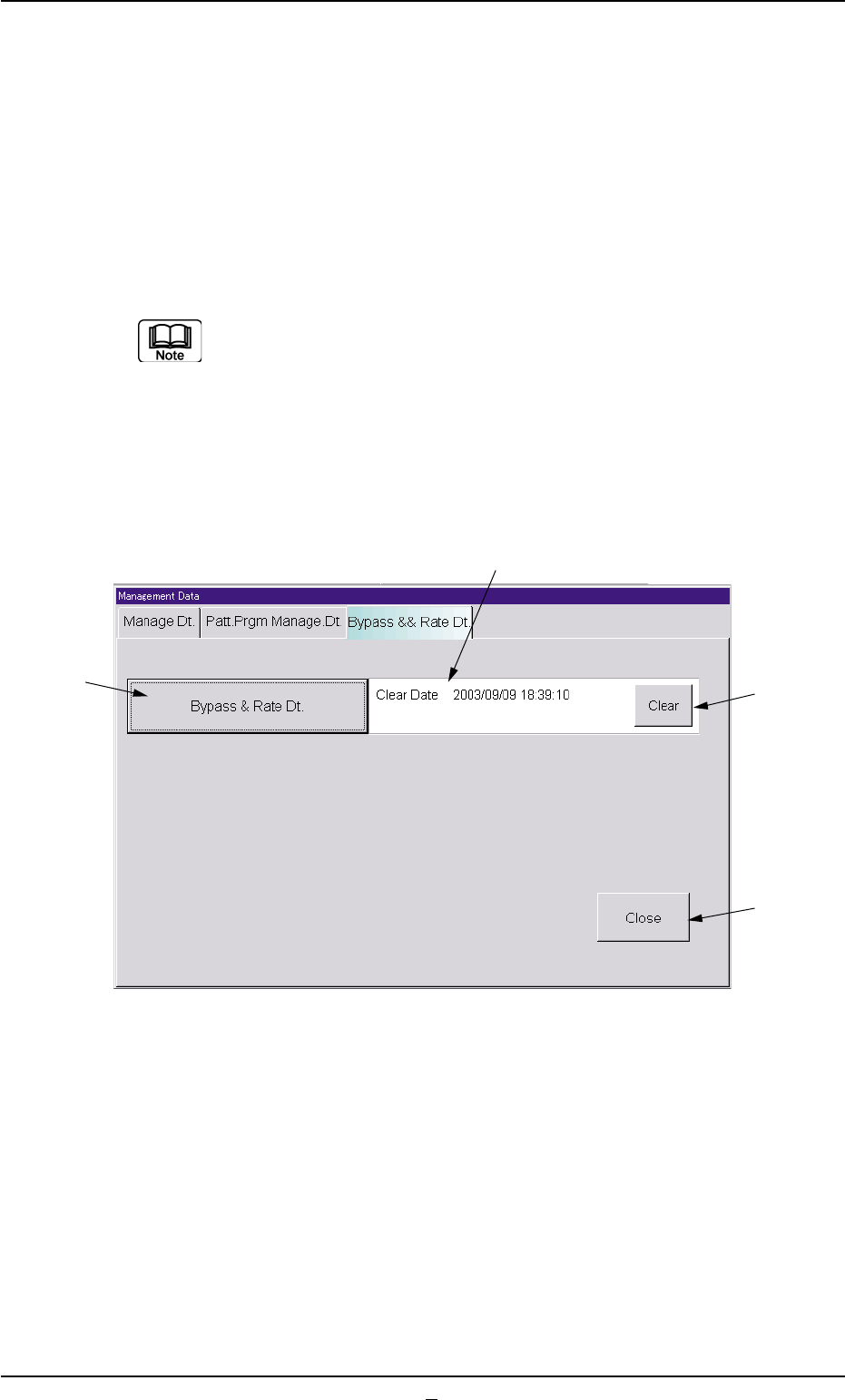
2.3 "Bypass & Rate Dt." Tab
When this tab is pressed, the corresponding tab sheet appears. The
sheet is provided with the [Bypass & Rate Dt.] button. When the button
is pressed, the "Bypass & Rate Data Setup" window opens, enabling
the operator to check the pick-up rate calculated for each feeder or nozzle
and based on each pick-up rate specified in the auto operation setup
data.
Refer to "2.2.1 "Auto Operation Setup" Tab" in "Section 5" for
the parameter settings of "Auto Operation".
• Sheet Layout
When the "Bypass & Rate Dt." tab is pressed in the "Management Data"
window (main menu), the following tab sheet appears inside the win-
dow.
Fig. 3D4 "Bypass & Rate Dt." Tab Sheet
• Sheet Composition
*1 [Bypass & Rate Dt.] Button
When this button is pressed, the "Bypass & Rate Data - [Bypass]"
window opens.
Refer to "5. "Bypass & Rate Data - [Bypass]" Window" for details.
*2 Clear Date, Comment
Displayed are the clear date and comment of the component han-
dling error rate data.
2.3 "Bypass & Rate Dt." Tab
0308-003 4-7 AHB01EDTP
*3
*4
*2
*1

*3 [Clear] Button
When this button is pressed, the all component handling error rate
data is deleted and the clear date is updated.
*4 [Close] Button
When this button is pressed, the "Management Data" window (main
menu) closes.
0308-002 4-7-1
AHB01EDTP
2.3 "Bypass & Rate Dt." Tab
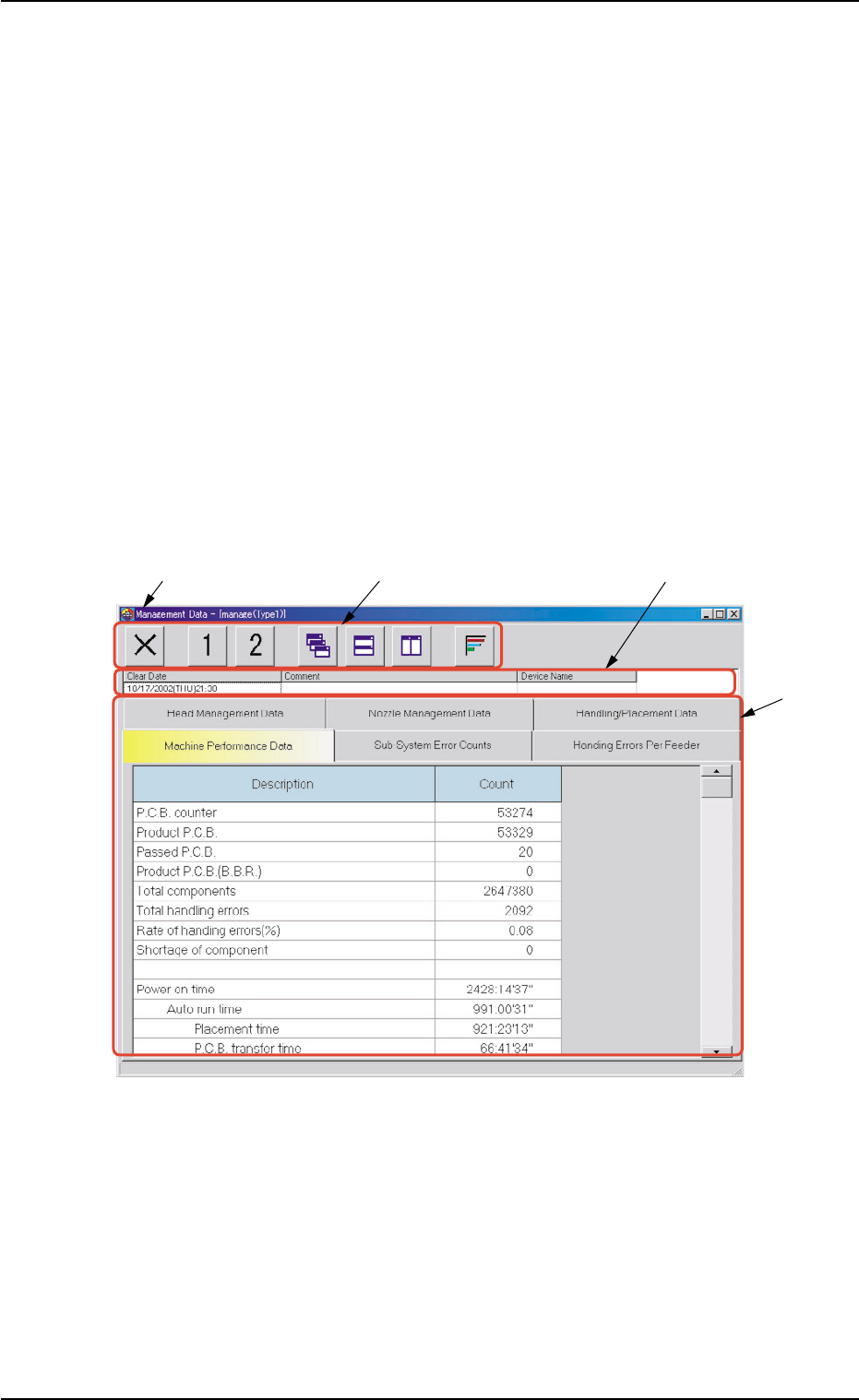
3. "Management Data-[manage (Type#)]" Window
This window enables the operator to confirm the production performance
data covering the whole machine performance.
When the [Mgt Data (Type #2)] button is pressed in the "Management
Data" window, the "Management Data - [manage (Type2)]" window
opens, enabling you to check almost the same items as those of the
"Management Data - [manage (Type1)]" window.
Distinguish between management spans and check the required items.
• Window Layout
When the [Management Data] button is pressed in the "Manage Dt."
tab sheet, the "Management Data" window opens. (Operation Se-
quence: [MGT DATA] Button on Main Menu Bar Æ "Management Data"
Window Æ [Management Data] Button Æ "Management Data" Win-
dow)
Fig. 3D5 "Management Data - [manage (Type1)]" Window
• Window Composition
*1 Title Bar
The active window is titled "Management Data - [manage (Type1 or
Type2)" on this bar, making it clear which data (Type #1 or #2) is
selected.
3. "Management Data-[manage (Type #)]" Window
0308-002 4-8 AHB01EDTP
*3
*4
*1
*2