3OM-1075-002.pdf - 第107页
How to enter a parameter through keyboard navigation Fig. 3B147 Keyboard Fig. 3B148 Pointing Device (1) T o enter a parameter , press the text box quickly twice. Or , double- click the text box with the pointing device. …
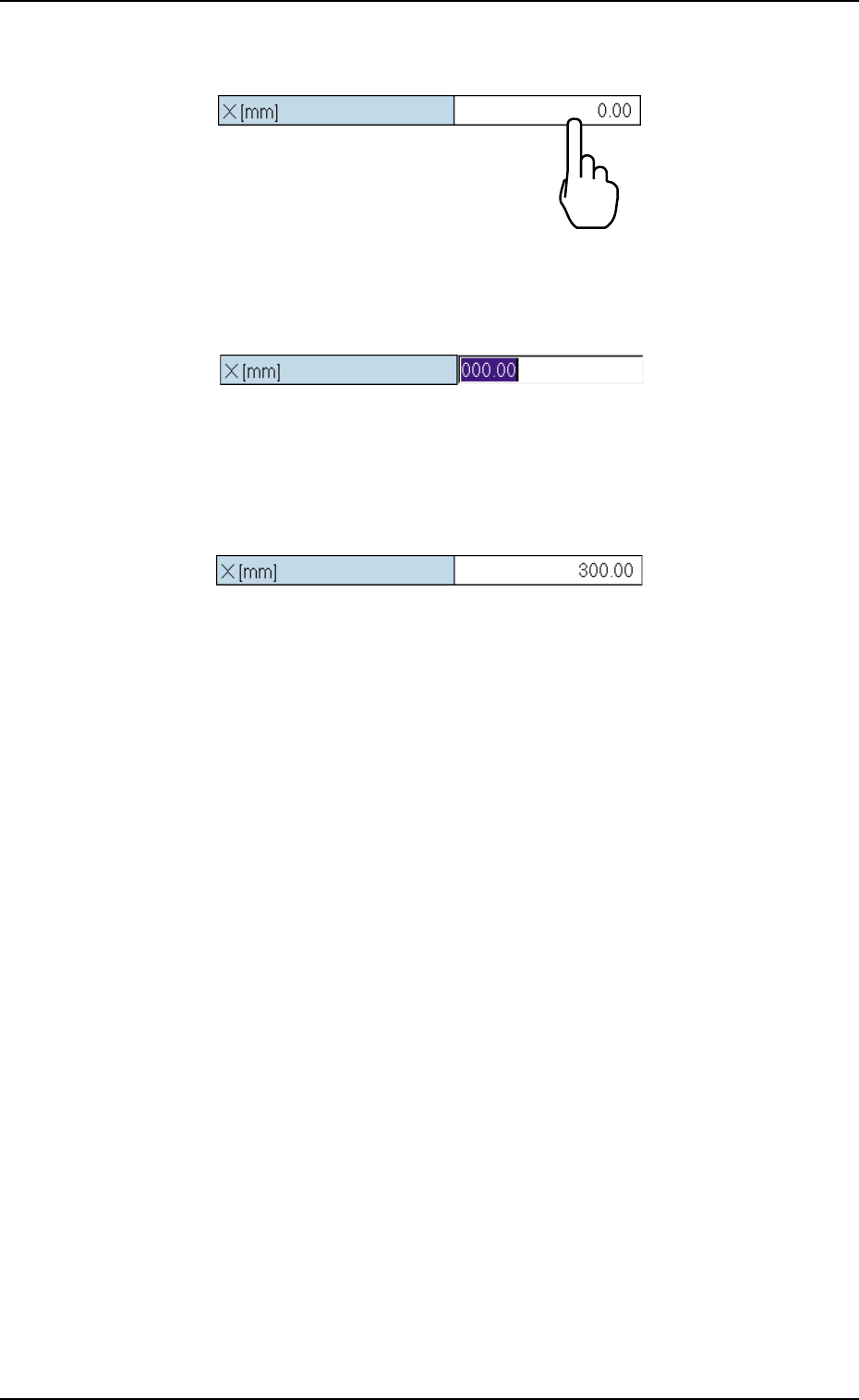
(2) To enter a parameter, press the text box quickly twice. Or, double-
click the text box with the pointing device.
Fig. 3B144
The text box is set ready for data entry.
Fig. 3B145
(3) When a parameter is entered, using the "Tenkey" window and the
[Ent] button is pressed, it is set in the text box.
Fig. 3B146
4.1 Basic Operations
0206-003 2-87 AHB01EDTP
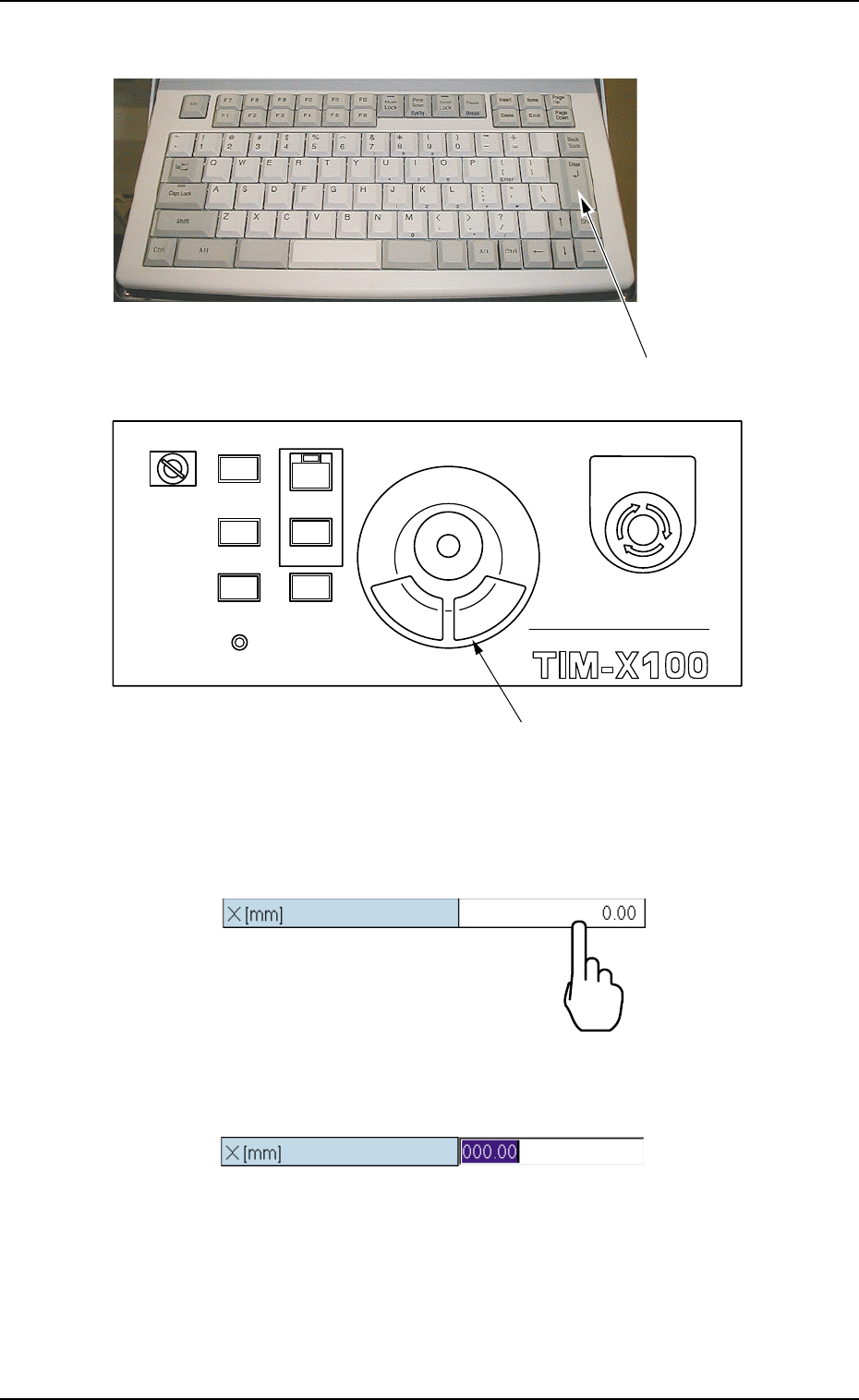
How to enter a parameter through keyboard navigation
Fig. 3B147 Keyboard
Fig. 3B148 Pointing Device
(1) To enter a parameter, press the text box quickly twice. Or, double-
click the text box with the pointing device.
Fig. 3B149
The text box is set ready for data entry.
Fig. 3B150
4.1 Basic Operations
0308-003 2-88 AHB01EDTP
[ENTER] key
MULTI FUNCTIONAL MOUNTER
STOP
LOCK
OPERATION
RUN SETUP
START
ENABLE
PNL CHANGE
READY
POWER ON
EMERGENCY
Pointing Device
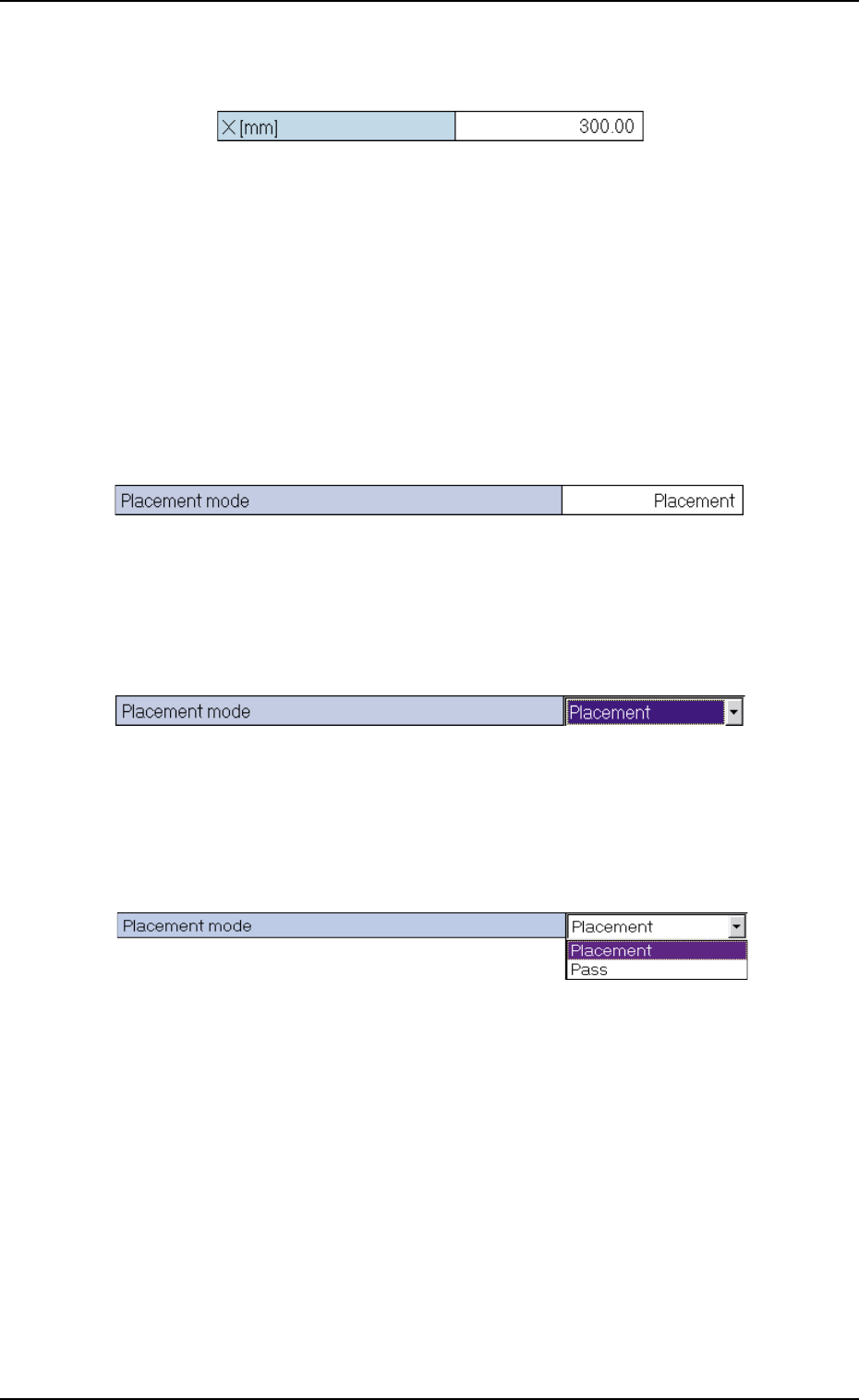
(2) When a parameter is entered through keyboard navigation and the
[Enter] key is pressed, it is set in the text box.
Fig. 3B151
••
••
• How to enter a string of characters
A string of characters can be entered by selecting an item from the
drop-down list.
Selection of Option in Drop-Down List
(1) To enter a string of characters, press the text box quickly twice. Or,
double-click the text box with the pointing device.
Fig. 3B152
The text box is changed to a combo box that has a down arrow on
the right side.
Fig. 3B153
(2) Press the down arrow. Or, click the down arrow with the pointing
device. The drop-down list box opens.
Fig. 3B154
4.1 Basic Operations
0206-001 2-89 AHB01EDTP