3OM-1075-002.pdf - 第149页
AHB01EDTP : Close File When pressed, this closes the active file (component ID data). : Save When pressed, this saves the edited data, replacing the existing file with the current one. When a new file is created, it will…
AHB01EDTP
3. "Component Library" Edit Window
3.1 Toolbar and Icons
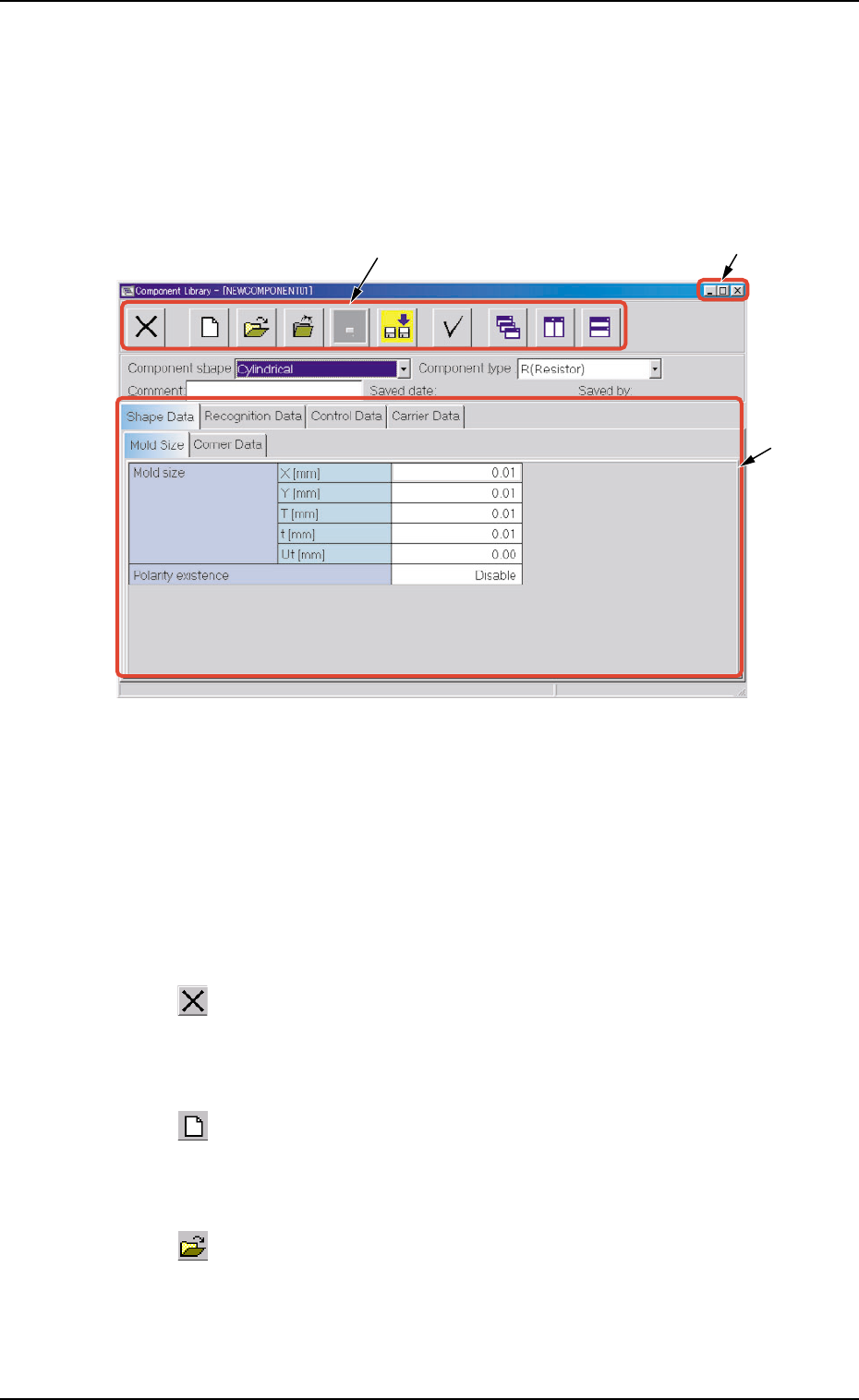
This session describes the toolbar and icons in the "Component Li-
brary" edit window.
Fig. 3C7 "Component Library" Edit Window
••
••
• Composition of "Component Library" Edit Window
*1 Toolbar
This toolbar is provided with a collection of icons that can be imple-
mented as operation commands in the "Component Library" edit
window.
: Exit
When pressed, this closes the "Component Library" edit
window.
: New
When pressed, this creates a new component ID, using
the data for the component ID in the list.
: Open File
When pressed, this opens the "Selection of component ID"
window.
0206-002 3-13
3.1 Toolbar and Icons
*1
*2
*3
AHB01EDTP
: Close File
When pressed, this closes the active file (component ID
data).
: Save
When pressed, this saves the edited data, replacing the
existing file with the current one.
When a new file is created, it will be saved with a new file
name.
: Save As
When pressed, this saves the edited data (file) with a new
name.
: Check
When pressed, this checks if there is any deficiency in the
selected component ID.
: Cascade
When pressed, this overlays the currently opened windows
(component IDs) so that you can see each title bar.
: Tile Vertically
When pressed, this re-arranges the currently opened win-
dows (Component IDs) side by side.
: Tile Horizontally
When pressed, this re-arranges the currently opened win-
dows (Component IDs) up and down.
0206-003 3-14
3.1 Toolbar and Icons
AHB01EDTP
*2 [Minimize], [Maximize], [Restore], and [Close] Buttons
[Minimize] Button (
)
Minimizing a window reduces the window to an icon.
The contents (parameters) of the minimized window are kept un-
changed.
To open the hidden window, press the [DATA EDIT] button on the
menu bar and select "CMPNT.LBRY." from the menu.
[Maximize] Button (
)
When an edit window is not at its maximum size, this button ap-
pears in the window’s upper-right corner.
When pressed, this enlarges the edit window to its maximum size.
[Restore] Button (
)
When a window is already at its maximum size, the [Maximize] but-
ton switches to the [Restore] button, which returns the window to its
previous size.
[Close] Button (
)
When pressed, this closes the active window.
*3 Edit Window
This window enables the operator to edit the parameters of the se-
lected component ID.
The size and/or the position of an edit window can be changed.
0206-003 3-15
3.1 Toolbar and Icons