3OM-1075-002.pdf - 第179页
AHB01EDTP 0308-004 3-43 4. Saving an active file of the component ID The following describes how to save a newly created file (component ID) or the edited parameters of the component ID. • • • • • Operation Procedure (1)…
AHB01EDTP
3.5 "Carrier Data" Tab
3.5.3 "Carrier Data" Tab Sheet (Tray Components)
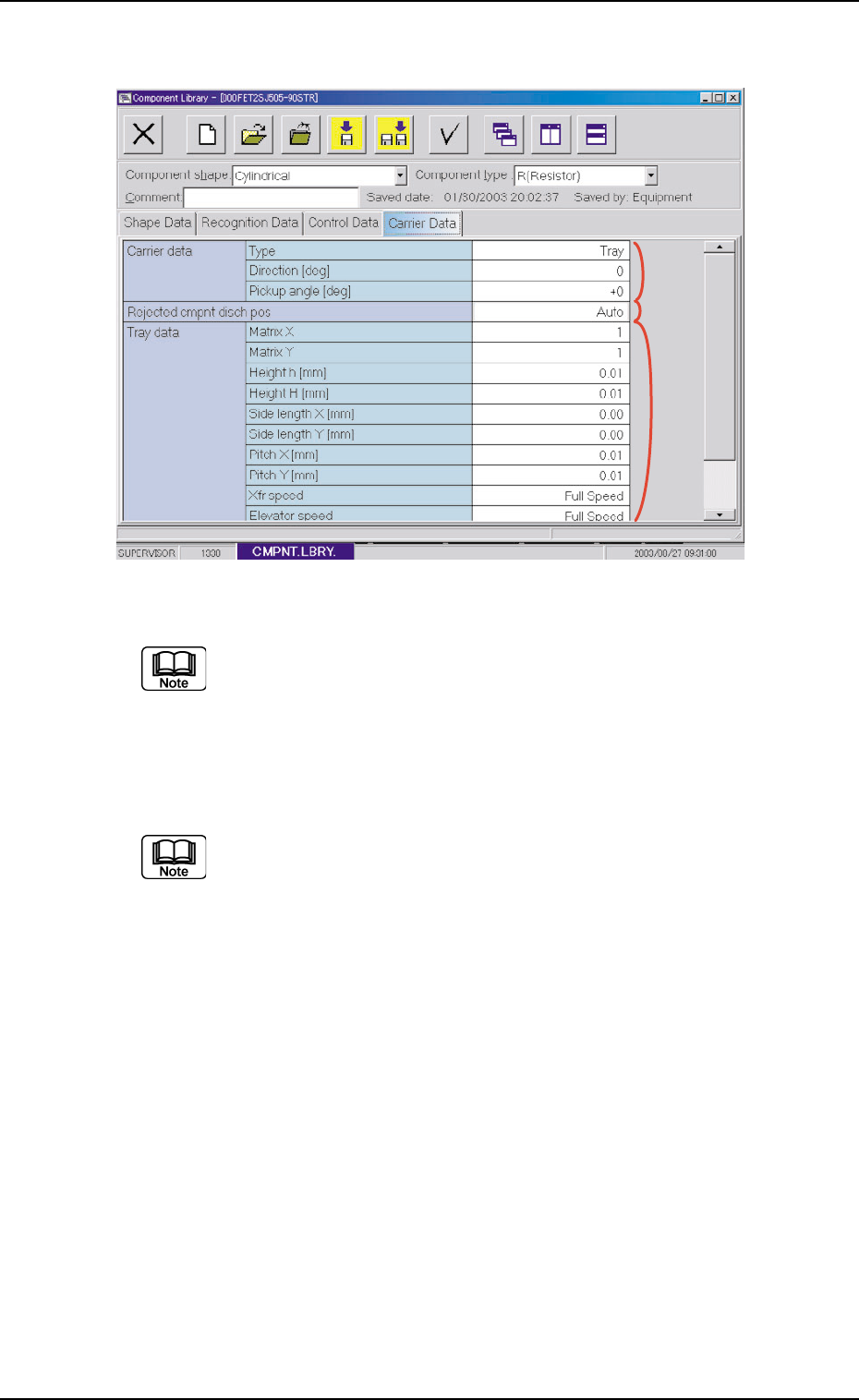
Fig. 3C29 Example of "Carrier Data" Tab Sheet (Tray Components)
The tray components are used for the multi-layer tray feeder
(option).
••
••
• Sheet Composition
Each parameter is displayed or can be entered.
Refer to "4.1.3 Basic Usage of Text Boxes" in "Section 2" for the
detailed information on how to enter parameters.
*1 Carrier data
Type, Direction, Pickup angle
*2 Rejected cmpnt disch pos
*3 Tray data
Matrix X, Matrix Y, Height h [mm], Height H [mm], Side length X
[mm], Side length Y [mm], Pitch X [mm], Pitch Y [mm], Xfr speed,
Elevator speed, Matrix missing setting
0308-004 3-42
*1
*2
*3
AHB01EDTP
0308-004 3-43
4. Saving an active file of the component ID
The following describes how to save a newly created file (component
ID) or the edited parameters of the component ID.
••
••
• Operation Procedure
(1) Press the [Save] or the [Save As] icon on the toolbar.
: Save
When pressed, this saves the edited component ID (file),
replacing the original component ID (file) with the current
one.
: Save As
When pressed, this saves a newly created file (data of a
new component ID) or the edited file with another name
(component ID).
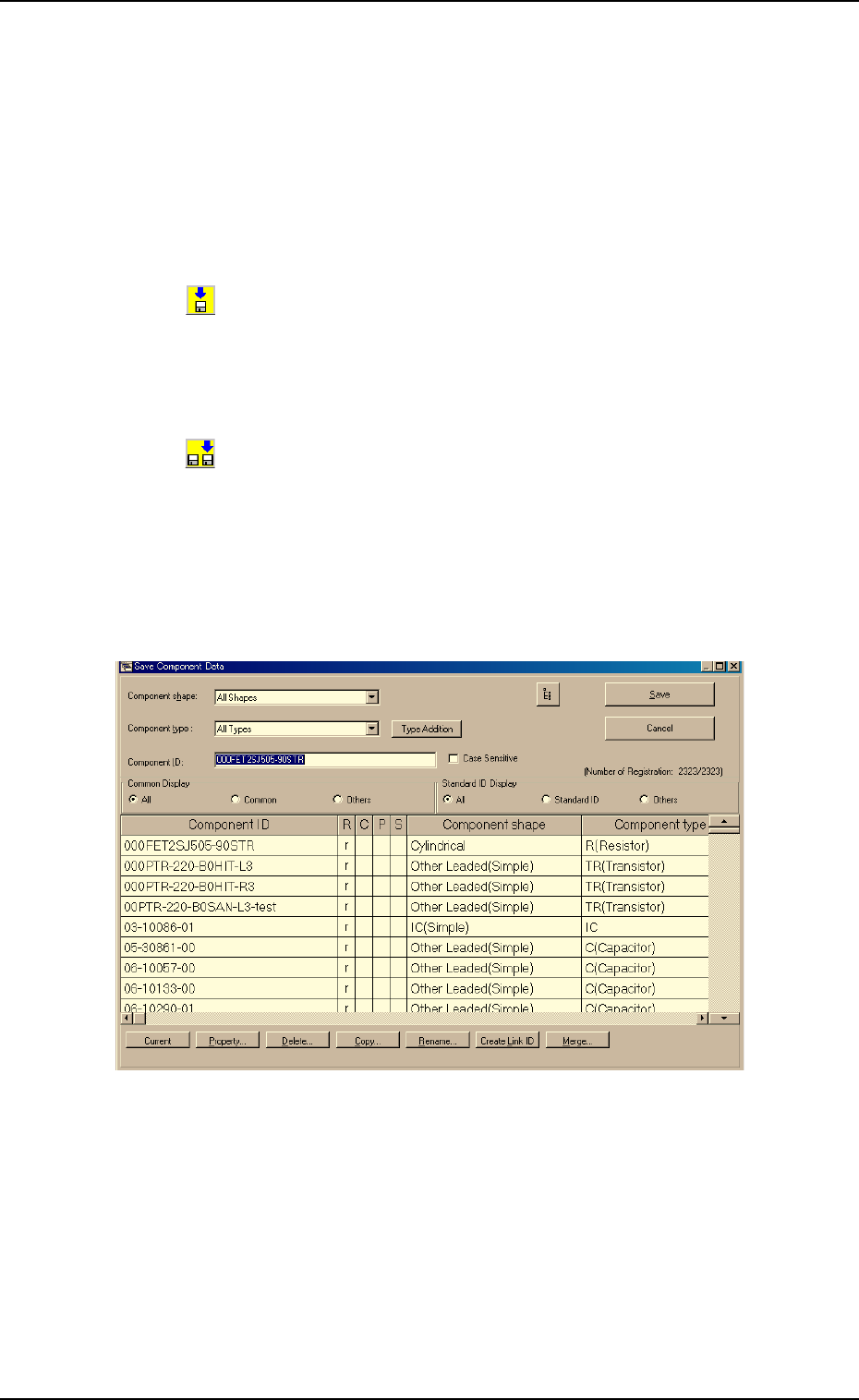
(2) When the [Save As] icon is pressed, the following "Save Compo-
nent Data" window opens.
Fig. 3C30 "Save Component Data" Window
(3) Enter the pre-determined component ID as a file name in the "Com-
ponent ID" text box and press the [Save] button.
The data in the active edit window is saved as a file with the entered
component ID name.
4. Saving an active file of the component ID

Section 4
Management Data
0308-002 4-A AHB01EDTP
This section describes the functions and operations related
to "Management Data", "Pattern Program Management
Data", "Component Handling Error Rate Data", etc., in each
tab sheet (tab sheet which can be opened after the [MGT
DATA] button on the menu bar is pressed).