3OM-1075-002.pdf - 第110页
4.1.4 Saving a Pattern Program This session describes how to save a newly created or an edited pat- tern program. • • • • • Operation Procedure (1) Select the "Save" or the "Save As" icon on the tool …
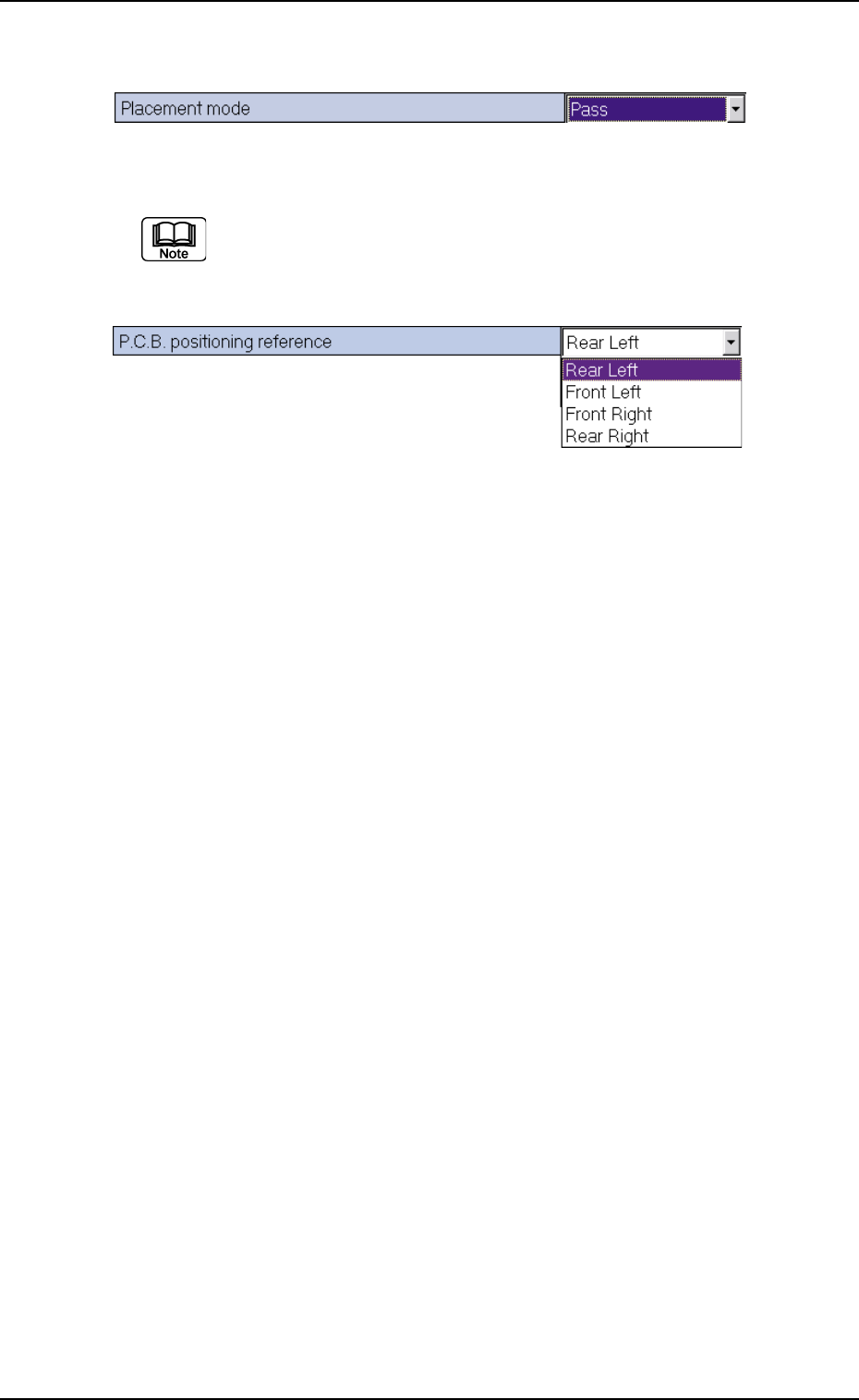
(3) When the desired option in the list is pressed, it is set in the text box.
Fig. 3B155
When there are many options, a scrollbar appears beside the
list. To make more options visible, scroll down the list and se-
lect the desired option.
Fig. 3B156
How to enter a parameter through keyboard navigation
A pattern program name, component IDs, and comments, etc., can be
entered through keyboard navigation.
(1) When a text box in which a pattern program name, a component ID,
and a comment, etc., is pressed quickly twice, it is set ready for
data entry. Or, double-click the text box with the pointing device.
(2) When a parameter is entered through keyboard navigation and the
[Enter] key is pressed, it is set in the text box.
4.1 Basic Operations
0206-001 2-90 AHB01EDTP
4.1.4 Saving a Pattern Program
This session describes how to save a newly created or an edited pat-
tern program.
••
••
• Operation Procedure
(1) Select the "Save" or the "Save As" icon on the tool bar.
Save:
Select this to replace the original pattern program with the
edited one.
Save As:
Select this to save a newly created pattern program or
save the edited pattern program with another name (as an
another file).
(2) When the "Save" icon is pressed, the active pattern program is saved
with the current name (model name), replacing the original program
with the active one.
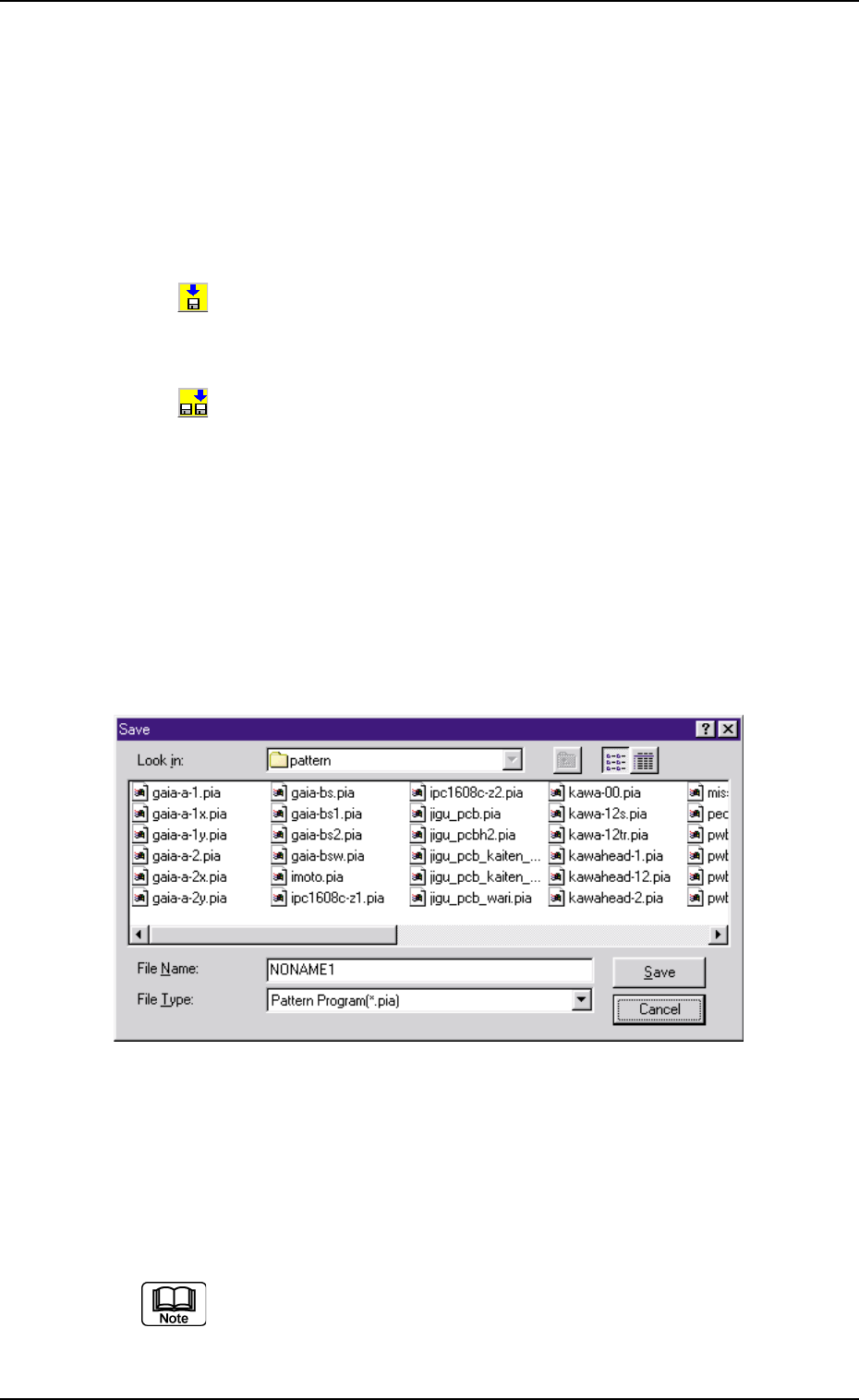
(3) When the "Save As" icon is pressed, the following "Save As" dialog
box opens.
Fig. 3B157 "Save As" Dialog Box
(4) Enter the pre-determined pattern program name in the "File name:"
text box and press the [Save] button in the "Save As" dialog box.
The currently displayed pattern program is saved with the entered
file (model) name.
An extension (pia) is automatically assigned to the entered file
name, indicating that the file contains a pattern program.
4.1 Basic Operations
0206-001 2-91 AHB01EDTP
4.2 "Operation Data" Tab
4.2.1 "P.C.B. Data" Tab
• Sheet Layout
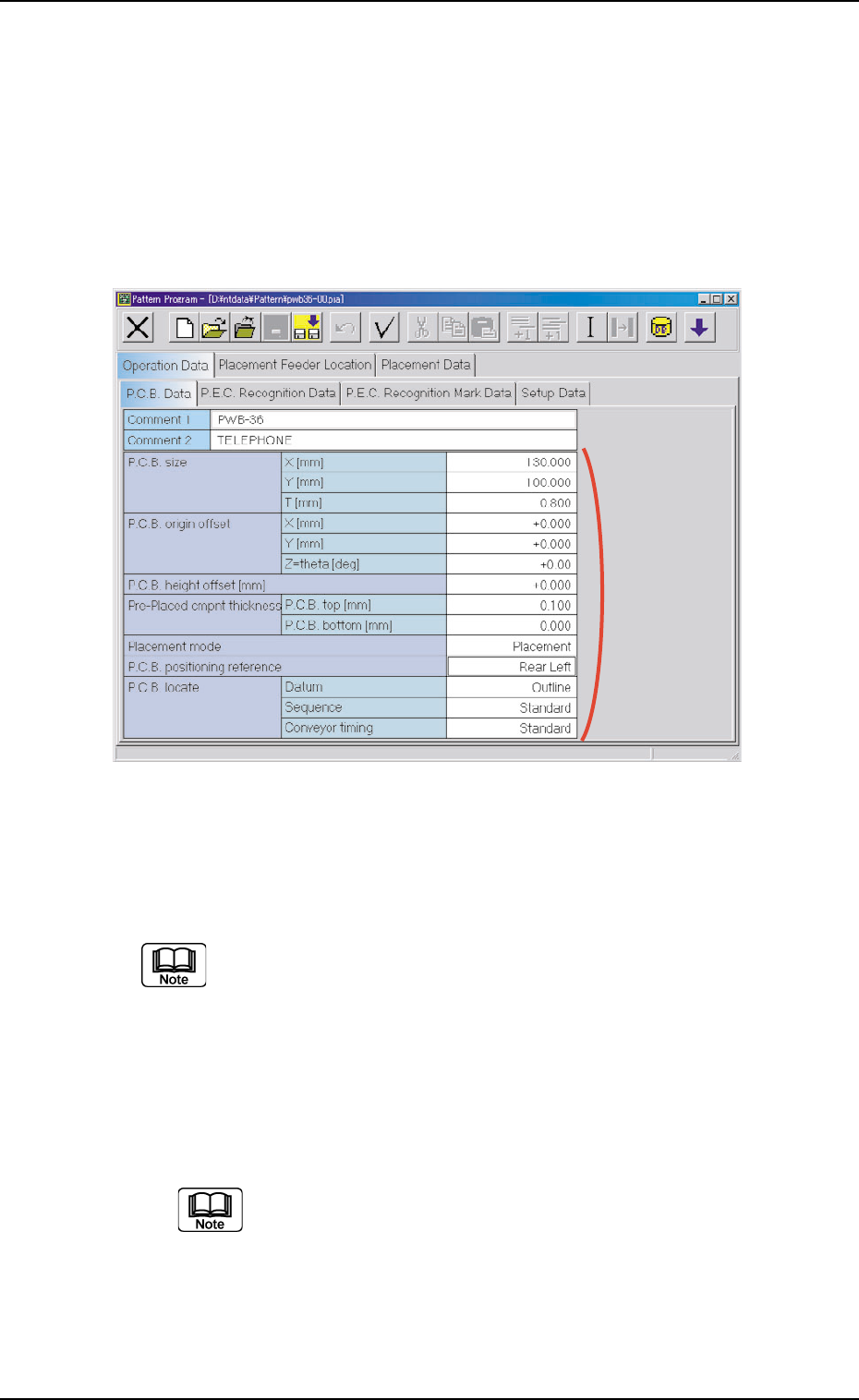
When the "P.C.B. Data" tab is pressed in the "Operation Data" tab
sheet, the following tab sheet appears.
Fig. 3B158 "P.C.B. Data" Tab Sheet
• Sheet Composition
Each parameter is displayed or can be entered.
Refer to "4.1.3 Basic Usage of Text Boxes" for the detailed infor-
mation on how to enter parameters.
*1 Comment 1, Comment 2, P.C.B. size, P.C.B. origin offset, P.C.B.
height offset [mm], Pre-Placed cmpnt thickness, Placement
mode, P.C.B. positioning reference, P.C.B. locate
Enter comments in the "Comment 1" and "Comment 2"
text boxes through keyboard navigation.
All characters can be used.
0308-002 2-92
AHB01EDTP
4.2 "Operation Data" Tab
*1