3OM-1075-002.pdf - 第133页
Fig. 3B178 "O-data" T ab Sheet • Operation Procedure New Creation of "O-data" T ab (1) When the second toolbar is not visible, press the [Second T oolbar] icon ( ). The second toolbar opens. (2) T ouc…
4.4.3 "O-data" Tab
• Sheet Layout
When the "O-data" tab is pressed in the "Placement Data" tab sheet,
the following tab sheet appears.
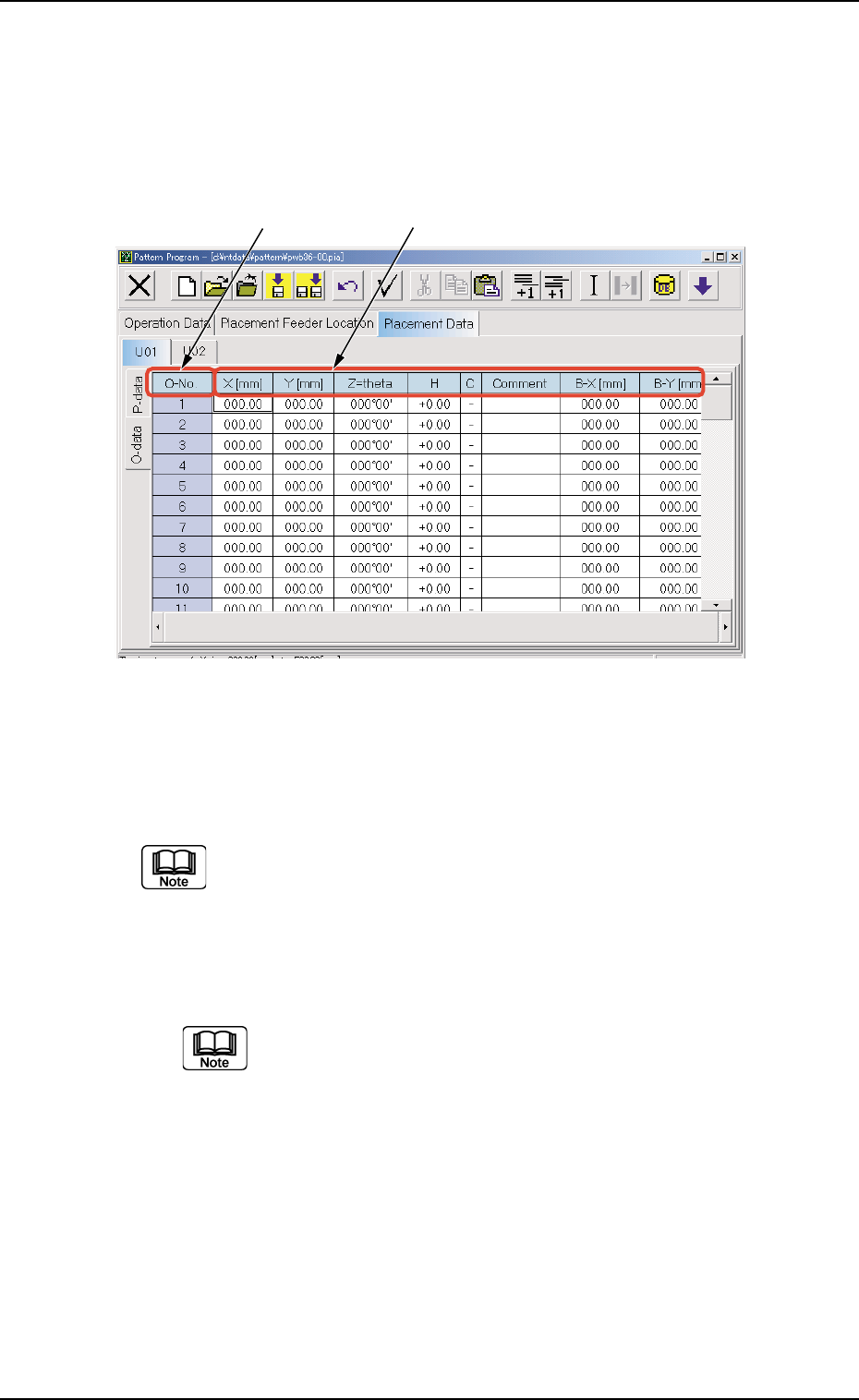
Fig. 3B177 "O-data" Tab Sheet
• Sheet Composition
Each parameter is displayed or can be entered.
Refer to "4.1.3 Basic Usage of Text Boxes" for the detailed in-
formation on how to enter each parameter.
*1 O-No.
Shown are the step Nos.
To add or delete an "O-No.", follow the steps under "• Op-
eration Procedure" in "4.4.2 "P-data" Tab".
*2 X [mm], Y [mm], Z=theta, H, C, Comment, B-X [mm] (Option),
B-Y [mm] (Option)
*1
*2
0308-002 2-112 AHB01EDTP
4.4 "Placement Data" Tab
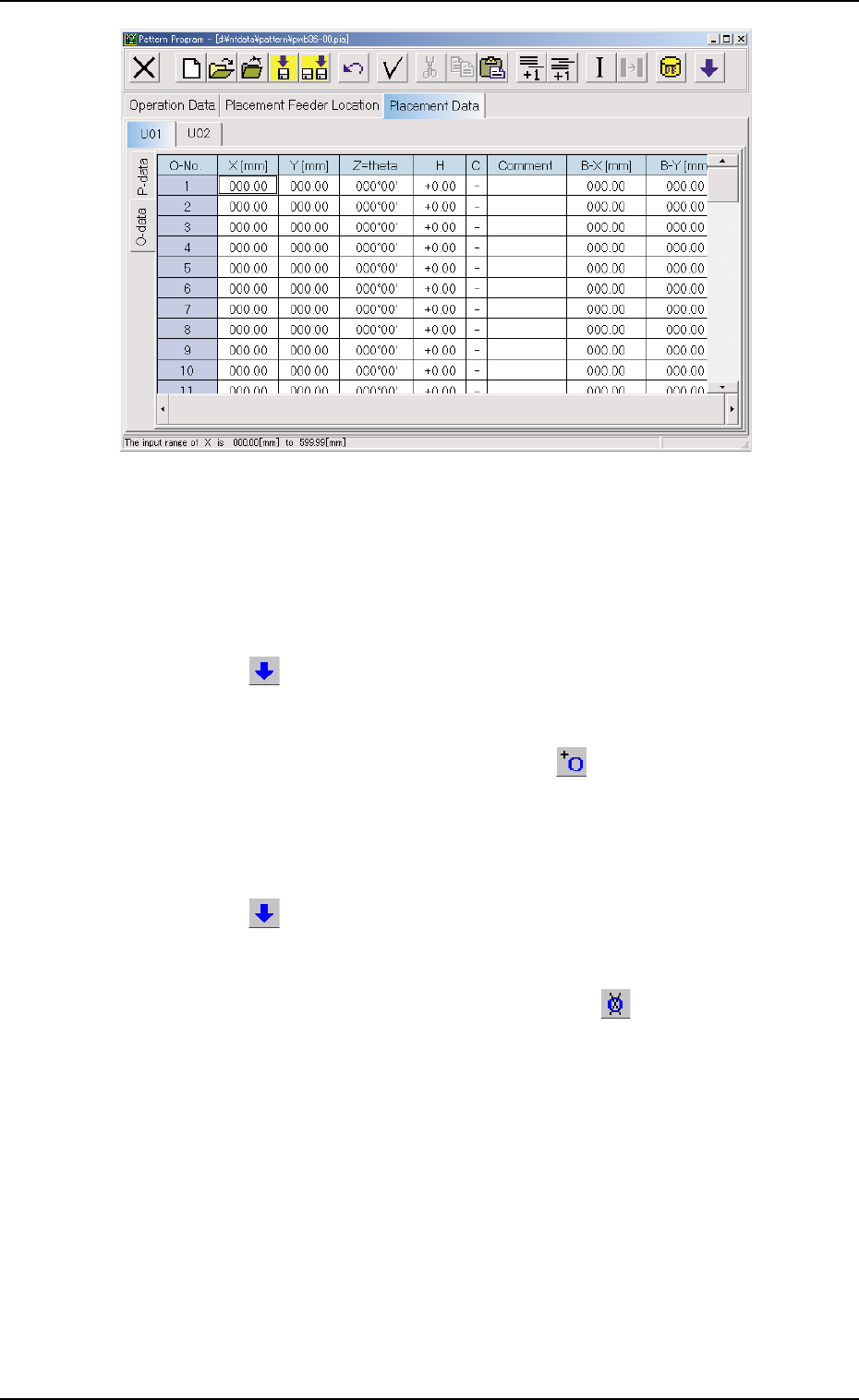
Fig. 3B178 "O-data" Tab Sheet
• Operation Procedure
New Creation of "O-data" Tab
(1) When the second toolbar is not visible, press the [Second Toolbar]
icon ( ). The second toolbar opens.
(2) Touch or select the "Un" tab where a "P-data" tab should be added
with the pointing device.
(3) Select the [Add Repetitive O Data] icon (
). a new "O-data" tab
is added.
Deletion of "O-data" Tab
(1) When the second toolbar is not visible, press the [Second Toolbar]
icon (
). The second toolbar opens.
(2) Touch or select the "Un" tab that contains the offset data (repeti-
tive O data) to be deleted with the pointing device.
(3) Select the [Delete Repetitive O Data] icon (
). The "O-data"
tab of the selected U data is deleted.
0206-001 2-113
AHB01EDTP
4.4 "Placement Data" Tab

AHB01EDTP
Section 3
Component Library
0308-002 3-A
This section describes the outline of the component library
and how to navigate in each window.
Refer to another instruction manual "COMPONENT
LIBRARY (TIM-X Series)" for the description and creation
of component library data.