3OM-1075-002.pdf - 第192页
3. "Management Data-[manage (T ype #)]" Window 0206-002 4-9 AHB01EDTP *2 T oolbar A collection of icons that typically make the common tools for all the tab sheets easily accessible. Refer to "3.1 Basic Op…
3. "Management Data-[manage (Type#)]" Window
This window enables the operator to confirm the production performance
data covering the whole machine performance.
When the [Mgt Data (Type #2)] button is pressed in the "Management
Data" window, the "Management Data - [manage (Type2)]" window
opens, enabling you to check almost the same items as those of the
"Management Data - [manage (Type1)]" window.
Distinguish between management spans and check the required items.
• Window Layout
When the [Management Data] button is pressed in the "Manage Dt."
tab sheet, the "Management Data" window opens. (Operation Se-
quence: [MGT DATA] Button on Main Menu Bar Æ "Management Data"
Window Æ [Management Data] Button Æ "Management Data" Win-
dow)
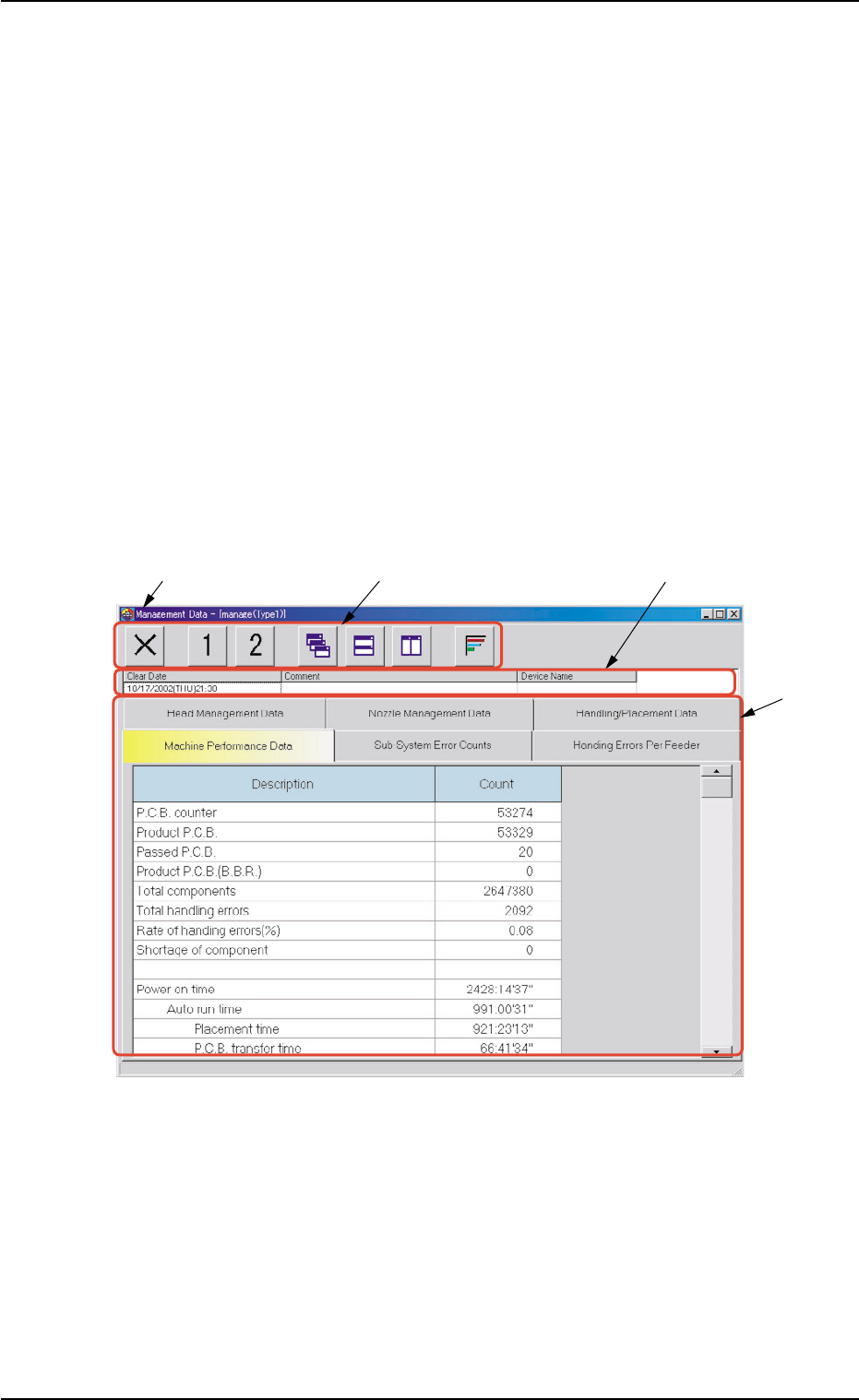
Fig. 3D5 "Management Data - [manage (Type1)]" Window
• Window Composition
*1 Title Bar
The active window is titled "Management Data - [manage (Type1 or
Type2)" on this bar, making it clear which data (Type #1 or #2) is
selected.
3. "Management Data-[manage (Type #)]" Window
0308-002 4-8 AHB01EDTP
*3
*4
*1
*2
3. "Management Data-[manage (Type #)]" Window
0206-002 4-9 AHB01EDTP
*2 Toolbar
A collection of icons that typically make the common tools for all the
tab sheets easily accessible.
Refer to "3.1 Basic Operations in "Management Data" Window" for
the detailed information on how to use the icons.
*3 Information on Active File
This section displays "Clear Date", "Comment", and "Machine
Name".
*4 Tabs and Tab Sheets
The "Management Data-[manage (Type#)]" window is provided with
the following six tab sheets. When a tab is pressed, the correspond-
ing tab sheet appears inside the window.
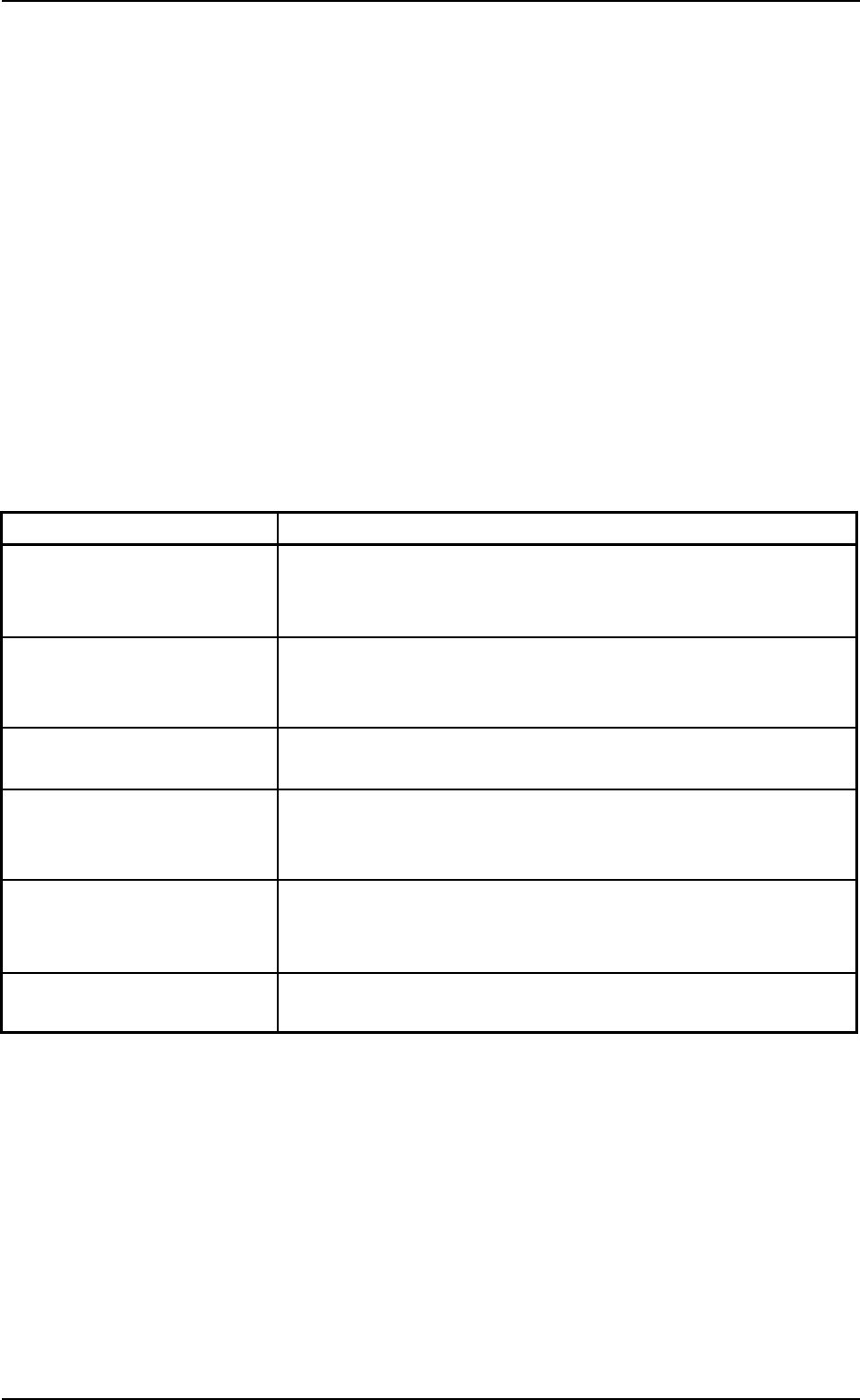
Table 3D3
Tabs Description
Machine Performance Data The corresponding tab sheet enables the operator to view
various counts (results of accumulated data) as machine
performance data.
Sub-System Error Counts The corresponding tab sheet enables the operator to view the
summed number of errors that occurred on each individual
devices during automatic operation.
Handling Errors Per Feeder The corresponding tab sheet enables the operator to view the
pick-up data of each individual feeders.
Head Management Data The corresponding tab sheet enables the operator to view
various counts (results of accumulated performance data) of
each individual heads.
Nozzle Management Data The corresponding tab sheet enables the operator to view
various counts (results of accumulated performance data) of
each individual nozzles.
Handling/Placement Data The corresponding tab sheet enables the operator to view the
component pick-up and placement data.
3.1 Basic Operations in "Management Data" Window
3.1.1 Toolbar and Icons
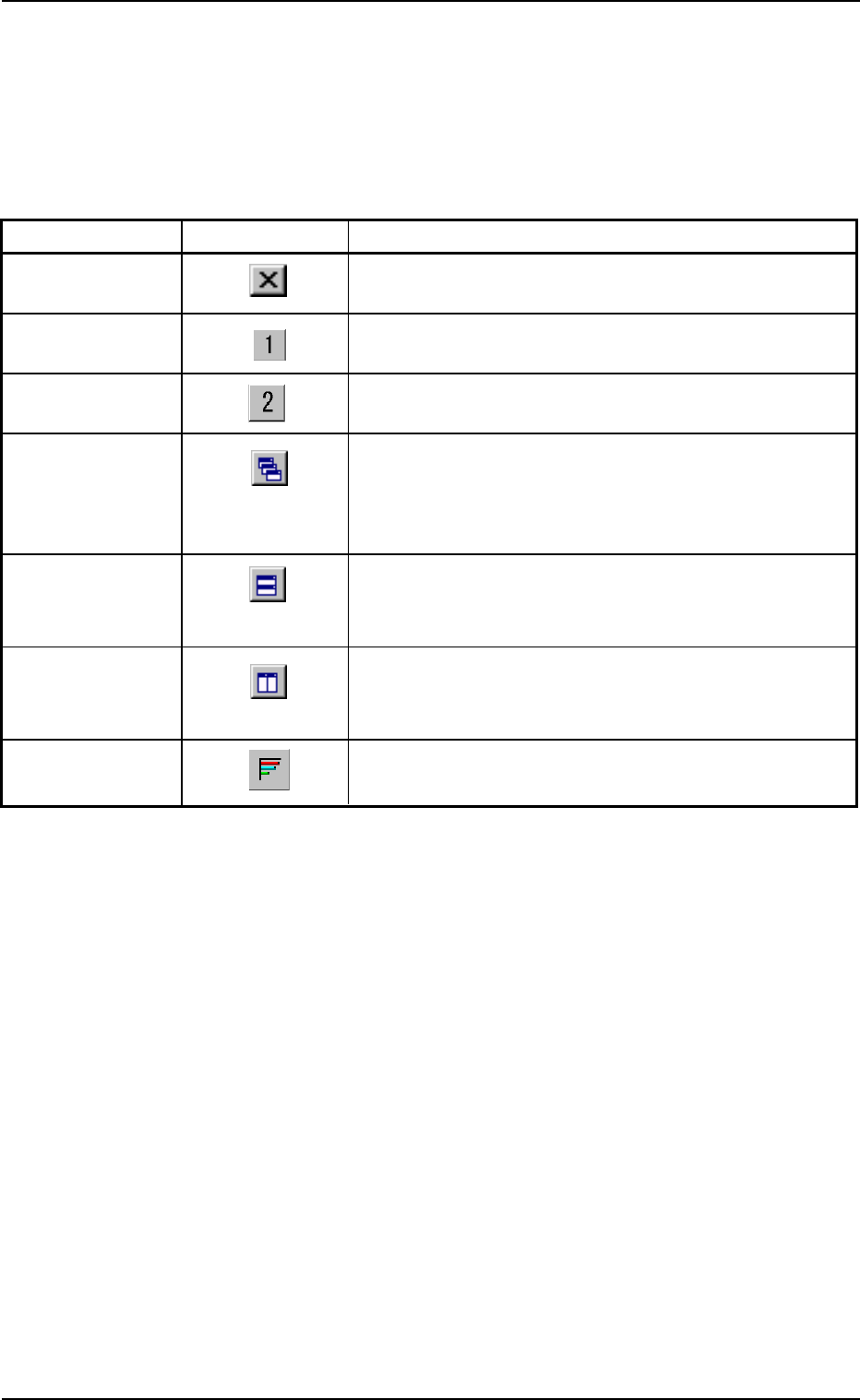
The following table shows the functions of the icons on the toolbar.
Table 3D4
Commands Icons Functions
Close When pressed, this button closes the "Management
Data" window.
Type1 When pressed, this button opens the "Management
Data - [manage (Type1)" window.
Type2 When pressed, this button opens the "Management
Data - [manage (Type2)" window.
Cascade When the "manage (Type1)" and "manage (Type2)"
windows are opened at the same time, cascading the
windows overlays them so that you can see each title
bar.
Tile Horizontally When the "manage (Type1)" and "manage (Type2)"
windows are opened at the same time, each window
is re-arranged up and down.
Tile Vertically When the "manage (Type1)" and "manage (Type2)"
windows are opened at the same time, each window
is re-arranged side by side.
Show Chart A chart appears.
3.1 Basic Operations in "Management Data" Window
0308-003 4-10 AHB01EDTP