3OM-1075-002.pdf - 第188页
2.2 "Patt. Prgm Manage. Dt" T ab *4 [All] and [Search] Buttons When pressed, these buttons make it possible to search a program name. Enter characters in the text box under the [All] and [Search] buttons and pr…
2.2 "Patt. Prgm Manage. Dt" Tab
The corresponding tab sheet enables the operator to view the summed
pattern program management data related to each individual pattern
programs.
• Sheet Layout
When the "Patt. Prgm Manage. Dt." tab is pressed in the "Management
Data" window, the following tab sheet appears.
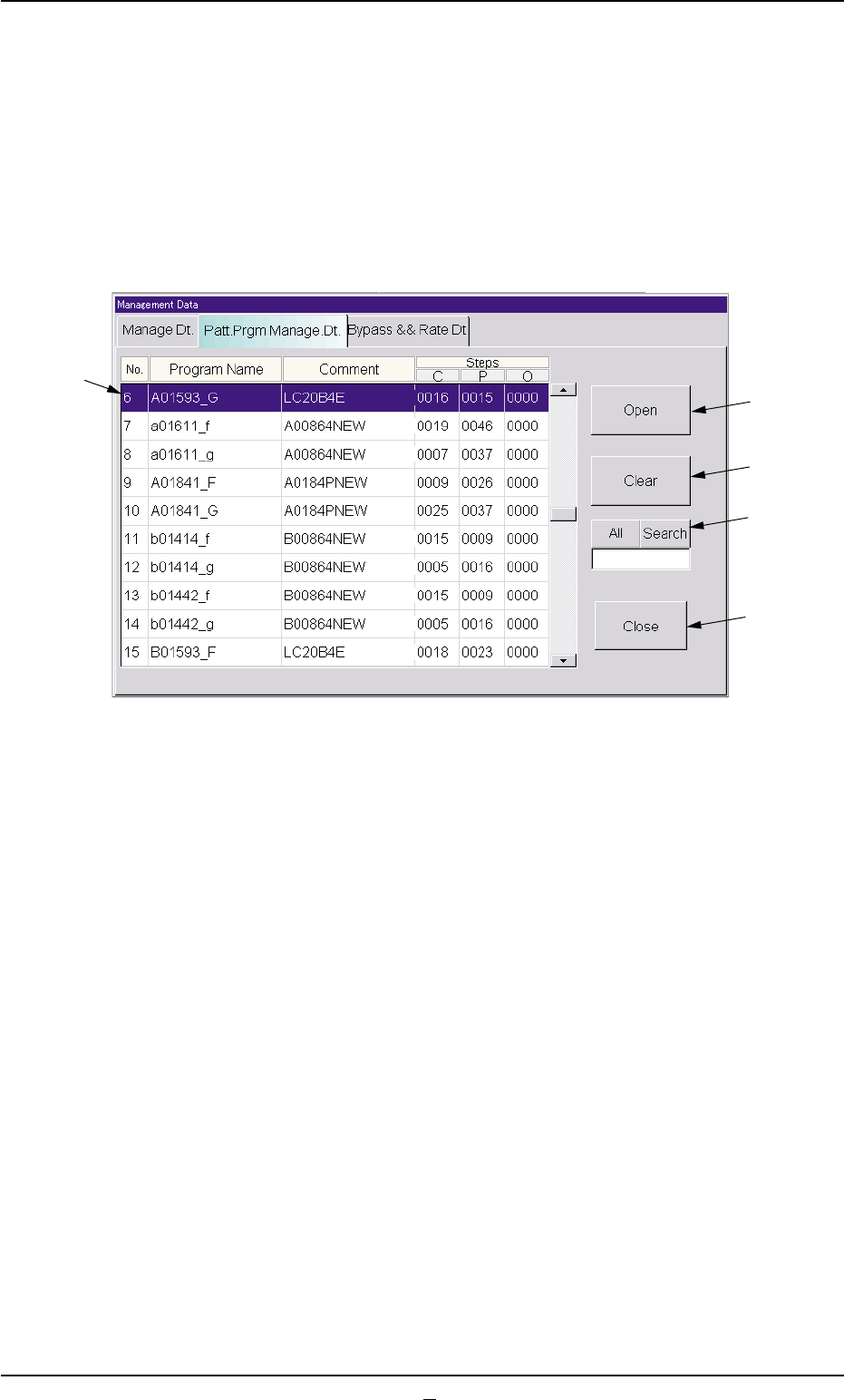
Fig. 3D3 "Patt. Prgm Manage. Dt." Tab Sheet
• Sheet Composition
*1 List of Model Names
Listed are the registered model names (pattern program names).
*2 [Open] Button
When this button is pressed after a pattern program (model) is se-
lected from the list of model names (*1), the "Pattern Program Man-
agement Data" window opens, enabling you to view the manage-
ment data.
Refer to "4. "Pattern Program Management Data" Window" for de-
tails.
*3 [Clear] Button
When this button is pressed after a pattern program (model) to be
deleted is selected from the list of model names (*1), the manage-
ment data of the selected pattern program is deleted and the clear
date is updated.
2.2 "Patt. Prgm Manage. Dt" Tab
0308-002 4-6 AHB01EDTP
*3
*2
*5
*1
*4

2.2 "Patt. Prgm Manage. Dt" Tab
*4 [All] and [Search] Buttons
When pressed, these buttons make it possible to search a program
name.
Enter characters in the text box under the [All] and [Search] buttons
and press the [Search] button. The program names which start with
the entered characters are displayed in the "Program Name" pane.
abc* : The search function retrieves the program names which
start with "abc".
a?c : The search function retrieves the program names which
start with "a" and contain "c" as the third character.
When the [All] button is pressed, all program names appear.
*5 [Close] Button
When this button is pressed, the "Management Data" window closes.
0308-001 4-6-1 AHB01EDTP
2.3 "Bypass & Rate Dt." Tab
When this tab is pressed, the corresponding tab sheet appears. The
sheet is provided with the [Bypass & Rate Dt.] button. When the button
is pressed, the "Bypass & Rate Data Setup" window opens, enabling
the operator to check the pick-up rate calculated for each feeder or nozzle
and based on each pick-up rate specified in the auto operation setup
data.
Refer to "2.2.1 "Auto Operation Setup" Tab" in "Section 5" for
the parameter settings of "Auto Operation".
• Sheet Layout
When the "Bypass & Rate Dt." tab is pressed in the "Management Data"
window (main menu), the following tab sheet appears inside the win-
dow.
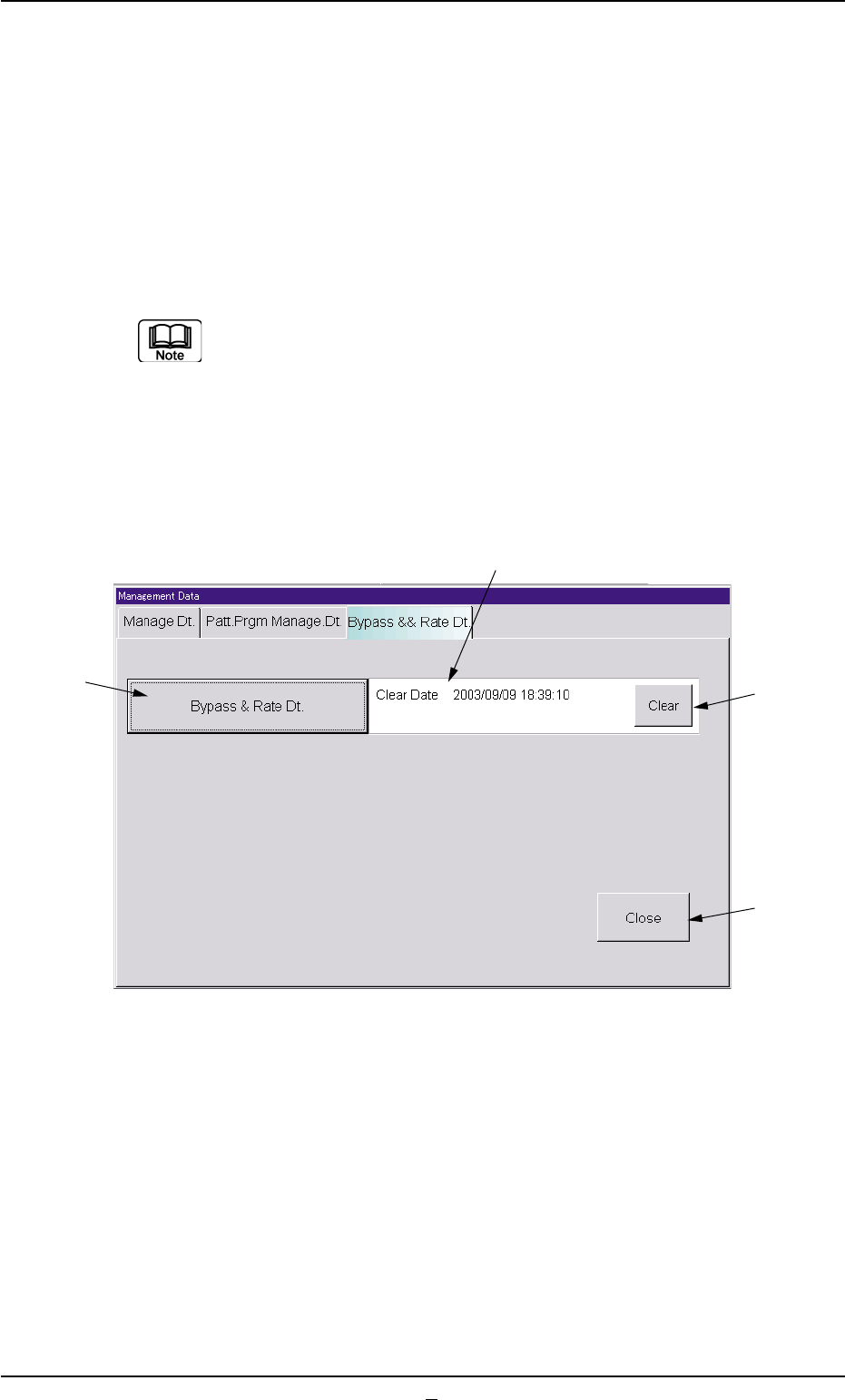
Fig. 3D4 "Bypass & Rate Dt." Tab Sheet
• Sheet Composition
*1 [Bypass & Rate Dt.] Button
When this button is pressed, the "Bypass & Rate Data - [Bypass]"
window opens.
Refer to "5. "Bypass & Rate Data - [Bypass]" Window" for details.
*2 Clear Date, Comment
Displayed are the clear date and comment of the component han-
dling error rate data.
2.3 "Bypass & Rate Dt." Tab
0308-003 4-7 AHB01EDTP
*3
*4
*2
*1