3OM-1075-002.pdf - 第128页
4 . 4 "Placement Data" T ab The "Placement Data" tab is provided with additional "U01" to "Un" tabs, the "P-data" tabs, and the "O-data" tabs. When each tab is …
0308-002 2-107 AHB01EDTP
4.3 "Placement Feeder Location" Tab
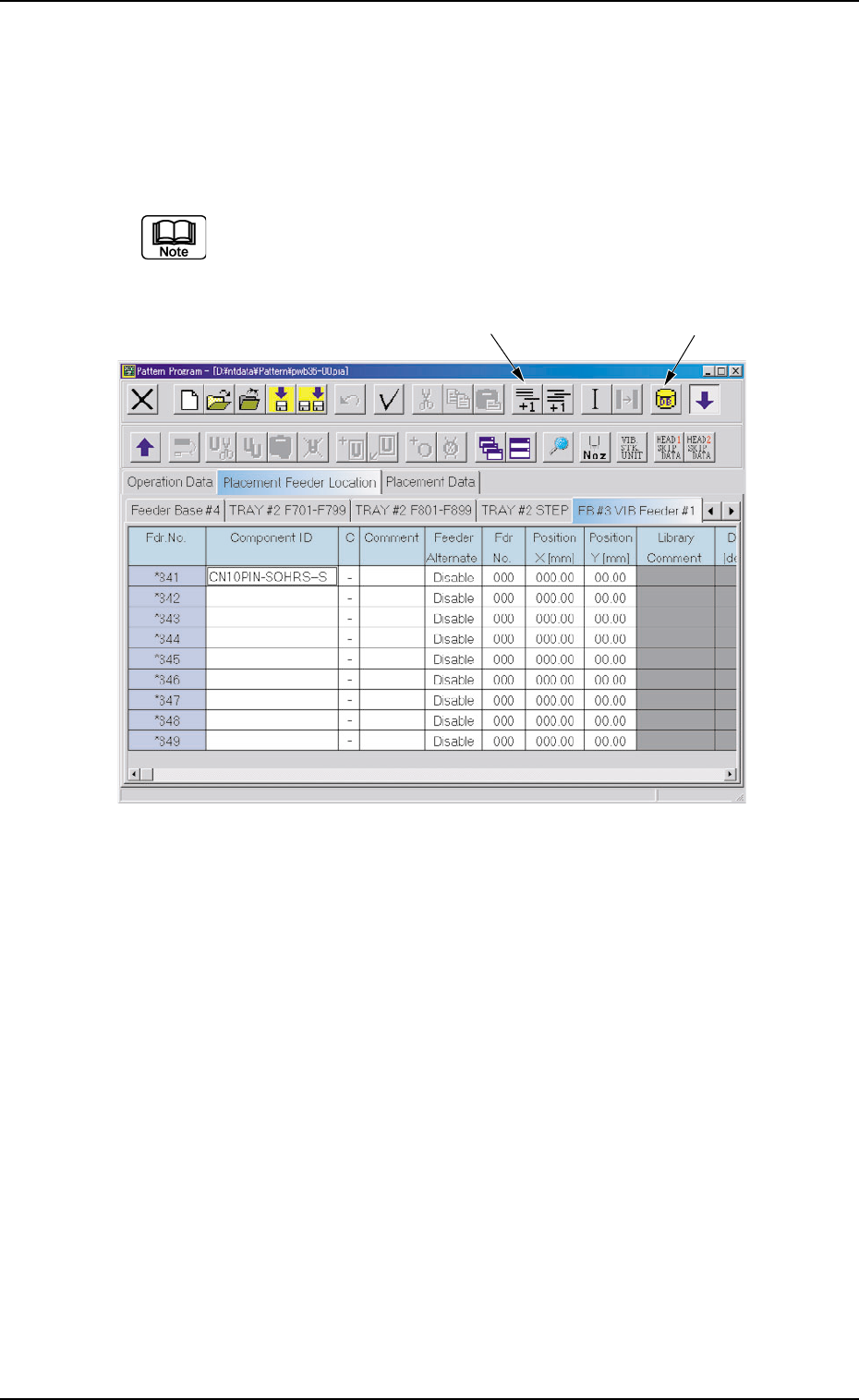
(4) Make appear the vibratory feeder tab that corresponds to the refer-
ence feeder No. (Fdr. No.).
(5) Allocate the carrier stick components for the vibratory stick feeder.
Add an Fdr. No. with the [Add One Line] icon and allocate a compo-
nent with the [Component ID List] icon.
Select a component whose carrier type is "Vibratory Stick".
Up to 9 carrier sticks can be allocated to one vibratory stick
feeder.
Fig. 3B174
(6) Set parameters in the "Position X [mm]" and "Position Y [mm]" text
boxes.
Measure the distance between the reference position of the vibra-
tory stick feeder unit and the pick-up position and enter the values in
the text boxes.
(7) Check the component library data of the allocated component.
Confirm that correct direction, carrier type, width, and nozzle are
specified.
[Add One Line] Icon
[Component ID List] Icon
4.4 "Placement Data" Tab
The "Placement Data" tab is provided with additional "U01" to "Un" tabs,
the "P-data" tabs, and the "O-data" tabs. When each tab is selected, the
corresponding tab sheet appears.
4.4.1 "U01" to "Un" Tabs
"U01" represents "Unit No. 01" and "n" in "Un" can be any number (01,
02, 03, ...). When the "Un" tab is pressed, the corresponding tab sheet
appears, enabling you to edit the parameters.
• Sheet Layout
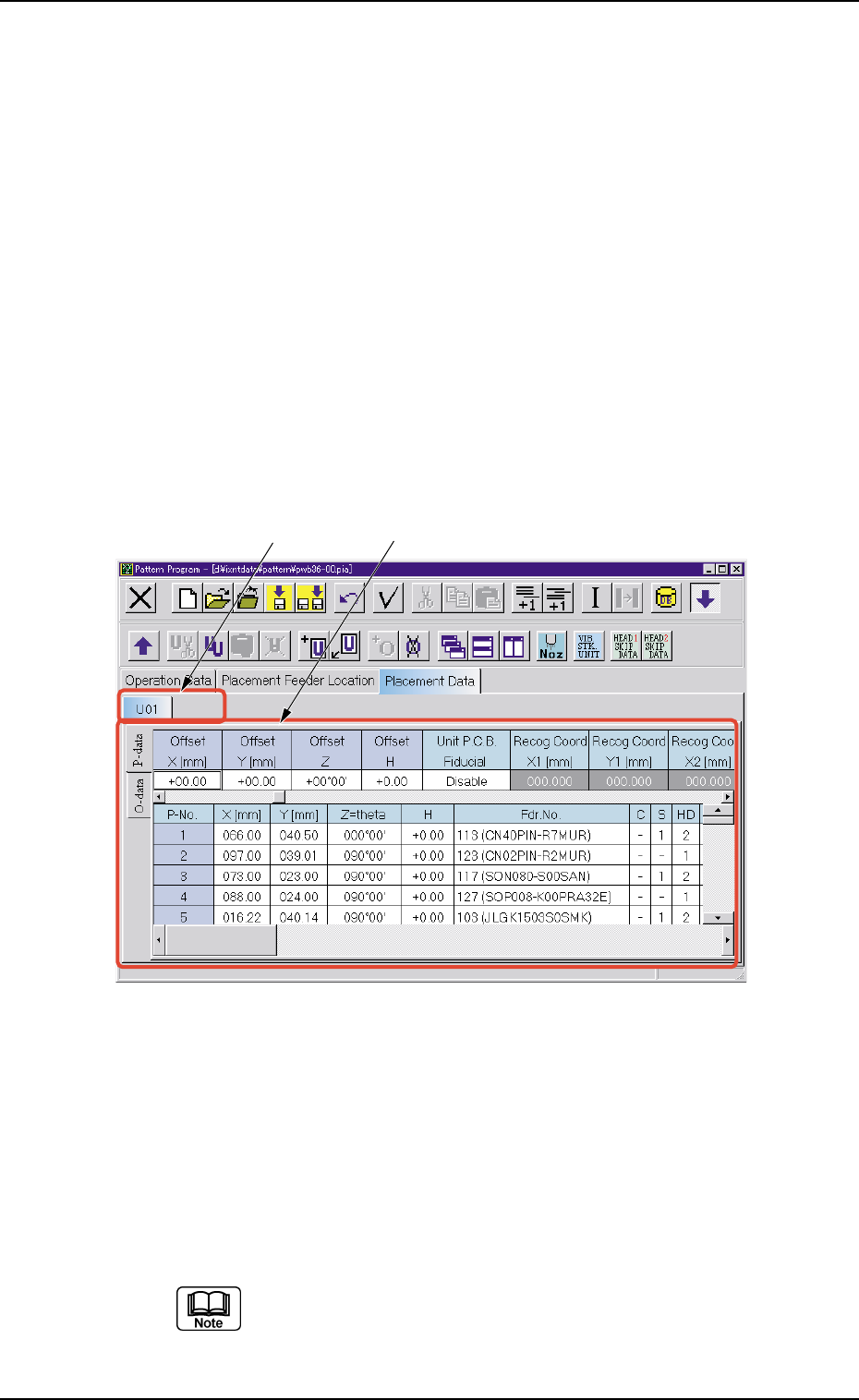
When the "U01" tab is pressed after the "Placement Data" tab is
selected, the following tab sheet appears.
Fig. 3B175 "U01" Tab Sheet
• Sheet Composition
Each parameter is displayed or can be entered.
*1 "U01" to "Un" Tabs
These tabs are used to select a unit. When a tab is pressed, the
corresponding tab sheet appears and is related to the selected unit.
Refer to "• Operation Procedure" described later for the de-
tailed information on how to add or delete a unit.
0206-001 2-108
AHB01EDTP
4.4 "Placement Data" Tab
*1
*2
*2 "Placement Data" Edit Window
These windows can be used to edit the placement data (P) and (O).
Refer to "4.4.2 "P-data" Tab" and "4.4.3 "O-data" Tab" for
the detailed information on how to select each tab.
• Operation Procedure
Add New Unit
(1) When the second toolbar is not visible, press the [Second Toolbar]
icon ( ). The second toolbar opens.
(2) When the [Add New Unit] icon (
) is selected, a tab is added to
the last one, indicating that a new tab sheet is created.
Deletion of Unit
(1) When the second toolbar is not visible, press the [Second Toolbar]
icon (
). The second toolbar opens.
(2) Use the touch screen or the pointing device to select the unit to be
deleted.
(3) When the [Delete Unit] icon (
) is selected, the selected unit is
deleted.
When a tab (unit) between the adjacent ones is deleted, the
subsequent tabs (units) are shifted left.
Unit Copy and Paste Commands
(1) When the second toolbar is not visible, press the [Second Toolbar]
icon (
). The second toolbar opens.
(2) Use the touch screen or the pointing device to select the unit to be
copied.
(3) When the [Copy Unit] icon (
) is selected, the selected tab (unit)
is copied.
(4) Select the position of the unit to be pasted.
(5) When the [Paste Unit] icon (
) is selected, the selected tab (unit)
is pasted.
The toolbar is also provided with the [Cut Unit] icon (
).
The cut unit data can be pasted.
0206-001 2-109
AHB01EDTP
4.4 "Placement Data" Tab