3OM-1075-002.pdf - 第139页
AHB01EDTP [Cancel] Button When pressed, this button opens the "Component Library" window without the selected component ID. The "Close", "New", and "Open" icons become available in…
AHB01EDTP
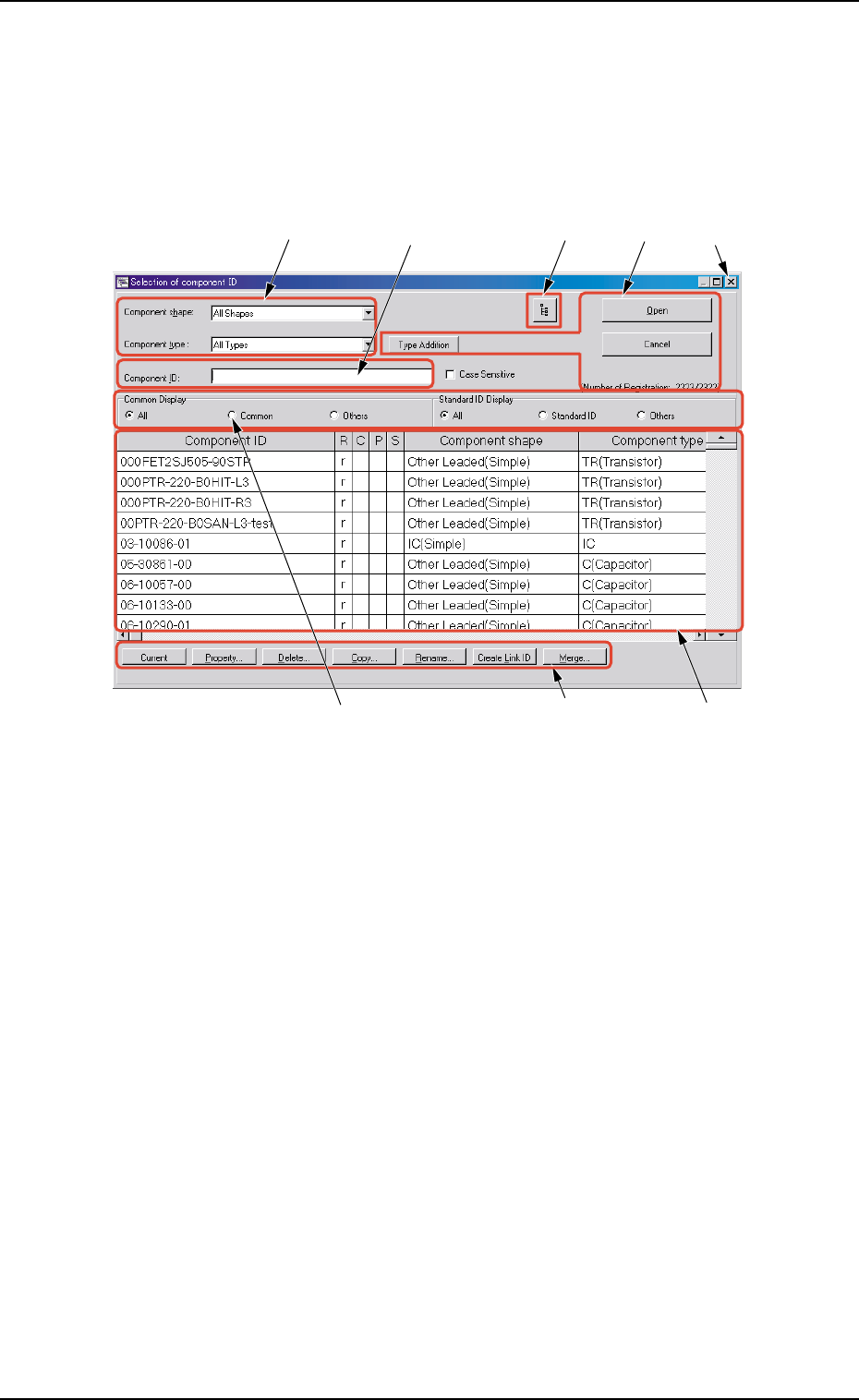
2.2 Composition of "Selection of component ID"
Window
This session describes the composition of the "Selection of compo-
nent ID" window.
Fig. 3C4 "Selection of component ID" Window
*1 Component shape, Component type
Select the desired component shape and type from the corresponding
combo boxes.
The component types corresponding to the selected shape and type
appear in "*7".
*2 Component ID
Displayed is the component ID selected in "*7".
*3 [Link ID Tree View] Button
Link and root IDs are arranged side by side and displayed in the
hierarchical (tree) file system.
*4 [Open], [Cancel], and [Type Addition] Buttons
[Open] Button
When pressed, this button opens the "Component Library" window
related to the component ID selected in "*7".
0308-003 3-3
*1
*2
*7
*8
*5
*6
*4
*3
2.2 Composition of "Selection of component ID" Window
AHB01EDTP
[Cancel] Button
When pressed, this button opens the "Component Library" window
without the selected component ID.
The "Close", "New", and "Open" icons become available in the "Com-
ponent Library" window.
[Type Addition] Button
Open the "Type Addition" dialog box to add a component type.
Refer to "2.3.1 Type Addition" for the detailed information on
the "Type Addition" dialog box (described later).
*5 [Close] Button (
)
When pressed, this button closes the "Selection of component
ID" window.
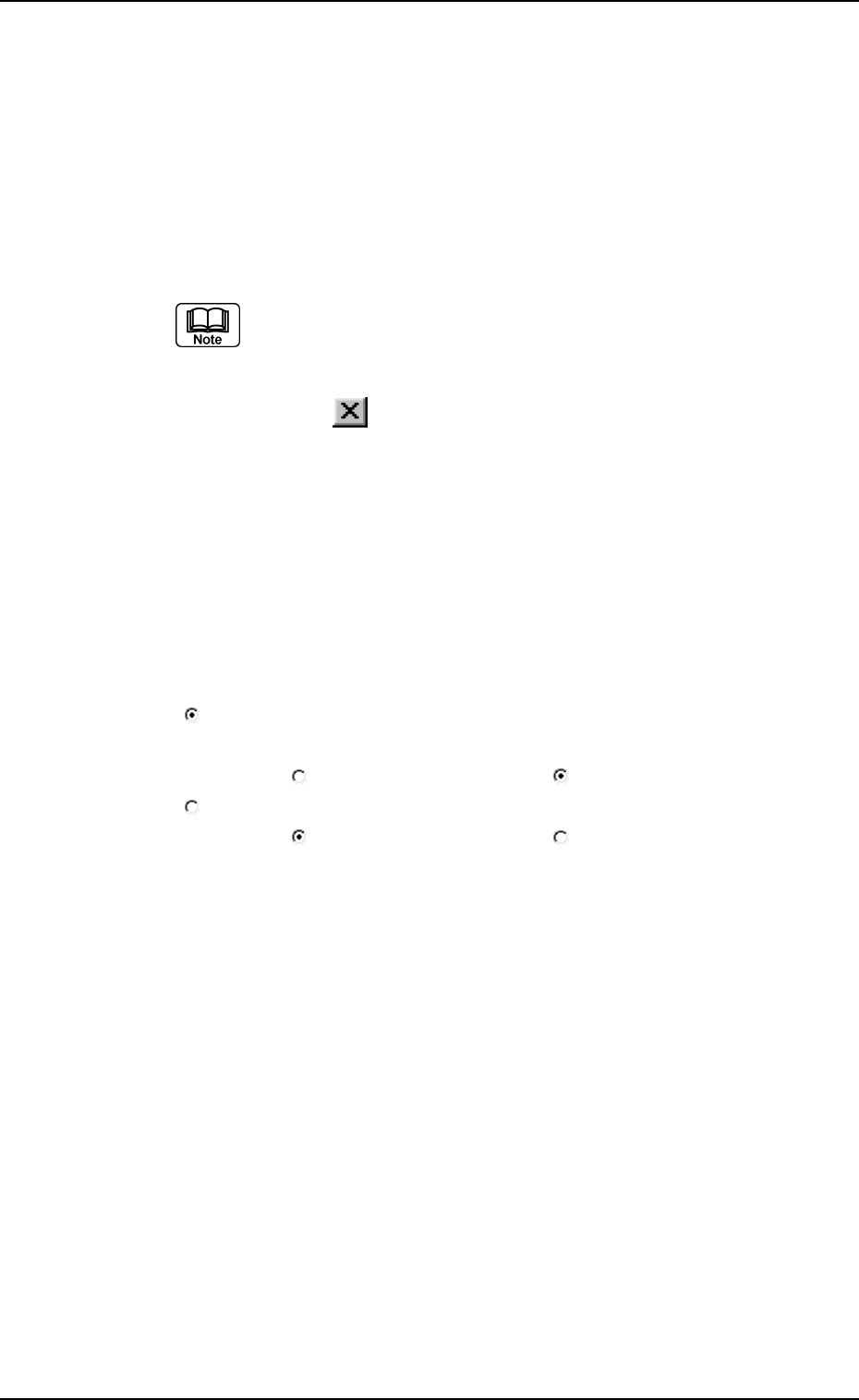
*6 Common Display and Standard ID Display
Select the desired option buttons.
Depending on which option buttons are selected, a list of compo-
nent IDs having specific attributes appears in "*7".
Option Buttons
: A dot inside the circle indicates that the corresponding func-
tion is selected.
When " " is pressed, it changes to " ".
: The corresponding function is not selected.
When "
" is pressed, it changes to " ".
*7 "List of Component IDs" Pane
A list of component IDs is displayed.
Select the component ID whose data should be displayed in the
"Component Library" edit window or the component ID to be de-
leted, copied, or renamed.
Component ID : Component IDs are displayed.
R:When "r" is set, it indicates that the compo-
nent ID is a root one.
C:When "c" is set, it indicates that the compo-
nent ID is registered as a common one.
P:When "p" is set, it indicates that the compo-
nent ID is protected.
S:When "s" is set, it indicates that the compo-
nent ID is a standard one.
0308-004 3-4
2.2 Composition of "Selection of component ID" Window
AHB01EDTP
Component shape : Component shapes are displayed.
Component type : Component types are displayed.
Update time : Update time (date and time) is displayed.
By pressing one of the titles (the labels arranged on top of the
list), the step lines (parameters) are sorted by ID, update time,
etc.
*8 [Current], [Property...], [Delete...], [Copy...], [Rename...],
[Create Link ID] and [Merge...] Buttons
[Current] Button
When pressed, this button enables you to select the component
IDs used in the pattern program that was opened last.
[Property...] Button
When pressed, the "Property" dialog box related to the component
ID selected in "*7" appears.
Refer to "2.3.7 Property of Component ID" for the detailed
information on the "Property" dialog box.
[Delete...] Button
When pressed, this button enables you to delete the selected
component ID in "*7".
[Copy...] Button
When pressed, this button enables you to make a copy of the
component ID selected in "*7".
[Rename...] Button
When pressed, this button enables you to rename the component
ID selected in "*7"
[Create Link ID] Button
When pressed, this button enables you to create a link ID for the
component ID selected in "*7".
[Merge...] Button
When pressed, this button enables you to merge the component
IDs selected in "*7".
0308-004 3-5
2.2 Composition of "Selection of component ID" Window