3OM-1075-002.pdf - 第103页
: VIB STK UNIT When pressed, this registers the vibratory stick feeder unit to the currently selected "Fdr . No." : HEAD1 SKIP DA T A When pressed, the current pattern program is changed to a program for which …
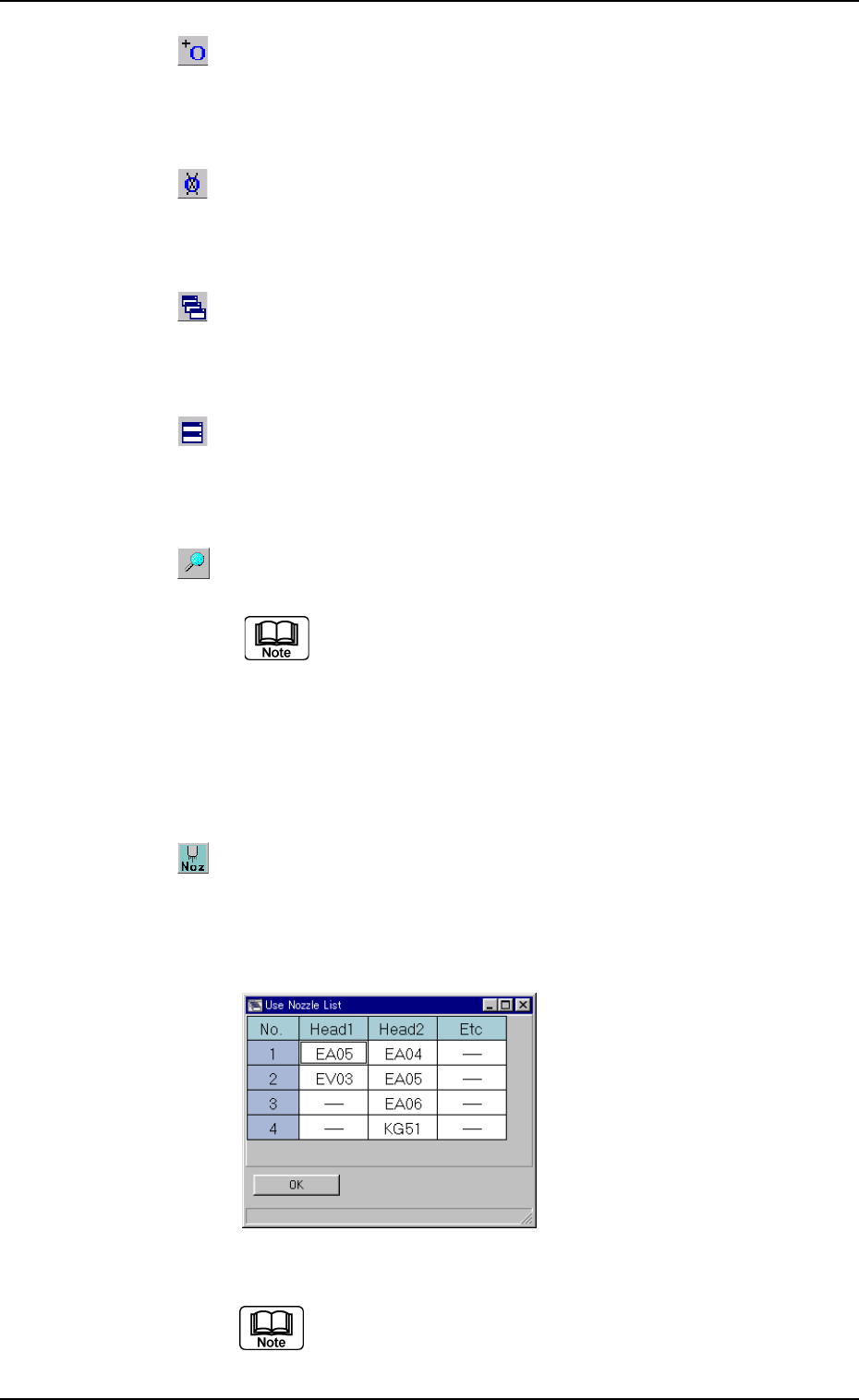
: Add O Data
When pressed, this adds the O data to the currently selected
U data.
: Delete O Data
When pressed, this deletes the O data from the currently
selected O data.
: Cascade
The currently opened windows (programs) are cascaded
(overlaid), making each title bar visible.
: Tile Horizontally
When pressed, this re-arranges the currently opened "Pat-
tern Program" windows up and down.
: When pressed, this searches the data.
The "Search" dialog box opens.
"*" (asterisk) and "?" (question mark) can be used
as wild cards.
abc* : The search function retrieves the data which
starts with "abc".
a?c : The search function retrieves the data which
starts with "a" and contains "c" as the third
character.
: When pressed, this opens the "Use Nozzle List" win-
dow.
Listed in this window are the nozzles that are used in the
active pattern program (the opened pattern program file).
Fig. 3B142
The nozzles in the "Etc" column represent that no
heads are determined for them.
It is required to set the head data.
0308-004 2-83
AHB01EDTP
4.1 Basic Operations
: VIB STK UNIT
When pressed, this registers the vibratory stick feeder unit
to the currently selected "Fdr. No."
: HEAD1 SKIP DATA
When pressed, the current pattern program is changed to a
program for which only Head #2 can be used.
(a) The unchanged program name is used together
with _h1skip as a new program name.
Example: Unchanged Program Name_h1skip
(b) The S data is all changed to "-" and the HD data
to "2".
: HEAD2 SKIP DATA
When pressed, the current pattern program is changed to a
program for which only Head #1 can be used.
(a) The unchanged program name is used together
with _h2skip as a new program name.
Example: Unchanged Program Name_h2skip
(b) The S data is all changed to "-" and the HD data
to "1".
4.1 Basic Operations
0308-004 2-84 AHB01EDTP
*2 [Minimize] Button, [Maximize] Button, [Restore] Button, and
[Close] Button
[Minimize] Button (
)
Minimizing a window reduces the window to an icon.
[Maximize] Button (
)
When a window is not at its maximum size, this button appears in
the window’s upper-right corner.
When pressed, this enlarges the edit window to its maximum size.
[Restore] Button (
)
When a window is already at its maximum size, the [Maximize] but-
ton switches to the [Restore] button, which returns the window to its
previous size.
[Close] Button (
)
When pressed, this closes the active window.
*3 Tab Sheets
The provided tab sheets enable the operator to edit the pattern pro-
gram.
When the size and/or the position of an edit window is changed, the
size and/or the position of each tab sheet also changes.
When an item is selected and the right button of the pointing
device is pressed, a menu opens and it contains a collec-
tion of commands that will be frequently used.
*4 Drop-Down List
When you double-click a text box, the text box is changed to a combo
box that has a down arrow on the right side.
When you click the down arrow, a drop-down list box opens.
A scrollbar might appear on the right side of a drop-down list
when there are many options.
*5 Scrollbars
When the up arrow (
) is pressed, the window scrolls up.
When the down arrow (
) is pressed, the window scrolls down.
When the left arrow (
) is pressed, the window scrolls left.
When the right arrow (
) is pressed, the window scrolls right.
0206-002 2-85
AHB01EDTP
4.1 Basic Operations