3OM-1075-002.pdf - 第150页
AHB01EDTP *2 [Minimize], [Maximize], [Restore], and [Close] Buttons [Minimize] Button ( ) Minimizing a window reduces the window to an icon. The contents (parameters) of the minimized window are kept un- changed. T o ope…
AHB01EDTP
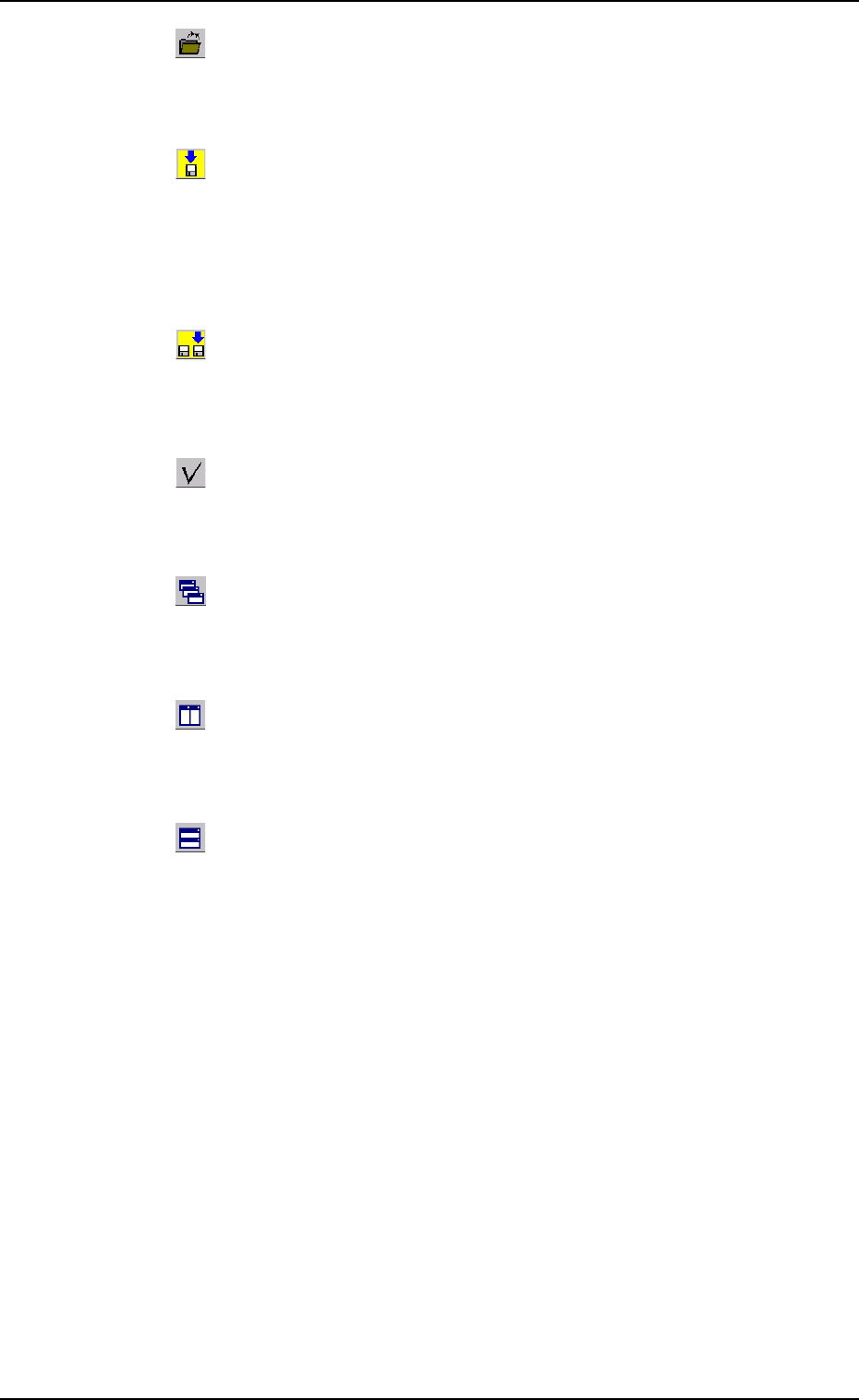
: Close File
When pressed, this closes the active file (component ID
data).
: Save
When pressed, this saves the edited data, replacing the
existing file with the current one.
When a new file is created, it will be saved with a new file
name.
: Save As
When pressed, this saves the edited data (file) with a new
name.
: Check
When pressed, this checks if there is any deficiency in the
selected component ID.
: Cascade
When pressed, this overlays the currently opened windows
(component IDs) so that you can see each title bar.
: Tile Vertically
When pressed, this re-arranges the currently opened win-
dows (Component IDs) side by side.
: Tile Horizontally
When pressed, this re-arranges the currently opened win-
dows (Component IDs) up and down.
0206-003 3-14
3.1 Toolbar and Icons
AHB01EDTP
*2 [Minimize], [Maximize], [Restore], and [Close] Buttons
[Minimize] Button (
)
Minimizing a window reduces the window to an icon.
The contents (parameters) of the minimized window are kept un-
changed.
To open the hidden window, press the [DATA EDIT] button on the
menu bar and select "CMPNT.LBRY." from the menu.
[Maximize] Button (
)
When an edit window is not at its maximum size, this button ap-
pears in the window’s upper-right corner.
When pressed, this enlarges the edit window to its maximum size.
[Restore] Button (
)
When a window is already at its maximum size, the [Maximize] but-
ton switches to the [Restore] button, which returns the window to its
previous size.
[Close] Button (
)
When pressed, this closes the active window.
*3 Edit Window
This window enables the operator to edit the parameters of the se-
lected component ID.
The size and/or the position of an edit window can be changed.
0206-003 3-15
3.1 Toolbar and Icons
AHB01EDTP
3.2 "Shape Data" Tab
3.2.1 "Mold Size" Tab
The corresponding tab sheet appears when "Cylindrical", "Square", "De-
form (Simple)", "Deform (Complex)", "IC (Simple)", "IC (Complex)", "Con-
nector (Simple)", "Connector (Complex)", "Other Leaded (Simple)",
"Other Leaded (Complex)", or "BGA/CSP" is selected in the "Compo-
nent shape" text box.
••
••
• Sheet Layout
When the "Mold Size" tab is pressed in the "Shape Data" tab sheet,
the following tab sheet appears.
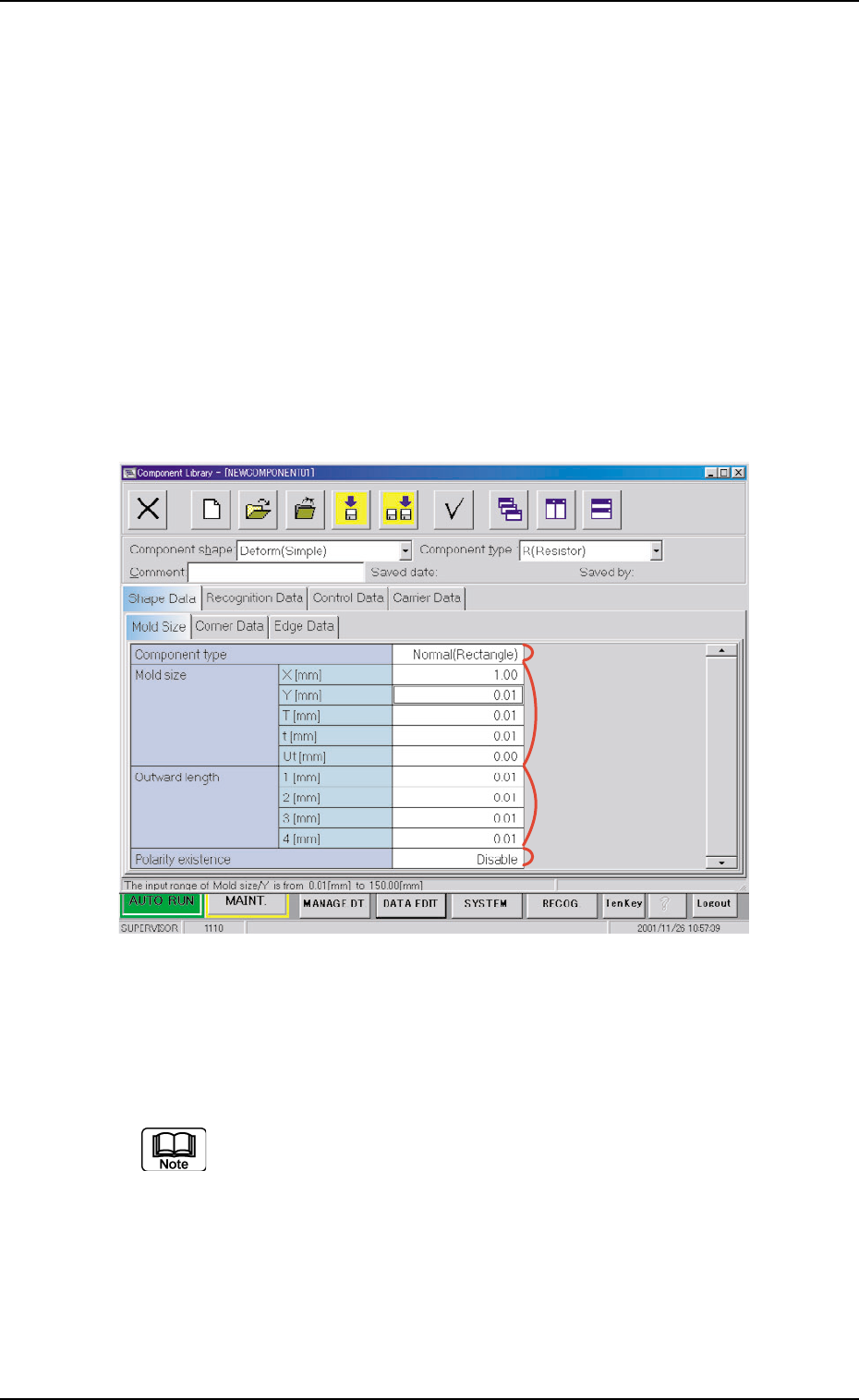
Fig. 3C13 "Shape Data" Tab Sheet ("Deform (Simple)" Selected)
••
••
• Sheet Composition
Each parameter is displayed or can be entered.
Refer to "4.1.3 Basic Usage of Text Boxes" in "Section 2" for the
detailed information on how to enter parameters.
(1) Component shape : Cylindrical, Square, BGA/CSP
*2 Mold size, *4 Polarity existence
0206-003 3-16
3.2 "Shape Data" Tab
*1
*4
*2
*3