3OM-1075-002.pdf - 第338页
0206-002 5-105 AHB01EDTP (2) Press the [Set] button without entering any characters in the en- try field. The "Password Reentry" edit window opens. Press the [Set] button again without entering any characters. …
0206-002 5-104 AHB01EDTP
••
••
• Sheet Composition
*1 Supervisor
A password can be set in this group box for the user who has the
scope of authority as "Supervisor".
*2 Operator #1
A password can be set in this group box for the user who has the
scope of authority as "Operator #1".
*3 Operator #2
A password can be set in this group box for the user who has the
scope of authority as "Operator #2".
••
••
• How to set or change a password
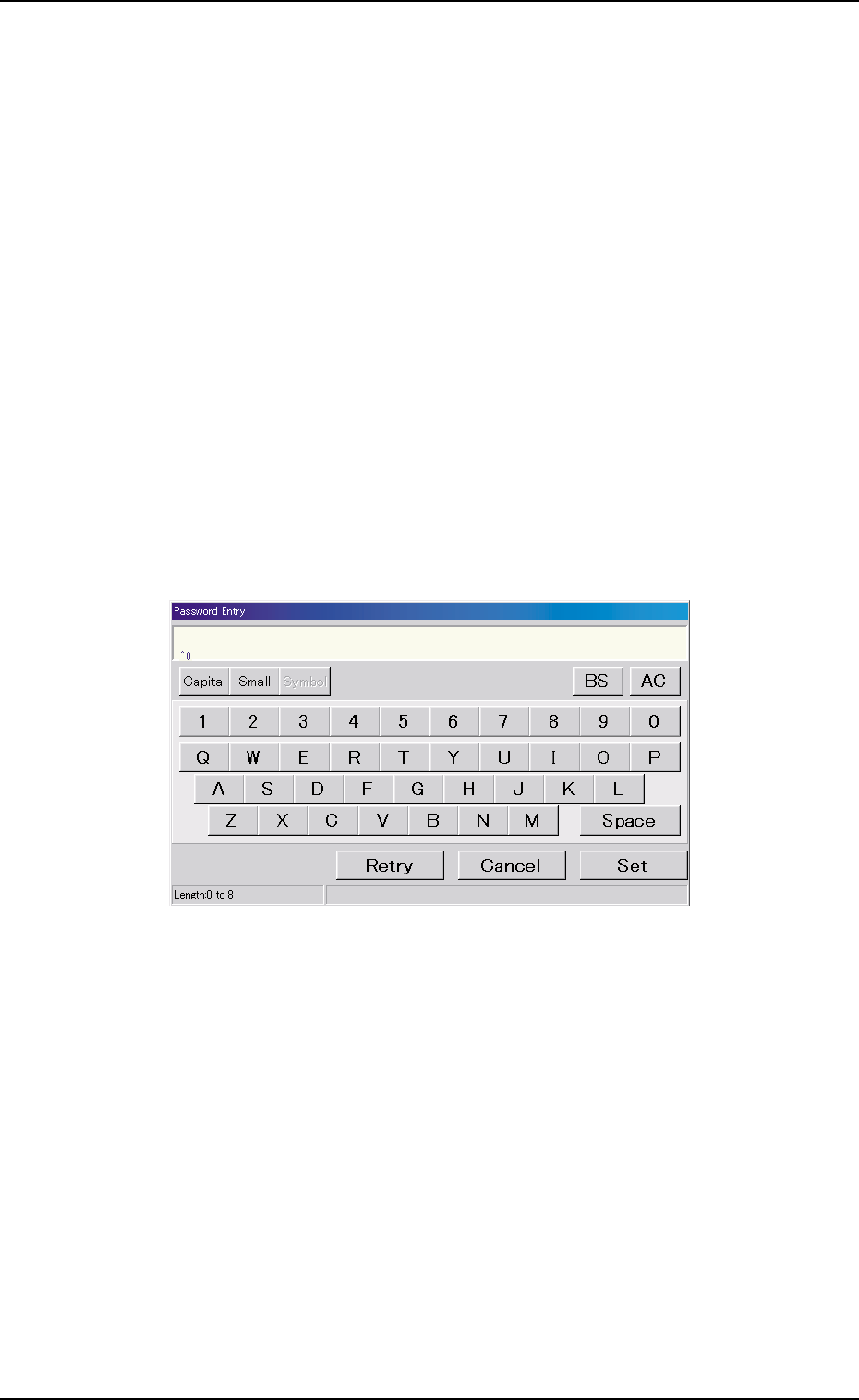
(1) When the [Password Set] button is pressed according to the
given authority, the "Password Entry" edit window opens.
Fig. 3E94 "Password Entry" Edit Window
(2) Enter a password and press the [Set] button. the "Password Re-
entry" edit window opens. Enter the same password again and
press the [Set] button.
The password is set or changed and "Set" appears in red on the
right side of the [Password Set] button.
••
••
• How to cancel the set password
(1) To cancel the set password, press the [Password Set] button
according to the given authority. The "Password Entry" edit win-
dow opens.
4.2 "Password" Tab
0206-002 5-105 AHB01EDTP
(2) Press the [Set] button without entering any characters in the en-
try field. The "Password Reentry" edit window opens. Press the
[Set] button again without entering any characters.
The preset password is canceled and "Not Set" appears in blue
on the right side of the [Password Set] button.
4.2.2 "Available Area Set (1/2) or (2/2)" Tab Sheet
••
••
• Sheet Layout
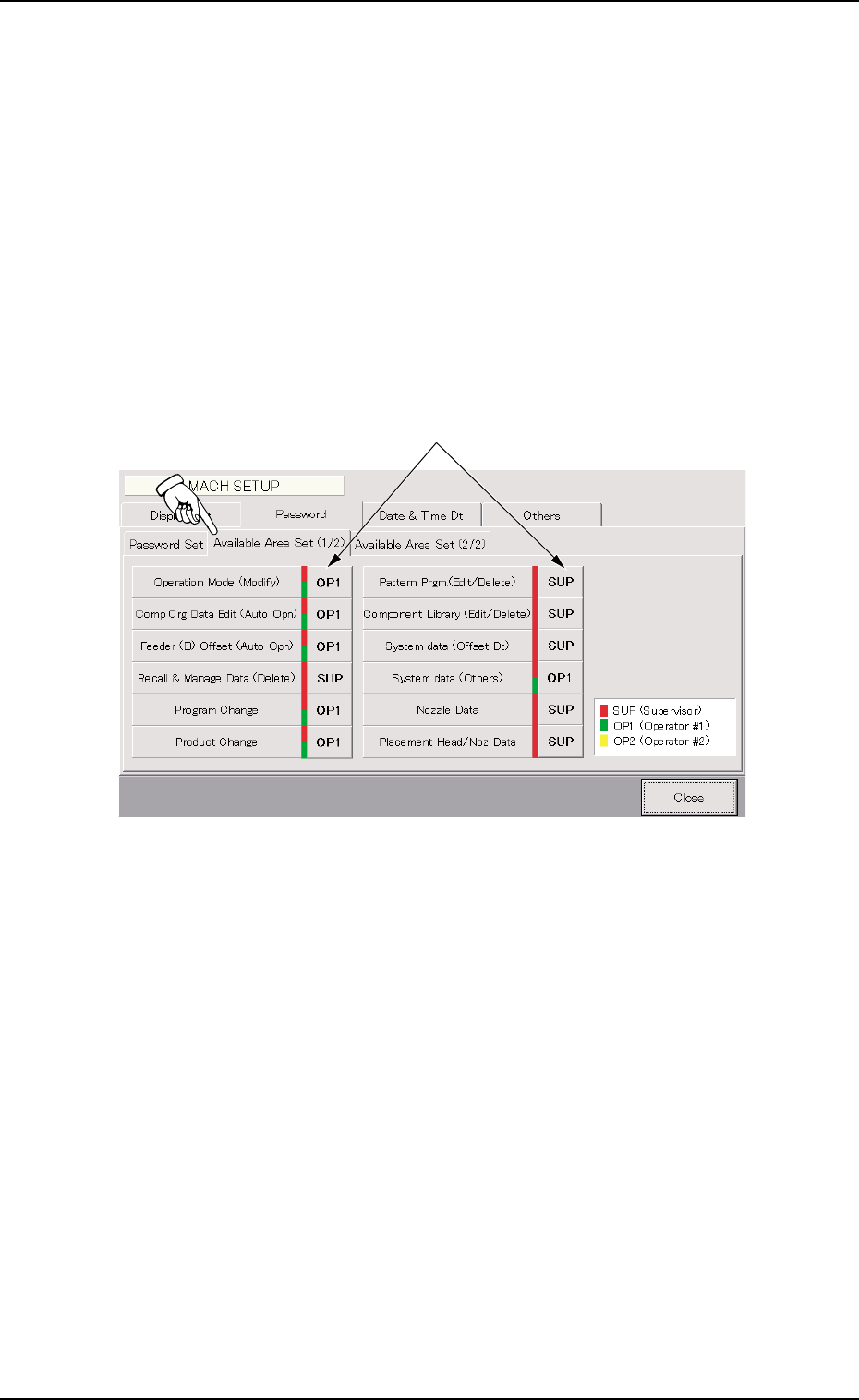
When the "Available Area Set (1/2)" tab is pressed, the following tab
sheet appears.
Fig. 3E95 "Available Area Set (1/2)" Tab Sheet
••
••
• Sheet Composition
*1 "Available Area Set" Buttons
The labels on the buttons indicate that the functions described
on the left side of the buttons are available for the following op-
erators.
SUP: This indicates that only the supervisor is given the au-
thority to use the functions.
When a red bar appears on the right side of the
function name, it indicates that the function is avail-
able for "Supervisor".
4.2 "Password" Tab
*1
0206-002 5-106 AHB01EDTP
4.2 "Password" Tab
OP1: This indicates that the supervisor and the operator #1
are given the authority to use the function.
Red and green bars appear on the right side of the
function name.
OP2: This indicates that the supervisor, the operator #1, and
the operator #2 are given the authority to use the func-
tion.
That is, the selection means that all operators can
use the function Red, green, and yellow bars ap-
pear on the right side of the function name.
••
••
• How to specify the available range of a password
(1) Specify the scope of authority to use the described functions ("Op-
eration Mode (Modify)" through "Placement Head/Noz Data").
Every time the button (corresponding to the desired function) is
pressed, the label changes in scrolling such as "SUP" Æ "OP1"
Æ "OP2" Æ "SUP".
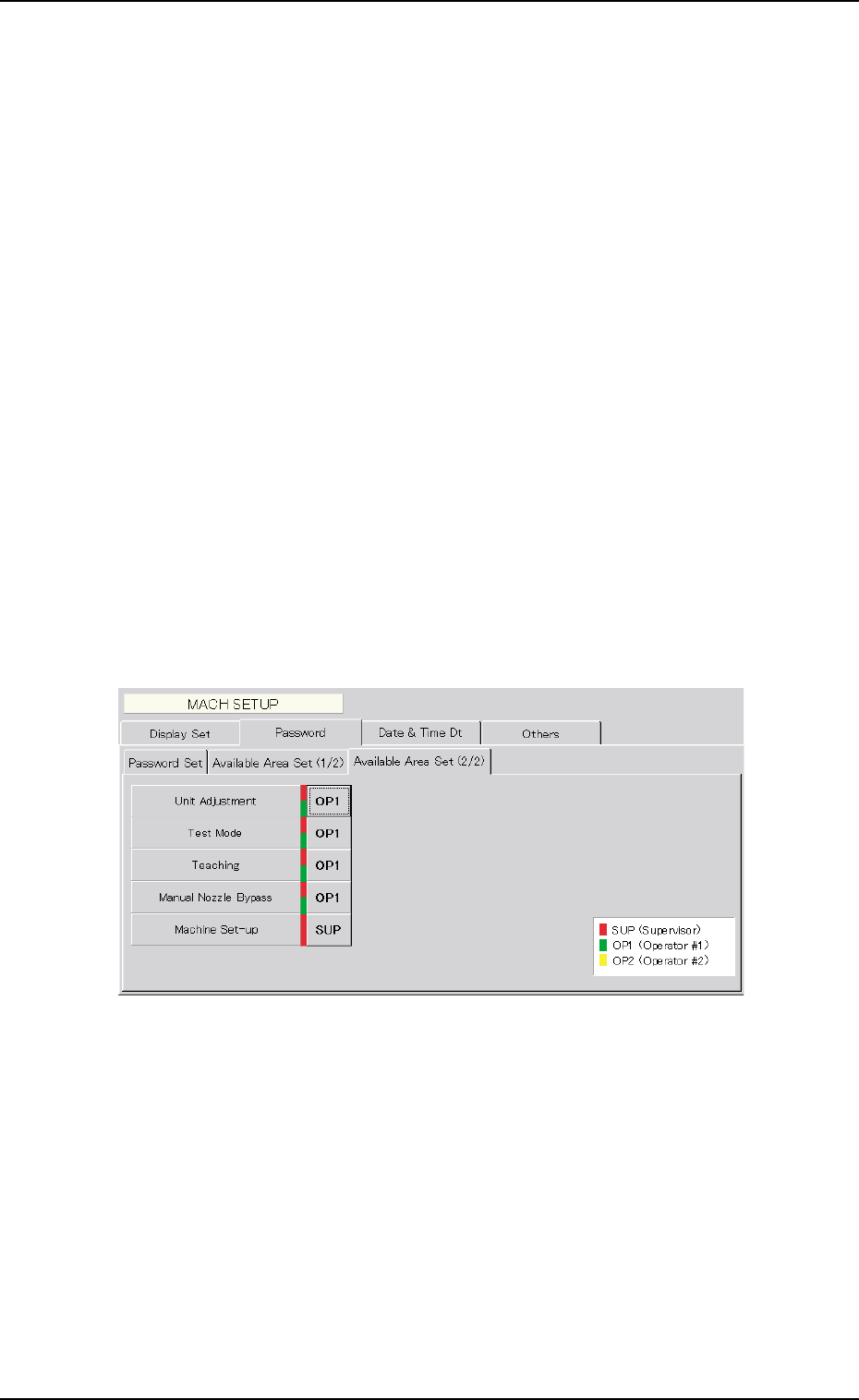
(2) When the "Available Area Set (2/2)" tab is pressed the following
tab sheet appears.
Fig. 3E96 "Available Area Set (2/2)" Tab Sheet
(3) Follow the same procedure as "(1)" to specify the scope of au-
thority to use the described functions ("Unit Adjustment" through
"Machine Set-up").