operation-cp45.pdf - 第136页
Samsung Component Placer CP-45F(V)/FS Operations Manual 8-6 8.3. Save [Ctrl+S] Use the <Save> command to save just opened file. When the opened file is 'Untitled(when a file is open ed with the <New > co…
File Commands
8-5
8.2. Open [Ctrl+O]
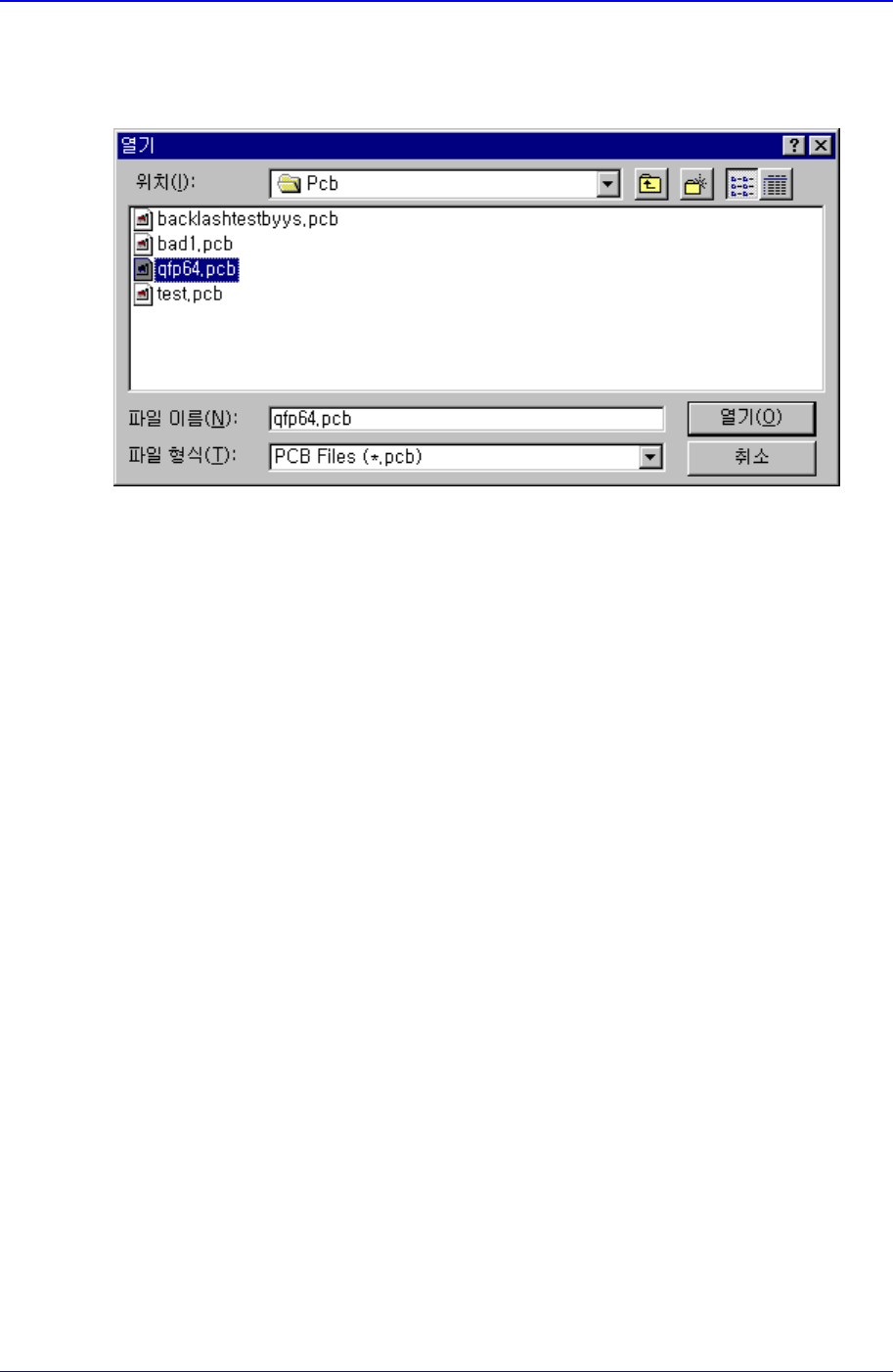
<Open> command is used to edit an existing PCB file. When the <Open> command is
selected, the following dialog box is displayed.
Figure 8-5. “Open” dialog box
<Look in> list box
Specify the directory in which the file is located. Displays the files in the
directory specified here in the <File list> list box.
<File list> list box
Displays existing files. When a file name is clicked on, displays the file name in
the <File name> edit box.
<File name> edit box
Enter a file name. If a file from the file list is clicked on, that file name is
displayed in the edit box.
<Files of type > combo box
Select the type of file to be displayed in the <File list> list box. When the
triangular button is clicked on, accessible file types are displayed.
PCB Data Files(*.pcb): displays file names with the 'pcb' extension only.
OPT Data Files(*.opt): displays file names with the 'opt' extension only.
<OK> button
Selects a file and closes the “Open” dialog box.
<Cancel> button
Cancels the file selection and closes the “Open” dialog box
Samsung Component Placer CP-45F(V)/FS Operations Manual
8-6
8.3. Save [Ctrl+S]
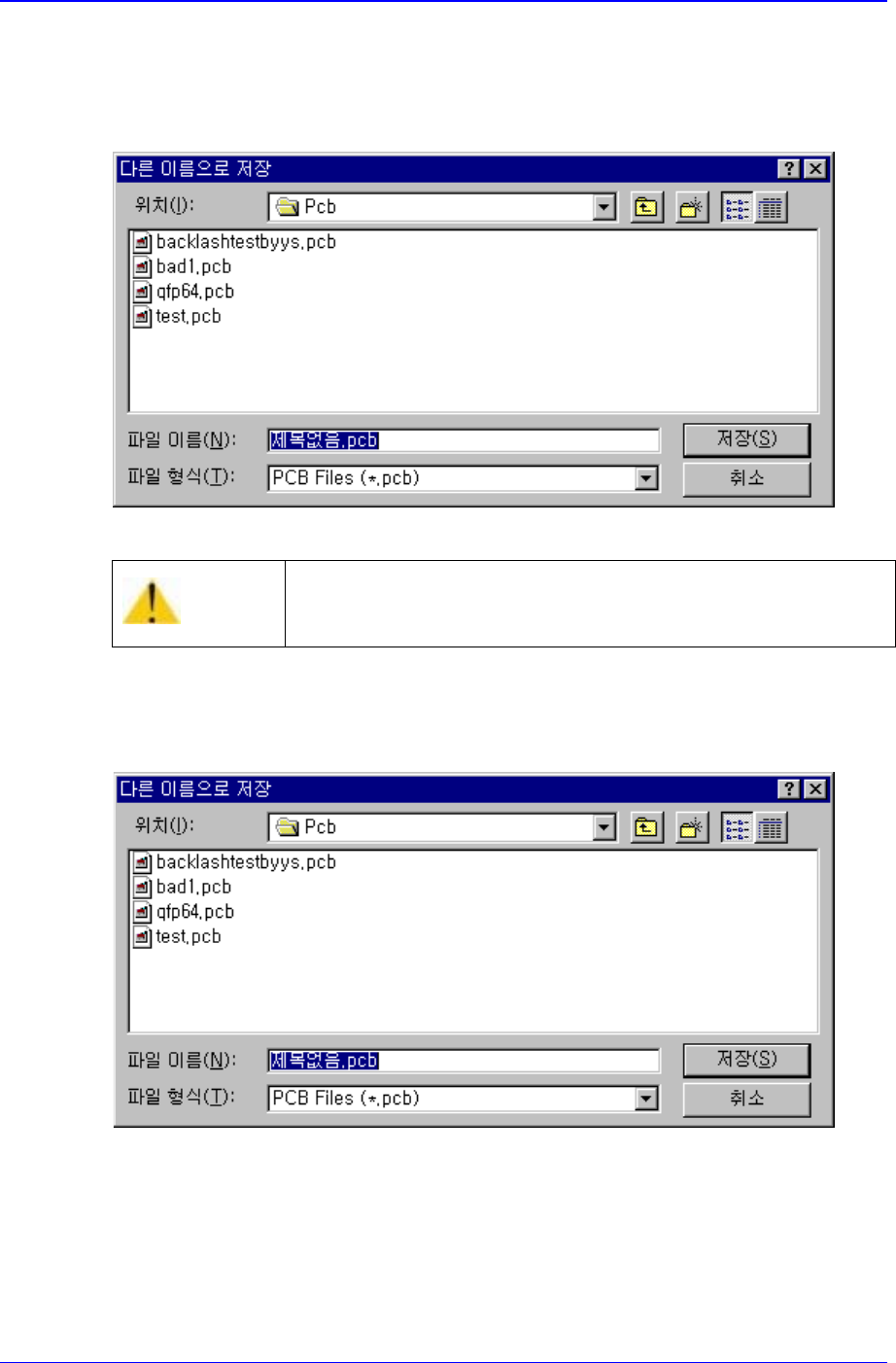
Use the <Save> command to save just opened file. When the opened file
is 'Untitled(when a file is opened with the <New> command)', the “Save As” dialog box is
displayed. Please refer to the next section(Save As...).
Figure 8-6. “Save As” dialog box
8.4. Save As...
Use the <Save As> command to save a file under a different name. When the <Save As>
command is selected, the following dialog box is displayed.
Figure 8-7. “Save As” dialog box
<Folders> list box
Specify the directory in which the file is located. Displays the files under the
directory specified here in the <File list> list box.
<File List> list box
Displays the files in the directory specified in the <Folders> list box.
Caution
When the <Save> command is executed, the previous file
cannot be reverted, so take precautions.
File Commands
8-7
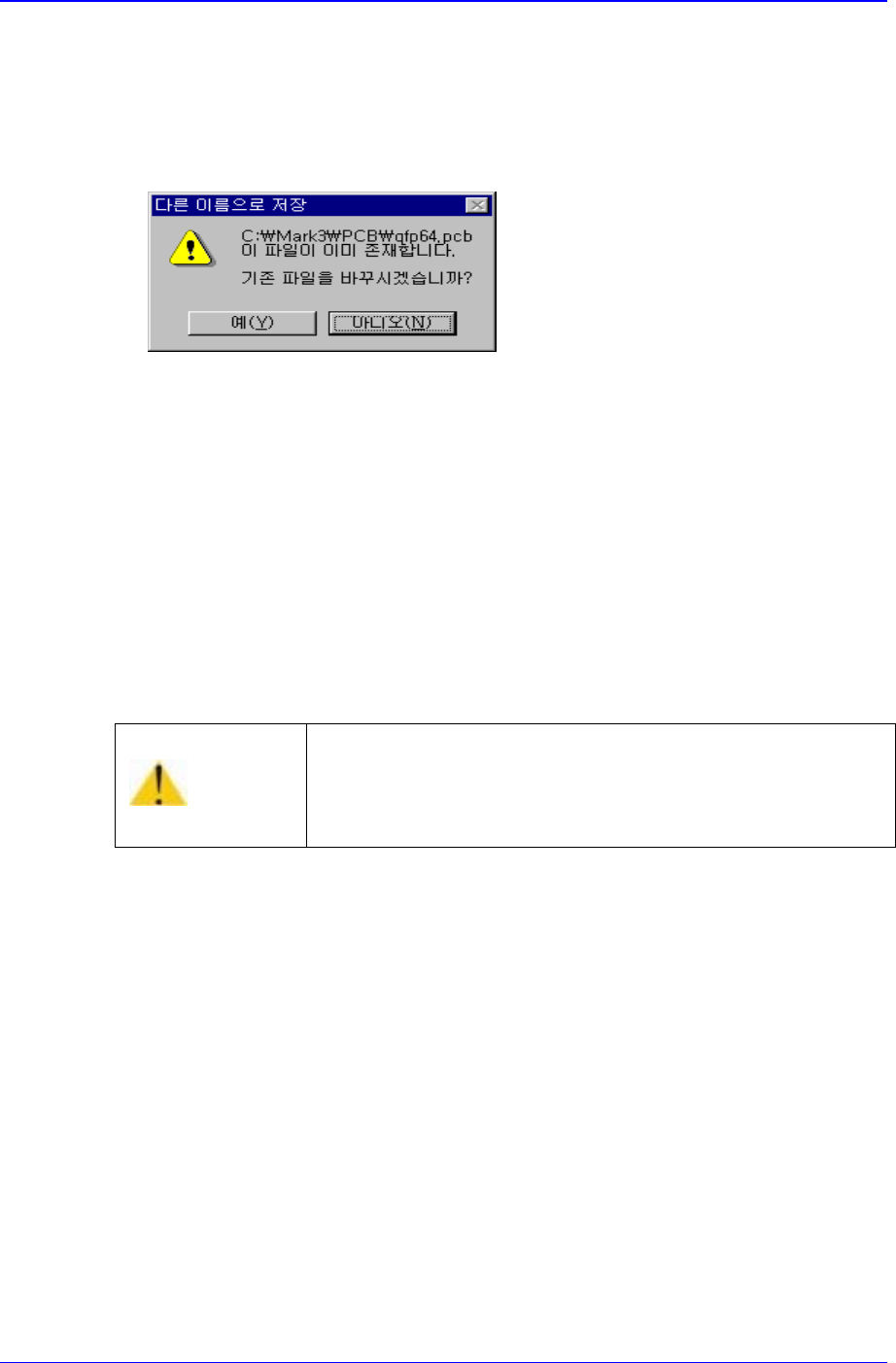
<File name> edit box
Enter a new file name. Up to eight characters can be entered. If the number of
characters exceeds the limit or if a file with the same name already exists in the
directory, the following message box is displayed immediately after you click on the
<OK> button. If you click on <Yes> button in the “Save As” message box, the new
file overwrites the existing file.
Figure 8-8. “Save As” message box
<Save file as type> combo box
Select file format to be displayed in the <File list> list box. When the triangular
button is clicked on, displays accessible file format.
PCB Data Files(*.pcb): displays all files with the 'pcb' extension only.
Old Version(*.pcb): Used for the file with the same extension as above but
only if the compatibility with the machine using the previous MMI versions
only. If you use the versions above MMI version 6.XX, do not use this option.
<OK> button
Selects a file and closes the “Save As” dialog box.
<Cancel> button
Cancels the <Save As> command and closes the “Save As” dialog box.
8.5. Merge Part Library
The <Merge Part Library> command is used to compare and merge the Local Part DB file
of another equipment with the Local Part DB file of current equipment or the Standard
Part DB file to be updated and redistributed with the Local Part DB file of current
equipment.
When the < Merge Part Library > command is selected, the following dialog boxes are
displayed.
Caution
If the extension of PCB File is changed arbitrarily, the PCB
File will not be recognized.
Do not change the extension of PCB File.