operation-cp45.pdf - 第186页
Samsung Component Placer CP-45F(V)/FS Operations Manual 11-32 1. On 1/3 area of component pocket First, check if the feeder is normally inst alled on the feeder base. If a feeder is installed while a chip is stuck on t…

PCB Edit Command
11-31
<Paste> button
Pastes the copied part data to the Part list box.
<Delete> button
Deletes the part selected in the Part list box.
<2. Library> group
Display the component list of the Local Part DB managed by the equipment.
<Align Type> combo box
Select the align type of the component to be displayed. Available align types are
as follows.
None: No alignment.
Chuck: Alignment by the Chuck.
QA: Alignment by the Quad Aligner.
CA: Alignment by the Cyber Optics.
Vision: Alignment by the Vision Camera.
<Part Group> combo box
Select the group of component to be displayed. Available component groups are
as follows.
( CHIP-Circle:, CHIP-Rect:, Melf:, TR:, Trimmer:, Hemt:, SOP:, SOJ:, SOP2:,
SOJ2:, QFP:, PLCC:, Connector-1:, Connector-2:, User IC:, BGA: )
<Part List> list box
Displays the component data list of the data selected in <Align Type> and
<Part Group>.
<Update Part> button
After adding a New Part, use it to add the New part to the Local DB.
<Change Group> button
Changes the group of the selected part from current part group to another group.
<Library Delete> button
Deletes the component data selected in <Part List> from the Local Part DB.
<Copy to PCB Part>
button
Copies the component data selected in <Part List> of <2. Library> group to <1. PCB
Part List> group.
<Copy to Local Part DB>
button
Copies the component data selected in the <1. PCB Part List> group to the Local Part
DB.
<Copy All to Local Part DB>
button
Copies all component data in the <PCB Part List> group to the Local Part DB.
<Cancel> button
Cancels all edited data.
Caution - If you move to another screen while editing the “Part” dialog box, the edited
data is saved automatically.
Samsung Component Placer CP-45F(V)/FS Operations Manual
11-32
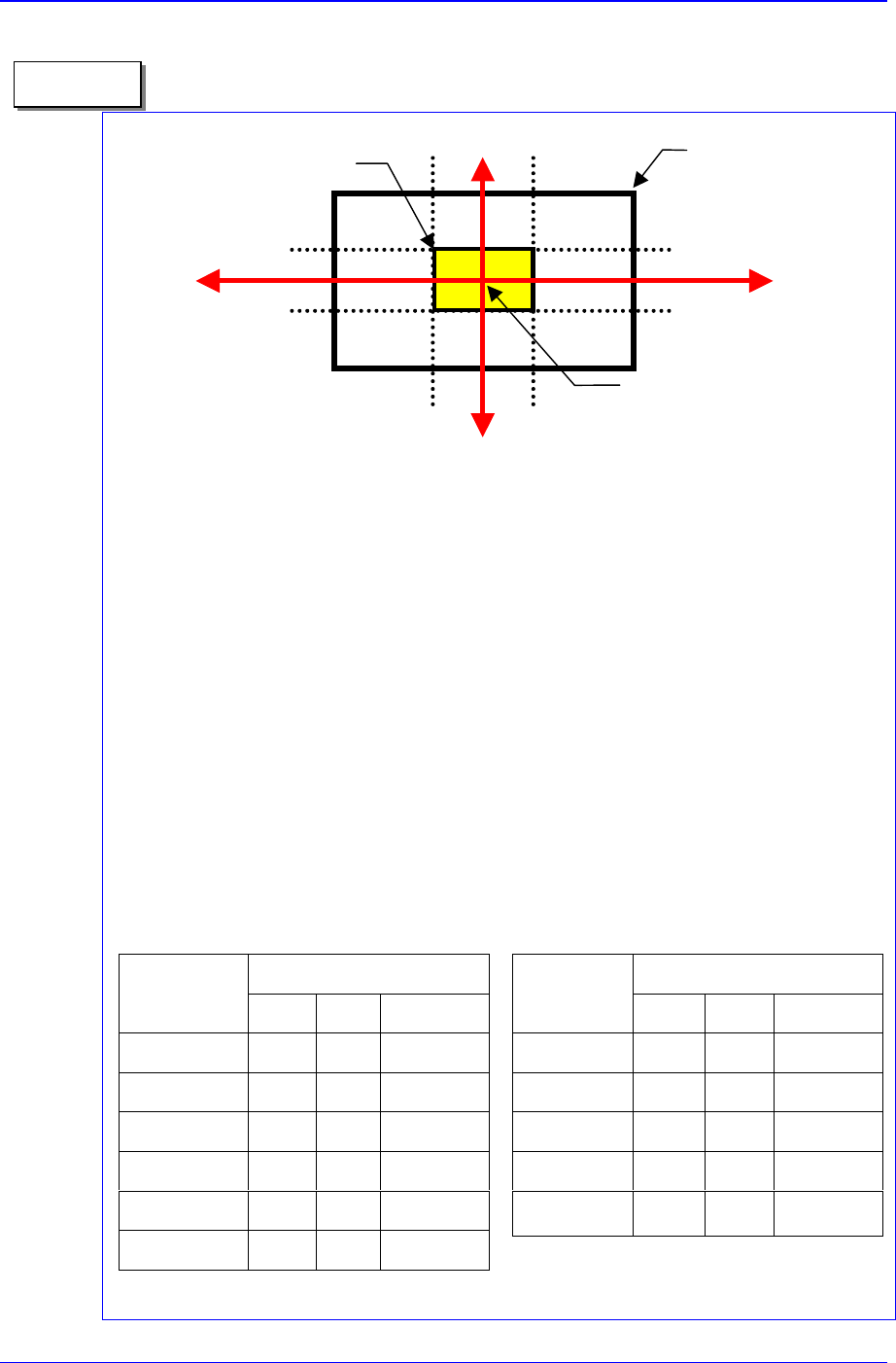
1. On 1/3 area of component pocket
First, check if the feeder is normally installed on the feeder base. If a feeder is
installed while a chip is stuck on the feeder base, the pickups position will be
deviated to that extent.
It is all right to use the feeder position (or pickups position) without changing it if the
crossing point of the red arrows on the vision monitor is within 1/3 area of
component pocket. When the feeder is installed normally, but the pickups position
and the crossing point of the red arrows are on the outside of 1/3 area of component
pocket, the feeder is considered to be abnormally installed. In this case, change the
feeder, teach again, and install it.
2. Component pickups point
Do not change the component pickups position if possible. Use the original coordinate
and it is recommended to use a value between 0.00 and 0.50 for Z axis coordinate.
3. Data value for normal chip components (1005 ~ 3216)
The equipment speed and time delay when registering regular chip components
are as follows. The data differs according to the chip size. As chip components
0603 and 1005 are tiny, it is best to place them under a condition different from
the one for other chip components.
However, they are not absolute. Rather, it is best to
use a value in these ranges to avoid putting strain on the equipment.
Component pocket area
1/3 area of component pocket
Crossing point of the re
d
arrows on the vision
monitor
1/3
2/3
1/3
2/3
Memo
Speed
Item
0603 1005 1608~3216
XY 1 1 1
R 1 1 1
Z Pick down 1 3 1
Z Pick up 3 2 1
Z Place down 1 1 1
Z Place up 1 1 1
Time Delay
Item
0603 1005 1608~3216
Pick up 0 20 30
Place 25 25 10
Vacuum off 0 0 0
Dump 100 100 100
Vacuum vac.
off
0 0 0
PCB Edit Command
11-33
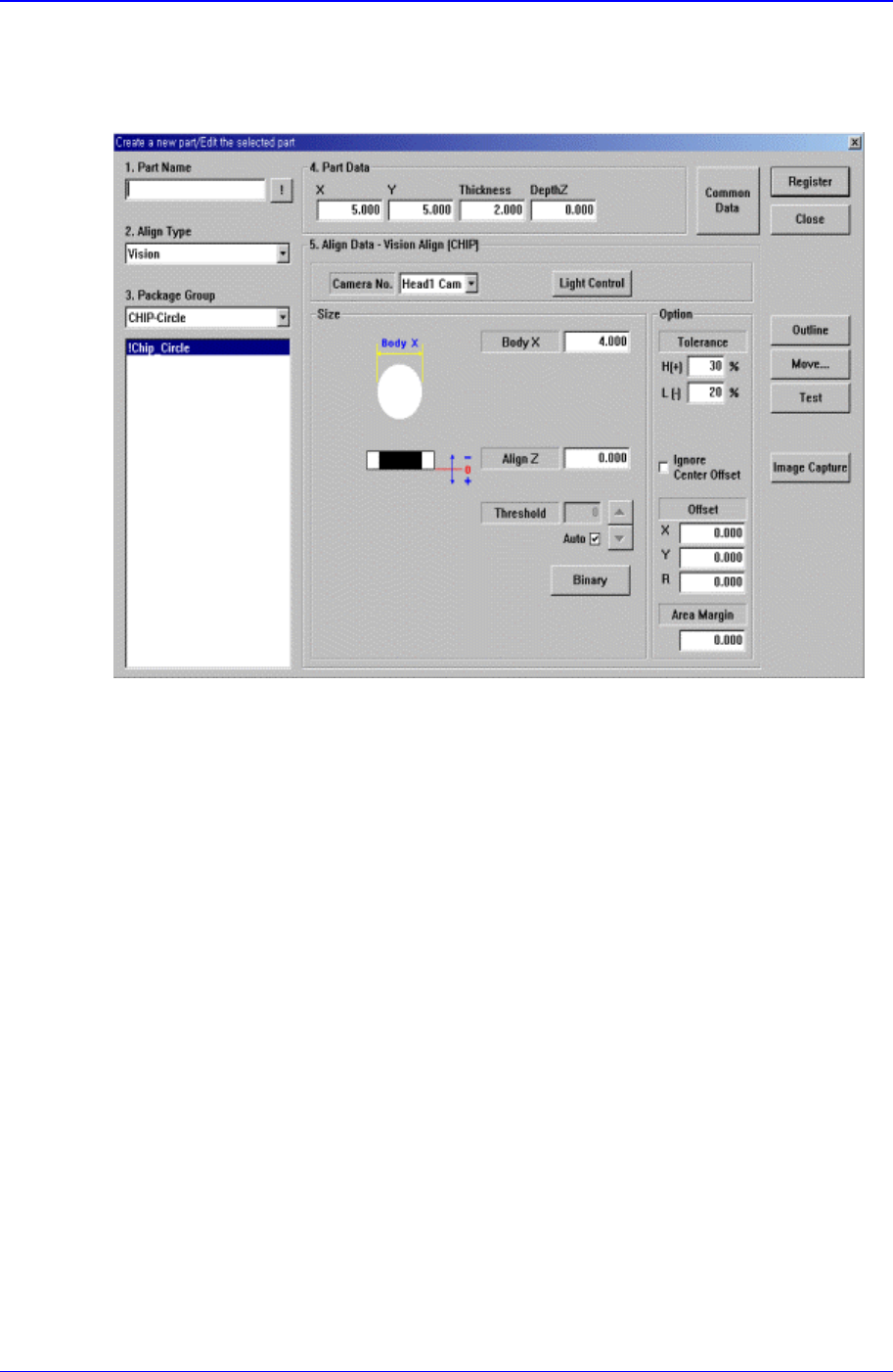
11.1.1. CHIP-Circle component data setting
Set the align data for circular CHIP components.
Figure 11-23. “Align Type = Vision,, Package Group = CHIP-Circle” dialog box
<Camera No.> combo box
Select the camera to recognize the component. Available cameras are as follows.
Fix1 Cam: Fix Camera1. (If Fix Camera1 is installed)
Fix2 Cam: Fix Camera2. (If Fix Camera2 is installed)
Fix3 Cam: Fix Camera3. (If Fix Camera3 is installed)
Head1 Cam: Fly Camera for Head1.
Head2 Cam: Fly Camera for Head2.
Head3 Cam: Fly Camera for Head3.
Head4 Cam: Fly Camera for Head4.
Head5 Cam: Fly Camera for Head5.
Head6 Cam: Fly Camera for Head6.
<Light Control> button
Sets the lighting for the camera to recognize the component. When this button is
clicked on, the following dialog box is displayed.